What Is Adobe Synchronizer
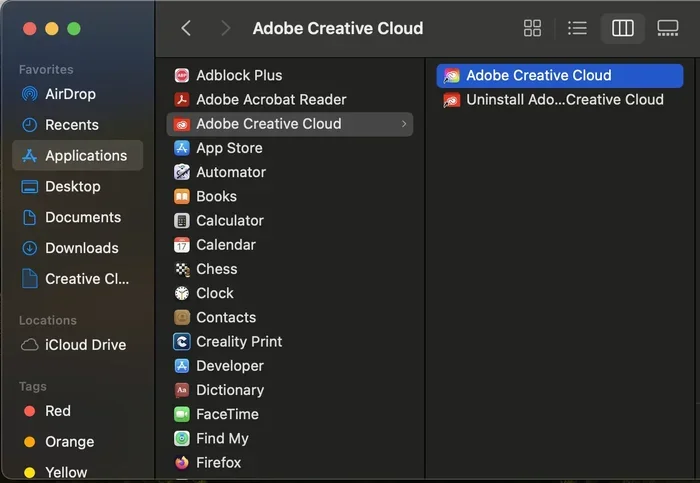
Adobe Synchronizer is a cloud-based sync tool that keeps your Adobe Creative Cloud settings, presets, and preferences consistent across multiple computers. It saves time by eliminating manual setup on every device you use. Whether you work at home and the office, Adobe Synchronizer ensures your creative environment stays seamless and ready to go.
If you work across more than one computer, you know how frustrating it can be to redo your settings every time you sit down at a different machine. That is exactly the problem Adobe Synchronizer was built to solve. It is a small but powerful tool that keeps your Adobe Creative Cloud experience consistent no matter which device you are using.
Think about all the time you spend tweaking preferences, organizing presets, and configuring panels in Adobe apps. Now imagine losing all of that every time you switch computers. Adobe Synchronizer eliminates that headache by automatically backing up and restoring your settings through the cloud. It is one of those behind-the-scenes tools that you barely notice when it works, but you really miss it when it does not.
In this guide, we will walk through everything you need to know about Adobe Synchronizer. We will cover what it does, how it works, which Adobe apps support it, and how to get it set up on your own machines. By the end, you will understand why this tool is a must-have for anyone who uses Adobe products on multiple devices.
Key Takeaways
- Seamless Cross-Device Sync: Adobe Synchronizer automatically mirrors your settings and presets between machines.
- Time-Saving Workflow: No need to reconfigure Adobe apps every time you switch computers.
- Works with Multiple Adobe Apps: Supports Lightroom, Photoshop, Bridge, and more.
- Requires Adobe Creative Cloud: You must have an active Creative Cloud subscription to use it.
- Lightweight and Background: The tool runs quietly without slowing down your system.
- Cloud-Based Storage: Your synced data lives in the cloud, making it accessible anywhere.
- Easy to Set Up: Signing in and enabling sync takes just a few minutes.
📑 Table of Contents
What Is Adobe Synchronizer?
Adobe Synchronizer is a built-in feature within the Adobe Creative Cloud desktop app. Its main job is to sync your personal Adobe settings across all the computers you use. This includes things like workspace layouts, keyboard shortcuts, presets, and other custom configurations.
When you sign into Creative Cloud on a new computer, Adobe Synchronizer pulls down your saved preferences from the cloud. This means your Photoshop workspace looks the same on your laptop as it does on your desktop. The same goes for Lightroom presets, Bridge panels, and other app-specific settings.
The tool operates behind the scenes. You do not need to manually trigger a sync every time. As long as you are connected to the internet and signed into your Adobe account, Adobe Synchronizer keeps everything up to date automatically. This is very similar to how a SaaS environment works, where your data and preferences live in the cloud and follow you across devices.
What Does Adobe Synchronizer Sync?
Adobe Synchronizer handles a wide range of settings and data. Here is a breakdown of what gets synced:
- Workspace Layouts: Panel positions, dock arrangements, and custom workspaces in apps like Photoshop and Premiere Pro.
- Keyboard Shortcuts: Your personalized shortcut keys carry over to every machine.
- Lightroom Presets: Custom presets you have created or imported sync across devices.
- Bridge Settings: Panel configurations, favorite folders, and metadata templates.
- Color Settings: Monitor profiles and color management preferences.
- Creative Cloud Libraries: Shared assets, colors, character styles, and graphics stored in your libraries.
Not everything syncs through Adobe Synchronizer, though. Your actual project files and raw photo libraries stay on your local storage. The sync is focused on your preferences and creative settings, not your files. This is an important distinction that keeps things lightweight and fast.
How Does Adobe Synchronizer Work?
The way Adobe Synchronizer operates is straightforward. It uses your Adobe Creative Cloud account as the central hub. Every time you make a change to your settings in any Adobe app, that change gets uploaded to Adobe’s cloud servers. When you open the same app on another computer, the sync tool downloads those updated settings.
Here is the basic flow:
- You adjust a setting in an Adobe app on Computer A.
- Adobe Synchronizer detects the change and uploads it to the cloud.
- You open the same Adobe app on Computer B.
- The sync tool downloads the updated settings and applies them automatically.
This process happens in the background. You do not need to do anything special. As long as both computers have an active internet connection and you are signed into the same Adobe account, the sync stays current. It is a very hands-off process, which is part of what makes it so convenient.
One thing to keep in mind is that Adobe Synchronizer relies on your cloud storage quota. Your synced settings take up very little space, so this should not be a concern for most users. If you are curious about how much cloud storage you actually need, you might want to check out what the biggest NVMe SSD options are for local storage, since your synced preferences are separate from your file storage needs.
Which Adobe Apps Support Synchronization?
Adobe Synchronizer works with a broad range of Adobe Creative Cloud applications. Not every app syncs the same settings, but the core functionality is consistent across the lineup. Here are the apps that benefit from the sync feature:
- Photoshop: Workspace layouts, keyboard shortcuts, color settings, and actions.
- Lightroom Classic: Presets, catalog settings, and import/export preferences.
- Lightroom (Cloud): Presets and profile settings sync across desktop and mobile.
- Illustrator: Workspace configurations, presets, and tool preferences.
- Premiere Pro: Sequence settings, keyboard shortcuts, and panel layouts.
- After Effects: Workspace layouts and composition defaults.
- Adobe Bridge: Panel layouts, metadata templates, and favorite locations.
- InDesign: Workspace settings and keyboard shortcuts.
The list above covers the major apps, but the sync capability extends to many other Adobe products as well. The key takeaway is that if you use Adobe Creative Cloud, there is a good chance Adobe Synchronizer can help you maintain a consistent setup. This is especially valuable if your project management workflow spans multiple Adobe applications and multiple machines.
System Requirements and Setup
Setting up Adobe Synchronizer is incredibly simple. Since it is built into Creative Cloud, there is no separate download or installation. Here is what you need:
Minimum Requirements
- Operating System: Windows 10 or later, or macOS 10.14 (Mojave) or later.
- Adobe Creative Cloud: An active subscription to any Creative Cloud plan.
- Internet Connection: Required for initial sync and ongoing updates.
- Adobe Account: A free Adobe ID linked to your Creative Cloud subscription.
- RAM: Your system should meet the standard RAM requirements for Adobe apps, typically at least 8 GB for smooth performance.
How to Enable Syncing
Enabling Adobe Synchronizer takes just a few steps:
- Open the Creative Cloud desktop app on your computer.
- Click on your profile icon in the top-right corner.
- Go to Preferences and look for the Sync or Creative Cloud Sync section.
- Toggle on the sync option for settings and preferences.
- Sign out and sign back in on your other computer to pull down your synced settings.
That is it. Once sync is enabled, Adobe Synchronizer handles everything else automatically. You can verify that your settings are syncing by making a small change on one computer and checking if it appears on the other within a few minutes.
Benefits of Using Adobe Synchronizer
Adobe Synchronizer offers several real advantages for anyone who works across multiple devices. Here are the biggest benefits:
Save Time on Setup
The most obvious benefit is time savings. Setting up Adobe apps from scratch on a new computer can take hours. You have to rearrange panels, reimport presets, and reconfigure shortcuts. With Adobe Synchronizer, all of that happens automatically.
Consistent Workflow
When your settings are the same on every machine, your workflow stays consistent. You do not have to adjust to a different workspace every time you switch computers. This consistency reduces errors and helps you stay focused on your creative work rather than on configuration.
Peace of Mind
Since your synced settings live in the cloud, you do not have to worry about losing them. If your hard drive fails or you switch to a new computer, your Adobe preferences are safely stored online and ready to restore. This is a form of workflow optimization that many people overlook until they need it.
Easy Collaboration
If you share a workstation or use a company-issued laptop in addition to your personal machine, Adobe Synchronizer makes transitions seamless. You can move between devices without missing a beat.
Common Issues and How to Fix Them
While Adobe Synchronizer is generally reliable, you may occasionally run into issues. Here are the most common problems and their solutions:
- Sync Not Triggering: Make sure you are signed into the same Adobe account on both computers and that your internet connection is stable.
- Settings Not Appearing: Try signing out of Creative Cloud and signing back in. This forces a fresh sync pull from the cloud.
- Conflicting Settings: If you made different changes on two computers while offline, Adobe will prompt you to choose which version to keep.
- Slow Sync Times: Large amounts of synced data or a slow internet connection can delay the process. Check your system performance to make sure your hardware is not bottlenecking the sync.
Most sync issues are easy to resolve and do not indicate a deeper problem. Adobe has improved the sync reliability significantly over the years, and Adobe Synchronizer continues to get better with each Creative Cloud update.
Adobe Synchronizer and the Broader Creative Cloud Ecosystem
Adobe Synchronizer is just one piece of the larger Creative Cloud ecosystem. Adobe has built a comprehensive suite of cloud-based tools that work together to keep your creative life organized. From cloud storage to shared libraries to cross-device app access, the ecosystem is designed to make your work portable and accessible.
The sync tool fits naturally into this vision. It ensures that your personal preferences follow you, just like your files and assets do through Creative Cloud Libraries and cloud storage. Understanding how all these pieces fit together helps you get the most out of your Adobe subscription.
For those exploring other cloud-based tools and platforms, it is worth noting that Adobe’s approach to sync and collaboration shares similarities with broader SaaS platforms. The underlying principle is the same: your data lives in the cloud, and you access it from anywhere with an internet connection.
Final Thoughts
Adobe Synchronizer is one of those tools that you do not think about much until you need it. And when you do need it, you will be glad it is there. It quietly handles the tedious work of keeping your Adobe settings consistent across every computer you use. Whether you are a photographer, designer, video editor, or any other creative professional, this sync tool saves you time and reduces frustration.
If you are still running Adobe apps on multiple machines without enabling sync, now is the perfect time to turn it on. The setup takes minutes, and the payoff in daily convenience is significant. Embrace the cloud-powered workflow and let Adobe Synchronizer handle the rest.
Frequently Asked Questions
Is Adobe Synchronizer free to use?
Yes, Adobe Synchronizer is included at no extra cost with any active Adobe Creative Cloud subscription. There is no separate fee or add-on purchase required. As long as you have a valid Creative Cloud account, the sync feature is available to you.
Does Adobe Synchronizer sync my project files?
No, Adobe Synchronizer only syncs your preferences, settings, and presets. Your actual project files, photos, and documents remain on your local storage. If you want to sync files across devices, you should use Adobe Creative Cloud storage or another cloud file service.
Can I use Adobe Synchronizer on more than two computers?
Yes, you can enable sync on as many computers as you want, as long as you sign into the same Adobe Creative Cloud account on each one. Your settings will stay consistent across all of them. This makes it ideal for people who work from home, the office, and a laptop on the go.
How long does it take for Adobe Synchronizer to sync settings?
Most syncs complete within a few minutes of making a change. The exact time depends on your internet connection speed and the amount of data being synced. In most cases, you will not even notice the sync happening because it runs quietly in the background.
What should I do if my settings are not syncing properly?
First, make sure you are signed into the same Adobe account on both computers. Next, check that your internet connection is stable. If the problem persists, try signing out of Creative Cloud and signing back in, or restart the Creative Cloud desktop app. This usually forces a fresh sync cycle.
Is Adobe Synchronizer available on mobile devices?
Some sync functionality extends to mobile Adobe apps like Lightroom mobile, where presets and settings can follow your Adobe account. However, the full Adobe Synchronizer experience is designed for desktop Creative Cloud apps. Mobile sync features may be more limited compared to the desktop version.
=== CONCLUSION ===
Adobe Synchronizer is a simple yet essential tool for anyone who uses Adobe Creative Cloud across multiple computers. It keeps your settings, presets, and preferences consistent without any manual effort. By handling the sync automatically in the background, it lets you focus on your creative work instead of on configuration.
The setup is straightforward, the requirements are minimal, and the benefits are substantial. Whether you are a freelancer juggling a home office and a studio, or a team member sharing workstations, Adobe Synchronizer makes your Adobe experience feel unified and seamless. Turn it on today and experience the difference it makes in your daily workflow.