How to Fix the Mouse on My Laptop

A broken or unresponsive laptop mouse can stop your entire workflow cold. Whether your touchpad has stopped responding, your wireless mouse keeps disconnecting, or your cursor has disappeared entirely, most problems have simple fixes you can handle yourself. This guide walks you through every common laptop mouse issue with clear, practical solutions that get you back to work fast.
Key Takeaways
- Most laptop mouse issues are software-related and can be fixed by adjusting settings, updating drivers, or restarting your system.
- Keyboard shortcuts like Fn + function keys can instantly unlock a disabled touchpad without any technical knowledge.
- Outdated or corrupted mouse drivers are one of the most common causes of mouse problems on laptops.
- External mouse issues often come down to dead batteries, loose USB receivers, or Bluetooth pairing problems.
- Windows Settings and Device Manager are your two most powerful tools for diagnosing and fixing mouse problems.
- Physical damage or hardware failure is rare but possible, and may require professional repair or a replacement mouse.
- Keeping your operating system updated prevents many mouse-related issues from occurring in the first place.
📑 Table of Contents
Why Your Laptop Mouse Stops Working
Few things are more frustrating than a mouse that suddenly stops cooperating. You are in the middle of an important project, your deadline is looming, and the cursor just sits there mocking you. Or worse, the cursor vanishes entirely. Before you panic or rush to buy a new laptop, take a deep breath. The truth is that most laptop mouse problems are surprisingly easy to resolve once you know what to look for.
Your laptop mouse, whether it is the built-in touchpad or an external device, relies on a combination of hardware and software working together. When one piece of that puzzle falls out of place, things go sideways. The good news is that the majority of these issues stem from simple settings changes, driver glitches, or minor connection hiccups. You do not need to be a tech expert to figure this out.
In this guide, we will walk through every common scenario. Your touchpad might be disabled. Your wireless mouse might need a fresh pairing. A recent update might have messed with your drivers. Whatever the case, you will find a clear solution here. Let us dive in and get your mouse back on track.
How to Fix the Touchpad Mouse on Your Laptop
The touchpad is the built-in mouse on every laptop. It sits right below your keyboard and lets you control the cursor without any external device. When it stops working, it can feel like your laptop is broken. But in most cases, the fix is just a few clicks or keystrokes away.
Check If the Touchpad Is Disabled
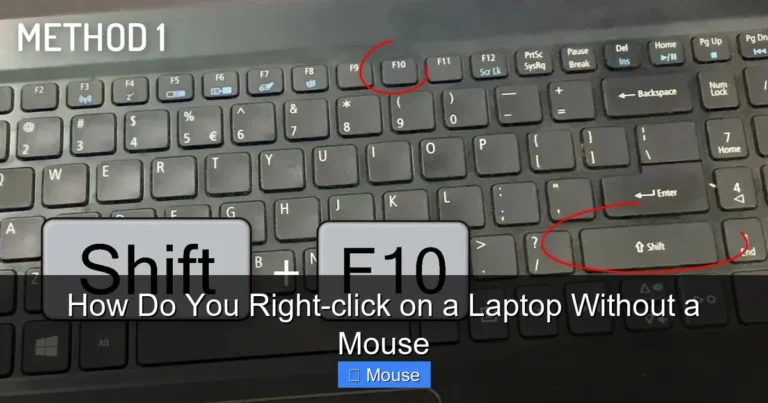
This is the number one reason touchpads stop working. Many laptops have a keyboard shortcut that turns the touchpad on and off. You might have pressed it by accident. Look at the top row of your keyboard for a function key with a touchpad icon. It is usually F5, F7, F9, or F11, depending on your laptop brand. Hold down the Fn key and tap that function key once. Wait a few seconds and test your touchpad.
If you are not sure which key to press, look for a small icon that looks like a touchpad with a line through it. On some laptops, there is a dedicated button near the touchpad itself. Press it and see if that brings your cursor back to life. For more detailed instructions on this specific issue, check out our guide on how to unlock the mouse on a laptop, which covers every brand and shortcut combination.
Enable the Touchpad Through Windows Settings
If the keyboard shortcut does not work, your touchpad might be turned off in the Windows settings. Here is how to check. Open the Start menu and go to Settings. Click on Devices, then select Touchpad from the left sidebar. Make sure the toggle switch at the top is turned On. While you are here, you can also adjust the sensitivity and other touchpad behaviors to match your preference.
On Windows 11, the path is slightly different. Go to Settings, then Bluetooth and Devices, and click on Touchpad. Again, make sure the toggle is enabled. Some laptops also have a setting that automatically disables the touchpad when an external mouse is plugged in. If you use an external mouse and want the touchpad to stay active, uncheck that option.
Update or Reinstall the Touchpad Driver
Drivers are small software programs that let your operating system communicate with hardware. When a touchpad driver becomes outdated or corrupted, the touchpad can stop responding entirely. To fix this, open Device Manager by right-clicking the Start button and selecting it from the menu. Look for Mice and Other Pointing Devices or Human Interface Devices. Expand the list and find your touchpad.
Right-click on the touchpad entry and select Update Driver. Choose the option to search automatically for drivers. If Windows finds a newer version, install it and restart your laptop. If updating does not help, go back and try this instead. Right-click the touchpad entry again, select Uninstall Device, and then restart your computer. Windows will automatically reinstall a fresh copy of the driver on reboot. This often resolves stubborn touchpad issues. Our article on how to fix touchpad mouse on laptop goes even deeper into driver troubleshooting if you need extra help.
Check for Windows Updates
Sometimes a Windows update includes fixes for known touchpad problems. If you have been postponing updates, now is the time to install them. Go to Settings, then Windows Update, and click Check for Updates. Install everything that is available and restart your laptop. After the restart, test your touchpad again. Many users find that a pending update was the root cause of their mouse troubles all along.
How to Fix an External Mouse on Your Laptop
External mice offer more precision and comfort than most touchpads. But they come with their own set of potential problems. Whether you use a wired USB mouse or a wireless Bluetooth model, the troubleshooting steps are straightforward.
Wired Mouse Not Responding
Start with the basics. Unplug the mouse from the USB port and plug it into a different port. Sometimes a specific USB port fails while others work perfectly. If that does not help, try the mouse on a different computer. If it works there, the problem is with your laptop, not the mouse. If it does not work on any computer, the mouse itself may be damaged and needs replacing.
Next, check Device Manager. Look under Mice and Other Pointing Devices. If you see a yellow warning triangle next to your mouse, that signals a driver problem. Right-click the entry, select Update Driver, and follow the prompts. If the mouse does not appear in Device Manager at all, try restarting your laptop with the mouse plugged in. Windows should detect it automatically on boot.
Wireless Mouse Connection Issues
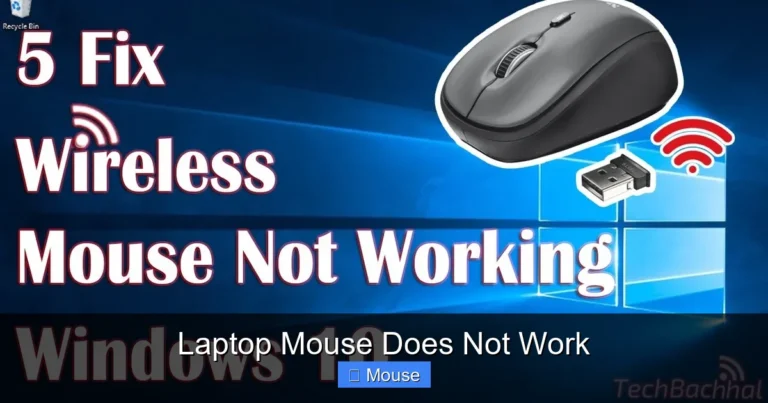
Wireless mice rely on either a USB receiver or Bluetooth. If your mouse uses a small USB dongle, make sure it is fully inserted into the port. Try a different USB port if the mouse is not responding. If your mouse connects via Bluetooth, open your Bluetooth settings and make sure the mouse is paired and connected. Remove the device from the Bluetooth list and pair it again from scratch if necessary.
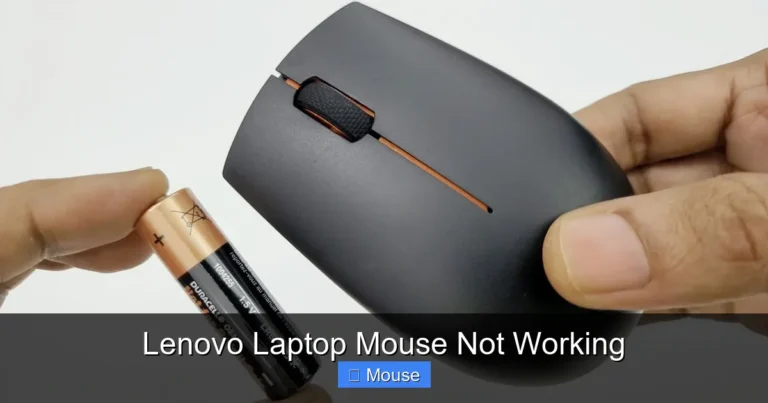
Batteries are another common culprit. If your wireless mouse has replaceable batteries, swap in fresh ones. If it has a built-in rechargeable battery, plug it in and let it charge for at least 30 minutes before testing. A low battery can cause erratic behavior, slow response, or a complete loss of connection. For a complete walkthrough on wireless connections, visit our guide on how to connect a wireless mouse to a laptop.
Mouse Cursor Disappears or Freezes
A cursor that freezes or disappears is often a software issue rather than a hardware one. Press Ctrl + Alt + Delete on your keyboard. If the Windows security screen appears, your system is still running. Press Escape and see if the cursor returns. If not, try pressing the Windows key to open the Start menu and navigate to Settings using the arrow keys and Enter.
Another trick is to press the Alt + Tab keys to switch between open applications. Sometimes the cursor is active but invisible due to a display glitch. If the problem persists, boot your laptop into Safe Mode. This loads Windows with only essential drivers. If the mouse works in Safe Mode, a third-party program or driver is likely causing the conflict. You can then systematically disable startup programs to find the culprit.
How to Fix Mouse Settings in Windows
Windows gives you extensive control over how your mouse behaves. Sometimes the settings get changed accidentally, leading to a mouse that feels broken even though it is technically working.
Adjust Mouse Speed and Sensitivity
If your cursor moves too fast or too slow, the fix is in the settings. Go to Settings, then Devices, then Mouse. Here you can adjust the cursor speed slider to your liking. You can also change the primary button from left to right if you are left-handed. Under the Additional Mouse Options link, you can fine-tune pointer precision and other advanced behaviors.
For touchpad users, sensitivity settings are equally important. A touchpad set to low sensitivity requires more finger movement, which can feel sluggish. A touchpad set to high sensitivity might register accidental touches. Find the sweet spot by testing different levels in the touchpad settings menu.
Disable Enhanced Pointer Precision
Enhanced Pointer Precision is a Windows feature that adjusts mouse speed based on how fast you move the mouse. Some people find this unpredictable and annoying. To turn it off, go to Settings, then Devices, then Mouse, and click Additional Mouse Options. Go to the Pointer Options tab and uncheck the box next to Enhance Pointer Precision. Click Apply and test your mouse. Many users report that turning this off makes their mouse feel more consistent and reliable.
Reset Mouse Settings to Default
If you have changed multiple settings and nothing feels right anymore, consider resetting everything to the default values. In the mouse properties window, look for a button or option to restore defaults. On some laptops, the manufacturer provides its own mouse configuration software. Open that software and look for a reset or restore option. This can undo any accidental changes and get your mouse back to its original behavior.
How to Fix Mouse Driver Problems
Drivers are the unsung heroes of your laptop experience. When they work, you never think about them. When they fail, everything falls apart. Mouse driver problems are among the most common causes of cursor issues, and fixing them is usually painless.
Identify Driver Issues in Device Manager
Device Manager is your best friend for diagnosing driver problems. Open it by right-clicking the Start button. Expand the Mice and Other Pointing Devices section. If you see a yellow triangle with an exclamation mark, that device has a problem. If you see a red X, the device is disabled. Right-click the problematic entry and check the status. Windows will often tell you exactly what is wrong in plain language.
Roll Back a Problematic Driver
Did your mouse stop working right after a driver update? The new driver might be the problem. In Device Manager, right-click your mouse device and select Properties. Go to the Driver tab and click Roll Back Driver. This reverts to the previous version of the driver. If the Roll Back button is grayed out, there is no previous version available, so you will need to try a different approach.
Download Drivers from the Manufacturer
Windows Update does a decent job of finding drivers, but it does not always get the latest version. Visit your laptop manufacturer’s website and look for the support or drivers section. Enter your laptop model number and download the latest touchpad or pointing device driver. Install it manually and restart your laptop. This is especially important for laptops with advanced touchpad features like multi-touch gestures.
How to Fix a Laptop Mouse After an Update
Operating system updates are supposed to make things better. But sometimes they introduce new bugs that break existing functionality. If your mouse stopped working right after a Windows update, you are not imagining things.
Uninstall Recent Updates
Go to Settings, then Windows Update, and click on Update History. Look for an option to uninstall updates. Find the most recent update and remove it. Restart your laptop and test your mouse. If the problem goes away, you have found the culprit. You can pause updates temporarily while Microsoft works on a fix.
Use System Restore
System Restore lets you roll your entire system back to a previous state. Type “Create a restore point” in the Windows search bar and open the System Properties window. Click System Restore and choose a restore point from before the mouse problem started. Follow the prompts and let your laptop restart. This undoes system changes without affecting your personal files. It is a powerful tool for undoing the damage caused by a bad update.
When to Seek Professional Help
Most laptop mouse issues can be resolved at home with the steps above. But sometimes the problem is physical hardware damage. If you have tried every software fix and your mouse still does not work, it might be time to consult a professional.
Signs of Hardware Failure
Look for physical damage to the touchpad, such as cracks, loose sections, or areas that feel different when you press them. For external mice, check for frayed cables, broken buttons, or a sensor that does not light up. If your touchpad works in the BIOS but not in Windows, that points to a software issue. If it does not work in the BIOS either, the hardware itself may be faulty.
Getting Your Laptop Repaired
If your laptop is still under warranty, contact the manufacturer for a free repair or replacement. If the warranty has expired, look for a reputable local repair shop. Get a quote before agreeing to any work. In some cases, the cost of repairing a touchpad approaches the price of a new laptop, so weigh your options carefully. A reliable external mouse is always a practical fallback while you decide.
Conclusion
Dealing with a broken laptop mouse is never fun, but it is rarely as catastrophic as it first appears. In the vast majority of cases, the problem comes down to a disabled touchpad, a driver glitch, a dead battery in a wireless mouse, or a setting that got changed without you noticing. With a little patience and the systematic approach outlined in this guide, you can diagnose and fix most issues in under fifteen minutes.
Start with the simplest solutions first. Try the keyboard shortcut. Check the settings. Update the drivers. Work your way through the list until you find the fix that works for your specific situation. And remember, if all else fails, an external USB mouse costs just a few dollars and will get you back to work immediately while you figure out the bigger problem.
The key takeaway is this: do not panic. Your laptop is not broken. Your data is safe. A few clicks and keystrokes are usually all it takes to get your mouse back in action. Bookmark this guide so you can refer to it the next time your cursor decides to take an unplanned vacation.
Frequently Asked Questions
Why did my laptop mouse stop working suddenly?
Sudden mouse failures are usually caused by an accidental keyboard shortcut that disables the touchpad, a driver crash, or a recent Windows update that changed settings. Start by pressing the Fn key with the touchpad function key to re-enable it.
How do I fix my touchpad if it is not responding at all?
First, try the keyboard shortcut to toggle the touchpad on. If that fails, go to Windows Settings, then Devices, then Touchpad, and make sure the toggle is enabled. If the touchpad still does not work, update or reinstall the driver through Device Manager.
Can I use my laptop mouse without a touchpad or external mouse?
Yes, Windows has a feature called Mouse Keys that lets you control the cursor using the numeric keypad. Press Left Alt + Left Shift + Num Lock to enable it, then use the number keys on the keypad to move the cursor around the screen.
Why does my wireless mouse keep disconnecting?
Wireless mice often disconnect due to low batteries, a loose USB receiver, or Bluetooth interference. Replace the batteries, try a different USB port for the receiver, and make sure other Bluetooth devices are not causing signal conflicts.
How do I know if my mouse problem is hardware or software?
Boot your laptop into the BIOS settings by pressing F2 or Delete during startup. If the mouse works in BIOS but not in Windows, the issue is software-related. If it does not work in BIOS either, the hardware itself may be damaged.
Will restarting my laptop fix mouse problems?
Yes, a simple restart resolves many temporary glitches. It refreshes drivers, clears memory issues, and resets hardware connections. Always try restarting before moving on to more advanced troubleshooting steps.