How To Get Better Mouse Control And Boost Your Accuracy
Want to get better mouse control and boost your accuracy? This guide covers everything from adjusting your mouse settings and fixing common problems to choosing the right hardware for smoother cursor movement. You will learn practical tips that work for both everyday tasks and gaming. Whether you use a laptop touchpad or a wireless mouse, these steps will help you take full control.
Struggling with a jumpy or unresponsive cursor? You are not alone. Many people deal with poor mouse control every day, especially when working on a laptop or switching to a new setup. The good news is that fixing this issue is usually simple and takes just a few minutes.
In this guide, we will walk you through everything you need to know about how to get better mouse control and boost your accuracy. From basic settings adjustments to hardware upgrades, you will find clear steps that work right away. Let us dive in.
Key Takeaways
- Adjust Your Pointer Speed: Finding the right sensitivity setting is the single biggest step to better mouse control.
- Clean Your Hardware Regularly: Dust and debris on your sensor or mouse pad can seriously hurt accuracy.
- Upgrade When Needed: A quality gaming or wireless mouse can dramatically improve your cursor precision.
- Use Proper Grip Techniques: How you hold your mouse affects speed, comfort, and tracking accuracy.
- Disable Mouse Acceleration: Turning this off gives you consistent, predictable cursor movement every time.
- Practice Makes Perfect: Simple daily exercises can sharpen your mouse skills faster than you think.
📑 Table of Contents
Understanding Mouse Control Basics
Before you change any settings, it helps to understand what mouse control actually means. At its core, mouse control is how accurately your cursor moves on screen in response to your hand movements. Several factors affect this, and knowing them puts you ahead of most users.
What Affects Mouse Accuracy?
Several things influence how well your mouse tracks and responds:
- Sensor Quality: The sensor inside your mouse reads surface movement. A low-quality sensor can cause jitter or lag.
- Mouse Pad Surface: A smooth, consistent surface helps the sensor track better than a rough or uneven one.
- Pointer Speed Settings: If your speed is too high or too low, your cursor will feel unpredictable.
- Mouse Acceleration: This feature changes cursor speed based on how fast you move the mouse, which can hurt precision.
- Cable or Connection Quality: Wireless interference or a damaged cable can cause stuttering cursor movement.
Once you understand these factors, you can start troubleshooting the exact issue slowing you down. Most people find that just tweaking one or two settings makes a huge difference.
Adjusting Your Mouse Settings For Better Control
The fastest way to improve your cursor accuracy is through your operating system settings. You do not need to be a tech expert to make these changes. A few clicks can transform how your mouse feels.
Step 1: Adjust Pointer Speed
Go to your mouse settings and find the pointer speed slider. Move it to a medium level first. Too fast, and you will overshoot targets. Too slow, and every task feels sluggish. The sweet spot is where your hand feels natural and your cursor lands exactly where you want it.
Step 2: Turn Off Mouse Acceleration
Mouse acceleration makes your cursor travel farther when you move the mouse quickly. This sounds helpful, but it actually breaks your muscle memory. Disabling mouse acceleration gives you consistent, predictable movement every time. Most users notice an immediate improvement in accuracy.
Step 3: Calibrate Your Touchpad (For Laptop Users)
If you use a laptop touchpad, go into your touchpad settings and adjust the sensitivity. Many laptops ship with the touchpad set too sensitive, causing accidental clicks and erratic cursor jumps. Reducing the sensitivity slightly can make a big difference. You can also check your laptop manufacturer’s support page for specific calibration tips.
Hardware Upgrades That Improve Mouse Control
Sometimes software tweaks are not enough. Your hardware plays a huge role in how well you can control your cursor. Upgrading the right piece of equipment can take your accuracy to the next level.
Choose The Right Mouse For Your Needs
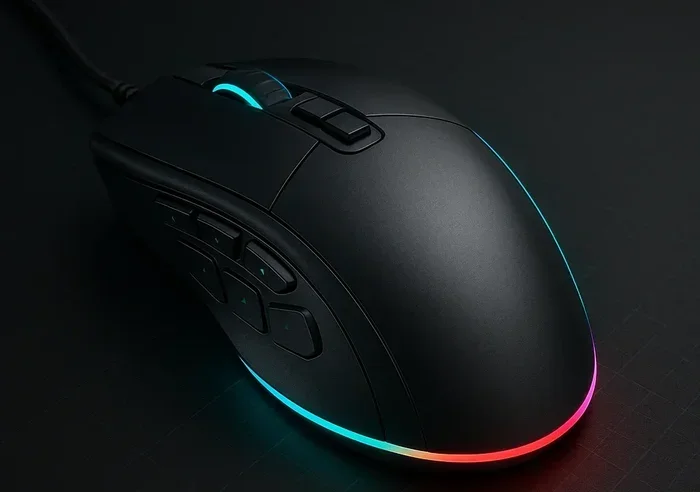
A quality mouse makes a noticeable difference. If you work with design software or play games, a gaming mouse with adjustable DPI settings gives you full control over sensitivity. For everyday tasks, a standard wireless mouse with a good optical sensor works great. When choosing, look for mice with high DPI counts and responsive sensors.
Also consider how you plan to use your mouse. If you need to use a mouse on your laptop throughout the day, comfort and ergonomics matter just as much as accuracy. A mouse that fits your hand well reduces fatigue and helps you maintain steady control for hours.
Invest In A Good Mouse Pad
This tip surprises many people. A quality mouse pad provides a consistent surface that helps your sensor track smoothly. Cheap, thin mouse pads with uneven surfaces cause tracking errors and cursor jumps. A medium-sized pad with a cloth or hard surface gives your mouse room to move freely and accurately.
Keep Your Mouse Clean
Dust, hair, and crumbs can get inside your mouse and affect the sensor. Clean your mouse regularly with a soft cloth. For optical sensors, make sure the bottom of the mouse is free of debris. A clean mouse tracks better and lasts longer.
Tips To Improve Mouse Accuracy Right Now
You do not need to buy anything to start improving your mouse control today. These simple tips work immediately and require zero investment.
Practice The Fitts’s Law Technique
Fitts’s Law is a principle that says larger, closer targets are easier to click. You can use this to your advantage by arranging your desktop icons and UI elements to reduce long cursor travels. Keep your most-used apps close to your cursor’s resting position.
Use Keyboard Shortcuts To Reduce Mouse Dependency
Keyboard shortcuts help you navigate without relying on your mouse as much. This reduces the strain on your cursor accuracy and speeds up your workflow. For example, copying and pasting with Ctrl+C and Ctrl+V is faster and more reliable than dragging and dropping with a mouse.
Try Different Grip Styles
How you hold your mouse affects your control. The three main grips are:
- Palm Grip: Your whole hand rests on the mouse. Best for long sessions and relaxed control.
- Claw Grip: Your fingers are curved, and only your palm and fingertips touch the mouse. Great for quick, precise clicks.
- Fingertip Grip: Only your fingertips touch the mouse. Offers the fastest movement but requires more practice.
Experiment with each grip to find what feels most natural. Your accuracy will improve once you find your ideal hold.
Fixing Common Mouse Control Problems
Even with the right settings, problems can still pop up. Here are the most common issues and how to fix them fast.
Cursor Jumping or Skipping
If your cursor jumps around unexpectedly, check your mouse pad first. A dirty or reflective surface often causes this. Also make sure no objects are blocking the sensor on the bottom of your mouse. If you are using a wireless mouse, interference from other devices can cause skipping. Moving closer to the USB receiver usually fixes this.
Slow or Lagging Cursor Movement
A slow cursor often means your pointer speed is set too low. Increase it slightly and test again. If you use a wireless mouse, low battery power can also cause lag. Replace the batteries or recharge your mouse to restore smooth movement.
Touchpad Not Responding Properly
If your touchpad stops working or behaves erratically, try restarting your laptop first. If that does not help, check your device manager for driver issues. You can also turn off the touchpad temporarily and use an external mouse until you sort out the driver problem.
How To Get Better Mouse Control For Gaming
Gamers need the highest level of mouse accuracy possible. A slight delay or imprecise click can mean the difference between winning and losing. Here is how serious players fine-tune their setup.
Set Your DPI In Small Increments
Most gaming mice let you adjust DPI on the fly. Start at a medium DPI (around 800 to 1200) and increase in small steps. Higher DPI means faster cursor movement, but too high and you lose precision. Find the DPI setting that feels smooth and responsive for your favorite game.
Use In-Game Sensitivity Settings
Many games have their own sensitivity sliders. Adjust these alongside your mouse DPI for the best results. A common approach is to keep your mouse DPI moderate and fine-tune the in-game sensitivity until your aim feels natural.
Reduce Input Lag
Input lag is the delay between your mouse movement and the cursor response on screen. To reduce it, use a wired connection when possible, update your mouse drivers regularly, and close background programs that consume processing power. A smooth, lag-free setup gives you the competitive edge you need.
Remember, improving your mouse control is a journey. Start with the settings and tips above, and practice consistently. Over time, you will see real progress in your accuracy and speed.
Conclusion
Getting better mouse control is within reach for everyone. You now have the tools to adjust your settings, choose better hardware, and practice techniques that boost your accuracy. Start with the quick fixes, then explore the hardware upgrades if you want even more precision.
Your mouse is one of the most important tools you use every day. Taking a little time to optimize it pays off in comfort, speed, and accuracy. Apply what you learned today, and you will notice the difference right away. Happy clicking!
Frequently Asked Questions
Why Is My Mouse So Hard To Control?
Uncontrollable cursor movement usually comes from incorrect pointer speed settings, a dirty sensor, or a poor mouse pad surface. Start by adjusting your pointer speed to a medium level and cleaning the bottom of your mouse. If the problem continues, try using a different mouse pad or switching to an external mouse.
How Do I Get My Mouse Cursor To Move Smoothly?
Smooth cursor movement comes from disabling mouse acceleration, setting your pointer speed to a comfortable medium level, and using a clean, flat mouse pad. If you use a wireless mouse, make sure the batteries are fresh and the USB receiver is close to the mouse. These simple steps eliminate stuttering and jerky movement.
Does A Gaming Mouse Really Improve Accuracy?
Yes, a gaming mouse with a high-quality optical sensor and adjustable DPI gives you much better control than a basic office mouse. The difference is especially noticeable during fast movements or precise tasks. However, a good mouse pad and proper settings matter just as much as the mouse itself.
How Can I Use My Laptop Without A Mouse?
You can navigate your laptop using the built-in touchpad or keyboard shortcuts. If your touchpad is giving you trouble, you can learn how to work a laptop without a mouse by using keyboard navigation, on-screen keyboards, or connecting an external mouse through USB or Bluetooth.
What Is The Best Mouse Sensitivity For Accuracy?
Most users find the best accuracy at a medium sensitivity setting, typically between 800 and 1200 DPI for gaming mice. Lower DPI settings give you more precise aiming, while higher settings let you move across the screen faster. Experiment with small increments to find what works best for your hand and screen setup.
How Often Should I Clean My Mouse?
You should clean your mouse at least once every two weeks. Wipe the sensor area and the bottom feet with a soft, dry cloth. If you eat or drink near your computer, clean it more often. A clean mouse tracks better and lasts significantly longer than a neglected one.