How to Get Extra Ram on Laptop with Usb
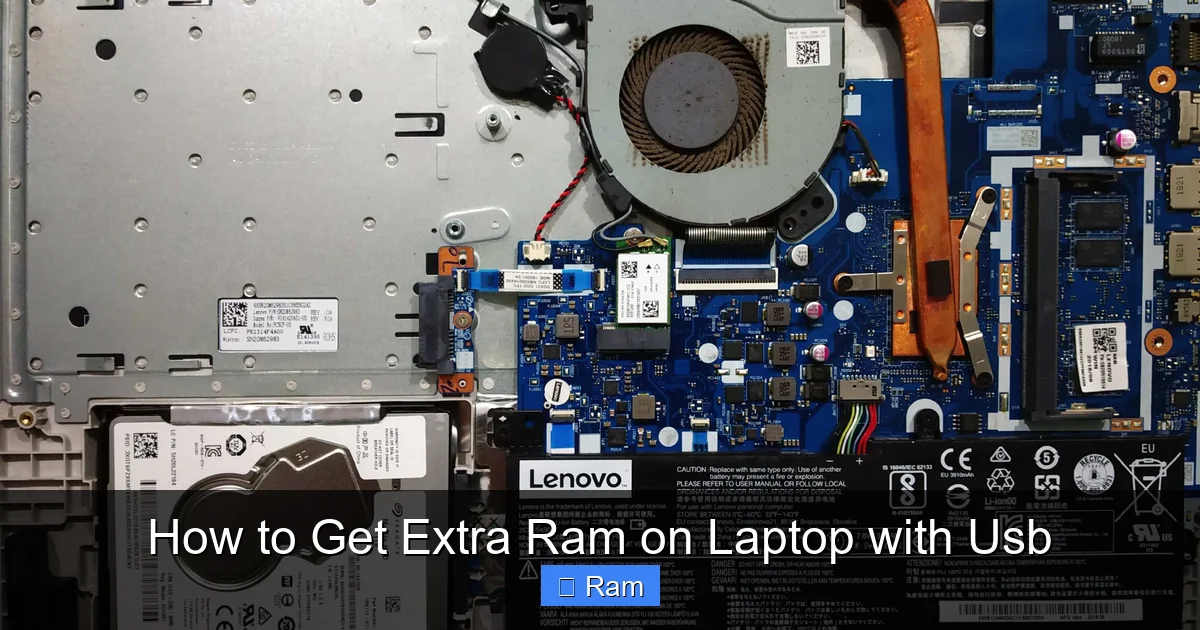
You cannot physically add more RAM to your laptop using a USB port. The USB interface and system architecture are fundamentally incompatible with acting as system memory. However, Windows offers a feature called ReadyBoost that can use a fast USB drive as a disk cache, offering a minor performance boost on very slow systems. For a genuine, significant speed increase, the only true paths are upgrading your laptop’s internal RAM modules (if possible) or, more commonly and effectively, replacing your old hard drive with a fast external or internal SSD.
You’re working on your trusty laptop, and it’s starting to feel sluggish. You’ve got a dozen browser tabs open, a few programs running, and that familiar spinning wheel or “Not Responding” message appears. In a moment of frustration-fueled ingenuity, you wonder: Can I just plug something into my USB port to get extra RAM? It sounds like a simple, cheap fix. The internet is full of weird tech hacks, so why not this one? Before you go hunting for a magical “USB RAM stick,” let’s pull back the curtain on this pervasive myth and explore what you can actually do to give your laptop a new lease on life.
The short, definitive answer is: No, you cannot add physical, usable system RAM (Random Access Memory) to your laptop through a USB port. The technology simply doesn’t work that way. But this isn’t just a dead-end “no.” Understanding why it’s impossible unlocks the path to real, effective solutions that will genuinely improve your laptop’s performance. We’re going to break down the science, debunk the marketing fads, and give you a clear, actionable roadmap to speed up your machine, whether that means a clever Windows feature, a simple internal upgrade, or a transformative storage swap.
Key Takeaways
- Direct USB RAM is impossible: USB ports cannot be recognized as system RAM (DDR SDRAM) by your laptop’s motherboard and operating system due to different protocols, speeds, and architectural requirements.
- ReadyBoost is a cache, not RAM: This Windows feature uses a fast USB flash drive to store frequently accessed data, speeding up systems with very slow hard drives, but it does not increase your available RAM.
- Internal RAM upgrade is the real solution: If your laptop model allows it, purchasing and installing compatible SODIMM RAM modules inside the chassis is the only way to truly increase your available RAM.
- External SSD is the best performance upgrade: For most older laptops, swapping the internal hard disk drive (HDD) for an external USB 3.0/3.1/SSD or cloning the OS to an internal SSD delivers a dramatic overall system responsiveness boost.
- Check compatibility first: Before buying any upgrade, use tools like Crucial System Scanner or your laptop’s manual to determine maximum supported RAM, slot type, and current configuration.
- Understand the bottleneck: If your laptop is slow due to insufficient RAM, you’ll see “Memory” or “RAM” listed as the top resource in Task Manager. If it’s due to storage, “Disk” will be the bottleneck—this is where an SSD helps.
- Modern laptops often have soldered RAM: Many ultrabooks and newer laptops have RAM permanently attached to the motherboard, making internal upgrades impossible and shifting focus to storage and cloud solutions.
📑 Table of Contents
- Why You Can’t Physically Add RAM Through a USB Port
- ReadyBoost: The Legitimate “USB Speed Boost” Feature (And Its Limits)
- The Only Real Way to Get More RAM: Internal Upgrading
- The Most Impactful Upgrade: Swapping to an SSD (Internal or External)
- Performance Optimization Beyond Hardware
- Conclusion: The Smart Path to a Faster Laptop
Why You Can’t Physically Add RAM Through a USB Port
To understand why this is impossible, we need to think about what RAM actually is and how it communicates with your computer’s brain, the CPU (Central Processing Unit).
The Language of RAM vs. The Language of USB
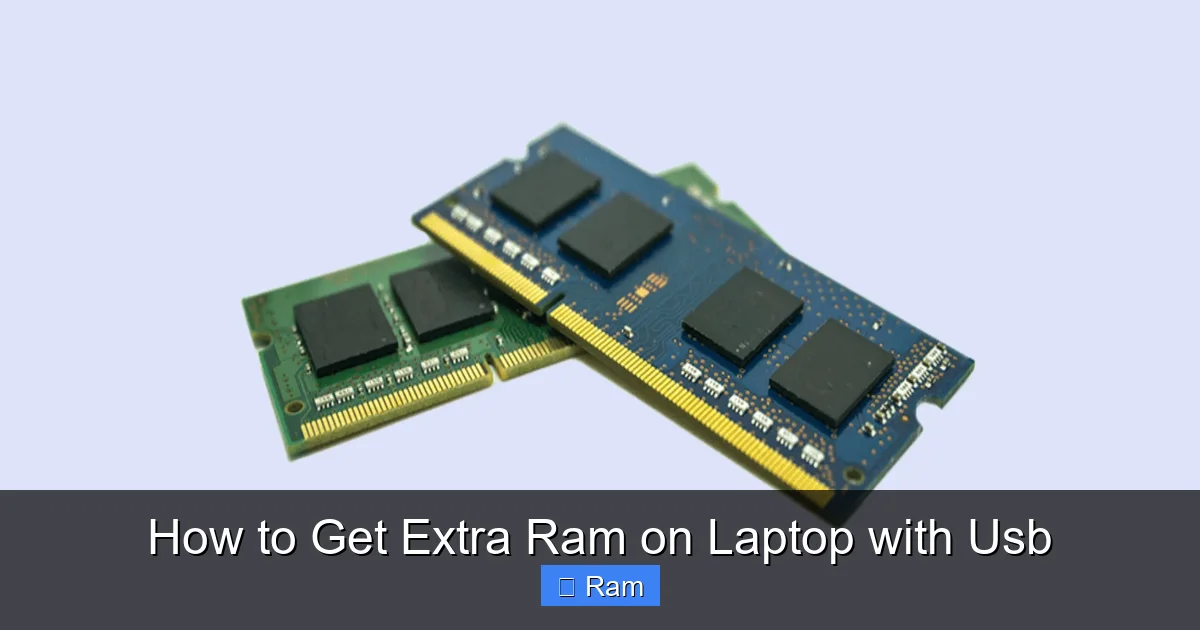
System RAM is a type of volatile memory called DDR SDRAM (Double Data Rate Synchronous Dynamic Random-Access Memory). It’s soldered onto small circuit boards (modules) that plug directly into dedicated slots on your laptop’s motherboard. This connection is a high-speed, low-latency parallel bus designed for one purpose: letting the CPU read from and write to memory billions of times per second. The electrical signaling, data transfer protocol, and physical interface (the notch and pins on a SODIMM stick) are highly specialized and integrated at the hardware level.
A USB port, on the other hand, is a serial bus designed for peripherals—keyboards, mice, flash drives, printers. It uses a completely different communication protocol (USB protocol) managed by a separate chipset called a USB controller. Data travels over USB in packets, with significant overhead for addressing, error checking, and power management. The latency (the delay before a transfer begins) is orders of magnitude higher than the direct pathway to RAM. Your laptop’s BIOS/UEFI and operating system have no mechanism to map a USB-connected device into the system’s physical memory address space as RAM. It’s like trying to have a conversation by shouting across a crowded stadium (USB) versus using a direct, wired intercom system (RAM bus)—the latter is simply built for instant, private communication.
The Architectural Impossibility
Even if you could somehow design a USB device that mimicked the electrical signals of RAM, the fundamental architecture of a PC blocks it. The memory controller, which orchestrates all RAM access, is either integrated into the CPU (in modern systems) or is a dedicated chip on the motherboard. This controller is hardwired to the physical RAM slots. It has no pathway to initiate memory transactions over the USB bus. The operating system’s memory manager also expects RAM to be present at specific hardware addresses during boot. A USB device appears much later in the startup process and is enumerated as a storage or peripheral device, not as core system memory. So, any product claiming to “add RAM via USB” is either a scam, a gross misrepresentation of a different technology (like ReadyBoost), or a piece of hardware meant for a completely different, non-PC purpose.
ReadyBoost: The Legitimate “USB Speed Boost” Feature (And Its Limits)
Now that we’ve shattered the dream of plug-and-play RAM, let’s talk about the one legitimate Windows feature that does use a USB drive to assist performance: ReadyBoost. This is likely the source of much of the confusion. Introduced with Windows Vista, ReadyBoost was a brilliant idea for a specific era of computing.
Visual guide about How to Get Extra Ram on Laptop with Usb
Image source: cdn.mos.cms.futurecdn.net
How ReadyBoost Actually Works
ReadyBoost does not add to your RAM capacity. Instead, it uses a fast flash storage device (a USB drive or SD card) as a cache for your hard disk drive (HDD). Here’s the simple version: Your HDD is slow because it has moving mechanical parts. When your system needs a file that isn’t in RAM, it has to wait for the HDD’s read head to physically move to the right track. ReadyBoost stores frequently accessed, small pieces of data (like parts of the OS and apps) on the much faster flash memory. When that data is needed again, Windows can fetch it from the USB cache in milliseconds instead of seeking on the HDD. It essentially creates a high-speed “superfetch” layer between your RAM and your slow hard drive.
When ReadyBoost is Actually Helpful (The Niche Case)
ReadyBoost can provide a noticeable performance improvement only under a very specific set of circumstances:
- Your laptop has a very small amount of RAM (typically 1GB or less, maybe 2GB on a 32-bit system).
- Your primary storage is a slow, mechanical Hard Disk Drive (HDD).
- You are using a fast USB 2.0 or, much better, a USB 3.0/3.1 flash drive. The drive must meet certain speed thresholds (Windows will test it).
If your laptop has 4GB of RAM or more and/or an SSD, ReadyBoost will do nothing or could even hurt performance slightly because the system is already bypassing the HDD bottleneck. It’s a clever band-aid for ancient hardware, not a solution for modern memory pressure. To enable it, insert a fast USB drive, go to its Properties > ReadyBoost, and choose “Use this device.” Windows will reserve a portion of the drive for the cache.
The Only Real Way to Get More RAM: Internal Upgrading
If your performance issues are genuinely due to insufficient RAM (you see “Memory” or “RAM” constantly at 90-100% in Task Manager), the only permanent fix is to install more RAM modules inside your laptop. This is a straightforward hardware upgrade, but it requires a bit of homework.
Visual guide about How to Get Extra Ram on Laptop with Usb
Image source: i5.walmartimages.com
Step 1: Investigation and Compatibility Check
Before you buy anything, you must find out exactly what your laptop supports. Here’s how:
- Use a System Scanner: Websites like Crucial.com or Kingston.com have excellent, free system scanner tools. Download and run one. It will tell you your laptop’s make/model, currently installed RAM, number of slots, maximum supported RAM per slot, and total maximum RAM. It will also recommend compatible upgrade modules.
- Check the Manual: Your laptop’s user manual or service guide (often found on the manufacturer’s support site) will specify the type (DDR3, DDR4, DDR5), speed (e.g., 2666MHz), and form factor (almost always SODIMM for laptops).
- Use Windows System Info: Press Win+R, type
msinfo32, and look for “Installed Physical Memory (RAM)” and “System Model.”
Critical Limitation: Many modern ultrabooks and thin-and-light laptops have the RAM soldered directly onto the motherboard. If your laptop has only one slot and it’s already occupied, or if all RAM is soldered, you cannot upgrade it. The system scanner will reveal this.
Step 2: Purchasing the Right RAM
Once you know you have an available slot and your specs, buy a matching SODIMM module. For best results and stability, it’s ideal to buy a kit of two identical sticks if you’re filling empty slots. If you’re adding to an existing stick, try to match the speed, voltage, and brand/model as closely as possible. Reputable brands like Crucial, Kingston, Corsair, and G.Skill are safe bets. Don’t buy from unknown brands on eBay or Amazon with suspiciously low prices.
Step 3: Installation (The Physical Swap)
This is usually a simple process:
- Power down completely and unplug the laptop. Remove the battery if it’s easily removable.
- Ground yourself by touching a metal part of the chassis or use an anti-static wrist strap to prevent electrostatic discharge.
- Locate the RAM compartment. This is often on the bottom of the laptop, under a small panel held by one or two screws. Some laptops require removing the entire bottom case. Consult your service manual.
- Release the clips. Gently pry the metal clips on either side of the existing RAM stick outward. The stick will pop up at an angle.
- Remove and insert. Pull the old stick out by the edges, holding it by the sides. Align the new stick’s notch with the slot’s key, insert it at the same angle, and press down firmly until the clips snap back into place automatically.
- Reassemble and test. Put the panel back, power on, and check the new RAM is recognized in System Information or Task Manager.
If you’re uncomfortable with this, a local computer repair shop can do it for a small fee.
The Most Impactful Upgrade: Swapping to an SSD (Internal or External)
Here’s the secret most people miss: for the vast majority of older laptops feeling “slow,” the culprit is not necessarily a lack of RAM. It’s the mechanical hard disk drive (HDD). An HDD with spinning platters and a moving read head is the single biggest bottleneck in a modern PC. Replacing it with a Solid State Drive (SSD)—which has no moving parts and accesses data almost instantly—will transform your laptop’s responsiveness more than any RAM upgrade ever could. Boot times drop from minutes to seconds, apps launch instantly, and the whole system feels snappy. This is true even if you keep the same amount of RAM.

Visual guide about How to Get Extra Ram on Laptop with Usb
Image source: wallpapercave.com
Option A: Internal SSD Replacement (The Gold Standard)
If your laptop’s HDD is a standard 2.5-inch SATA drive (most are), you can replace it with a 2.5-inch SATA SSD. This is a permanent, internal upgrade.
- Process: You clone your existing HDD to the new SSD using software like Macrium Reflect Free or the cloning tool that comes with the SSD. Then, you physically swap the drives (similar process to the RAM upgrade). Your laptop now boots from the lightning-fast SSD.
- Benefit: All system files, programs, and your OS are on the fast drive. This is the single best upgrade for overall system speed.
- Consideration: You need to be comfortable with the cloning process or have a professional do it. You’ll also need an external USB-to-SATA adapter to connect the new SSD to your laptop for cloning before the swap.
Option B: External USB SSD as a Boot Drive or Storage
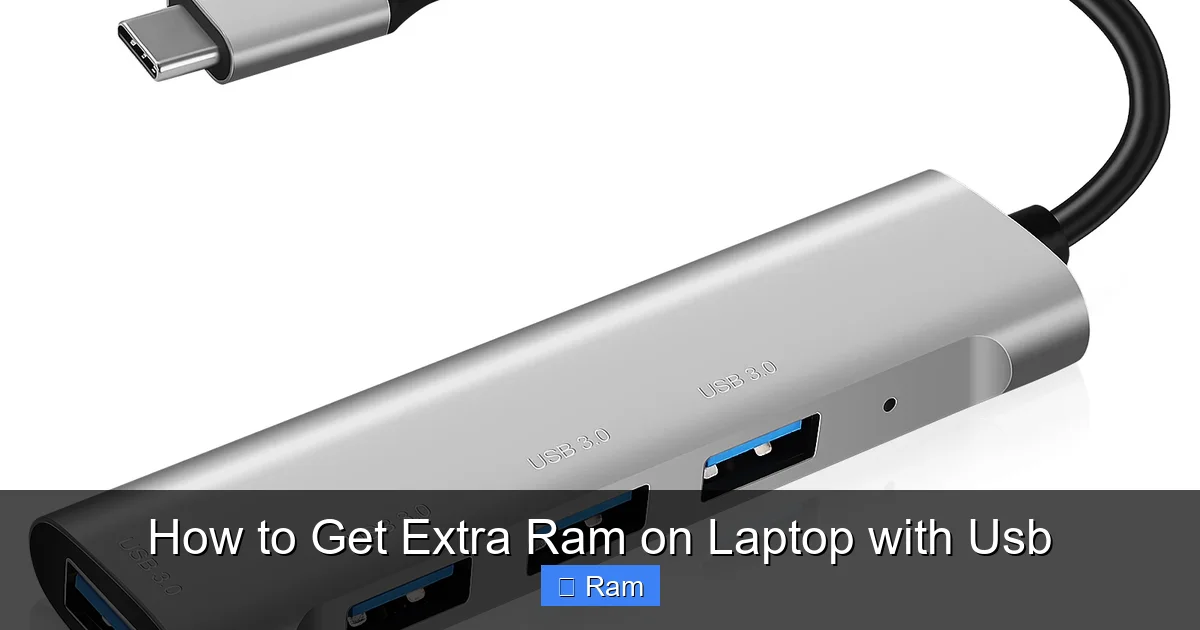
What if you can’t or don’t want to open your laptop? You can still get a massive speed boost with an external SSD connected via USB 3.0 or later (the blue port).
- As a Storage Drive: Install your large programs, games, and media files on the external SSD. When you launch them, they’ll load from the fast external drive instead of the slow internal HDD. This can dramatically improve load times for specific applications.
- As a Boot Drive (Advanced): Many modern laptops (especially those with USB-C) allow you to boot from a USB device. You can install a clean copy of Windows onto an external SSD and make it your primary boot drive. You’ll carry your entire OS and apps on a pocket-sized drive that you plug into any compatible computer. This is less convenient than an internal drive but offers the same speed.
Important: For an external SSD to be effective, it must be connected to a USB 3.0 (or higher) port. USB 2.0 is far too slow to provide a benefit over an internal HDD. Look for the blue plastic insert in the USB port or symbols next to it.
Performance Optimization Beyond Hardware
Before you spend any money, maximize what you have. Sometimes, “slow” is caused by software bloat, not hardware limits.
Diagnose the Real Bottleneck with Task Manager
Press Ctrl+Shift+Esc to open Task Manager. Go to the “Performance” tab. Click on “Memory” and “Disk.”
- If “Memory” is at 80-100% usage constantly, you have a genuine RAM shortage. Closing apps will help temporarily, but an upgrade is needed.
- If “Disk” is at 80-100% constantly, especially when you’re not doing anything, your HDD is the bottleneck. An SSD is your solution here.
- If both are fine but things are slow, check “CPU” usage. A maxed-out CPU points to a need for a more powerful laptop or software optimization.
The Free Software Cleanup
Do this first:
- Uninstall unnecessary programs from Control Panel > Programs and Features.
- Disable startup programs in Task Manager > Startup. Disable anything you don’t need launching with Windows (like Adobe Reader updater, Spotify, etc.).
- Run a malware scan with Windows Defender or a trusted antivirus.
- Clean up disk space with Disk Cleanup (search for it in the Start Menu).
- Update drivers, especially your chipset and storage drivers from your laptop manufacturer’s website.
- Adjust visual effects for best performance: Search for “Adjust the appearance and performance of Windows” and select “Adjust for best performance.”
These steps can often breathe new life into a system without any hardware changes.
Conclusion: The Smart Path to a Faster Laptop
So, we return to the original question: how to get extra RAM on a laptop with USB? The definitive, technical answer is that you can’t. The concept is a hardware impossibility. But this myth leads us to a far more important truth about computer performance. Your laptop’s speed is determined by a chain of components, and the weakest link dictates the overall experience.
For the classic symptoms of a slow, old laptop—long boot times, sluggish app launches, the hard drive light constantly on—the weakest link is almost certainly the mechanical hard drive. Replacing it with an SSD, either internally or via a fast external enclosure, is the most transformative, cost-effective upgrade you can make. It will feel like a brand-new machine.
If your diagnostics show RAM is the true bottleneck (constant 100% memory usage with an SSD already in place), and your laptop has an accessible SODIMM slot, then and only then should you consider purchasing and installing additional RAM modules. This is a precise, surgical fix for a specific problem.
ReadyBoost remains a quirky, niche feature for a tiny subset of machines with both tiny RAM and a very slow HDD. For everyone else, it’s a forgotten relic.
Your action plan: Use Task Manager to diagnose. Run a system scanner to check upgradeability. Clean up your software. If the HDD is the issue, buy an external SSD and move your big files/apps to it, or better yet, clone your system to an internal SSD. If RAM is the issue and you can upgrade, buy the correct SODIMM and install it. And finally, accept that for some ultra-thin laptops with soldered components, the ultimate upgrade path is a new machine. But with these real solutions, you can often delay that expense for years.
Frequently Asked Questions
Can a USB port really be used as RAM?
No. The USB interface and system architecture are fundamentally incompatible with system RAM (DDR SDRAM). The laptop’s motherboard and operating system have no way to recognize or address a USB device as memory. Any product claiming otherwise is a scam or misrepresents a different technology like ReadyBoost.
What is ReadyBoost and does it actually work?
ReadyBoost is a Windows feature that uses a fast USB flash drive or SD card as a disk cache for a slow mechanical hard drive (HDD). It can provide a minor speed improvement on very old systems with less than 2GB of RAM and an HDD. It does not increase your available RAM and is ineffective on systems with SSDs or more than 2GB of RAM.
Should I buy a USB RAM booster or external RAM device?
You should not. These are either scams or devices that are being marketed under false pretenses. They cannot function as system RAM. Your money is better spent on a legitimate internal RAM upgrade (if possible) or, more effectively, an external or internal SSD to replace a slow hard drive.
Is an external SSD faster than adding more RAM?
They solve different problems. An SSD dramatically speeds up storage access (loading files, launching programs, booting). More RAM allows you to keep more applications and data open simultaneously without slowing down. For a system with an old HDD, an SSD will provide a more noticeable overall speed improvement. If you already have an SSD but run out of memory (high RAM usage in Task Manager), then adding RAM is the correct upgrade.
How do I know if my laptop can be upgraded with more RAM?
The easiest way is to use a free system scanner from a memory manufacturer like Crucial.com. It will tell you your laptop’s model, current RAM, number of slots, and maximum supported RAM. You can also check your laptop’s manual or service guide on the manufacturer’s website. Be aware that many modern ultrabooks have RAM soldered to the motherboard and cannot be upgraded.
What’s the cheapest and easiest way to make my old laptop faster?
The single most cost-effective upgrade for a laptop with a mechanical hard drive is to purchase an external USB 3.0 SSD (or a SATA-to-USB adapter and a 2.5″ internal SSD). Use it to store your programs and files, or even install Windows on it to boot from. This bypasses the slow HDD bottleneck. Following that, perform the free software cleanup steps (disable startup items, uninstall bloatware). Only after these should you consider an internal RAM upgrade if diagnostics show it’s needed and possible.