How to Install a Graphics Card

Installing a graphics card is one of the best upgrades you can make to boost your PC’s visual performance. Whether you are a gamer, a video editor, or a creative professional, this guide walks you through every step with clear instructions. We cover everything from picking the right card and preparing your PC to the actual installation and driver setup. By the end, you will feel confident handling the entire process yourself.
A graphics card is the heart of visual performance in any computer. It handles everything from rendering game graphics to accelerating video editing and 3D modeling tasks. If your current setup feels slow, blurry, or outdated, installing a new one can transform your entire experience. This guide breaks the process down into simple, manageable steps that anyone can follow.
You do not need to be a tech expert to swap out a graphics card. With the right preparation and a little patience, most people complete the job in under thirty minutes. We will walk you through what to do before you open the case, how to physically install the card, and what to do after everything is connected.
Before you dive in, let us make sure you understand what you are working with. A graphics card, also called a GPU or video card, plugs directly into your motherboard. It takes over the heavy lifting of rendering images, videos, and animations on your screen. Without a dedicated card, your processor handles all of that work, which can slow things down significantly.
## What You Need Before Installing a Graphics Card
Preparation makes all the difference. Rushing into the installation without checking compatibility or gathering tools can lead to problems. Take a few minutes to go through this checklist before you start.
### Check Your Motherboard and Case
Your motherboard needs an available PCIe slot for the graphics card. Most modern motherboards have at least one PCIe x16 slot, which is the standard for GPUs. Open your case and look for the longest slot on the board. It is usually located near the CPU socket.
Also, make sure your case has enough space. Some graphics cards are very long and may not fit in smaller cases. Measure the available length inside your case and compare it to the card’s dimensions.
### Verify Your Power Supply
A dedicated graphics card needs power beyond what the motherboard provides. Check the card’s specifications for its power requirements. Most high-performance GPUs need one or two 6-pin or 8-pin power connectors from your power supply.
If your power supply does not have the right connectors, you may need an adapter or a new power supply altogether. Never try to run a power-hungry GPU without adequate power. It can cause crashes, shutdowns, or even damage to your components.
### Gather Your Tools
You do not need many tools for this job. Here is what you should have ready:
- A Phillips-head screwdriver
- An anti-static wrist strap or mat (optional but recommended)
- A clean, well-lit workspace
- The new graphics card and its packaging
- The driver installation disc or a USB drive
If you are upgrading from an older card, you might also want to check how to install an M.2 NVMe SSD or upgrade your RAM at the same time. Doing multiple upgrades together saves time and gets the most out of your system.
## Step-by-Step Graphics Card Installation
Now that you are prepared, let us get into the actual installation. Follow each step carefully and do not skip anything.
### Step 1: Power Down and Unplug Your PC
Start by shutting down your computer completely. Do not just put it to sleep. Turn it off, unplug the power cable from the wall, and press the power button for a few seconds to discharge any remaining electricity. This protects both you and your components.
### Step 2: Open the Case
Most desktop cases have side panels that slide off or are held in place by screws. Remove the panel that gives you access to the motherboard. Lay the case on a flat surface with the open side facing up.
### Step 3: Remove the Old Graphics Card
If you are replacing an existing card, you need to remove it first. Start by unscrewing the bracket that holds the card to the back of the case. Then gently squeeze the clips on either side of the PCIe slot. The card should pop up slightly, allowing you to pull it straight out.
Do not force it. If the card feels stuck, double-check that all clips are released. Also, disconnect any power cables attached to the old card before removing it.
### Step 4: Remove the Expansion Slot Covers
Your new graphics card will need an opening on the back of the case. If the slot you plan to use has a metal cover plate, remove it now. Some cases have thumb screws for easy removal. Others require a small screwdriver.
Keep the screws somewhere safe. You will need them later.
### Step 5: Insert the New Graphics Card
This is the most important step. Hold the graphics card by its edges to avoid touching the contacts or components. Align the card with the PCIe x16 slot and press it down firmly and evenly.
You should feel the card click into place as the retention clip engages. Make sure the card is fully seated and sits flat. Do not let it angle upward or lean to one side.
### Step 6: Secure the Card to the Case
Once the card is seated, use the screws you saved to attach the bracket to the back of the case. Tighten them gently. Over-tightening can crack the board or damage the slot.
### Step 7: Connect Power Cables
Plug the appropriate power cables from your power supply into the graphics card. Most modern GPUs use 6-pin, 8-pin, or 12-pin connectors. Make sure each connection clicks in securely. A loose power connection is one of the most common causes of installation problems.
### Step 8: Close the Case and Reconnect
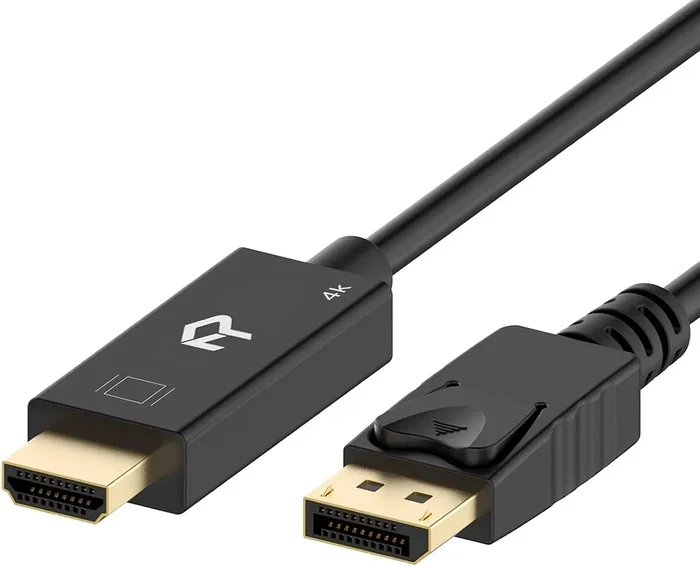
Put the side panel back on, plug in your power cable, and reconnect your monitor to the graphics card’s display output. Do not leave the monitor plugged into the motherboard if you have a dedicated card installed.
## How to Install Graphics Card Drivers
Installing the hardware is only half the battle. The graphics card driver is the software that tells your operating system how to communicate with the GPU. Without it, your card will not perform at its best, and you may experience display issues.
### Download the Latest Drivers
Go to the manufacturer’s website and download the latest driver for your specific model. Both NVIDIA and AMD offer free driver downloads on their official sites. Choose the correct model number from your card’s specifications.
If you are reinstalling Windows or doing a fresh install, you can also use the driver disc that came with the card. However, online drivers are usually newer and more reliable.
### Install and Restart
Run the driver installer and follow the on-screen prompts. Choose the “clean install” option if available. This removes any old driver files that might cause conflicts. After the installation finishes, restart your computer.
### Verify the Installation
Once your PC boots up, right-click on the desktop and open your GPU control panel. For NVIDIA, this is the NVIDIA Control Panel. For AMD, it is the AMD Radeon Software. If the panel opens and shows your card’s name, the driver is installed correctly.
## Common Graphics Card Installation Problems and Fixes
Even with careful preparation, things can go wrong. Here are the most common issues and how to solve them.
### Black Screen After Installation
A black screen usually means the monitor is still plugged into the motherboard instead of the graphics card. Check your cable connection and switch it to the GPU’s output port. Also, make sure the card is fully seated in the PCIe slot.
### System Does Not Post
If your computer does not turn on or beep during startup, the card may not be properly connected. Power down, open the case, and reseat the graphics card. Check that the power cables are firmly attached. Also, make sure your power supply can handle the card’s wattage requirements.
### Artifacting or Glitches
Visual glitches during gameplay or benchmarking can indicate a loose power connection or an overheating card. Check all power cables and make sure your case has adequate airflow. Clean any dust from the card’s fans and heatsink.
### Driver Crashes or Blue Screens
Outdated or corrupted drivers often cause these problems. Uninstall the current driver using a tool like DDU (Display Driver Uninstaller), then download and install the latest version from the manufacturer’s site.
## Tips for Keeping Your Graphics Card Running Smoothly
Installing the card is just the beginning. Proper maintenance helps your GPU last longer and perform better over time.
### Keep It Clean
Dust buildup is the enemy of any computer component. Open your case every few months and use compressed air to clean the graphics card’s fans and heatsink. This prevents overheating and maintains optimal performance.
### Monitor Temperatures
Use free software like HWMonitor or MSI Afterburner to keep an eye on your GPU temperatures. A well-cooled graphics card should stay below 85 degrees Celsius under heavy load. If temperatures climb too high, consider improving your case airflow or reapplying thermal paste.
### Update Drivers Regularly
GPU manufacturers release driver updates that improve performance and fix bugs. Check for updates once a month, especially if you are a gamer. The latest drivers often bring noticeable improvements in frame rates and stability.
### Handle With Care
When moving your PC or working inside the case, always handle the graphics card by its edges. Avoid touching the GPU chip or memory modules. Static electricity can damage sensitive components, so ground yourself before handling any hardware.
## Final Thoughts
Installing a graphics card is a rewarding project that can breathe new life into your computer. Whether you are upgrading for gaming, creative work, or everyday use, the process is simpler than most people think. With the right preparation and careful handling, you can complete the entire installation in under an hour.
Do not be intimidated by the steps. Take your time, follow the instructions, and double-check each connection before you power on. The satisfaction of seeing your new GPU perform is well worth the effort.
If you are planning a broader system upgrade, consider pairing your new graphics card with more RAM or a faster SSD. Upgrading your RAM can also significantly improve overall system performance, especially when multitasking or running demanding applications.
Now that you know how to install a graphics card, you have the skills to keep your PC running at its full potential. Enjoy the improved visuals, smoother frame rates, and faster rendering that come with a powerful GPU.
Key Takeaways
- Know your compatibility: Always check your motherboard, power supply, and case before buying a graphics card.
- Prepare your workspace: Ground yourself and gather the right tools to avoid damage and frustration.
- Follow each step carefully: Removing the old card, seating the new one, and connecting power cables are all critical.
- Install drivers immediately: The right drivers unlock full performance and stability from your new GPU.
- Troubleshoot common issues: Knowing how to fix black screens, artifacting, and driver errors saves time and stress.
- Maintain your card: Regular cleaning and monitoring keep your graphics card running at its best for years.
Frequently Asked Questions
Do I need a graphics card if I only use my PC for basic tasks?
For basic tasks like browsing the web, watching videos, and using office apps, a dedicated graphics card is not necessary. Most modern processors include integrated graphics that handle these tasks just fine. However, if you plan to game, edit video, or do 3D work, a dedicated GPU makes a significant difference.
Can I install a graphics card in a laptop?
Most laptops do not allow you to install or upgrade a graphics card. The GPU is typically soldered onto the motherboard. However, some desktop replacement laptops and certain models support external GPUs through an eGPU enclosure. Always check your laptop’s specifications before assuming an upgrade is possible.
How do I know if my power supply is strong enough for a new graphics card?
Check the card’s recommended power supply wattage on the manufacturer’s website. Your power supply should meet or exceed that number. Also, make sure it has the correct power connectors, such as 6-pin or 8-pin PCIe cables, to supply the card properly.
What is the difference between a PCIe x16 and other PCIe slots?
The PCIe x16 slot is the largest and fastest slot on your motherboard. It provides the bandwidth that a graphics card needs to perform at its best. Smaller PCIe slots like x1 or x4 are used for other expansion cards and are not suitable for GPUs.
Should I uninstall my old graphics card drivers before installing a new one?
Yes, it is a good practice to clean uninstall old drivers before installing new ones. Using a tool like DDU ensures that no leftover files cause conflicts. After cleaning, install the fresh drivers from the manufacturer’s website for the best results.
How long does a graphics card installation take?
For most people, the physical installation takes about 15 to 30 minutes. Adding driver installation and setup brings the total time to around 45 minutes to an hour. The process is straightforward as long as you have the right tools and compatibility checked beforehand.