How to Integrate Smart Speakers with Home Lighting Systems
Turn your voice‑controlled speaker into a lighting maestro. This guide shows you exactly how to integrate smart speakers with home lighting systems, from picking compatible bulbs to creating custom scenes, so every room reacts to your commands and routines.
Key Takeaways
- Compatibility matters: Choose speakers and lights that speak the same protocol (Alexa, Google Assistant, or Apple HomeKit).
- Start simple: Begin with a single smart bulb or a plug‑in strip to test the integration before expanding.
- Use routines and scenes: Automate multiple lights with one voice command for movies, meals, or bedtime.
- Secure your network: Keep firmware updated and use strong Wi‑Fi passwords to protect your smart home.
- Expand wisely: Add motion sensors, switches, or bridges only when they truly add convenience.
- Voice customization: Rename devices and create groups for natural, conversation‑like commands.
- Future‑proofing: Pick devices that support Matter for cross‑brand compatibility down the road.
📑 Table of Contents
- Introduction: Why Your Smart Speaker Should Control the Lights
- 1. Choose the Right Smart Speaker and Lighting Platform
- 2. Setting Up Your Smart Speaker
- 3. Adding Smart Lights to Your Network
- 4. Creating Routines, Scenes, and Automations
- 5. Troubleshooting Common Issues
- 6. Future‑Proofing with Matter and Multi‑Assistant Setups
- Conclusion: Light Up Your Life With Your Voice
Introduction: Why Your Smart Speaker Should Control the Lights
Imagine walking into a room and saying, “Hey Alexa, set the mood,” and the lights instantly dim, the color shifts to a warm amber, and a soft playlist starts playing. That’s the magic you get when you integrate smart speakers with home lighting systems. It’s not just a novelty; it’s a genuine boost to comfort, energy savings, and accessibility.
In this article we’ll walk through every step—from picking the right gear, wiring it all together, to creating voice‑activated scenes you’ll love. The tone is friendly, like chatting with a tech‑savvy friend, so you’ll never feel lost.
1. Choose the Right Smart Speaker and Lighting Platform
1.1. Popular Voice Assistants
The three big players are Amazon Alexa, Google Assistant, and Apple Siri (HomeKit). Each has its own ecosystem of compatible lights. Here’s a quick cheat sheet:

Visual guide about How to Integrate Smart Speakers with Home Lighting Systems
Image source: i.jeuxactus.com
- Alexa: Works with Philips Hue, LIFX, TP‑Link Kasa, and many others.
- Google Assistant: Supports Nanoleaf, Sengled, and the same Philips Hue range.
- Apple HomeKit: Limited to HomeKit‑certified bulbs like Eve, Nanoleaf, and Hue.
Pick the assistant you already use for music or smart plugs—this reduces the learning curve.
1.2. Light Types and What They Offer
Smart lighting comes in three main flavors:
- Smart bulbs: Replace a regular bulb, easy to install, ideal for testing.
- Smart switches: Replace wall switches, give you control over multiple fixtures at once.
- Smart plugs & strips: Perfect for lamps or LED strips that don’t have built‑in Wi‑Fi.
For the first integration, start with a couple of smart bulbs. They’re cheap, plug‑and‑play, and let you see immediate results.
1.3. Compatibility Checklist
Before you buy, ask yourself these questions:
- Does the bulb support the same Wi‑Fi band (2.4 GHz) as my router?
- Is the bulb compatible with my chosen voice assistant?
- Does the manufacturer offer a reliable app for firmware updates?
- Will the bulb work with future standards like Matter?
Answering “yes” to most of these ensures a smooth integration.
2. Setting Up Your Smart Speaker
2.1. Basic Speaker Installation
Unbox the speaker, plug it in, and follow the companion app’s steps to connect it to your Wi‑Fi network. During setup you’ll create a device name—pick something friendly like “Living Room Echo” or “Kitchen Google.”
2.2. Enable the Lighting Skill or Service
Each assistant uses “skills” (Alexa) or “actions” (Google) to talk to lights. Open the Alexa app → Skills & Games → search “Philips Hue” (or your brand) → Enable. For Google, go to the Google Home app → Add → Set up device → Works with Google → find your light brand.
2.3. Link Accounts Securely
When prompted, log into the lighting brand’s cloud account. This creates a secure token so the speaker can send commands without exposing your password. Keep both apps updated to benefit from the latest security patches.
3. Adding Smart Lights to Your Network
3.1. Installing a Smart Bulb
1. Turn off power at the switch.
2. Screw in the smart bulb.
3. Turn the switch back on.
4. Open the light’s app and follow the “Add Device” wizard (usually just press a button on the bulb).
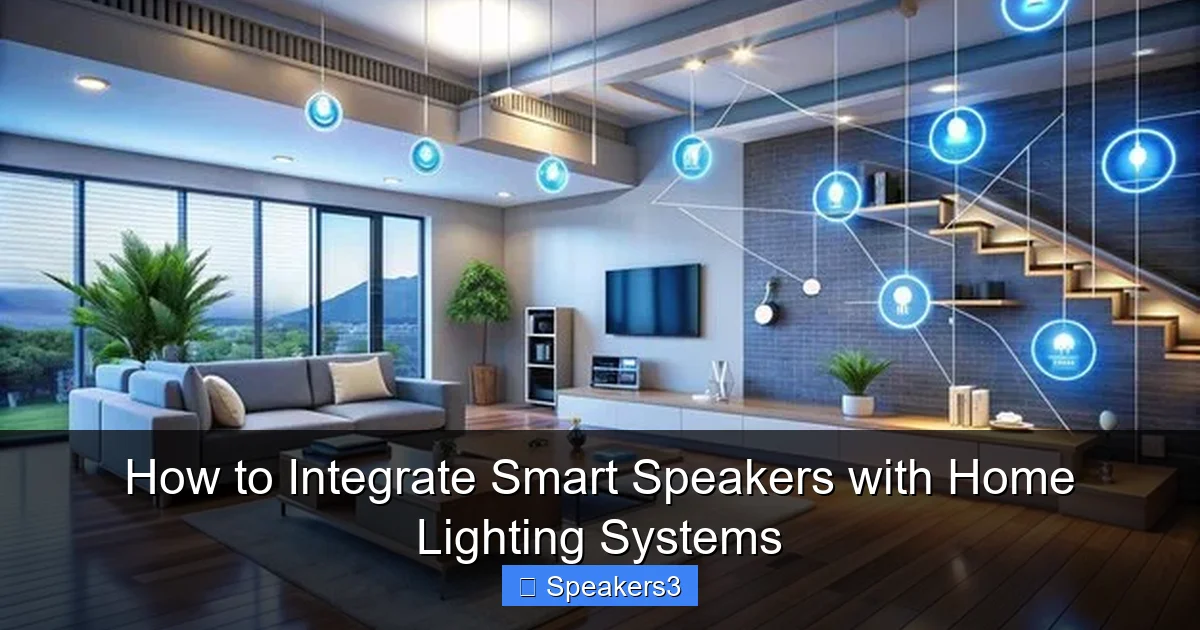
Visual guide about How to Integrate Smart Speakers with Home Lighting Systems
Image source: img.freepik.com
Once the bulb appears in the app, you can rename it—call it “Dining Table Lamp” for easy voice commands.
3.2. Using a Bridge (When Needed)
Some ecosystems, like Philips Hue, use a bridge that connects to your router via Ethernet. Plug the bridge in, connect it to your router, and add bulbs through the Hue app. The bridge acts as a local hub, reducing Wi‑Fi traffic and improving reliability.
3.3. Testing Voice Control
Try a simple command: “Hey Alexa, turn on the dining table lamp.” If the light responds, you’ve successfully integrated smart speakers with home lighting systems. If not, double‑check that the speaker and bulb are on the same Wi‑Fi network and that the skill is enabled.
4. Creating Routines, Scenes, and Automations
4.1. What’s the Difference?
Routines are time‑based or trigger‑based actions (e.g., “Good Night”). Scenes are groups of lights set to specific colors/brightness (e.g., “Movie Time”). Both can be launched with a single voice command.
4.2. Building a “Movie Night” Scene
1. Open the Alexa app → Routines → +Create.
2. Name it “Movie Night.”
3. Add Action → Smart Home → Control Device → select your living‑room lights → set brightness to 20% and color to “Warm.”
4. Add another Action → Music → play your favorite streaming service.
5. Save.
Now say, “Alexa, start movie night,” and the room dims, the lights turn amber, and your soundtrack begins.
4.3. Using Motion Sensors for Hands‑Free Lighting
Pair a motion sensor (e.g., Philips Hue Motion) with your speaker’s routine. When motion is detected, the sensor tells the bridge to turn on a light, and you can add a follow‑up voice command like “Hey Google, set the lights to 50%.” This is perfect for hallways and bathrooms.
4.4. Scheduling Lights for Energy Savings
Set a daily schedule in the lighting app to turn off all non‑essential lights at bedtime. Combine it with a “Good Night” routine that also tells your smart speaker to lock doors or lower the thermostat.
5. Troubleshooting Common Issues
5.1. Device Not Responding
Check that both the speaker and the light are on the same Wi‑Fi band. Restart the router, then power‑cycle the speaker and bulb. Re‑enable the skill if needed.
5.2. Laggy Voice Commands
Too many devices on a 2.4 GHz network can cause congestion. Consider moving high‑traffic devices to a 5 GHz band or adding a Wi‑Fi extender.
5.3. Firmware Mismatches
Out‑of‑date firmware can break integration. Schedule a monthly check in both the speaker app and the lighting app for updates.
5.4. Using Internal Resources for Help
If you’re stuck with networking or device pairing, you might find our guide on how to connect mouse with laptop useful for understanding basic Bluetooth and Wi‑Fi pairing steps, even though it’s a different device category.
6. Future‑Proofing with Matter and Multi‑Assistant Setups
6.1. What Is Matter?
Matter is an industry‑wide standard that lets devices from different brands talk to each other without extra bridges. When you buy new bulbs, look for the Matter logo to ensure long‑term compatibility with Alexa, Google, and HomeKit.
6.2. Running Multiple Assistants
Some households love to have both Alexa and Google devices. You can set up each assistant to control the same lights, but avoid command conflicts by giving each speaker a distinct name (e.g., “Kitchen Echo” vs. “Kitchen Nest”).
6.3. Expanding Beyond Lights
Once you’re comfortable integrating smart speakers with home lighting systems, you can add smart plugs, thermostats, and security cameras. For example, learn how to wire speakers to amp for a dedicated home‑theater setup that works hand‑in‑hand with your lighting scenes.
Conclusion: Light Up Your Life With Your Voice
Integrating smart speakers with home lighting systems is one of the easiest ways to make your house feel futuristic and truly personalized. By picking compatible devices, setting up simple routines, and keeping everything updated, you’ll enjoy a seamless experience that saves energy and adds a dash of magic to everyday moments. Start small, experiment with scenes, and watch your home transform—one voice command at a time.
Frequently Asked Questions
Can I use any smart bulb with my Alexa speaker?
Most smart bulbs that list Alexa compatibility will work, but it’s best to choose ones that specifically mention “Works with Alexa” to avoid connection issues.
Do I need a hub for every brand of smart light?
Not always. Brands like LIFX connect directly to Wi‑Fi, while Philips Hue requires a bridge. Check the product specs before buying.
How do I make my lights respond faster to voice commands?
Place the speaker closer to your router, use a 5 GHz Wi‑Fi band for the speaker, and keep firmware updated on both the speaker and the lights.
Is it safe to have my lights controlled by the internet?
Yes, as long as you use strong passwords, enable two‑factor authentication on your accounts, and regularly install updates.
Can I control my lights when I’m away from home?
Absolutely. Enable remote access in the lighting app, then use voice commands through the assistant’s mobile app or ask a friend’s smart speaker to trigger a routine.
What if my smart speaker and lights are on different Wi‑Fi networks?
They need to be on the same local network to communicate directly. Move one device to the same router or use a bridge that supports multiple networks.