How to Reset Bios on Mini Pc
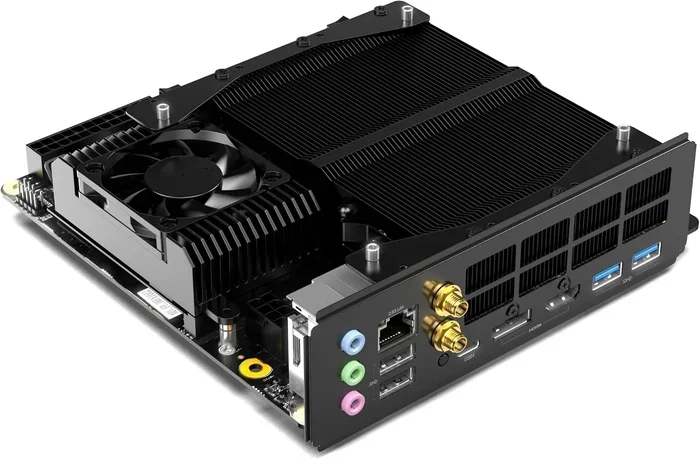
Resetting the BIOS on your Mini PC is simpler than most people think. Whether you are dealing with a corrupted firmware, forgotten password, or boot failure, this guide walks you through every method. You will learn how to reset BIOS on Mini PC using the CMOS battery, jumper, and software approaches safely and confidently.
Your Mini PC is a compact powerhouse. It fits on your desk, saves space, and delivers solid performance for everyday tasks. But sometimes, things go wrong. Your system might fail to boot, display weird error messages, or simply refuse to recognize your hardware. When that happens, resetting the BIOS often fixes the problem.
How to reset BIOS on Mini PC is a question many users search for when their system starts acting up. The BIOS, or Basic Input/Output System, is the firmware that tells your computer how to start up and communicate with its hardware. Think of it as the brain behind the scenes. When something goes wrong with this firmware, your entire system can suffer. The good news is that resetting the BIOS is usually straightforward and does not require advanced technical skills.
In this guide, we will walk you through every method to reset the BIOS on your Mini PC. We cover the CMOS battery approach, the jumper method, and software-based resets. We also share tips to avoid common mistakes and explain when you should seek professional help. Whether you are a beginner or a seasoned user, you will find practical steps that work.
Key Takeaways
- Multiple Reset Methods: You can reset BIOS using the CMOS battery, jumper cap, or software shortcuts depending on your Mini PC model.
- No Special Tools Needed: Most BIOS reset methods require only a screwdriver and basic household items.
- Safety First: Always disconnect power and ground yourself before opening your Mini PC to prevent hardware damage.
- Backup Settings First: If possible, note down your current BIOS configuration before resetting to avoid reconfiguration headaches.
- Peripherals May Need Attention: After a BIOS reset, external devices like mice may need troubleshooting too.
- When to Seek Help: Some BIOS issues may indicate deeper hardware problems that require professional attention.
📑 Table of Contents
- What Is BIOS and Why Does Your Mini PC Need a Reset?
- Common Signs That Your Mini PC BIOS Needs Resetting
- How to Reset BIOS on Mini PC Using the CMOS Battery Method
- How to Reset BIOS on Mini PC Using the Jumper Method
- How to Reset BIOS on Mini PC Using Software and Keyboard Shortcuts
- Common Mistakes to Avoid When Resetting BIOS on Mini PC
- Conclusion
What Is BIOS and Why Does Your Mini PC Need a Reset?
The BIOS is the first software that runs when you power on your Mini PC. It initializes your hardware components and hands control over to your operating system. Without a properly functioning BIOS, your system simply will not start.
What Does the BIOS Do?
The BIOS performs several critical tasks every time you turn on your computer. It runs a Power-On Self-Test, commonly called the POST test, to check your hardware. It then initializes your CPU, memory, and storage devices. Finally, it hands control to your operating system. All of this happens in seconds, and you never even notice it is happening.
Your BIOS also stores important configuration settings. These include your boot sequence, CPU fan speeds, voltage levels, and security options. When these settings become corrupted or misconfigured, your Mini PC can experience serious problems. That is when you need to know how to reset BIOS on Mini PC.
Why Do BIOS Settings Get Corrupted?
Several factors can corrupt your BIOS settings. A sudden power outage during a firmware update is one of the most common causes. Viruses and malware can also tamper with BIOS firmware. Sometimes, overclocking your system too aggressively causes instability. In rare cases, a failing motherboard can cause persistent BIOS errors. Regardless of the cause, the fix is often the same: reset the BIOS.
Common Signs That Your Mini PC BIOS Needs Resetting
Not sure if your Mini PC needs a BIOS reset? Look for these telltale signs. Recognizing them early can save you hours of troubleshooting.
- System Won’t Boot: If your Mini PC powers on but displays nothing on screen, a corrupted BIOS could be the culprit.
- Boot Loops: Your system starts up, shows the logo, and then restarts in a continuous loop. This often points to BIOS issues.
- Hardware Not Recognized: Your storage drives, RAM, or USB devices are not detected by the system after startup.
- BIOS Password Forgotten: You set a BIOS password and cannot remember it. A reset clears this lock.
- Overheating or Fan Errors: Incorrect fan speed settings in the BIOS can cause your system to overheat.
- Boot Order Changed: Your system tries to boot from the wrong device, like a USB drive instead of your hard drive.
If you notice any of these symptoms, do not panic. Most BIOS issues are fixable with a simple reset. And once you learn how to handle this, you will feel much more confident managing your Mini PC.
How to Reset BIOS on Mini PC Using the CMOS Battery Method
The CMOS battery method is the most popular way to reset BIOS. It works on most Mini PC models and requires no special tools. The CMOS battery keeps your BIOS settings alive when the computer is powered off. By removing it, you clear all stored settings and return the BIOS to its factory defaults.
What You Will Need
Before you start, gather these items:
- A small Phillips-head screwdriver
- An anti-static wrist strap (optional but recommended)
- A replacement CR2032 battery (the same type as the one you remove)
- A clean, dry workspace
Step-by-Step Instructions
Step 1: Power Off Your Mini PC. Shut down your system completely. Do not just put it to sleep. Turn it off and unplug the power cable. If your Mini PC has a battery backup, disconnect that too.
Step 2: Unplug All Peripherals. Remove your mouse, keyboard, USB drives, and any other external devices. This prevents any accidental damage during the process.
Step 3: Open the Case. Use your screwdriver to remove the screws on the Mini PC chassis. Carefully lift off the side panel. Place the screws somewhere safe so you do not lose them.
Step 4: Locate the CMOS Battery. Look for a small, round silver battery on the motherboard. It is usually a CR2032 coin cell battery. It may be held in place by a small metal clip.
Step 5: Remove the Battery. Gently pry the battery out of its slot using your finger or a plastic tool. Do not use metal tools, as they can damage the motherboard. Wait at least five minutes before proceeding.
Step 6: Reinsert the Battery. Place the CMOS battery back into its slot. Make sure it clicks into place securely. Replace the side panel and screw it back on.
Step 7: Reconnect Power and Test. Plug in your power cable and peripherals. Power on your Mini PC. The BIOS should now be reset to factory defaults. You may need to reconfigure some settings, such as the boot order.
Important Tips for the CMOS Method
Always handle the motherboard with care. Avoid touching exposed components directly. If you have an anti-static wrist strap, wear it. Ground yourself by touching a metal part of the case before reaching inside. Keep your workspace clean and well-lit. Taking these simple precautions prevents accidental damage.
After the reset, if you notice your external mouse is not responding properly, you might need to reset the mouse on a laptop as well, since BIOS resets can sometimes affect peripheral initialization.
How to Reset BIOS on Mini PC Using the Jumper Method
The jumper method is another effective way to reset your BIOS. It uses a small physical switch on the motherboard to clear CMOS settings. This method is faster than the battery approach and works well on most Mini PC motherboards.
Understanding the CMOS Jumper
A CMOS jumper is a tiny plastic connector that sits over two or three pins on the motherboard. When the jumper is in its default position, the CMOS settings are preserved. When you move it to the clear position, the BIOS resets. Not all motherboards have a dedicated CMOS jumper, but most Mini PCs do.
Step-by-Step Instructions
Step 1: Power Off and Unplug. Start by shutting down your Mini PC completely and disconnecting all power sources.
Step 2: Open the Case. Remove the screws and carefully take off the side panel. Refer to your Mini PC manual if you are unsure how to open it.
Step 3: Find the CMOS Jumper. Look for a group of three pins near the CMOS battery on the motherboard. There should be a small plastic jumper cap sitting on two of the pins. Check your motherboard manual to confirm the exact location.
Step 4: Move the Jumper. Use your finger or a small flat tool to move the jumper cap from its current position to the clear pins. This is usually pins 1 and 2, or labeled CLR_CMOS. Leave it in this position for about ten seconds.
Step 5: Return the Jumper. Move the jumper cap back to its original position. This is critical. If you leave it in the clear position, your BIOS will not initialize properly.
Step 6: Close the Case and Test. Replace the side panel, reconnect all cables, and power on your Mini PC. The BIOS should now be reset.
Jumper Method vs. CMOS Battery Method
Both methods achieve the same result. The jumper method is slightly faster and does not require opening the case for long periods. However, the CMOS battery method is more universal and works on systems without a dedicated jumper. Choose the method that feels most comfortable for you.
How to Reset BIOS on Mini PC Using Software and Keyboard Shortcuts
Not all BIOS resets require opening your Mini PC. In some cases, you can reset the BIOS from within the system or using keyboard shortcuts during startup. These software-based methods are convenient and do not involve any hardware work.
Method 1: BIOS Setup Utility
Many Mini PCs allow you to reset BIOS settings from within the BIOS setup utility itself. To access it, restart your computer and press the designated key during startup. Common keys include F2, Delete, F10, or Esc, depending on your manufacturer.
Once inside the BIOS setup, look for an option labeled “Load Default Settings,” “Restore Defaults,” or “Reset to Factory Settings.” Navigate to this option using your keyboard, confirm your choice, and save the changes. Your system will restart with a clean BIOS configuration.
Navigating the BIOS setup requires a working keyboard or mouse. If your input devices are not responding, you may need to use a mouse on a laptop or try a different USB port to establish connectivity.
Method 2: Keyboard Shortcut During Boot
Some Mini PCs support a keyboard shortcut to trigger a BIOS reset during the boot process. This method varies by manufacturer, but here is a general approach:
- Restart your Mini PC.
- Press and hold the F2 or Delete key immediately when the power LED lights up.
- Look for a “Restore Defaults” or “Reset” option in the boot menu.
- Confirm the reset and let the system restart.
Method 3: BIOS Flashback (For Supported Models)
Some higher-end Mini PCs come with a BIOS Flashback feature. This allows you to update or reset the BIOS using a USB drive, without even turning on the system. Check your Mini PC manufacturer’s website for specific instructions on using this feature. It typically involves downloading the latest BIOS file, formatting a USB drive, and pressing a dedicated flashback button on the back of the unit.
If you are planning hardware upgrades like adding memory, you might also consider how to install more RAM on your laptop as a complementary step, since RAM upgrades often benefit from a fresh BIOS configuration.
Common Mistakes to Avoid When Resetting BIOS on Mini PC
Resetting the BIOS is generally safe, but mistakes can lead to problems. Here are common errors to avoid.
Mistake 1: Not Backing Up Your Settings
Before resetting your BIOS, write down your current settings. Take a photo of the BIOS screen or jot down the boot order, fan speeds, and any overclocking values. After the reset, you will need to re-enter these settings. Having them saved makes the process much smoother.
Mistake 2: Using Metal Tools Inside the PC
Always use plastic or rubber tools when working inside your Mini PC. Metal tools can short-circuit components and cause permanent damage. A plastic spudger or even a wooden toothpick works well for gently prying out the CMOS battery.
Mistake 3: Not Grounding Yourself
Static electricity can damage sensitive motherboard components. Always touch a metal surface to discharge static before reaching inside your Mini PC. An anti-static wrist strap is even better. These small precautions protect your hardware.
Mistake 4: Rushing the Process
Take your time. Remove the CMOS battery for at least five minutes. Leave the jumper in the clear position for ten seconds. Rushing through the process can result in an incomplete reset, leaving you with the same problems.
Mistake 5: Ignoring Underlying Hardware Issues
Sometimes, BIOS problems are symptoms of deeper hardware failures. If your Mini PC continues to have issues after a BIOS reset, the problem might be a failing motherboard, a defective power supply, or damaged RAM. Do not assume a BIOS reset will fix everything.
Conclusion
Knowing how to reset BIOS on Mini PC is a valuable skill. It saves you time, money, and frustration when your system encounters firmware-related issues. Whether you choose the CMOS battery method, the jumper approach, or a software-based reset, the process is manageable for most users.
Always start with the simplest method and work your way up. Back up your settings first. Handle your hardware with care. And do not hesitate to seek professional help when needed. With the steps outlined in this guide, you are well-equipped to tackle BIOS issues on your Mini PC with confidence.
Remember, a BIOS reset is not something you will need to do every day. But when the situation calls for it, you will be glad you know exactly what to do. Your Mini PC will thank you for it.
Frequently Asked Questions
Can I reset the BIOS on my Mini PC without opening the case?
Yes, you can. Many Mini PCs allow you to reset BIOS settings from within the BIOS setup utility. Simply restart your computer, enter the BIOS by pressing F2 or Delete during startup, and select “Load Default Settings.” Some models also support BIOS Flashback using a USB drive without powering on the system.
Is it safe to reset the BIOS on a Mini PC?
Yes, resetting the BIOS is generally safe. It restores your firmware to factory defaults and does not harm your hardware. However, always power off your Mini PC completely and disconnect all cables before opening the case. Handle internal components carefully to avoid static damage.
How long does a BIOS reset take?
The CMOS battery method takes about 15 to 20 minutes including disassembly time. The jumper method is slightly faster at around 10 minutes. Software-based resets are the quickest and can be completed in just a few minutes from within the BIOS setup utility.
Will resetting the BIOS delete my files?
No, resetting the BIOS does not delete your personal files. The BIOS only controls hardware initialization and boot settings. Your documents, photos, and applications stored on your storage drives remain completely untouched by a BIOS reset.
What should I do if my Mini PC still will not boot after a BIOS reset?
If your Mini PC still fails to boot after a reset, the issue may be hardware-related. Check that your RAM is properly seated and your storage drives are connected. Try reseating your graphics card if applicable. If the problem persists, consult a professional technician to diagnose potential motherboard or power supply failures.
Do I need any special tools to reset the BIOS on a Mini PC?
No special tools are required for most BIOS resets. A small Phillips-head screwdriver is usually enough to open the case. For the CMOS battery method, you just need your fingers or a plastic tool to remove the battery. An anti-static wrist strap is optional but recommended for safety.