How to Right Click on a Chromebook
Right clicking on a Chromebook is simple once you know the tricks. You can use the trackpad, keyboard shortcuts, or even a touchscreen to access context menus. This guide covers every method so you can navigate your Chromebook with confidence.
Using a Chromebook can feel a little different from a regular laptop. One thing that trips up many new users is right clicking. On a Windows PC or Mac, you just click the right side of the mouse. But on a Chromebook, things work a bit differently.
The good news is that right clicking on a Chromebook is easy once you learn a few simple methods. Whether you use the trackpad, a keyboard shortcut, or an external mouse, you have options. This guide will walk you through every way to right click on a Chromebook so you never get stuck again.
Let us start with the most common method. Most people use the trackpad on their Chromebook touchpad to navigate. Learning how to use it for right-clicking is the first step to mastering your device. Once you get the hang of it, you will wonder how you ever lived without it.
Key Takeaways
- Two-finger tap is the easiest way to right click on a Chromebook trackpad.
- Keyboard shortcuts like Search + Shift + period offer a quick alternative.
- External mice work just like on any computer with a simple right button click.
- Touchscreen Chromebooks support long press for right-clicking on apps and links.
- Trackpad settings can be customized in Chrome OS for a better experience.
- Several right-click alternatives exist for different Chromebook models and setups.
📑 Table of Contents
How to Right Click Using the Trackpad
The trackpad is the most natural way to right click on a Chromebook. It is built right into the laptop, so you always have it available. Here are the different ways to use the trackpad for right-clicking.
Two-Finger Tap Method
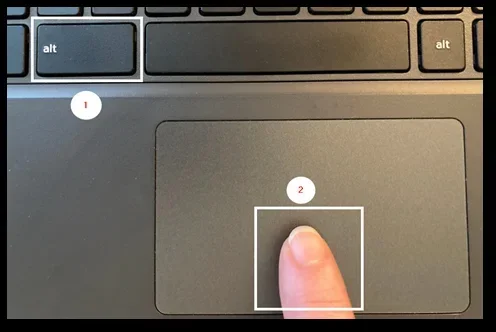
This is the most popular way to right click on a Chromebook. Simply place two fingers on the trackpad and tap them at the same time. That is it. A context menu will appear just like on any other computer.
Here is how it works step by step:
- Place two fingers gently on the Chromebook trackpad.
- Tap both fingers at the same time.
- A menu will pop up with options like Copy, Paste, and more.
- Move your finger to select the option you want.
- Lift your finger to complete the action.
This method works on almost all Chromebook models. If you have a newer Chromebook, this is likely the default setting. It feels natural once you practice a few times.
Bottom Corner Click Method
Another way to right click is by clicking the bottom-right corner of the trackpad. Some users prefer this because it feels like using a regular mouse. Here is how to do it:
- Move your cursor to the bottom-right area of the trackpad.
- Press down firmly on that corner.
- The right-click menu will appear on screen.
Not all Chromebooks support this method. It depends on your model and settings. You can check if it is enabled in your Chromebook trackpad settings.
Keyboard Shortcuts for Right Clicking
Did you know you can right click on a Chromebook using the keyboard? This is a great trick if your trackpad is not working or if you just prefer using keys. Keyboard shortcuts make Chromebook navigation much faster.
Search + Shift + Period
This is the most useful keyboard shortcut for right clicking on a Chromebook. Here is what to do:
- Click on the item you want to right-click. This could be a file, link, or empty space.
- Press the Search key (it looks like a magnifying glass).
- Hold down the Shift key.
- Press the period key.
- The right-click menu will appear instantly.
This shortcut is a lifesaver for many Chromebook users. Once you memorize it, you will use it all the time. It works in the file manager, on web pages, and in most apps.
Other Useful Keyboard Shortcuts
Here are a few more shortcuts that help with Chromebook navigation:
- Alt + Search opens the task manager.
- Ctrl + Shift + Refresh reloads the page.
- Ctrl + Shift + Q signs you out.
- Ctrl + Shift + Backspace opens browsing history.
These shortcuts make your Chromebook experience much smoother. Practice them until they become second nature.
Using an External Mouse
If you use an external mouse with your Chromebook, right-clicking is just like on any other computer. Plug in a USB mouse or connect a Bluetooth mouse. Then simply click the right button on the mouse.
Here are some tips for using a mouse with your Chromebook:
- Make sure the mouse is fully charged or has fresh batteries.
- Go to Settings > Device > Mouse to adjust the cursor speed.
- You can also swap the primary and secondary buttons if needed.
- A wireless mouse keeps your desk clean and clutter-free.
Using an external mouse is great for long work sessions. It is more comfortable for some users than the trackpad. If you have been wondering how to use a mouse on a laptop, the same principles apply to a Chromebook.
You might also want to read about how to right click on a laptop without a mouse if you ever need to use a laptop trackpad instead of a mouse.
Touchscreen Right Click on Chromebook
Many modern Chromebooks come with touchscreens. If yours has one, you can right click using a long press. This method is very intuitive and works just like on a smartphone or tablet.
How to Right Click on a Touchscreen
Follow these simple steps:
- Open the app or webpage where you want to right-click.
- Touch and hold your finger on the screen.
- Wait for the context menu to appear.
- Tap the option you want to select.
This method works on touchscreen Chromebooks from brands like HP, Lenovo, Acer, and Samsung. The long press triggers the same right-click menu you see on the trackpad.
If you want to learn more about touchscreen gestures, you might find this article on right clicking without a mouse on a laptop helpful for general laptop touchscreen tips.
Customizing Trackpad Settings for Right Click
You can change your Chromebook trackpad settings to make right-clicking easier. Chrome OS lets you adjust sensitivity, tap behavior, and more. Here is how to access and change these settings.
How to Access Trackpad Settings
- Click on the clock in the bottom-right corner.
- Click the gear icon to open Settings.
- Scroll down and click on Device.
- Select Touchpad from the menu.
From here, you can adjust several options. You can change the trackpad sensitivity so it responds better to your touch. You can also enable or disable tap-to-click.
Recommended Settings
| Setting | Recommended Option | Why |
|---|---|---|
| Tap to Click | Enabled | Makes tapping feel like clicking |
| Two-Finger Tap | Enabled | Enables right-click via tap |
| Scroll Speed | Medium to Fast | Faster browsing experience |
| Touchpad Sensitivity | Medium | Prevents accidental clicks |
Setting the right options makes your Chromebook trackpad much more responsive. You will notice a big difference in daily use.
Troubleshooting Right Click Issues
Sometimes right clicking on a Chromebook does not work as expected. This can be frustrating, but the fix is usually simple. Here are common problems and how to solve them.
Trackpad Not Responding
If your trackpad is not responding, try these steps:
- Restart your Chromebook completely.
- Check for debris or dirt on the trackpad surface.
- Make sure your fingers are clean and dry.
- Update Chrome OS to the latest version.
Right Click Menu Not Appearing
If the menu does not show up, check these things:
- Make sure two-finger tap is enabled in settings.
- Check if the trackpad driver needs updating.
- Try using the keyboard shortcut instead.
- Test with an external mouse to rule out hardware issues.
If none of these work, you might want to reset the mouse on a laptop or check your device settings. Sometimes a simple reset fixes everything.
For more trackpad and mouse tips, you can also check how to right click on a laptop without mouse for general troubleshooting advice.
Expert Tips for Better Right-Clicking
Here are some expert tips to improve your Chromebook experience:
- Use keyboard shortcuts daily to speed up your workflow.
- Clean your trackpad regularly with a soft, dry cloth.
- Adjust sensitivity settings if you find the trackpad too sensitive or not sensitive enough.
- Use an external mouse for tasks that require precision, like photo editing or design work.
- Explore Chrome OS accessibility settings for additional trackpad customization options.
These small changes add up over time. You will wonder how you managed without them. A well-configured Chromebook trackpad makes everything faster and more enjoyable.
Right clicking is just one part of mastering your Chromebook. Once you get comfortable with these methods, navigating your device becomes second nature. Practice each method until you find the one that suits you best.
Conclusion
Right clicking on a Chromebook is easy once you know the right methods. You can use the two-finger tap on the trackpad, press the Search + Shift + Period shortcut, connect an external mouse, or long-press on a touchscreen. Each method has its own advantages, and the best one depends on your personal preference and Chromebook model.
Take a few minutes to try each method. Adjust your trackpad settings to match your style. Soon, right clicking on your Chromebook will feel just as natural as it does on any other device. The key is practice and finding what works best for you.
With these tips and tricks, you are now fully equipped to navigate your Chromebook like a pro. Enjoy the speed, simplicity, and efficiency that comes with mastering your device.
Frequently Asked Questions
Can I right click on a Chromebook without a trackpad?
Yes, you can. You can use the Search + Shift + Period keyboard shortcut to right click anywhere on your screen. You can also connect an external mouse and use its right button. Touchscreen Chromebooks support long press for right-clicking as well.
Why is my two-finger tap not working on my Chromebook?
This usually happens when the feature is disabled in settings. Go to Settings > Device > Touchpad and make sure the two-finger tap option is turned on. You may also need to clean your trackpad or update your Chrome OS.
Can I use a regular mouse with a Chromebook?
Yes, you can. Any standard USB or Bluetooth mouse works with a Chromebook. Simply plug it in or pair it via Bluetooth. The right-click button works exactly as it does on a Windows PC or Mac.
How do I enable tap-to-click on my Chromebook?
Go to Settings > Device > Touchpad and toggle on the Tap to Click option. This lets you click by tapping the trackpad instead of pressing it down. It is a great feature for faster navigation.
Is right clicking the same on all Chromebook models?
Most Chromebooks support the same right-click methods, including two-finger tap and keyboard shortcuts. However, some older or budget models may have slightly different trackpad behavior. Always check your specific model settings.
Can I change the right-click button behavior on my Chromebook?
Yes, you can. In Settings > Device > Touchpad, you can swap the primary and secondary buttons. This is useful if you are used to a different mouse configuration. It lets you customize the experience to your liking.