How to Set Up Gaming Pc for Vr
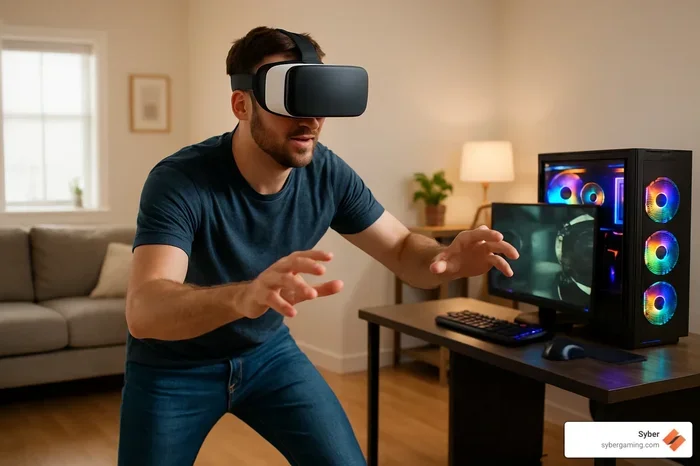
Setting up a gaming PC for VR doesn’t have to be complicated or expensive. This guide walks you through every step, from picking the right VR-ready computer to optimizing your virtual reality setup for smooth, immersive gameplay. You’ll learn what makes a PC capable of handling VR gaming and how to get the most out of your immersive gaming experience.
Key Takeaways
- VR-Ready Hardware Is Essential: Your PC needs a strong GPU, enough RAM, and a capable processor to run VR games without lag or stutter.
- Choosing the Right Headset Makes All the Difference: Not all PC VR headsets are the same. Pick one that matches your budget and performance needs.
- Optimize Your Play Space: Room-scale VR needs clear space and proper tracking setup for the safest and most immersive VR experience.
- Software and Drivers Matter: Keeping your graphics drivers and VR platform software updated ensures stability and better VR performance.
- Accessories Enhance Comfort and Immersion: The right gaming peripherals for VR can make your setup more comfortable and enjoyable over long sessions.
📑 Table of Contents
Why Setting Up a Gaming PC for VR Matters
Virtual reality gaming has exploded in popularity over the last few years. More players want to step inside their favorite worlds and feel like they are really there. But jumping into VR gaming isn’t as simple as buying a headset and strapping it on. Your gaming PC needs to meet specific demands to deliver a smooth and comfortable virtual reality experience.
A weak or underpowered computer will cause blurry images, lag, and even nausea. That’s the last thing you want when you’re trying to enjoy a fun game. On the other hand, a well-built VR-ready computer gives you stunning visuals, responsive controls, and hours of immersive fun. This guide covers everything you need to know about how to set up gaming PC for VR the right way.
Whether you’re building a new rig or upgrading an existing one, the steps below will help you avoid common mistakes and get your VR play space ready fast. Let’s dive in.
Understanding VR System Requirements
Before you buy anything, you need to know what your PC must have to run VR games. Each headset maker lists recommended and minimum specs. But the real-world performance often depends on more than just checking boxes on a spec sheet.
Processor (CPU)
Your CPU handles game logic, physics, and AI. For a smooth VR experience, you want at least an Intel i5-10400 or AMD Ryzen 5 3600. These processors give you enough power to keep frame rates stable. A stronger CPU helps when you’re running complex VR environments with lots of action on screen.
Graphics Card (GPU)
The GPU is the most important part for VR performance. It renders two separate images (one for each eye) at high frame rates. Nvidia’s RTX 3060 or better is a solid starting point. AMD’s Radeon RX 6700 XT also works well. The more VRAM your card has, the better it handles detailed VR worlds.
RAM
Most VR headsets recommend at least 16 GB of RAM. Some games benefit from 32 GB, especially if you run other apps while gaming. Check the best specs for a gaming PC to see how memory affects your overall setup.
Storage
VR games take up a lot of space. A fast NVMe SSD cuts down load times and keeps your system responsive. Aim for at least 500 GB of free space so you have room to grow your library.
Choosing the Right VR Headset
Your headset is the window into the virtual world. Picking the right one depends on your budget, the games you want to play, and how much VR play space you have at home.
Standalone vs. PC-Tethered Headsets
Standalone headsets like the Meta Quest 3 work without a PC. But to get the full PC VR experience, you need a tethered headset that connects to your computer. This setup gives you better graphics and access to a wider library of games.
Popular PC VR Headsets
Some of the top choices right now include the Meta Quest 3 (with PC link), Valve Index, HTC Vive Pro 2, and HP Reverb G2. Each has its own strengths in resolution, tracking, and comfort. If you’re on a tighter budget, look for a best affordable VR headset for PC that still delivers great performance.
Tracking and Controllers
Tracking technology affects how natural your movements feel in VR. Outside-in tracking uses external sensors for high accuracy. Inside-out tracking uses cameras on the headset itself, which is easier to set up. Controllers with hand tracking add another layer of realism to your immersive gaming experience.
Step-by-Step Setup Process
Now that you know what hardware you need, let’s walk through the actual setup process. Following these steps in order saves time and prevents frustration.
Step 1: Build or Verify Your PC
Start by confirming your PC meets the requirements for your chosen headset. Use the best specs for a gaming PC guide as a reference. Make sure your GPU drivers are up to date before you begin.
Step 2: Install the VR Software Platform
Each headset comes with its own software platform. SteamVR works with most headsets and gives you access to a huge library of VR games. Oculus PC app works best with Meta headsets. Install the platform and create your account before connecting the headset.
Step 3: Connect the Headset
Plug your headset into your PC using the provided cable (usually USB-C or DisplayPort). Make sure the connection is secure. Some headsets use docking stations that simplify the process. Once connected, the software should detect the headset automatically.
Step 4: Set Up Your Play Space
Clear a space where you can move freely. Most VR setups work best with at least 6.5 by 6.5 feet of open floor. Use the guardian or boundary system in your VR software to mark safe play zones. This prevents you from bumping into furniture or walls during intense VR gaming sessions.
Step 5: Calibrate Tracking and Controllers
Follow the on-screen instructions to calibrate your headset and controllers. Good calibration reduces VR motion sickness and makes interactions feel more natural. Place sensors or base stations at the correct angles for the best tracking coverage.
Optimizing Your PC for VR Performance
Getting your headset connected is only half the battle. To enjoy a truly smooth VR experience, you need to optimize your system for the unique demands of virtual reality.
Update Graphics Drivers
Keep your GPU drivers up to date. Both Nvidia and AMD release regular updates that improve VR performance and fix bugs. Use the manufacturer’s app to check for updates weekly.
Adjust In-Game Settings
Start with medium or high settings and adjust based on frame rate. Your target should be 90 frames per second for most headsets. Lowering shadow quality and anti-aliasing often gives the biggest performance boost without hurting visual quality too much.
Close Background Apps
Other programs eat up CPU and GPU resources. Close browsers, streaming apps, and anything else running in the background before you start your VR session. This frees up power for your games and keeps frame rates stable.
Use Performance Monitoring Tools
Tools like SteamVR’s performance dashboard let you watch your frame rate, CPU usage, and GPU usage in real time. If your frame rate drops often, these tools help you identify the bottleneck. They also give you tips on what to adjust for better VR performance.
Enhancing Your VR Setup with Accessories
The right accessories can take your VR gaming setup to the next level. They improve comfort, immersion, and convenience during long play sessions.
VR-Friendly Gaming Chairs
You spend a lot of time standing or moving in VR. A good chair with armrests and swivel capability makes breaks more comfortable and helps you stay in the game longer.
Cable Management Solutions
Tangled cables are a real problem in VR setups. A cable cover or ceiling-mounted pulley system keeps your headset cord out of the way. Some players use wireless adapters to remove the cable entirely, though they can add slight latency.
VR-Grade Headphones
Spatial audio is a big part of VR immersion. Headphones with good soundstage help you hear footsteps and environmental cues accurately. Look for open-back designs that let you stay aware of your real surroundings.
Additional Peripherals
Consider adding a quality microphone for voice chat, a comfortable floor mat for standing play, and extra batteries for your controllers. Check out the best gaming accessories for more ideas on what to add to your setup.
Best VR Games to Get Started With
Once your gaming PC for VR is ready, you’ll want to jump into some great games. The best VR games for PC span many genres, so there’s something for everyone.
Beat Saber is a fantastic rhythm game that gets you moving and is perfect for beginners. Half-Life: Alyx is a story-driven shooter that showcases the power of VR gaming with incredible detail and physics. Superhot VR offers a unique time-bending shooter experience that feels unlike anything on a flat screen.
For racing fans, Gran Turismo 7 and Assetto Corsa Competizione deliver realistic driving in virtual reality. If you prefer exploration, games like Asgard’s Wrath and Boneworks offer deep, engaging worlds to discover. Whatever your taste, there’s a VR game that will make your setup feel worth it.
Common Mistakes to Avoid
Even excited veterans make setup mistakes that hurt their VR experience. Watch out for these common errors:
- Skipping the play space boundary. This is the number one cause of bumps and broken objects. Always set your guardian before you start playing.
- Ignoring cable management. A dangling cable can pull your headset off or trip you during intense moments.
- Running outdated drivers. Old GPU drivers cause crashes and visual glitches in VR games. Update them regularly.
- Overheating your PC. VR gaming pushes your hardware hard. Make sure your cooling system can handle the load, especially during long sessions.
- Neglecting comfort breaks. Long VR sessions can cause eye strain and fatigue. Take a break every 30 to 45 minutes to stay comfortable.
Final Thoughts
Setting up a gaming PC for VR is a rewarding process that opens the door to an entirely new way of playing. From choosing the right VR headset to optimizing your gaming PC and designing your VR play space, each step brings you closer to a truly immersive experience. The hardware requirements might seem daunting at first, but breaking them into manageable steps makes it easy for anyone.
Start with a solid foundation, pick a headset that fits your needs, and invest in a few key accessories. Keep your drivers updated and your play space safe. Soon you’ll be exploring virtual worlds with stunning clarity and smooth performance. The world of VR gaming is waiting. Get your PC VR setup ready and step inside the action.
Frequently Asked Questions
What makes a PC VR-ready?
A VR-ready PC needs a modern GPU like an Nvidia RTX 3060 or better, at least 16 GB of RAM, and a capable processor such as an Intel i5 or AMD Ryzen 5 series. These components work together to render the two high-resolution images VR headsets require without dropping frames or causing lag during intense VR gaming sessions.
Can I use a Quest 3 with my gaming PC?
Yes, the Meta Quest 3 supports PC link through a USB-C cable or wireless adapter. This lets you access the full SteamVR library and other PC-exclusive VR games while using the Quest 3 headset. Make sure your PC meets the recommended specs for the best virtual reality experience.
How much space do I need for room-scale VR?
Most VR setups work best with at least 6.5 by 6.5 feet of clear floor space. This gives you enough room to move, crouch, and reach without hitting walls or furniture. Use the guardian system in your VR software to mark your boundaries and play safely.
Why do I feel sick during VR games?
VR motion sickness usually happens when your eyes see movement but your body doesn’t feel it. This mismatch confuses your brain. To reduce it, start with short sessions, take frequent breaks, and make sure your headset is properly calibrated. Keeping your frame rate at 90 fps or higher also helps a lot.
Do I need a special monitor for VR gaming?
No, your regular monitor works fine for setting up and configuring your VR headset. You use the monitor while adjusting settings, launching games, and managing your VR play space. Once the headset is connected, the display shifts to the headset’s screens for the full immersive gaming experience.
What is the best way to manage VR cables?
Cable management is important for a clean and safe VR setup. You can use cable covers, ceiling-mounted pulleys, or wireless adapters to reduce tangling. Some players also use a link box mounted behind their desk to keep cables organized and within reach. Good management prevents accidents and keeps your focus on the game.