How to Connect Airpods to Pc a Step by Step Guide with Visuals
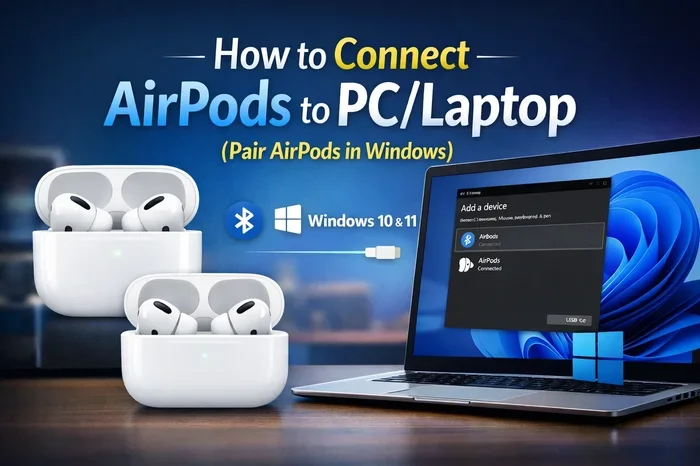
Connecting your Airpods to Pc is easier than you think. This guide walks you through every step with clear instructions and visuals to help you get sound flowing fast. Whether you use Windows or Mac, you will have your Airpods paired and ready in minutes.
So you just got a pair of Airpods and want to use them with your PC. Maybe you are working from home, watching movies, or gaming. Whatever the reason, getting your Airpods connected to your computer is a straightforward process. This step by step guide makes it super easy to follow.
Apple designed Airpods to work seamlessly with all Apple devices. But they also work great with Windows PCs and other computers. The connection uses Bluetooth, which is the same wireless technology you use to connect a Bluetooth mouse to laptop or any other wireless accessory. Once you understand the basics, you will never want to go back to tangled wires.
In this guide, we cover everything you need. From putting your Airpods in pairing mode to fixing common issues. We also share tips to make your wireless audio experience better. Let us get started.
Key Takeaways
- Bluetooth is the key: You need Bluetooth enabled on your PC to connect Airpods.
- Pairing mode matters: Always put your Airpods in pairing mode before searching on your PC.
- Windows and Mac differ slightly: The steps vary a bit depending on your operating system.
- Troubleshooting is simple: Most connection issues can be fixed by resetting your Airpods or updating drivers.
- You can switch devices: Airpods let you jump between your PC and phone easily.
- Check audio output: After pairing, set your Airpods as the default audio device for sound.
📑 Table of Contents
What You Need Before You Start
Before you try to connect your Airpods to your PC, make sure you have a few things ready. It only takes a minute to check, and it saves you frustration later.
- A pair of Airpods with a charged case. Make sure the battery has enough juice.
- A PC with Bluetooth capability. Most modern laptops have built-in Bluetooth. Desktop PCs may need a Bluetooth adapter.
- Your PC updated to the latest version. This ensures your Bluetooth drivers are current.
- Patience. The process takes about 3 to 5 minutes once you know the steps.
If your PC does not have Bluetooth built in, you can buy a USB Bluetooth adapter. These are cheap and work great. Just plug it in and your PC is ready to go. Think of it the same way you would connect a wireless mouse to laptop. You just need the right adapter, and you are good to go.
How to Connect Airpods to Pc on Windows
Windows 10 and Windows 11 make it very easy to pair Bluetooth devices. Follow these steps carefully and you will be listening to music in no time.
Step 1: Turn on Bluetooth on Your PC
Click on the Start menu and open Settings. Then click on Devices and select Bluetooth and other devices. Make sure the Bluetooth toggle is turned on. You should see a message saying Bluetooth is on.
If you do not see this option, your PC might not have Bluetooth. Check your PC specs or grab a Bluetooth adapter. Most laptops made after 2018 have Bluetooth built in.
Step 2: Put Your Airpods in Pairing Mode
Open the lid of your Airpods case. Press and hold the small button on the back of the case. You will see a white light flash. This means your Airpods are ready to pair.
Keep the case open and close to your PC while pairing. The white flashing light is your signal that everything is working. This is the same process you use when you connect a Bluetooth mouse to a laptop. The idea is the same for all Bluetooth devices.
Step 3: Add Your Airpods to Your PC
Go back to your PC Settings. Click on Add Bluetooth or other device. Choose Bluetooth from the list. Your PC will start searching for nearby devices.
Your Airpods should appear in the list. Click on them to select them. Wait a few seconds for the connection to complete. You will see a message saying the device is connected.
Now your Airpods are paired. But you are not quite done yet. You need to set them as your default audio output device. Here is how.
Step 4: Set Airpods as Your Default Audio Device
Right-click on the speaker icon in your taskbar. Click on Open Sound settings. Under Output, find your Airpods in the dropdown menu. Select them as the default device.
Now any sound from your PC will play through your Airpods. Try playing a video or a song to test it out. If you hear sound, you are all set.
How to Connect Airpods to Pc on Mac
If you use a Mac, the process is slightly different but just as simple. Macs handle Bluetooth connections very smoothly. Here is what you need to do.
Step 1: Enable Bluetooth on Your Mac
Click on the Apple menu and open System Preferences. Click on Bluetooth. Make sure Bluetooth is turned on. You will see a list of nearby devices.
Macs are great at finding Bluetooth devices quickly. The interface is clean and easy to use. If Bluetooth is off, simply click the toggle to turn it on.
Step 2: Put Your Airpods in Pairing Mode
Open your Airpods case and press the button on the back. Wait for the white light to flash. Hold the case close to your Mac.
Your Airpods will show up on the Bluetooth screen on your Mac. Click on them and click Connect. That is it. The connection happens fast.
Step 3: Set Airpods as Output Device
Click on the Volume icon in your menu bar. You should see your Airpods listed as an output option. Select them and your Mac audio will play through your Airpods.
You can also check this in System Preferences under Sound. Go to the Output tab and select your Airpods. This ensures all sound routes through your wireless earbuds.
Troubleshooting Common Connection Issues
Sometimes things do not go as planned. Your Airpods might not connect, or the sound might cut out. Do not worry. Most issues have simple fixes.
Airpods Not Showing Up on Your PC
If your Airpods do not appear in the Bluetooth list, try these things. First, make sure your Airpods are in pairing mode. The white flashing light should be visible. Second, move your Airpods closer to your PC. Bluetooth has a range of about 30 feet.
Third, turn Bluetooth off and back on again. This refreshes the connection. You can also restart your PC. Sometimes a simple restart fixes everything. If you have connected other wireless devices before, try connecting a wireless mouse to my laptop first to test if your Bluetooth is working at all.
Sound Keeps Cutting Out
If your Airpods keep disconnecting, the issue is often distance or interference. Stay within range of your PC. Other wireless devices can sometimes cause interference. Try turning off nearby Bluetooth devices that you are not using.
Also check your Airpods battery. Low battery can cause connection drops. Charge your Airpods fully before using them again. A full charge gives you the best and most stable connection.
Airpods Connected But No Sound
This is a common issue. The fix is usually simple. Check your PC sound settings and make sure your Airpods are set as the output device. Sometimes Windows switches the audio output to your PC speakers by accident.
Right-click the speaker icon and check the output device. Select your Airpods if they are not already selected. You can also try unplugging and replugging any wired headphones to reset the audio system.
Reset Your Airpods
If nothing else works, reset your Airpods. Put them in the case and close the lid. Wait 30 seconds. Open the lid and go to your PC Bluetooth settings. Forget the Airpods device and try pairing again.
Resetting clears any old connection data. This often fixes stubborn connection problems. It is like giving your Airpods a fresh start.
Tips for Better Airpods Performance on Your PC
Once your Airpods are connected, you can do a few things to improve your experience. These small tips make a big difference.
- Keep your Airpods charged. A low battery affects both sound quality and connection stability.
- Stay close to your PC. Bluetooth works best within 10 to 15 feet for the best audio quality.
- Update your PC Bluetooth drivers. Go to your device manager and check for updates. Updated drivers fix many issues.
- Turn off other Bluetooth devices when not in use. This reduces interference and keeps your connection strong.
- Use a Bluetooth adapter if needed. If your desktop PC lacks Bluetooth, a USB adapter solves this problem quickly.
These tips apply to all wireless audio devices. Whether you are using a wireless mouse to a laptop or Airpods, keeping your Bluetooth environment clean helps everything run smoothly.
Can You Use Airpods With Any PC
The short answer is yes. Airpods work with any PC that has Bluetooth. This includes Windows laptops, desktop PCs with Bluetooth adapters, and Mac computers. The connection process is the same regardless of your PC brand.
Airpods use standard Bluetooth protocols. This means they are not limited to Apple devices. You can pair them with a Dell, HP, Lenovo, or any other brand. The experience is the same across all platforms.
Some users wonder if Airpods work well for gaming or video calls. The answer is yes. Airpods provide good audio quality for both. The latency is low enough for most uses. However, if you are a competitive gamer, you might notice a slight delay. For casual gaming and video calls, Airpods work perfectly fine.
How to Disconnect and Reconnect Your Airpods
Disconnecting your Airpods from your PC is easy. Simply go to your Bluetooth settings and click Disconnect. Or you can turn off Bluetooth on your PC temporarily.
When you want to reconnect, put your Airpods back in pairing mode. Your PC should remember them and reconnect automatically. This makes the process fast and convenient every time you sit down at your desk.
Final Thoughts
Connecting your Airpods to Pc is a simple process that anyone can do. Whether you are on Windows or Mac, the steps are clear and easy. You just need to enable Bluetooth, put your Airpods in pairing mode, and select them from the device list.
Most connection issues can be fixed with a simple reset or driver update. Keep your Airpods charged and close to your PC for the best experience. With these tips, you will enjoy wireless audio from your PC in no time.
Now that you know how to connect and troubleshoot, you are ready to enjoy your favorite music, podcasts, and calls without any wires. Grab your Airpods, follow the steps above, and start listening.
Frequently Asked Questions
Can I connect Airpods to a PC without Bluetooth?
No, Bluetooth is required to connect Airpods to a PC. If your desktop does not have Bluetooth built in, you can buy a USB Bluetooth adapter. These are affordable and plug right into a USB port. Once the adapter is installed, your PC can connect to Airpods just like any other Bluetooth device.
Why won’t my Airpods show up on my PC?
This usually happens when your Airpods are not in pairing mode. Make sure the white light is flashing on your Airpods case. Also check that Bluetooth is turned on your PC and that your Airpods are within range. Restarting both your PC and Airpods often fixes this issue quickly.
Can I use Airpods for gaming on PC?
Yes, you can use Airpods for gaming on PC. The audio quality is good and the connection is stable for most games. However, there may be a slight audio delay compared to wired headphones. For casual gaming and most games, the delay is barely noticeable. Competitive gamers who need instant audio might prefer wired options.
How do I switch Airpods between my PC and phone?
Airpods make switching between devices easy. Simply connect your Airpods to your phone first. Then when you open your PC Bluetooth settings, your Airpods should appear and you can connect them. Apple devices handle this switching even more smoothly with automatic device switching features.
Do I need to install any software to connect Airpods to PC?
No, you do not need any special software. Windows and Mac both have built-in Bluetooth support. You just need to use the native Bluetooth settings on your PC. No third-party apps or drivers are required for basic Airpods connectivity.
How long does the Airpods battery last when connected to a PC?
Airpods battery life is the same whether connected to a PC or phone. Most Airpods models offer about 4 to 5 hours of listening time on a single charge. The case provides additional charges for multiple full cycles. Keeping your Airpods charged ensures the best connection and audio quality.