How to Uninstall Escape from Tarkov
Uninstalling Escape From Tarkov is simple when you follow the right steps. Whether you are using Steam or want to remove every trace of the game, this guide walks you through the entire process. You will learn how to uninstall the game, delete leftover files, and keep your PC clean and fast.
Escape From Tarkov is an intense and immersive game. But sometimes, you just need to step away. Maybe you want to free up space on your hard drive. Perhaps the game is causing performance issues. Or maybe you are simply done playing. Whatever the reason, knowing how to properly uninstall Escape From Tarkov matters. A incomplete removal can leave behind large files and registry entries that clutter your system. This guide shows you exactly how to do it right.
In this article, we cover every method you need. We start with the easiest approach using Steam. Then we move to manual file deletion for a thorough cleanup. We also explain how to remove the BattlEye anti-cheat system. By the end, your PC will be completely free of Escape From Tarkov. Let us get started.
Key Takeaways
- Steam Uninstall: You can remove Escape From Tarkov directly through the Steam client in just a few clicks.
- Manual Cleanup: Deleting leftover folders and files ensures a complete removal of the game from your system.
- BattlEye Removal: The anti-cheat software needs to be uninstalled separately for a full clean uninstall.
- Storage Savings: Uninstalling Tarkov frees up significant disk space since the game is very large.
- Reinstalling Is Easy: You can reinstall the game anytime without losing your purchase history on Steam.
📑 Table of Contents
- Why You Might Want to Uninstall Escape From Tarkov
- How to Uninstall Escape From Tarkov via Steam
- How to Remove Tarkov Files Manually
- How to Remove BattlEye Anti-Cheat Completely
- How to Clean Up Leftover Files After Uninstalling
- Common Mistakes When Uninstalling Escape From Tarkov
- Can You Reinstall Escape From Tarkov After Uninstalling?
- What to Do If Your PC Runs Slow After Uninstalling
- Final Thoughts
Why You Might Want to Uninstall Escape From Tarkov
There are many reasons players decide to remove this game. Understanding these reasons can help you decide if uninstalling is the right move for you. Here are the most common ones:
- Storage Space: Escape From Tarkov takes up a massive amount of disk space. The game files, updates, and saved data can easily exceed 50 GB. If you are low on storage, removing it frees up significant room.
- Performance Issues: Some PCs struggle with this game. It can cause your system to run slow or even freeze during intense moments. If your computer is lagging, uninstalling might be the quick fix you need.
- Burnout: Tarkov is notoriously stressful. The high-stakes gameplay can lead to burnout. Taking a break or quitting entirely is a valid choice.
- Hardware Upgrades: You might be upgrading your PC components. Before adding a new NVMe SSD or more RAM, clearing space helps with the transition.
- Switching Games: You may have moved on to other titles and no longer need Tarkov taking up resources.
No matter your reason, the process is straightforward. Let us walk through it step by step.
How to Uninstall Escape From Tarkov via Steam
The most common way to play Escape From Tarkov is through Steam. If that is how you installed it, uninstalling through Steam is the easiest method. Follow these simple steps:
- Open the Steam application on your computer.
- Click on the “Library” tab at the top of the screen.
- Find “Escape From Tarkov” in your game list.
- Right-click on the game title.
- Select “Manage” from the dropdown menu.
- Click on “Uninstall.”li>
- Confirm the uninstallation when prompted.
That is it. Steam will remove the game files from your system. The process may take several minutes depending on your internet speed and drive performance. Once complete, the game will no longer appear in your library under the installed section.
What Happens to Your Saved Data?
Here is something important to know. Uninstalling through Steam does not delete your saved data automatically. Your profiles, stash data, and settings remain on your hard drive. If you plan to play again later, this is actually good news. Your progress will still be there when you reinstall the game.
However, if you want a complete removal, you need to manually delete these saved files. We will cover that in the next section. Also, keep in mind that uninstalling the game this way does not remove the BattlEye anti-cheat software. That requires separate steps, which we will cover shortly.
How to Remove Tarkov Files Manually
For a truly complete uninstall, you should manually delete remaining files. This ensures no leftover data takes up space on your PC. Follow these steps carefully:
Step 1: Delete the Game Installation Folder
By default, Steam installs games in the following folder:
C:\Program Files (x86)\Steam\steamapps\common\EscapeFromTarkov
Navigate to this location on your computer. If the folder still exists after Steam uninstallation, delete it entirely. Empty your Recycle Bin afterward to reclaim the space.
Step 2: Remove User Data and Save Files
Tarkov stores user data in the AppData folder. To access it:
- Press the Windows key + R on your keyboard.
- Type
%appdata%and press Enter. - Look for a folder named “Battlestate Games.”
- Delete this folder completely.
This removes all your saved profiles, stash data, and configuration files. Once deleted, this data cannot be recovered. Make sure you really want to remove everything before proceeding.
Step 3: Check the Documents Folder
Some Tarkov-related files may also be stored in your Documents folder. Navigate to:
C:\Users\[YourUsername]\Documents\EscapeFromTarkov
If this folder exists, delete it as well. This ensures no residual files remain on your system.
How to Remove BattlEye Anti-Cheat Completely
Escape From Tarkov uses BattlEye as its anti-cheat system. Even after uninstalling the game, BattlEye may still be present on your computer. Removing it is an important part of a complete uninstall.
Why Remove BattlEye?
BattlEye runs in the background even when you are not playing. This uses system resources. It can also interfere with other games or applications. For a clean system, you should remove it.
Steps to Uninstall BattlEye
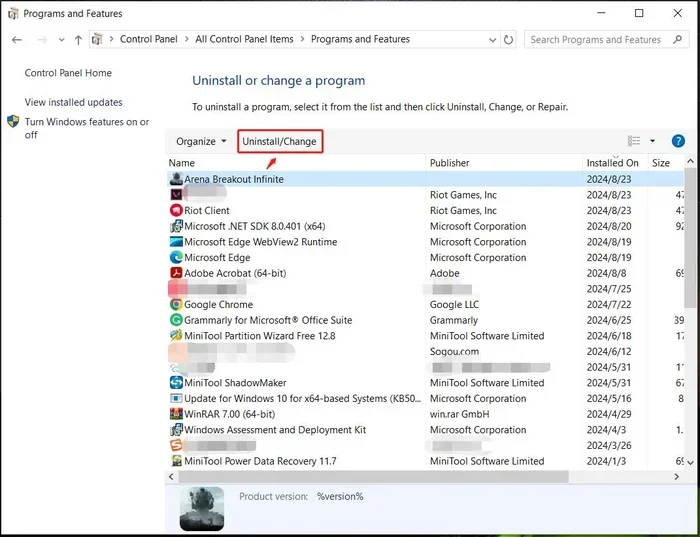
- Open the Control Panel on your Windows PC.
- Click on “Programs” and then “Programs and Features.”
- Find “BattlEye Anti-Cheat” in the list of installed programs.
- Right-click on it and select “Uninstall.”
- Follow the on-screen prompts to complete the removal.
- Restart your computer when finished.
After restarting, BattlEye should be completely removed from your system. You can verify this by checking your system tray or running a quick search in the Control Panel.
How to Clean Up Leftover Files After Uninstalling
Even after following all the steps above, some residual files might remain. A thorough cleanup ensures your PC stays optimized. Here is how to do it:
Use Disk Cleanup
Windows has a built-in tool called Disk Cleanup. It helps you find and remove temporary files that accumulate over time. To use it:
- Search for “Disk Cleanup” in the Windows Start menu.
- Select your main drive (usually C:).
- Check the boxes for temporary files and system files.
- Click “OK” to delete them.
This is a great habit to build. Regular cleanup keeps your PC running smoothly. If you want to go deeper, you can also use trusted third-party tools to scan for orphaned files.
Consider a Junk File Cleaner
Tools like Windows Disk Cleanup or trusted optimization software can find hidden Tarkov remnants. These tools scan your entire drive for leftover data. They are especially useful if you want to reclaim every possible megabyte of space. Just make sure to use reputable software and avoid anything suspicious.
For more tips on keeping your PC clean, check out our guide on how to remove junk files from PC. It offers excellent advice for maintaining a fast and clean system.
Common Mistakes When Uninstalling Escape From Tarkov
People often make mistakes when removing games from their systems. Avoid these common errors to ensure a clean uninstall:
- Skipping the BattlEye Removal: Many users forget to uninstall the anti-cheat software. This leaves background processes running and wastes resources.
- Ignoring AppData Folders: The AppData folder hides important save data. If you skip this step, you leave behind gigabytes of unnecessary files.
- Forgetting to Empty the Recycle Bin: Deleted files still take up space until you empty the bin. Always remember this final step.
- Rushing Through the Process: Take your time. A rushed uninstall often misses hidden files and registry entries.
- Not Backing Up Saves: If you think you might return to Tarkov, back up your save files first. Deleting them is permanent and cannot be undone.
By avoiding these mistakes, you ensure a smooth and complete removal. Your PC will thank you for the extra care.
Can You Reinstall Escape From Tarkov After Uninstalling?
Absolutely. If you decide to return to Tarkov, reinstalling is easy. Since the game is tied to your Steam account, you do not need to purchase it again. Simply go to your Steam library, find Escape From Tarkov, and click “Install.” Your saved data will still be there if you did not delete the AppData folder.
If you want a fresh start without old save data, follow the manual deletion steps we covered earlier before reinstalling. This gives you a clean slate. Also, if you upgraded your storage with a new NVMe SSD, you might want to reinstall the game on the faster drive for better performance. Check out our guide on how to set up new NVMe SSD for helpful tips on optimizing your storage setup.
Reinstalling after an uninstall is a common practice. Many players take breaks from Tarkov and return later. The process is designed to be seamless on Steam.
What to Do If Your PC Runs Slow After Uninstalling
Sometimes, even after uninstalling a game, your PC might still feel sluggish. This can happen for several reasons. Background processes may still be running. Registry entries from the game might remain. Or other system issues could be at play.
If your computer continues to run slow after removing Tarkov, try these steps:
- Restart your computer to clear any lingering processes.
- Run a full virus scan to rule out malware.
- Use Disk Cleanup to remove temporary files.
- Check your Task Manager for unusual background apps.
- Consider upgrading your RAM if your system is consistently slow.
For more help with performance issues, visit our article on how to fix computer running slow and freezing. It provides detailed troubleshooting steps for a variety of PC problems.
Final Thoughts
Uninstalling Escape From Tarkov does not have to be complicated. Whether you use the Steam uninstaller or manually delete files, the key is thoroughness. Remove the game, delete leftover data, uninstall BattlEye, and clean up your system. Following these steps gives you a fresh and optimized PC.
Remember, uninstalling a game is a personal choice. There is no shame in stepping away from a demanding title like Tarkov. Your time and your hardware are valuable. If the game is no longer serving you, removing it is a smart decision. We hope this guide made the process easy and clear for you. Happy computing!
Frequently Asked Questions
Will uninstalling Escape From Tarkov delete my Steam achievements?
No, your Steam achievements remain tied to your account. Even after uninstalling, you can view your achievement history in your Steam profile. Reinstalling the game does not reset your progress.
How much space does Escape From Tarkov take up on my PC?
The game requires approximately 50 GB or more of storage space. This includes the base game, updates, and any downloaded content. Uninstalling it will free up this significant amount of disk space.
Can I uninstall BattlEye separately from Escape From Tarkov?
Yes, you can. BattlEye is installed as a separate program on your system. You can find it in the Control Panel under Programs and Features and uninstall it independently from the game itself.
Do I lose my stash data when I uninstall Tarkov?
Only if you manually delete the AppData folder. If you only uninstall through Steam, your stash data remains stored in the AppData directory. Decide carefully before deleting these files.
Is it safe to delete the Escape From Tarkov folder manually?
Yes, it is safe as long as you have already uninstalled the game through Steam first. Manual deletion simply removes leftover files that the Steam uninstaller may have missed.
How long does the uninstallation process take?
The Steam uninstallation typically takes 5 to 15 minutes. Manual file deletion takes only a few additional minutes. The total process is quick and straightforward for most users.
=== CONCLUSION ===
Uninstalling Escape From Tarkov is a simple process when you know the right steps. Start with Steam’s built-in uninstaller, then manually remove leftover files and BattlEye. Clean up your system thoroughly to keep it running fast. Whether you are freeing up space, fixing performance issues, or moving on to other games, this guide has you covered. Take your time, follow each step, and enjoy a clean PC afterward.