How To View Your Product Key In Windows In Seconds

Finding your Windows product key is easier than you think. You can view it in seconds using built-in tools like Settings, Command Prompt, or PowerShell. Whether you need it to reinstall Windows or verify activation, this guide shows you every method.
Ever stared at your computer screen wondering where on earth your Windows product key went? You are not alone. Millions of people need to find their Windows license key every single day. Maybe you are reinstalling Windows, setting up a new hard drive, or just curious about your activation status. Whatever the reason, knowing how to view your product key in Windows is a skill everyone should have.
The good news is that you do not need to be a tech expert. Windows makes it surprisingly easy to find your product key. In fact, you can do it in seconds using tools already built into your system. This guide walks you through every method step by step. By the end, you will know exactly where your key is hiding and how to keep it safe for the future.
Key Takeaways
- Multiple Methods Available: You can find your product key through Settings, Command Prompt, PowerShell, and third-party tools.
- No Extra Software Needed: Windows has built-in tools that let you view your license key without downloading anything.
- Works on Windows 10 and 11: All the methods covered in this guide apply to both Windows 10 and Windows 11.
- Save Your Key Safely: Always store your product key in a secure place so you never lose it.
- OEM vs Retail Keys: Understanding the type of key you have helps you know what to do if you need to reinstall.
- Quick and Easy: Most methods take less than a minute to complete.
📑 Table of Contents
- Why You Need to Know Your Windows Product Key
- Method 1: View Your Product Key Through Settings
- Method 2: Use Command Prompt to Find Your Key
- Method 3: Use PowerShell for Advanced Users
- Method 4: Check Your Product Key Through Third-Party Tools
- Method 5: Find Your Key in Your Microsoft Account
- How to Save Your Product Key for the Future
- Understanding OEM vs Retail Product Keys
- Common Mistakes People Make with Product Keys
- Expert Tips to Keep Your Windows System Running Smoothly
- Frequently Asked Questions
- Final Thoughts
Why You Need to Know Your Windows Product Key
Your product key is more than just a random string of numbers and letters. It is proof that your copy of Windows is genuine and properly licensed. Without it, you could run into big problems down the road. Here is why keeping track of this key matters so much.
Reinstalling Windows Becomes a Breeze
If your computer ever crashes or slows down, you might need to reinstall Windows. During setup, the system will ask for your product key. Without it, you could be stuck waiting or even forced to buy a new license. Having your key saved means you can go through the whole process in minutes.
Verifying Your Activation Status
Sometimes Windows lets you know something is off. A watermark on your desktop or nagging pop-ups can mean your copy of Windows is not activated. Pulling up your product key lets you confirm whether everything is legit. It also helps you figure out if you are using an OEM key or a retail key.
Upgrading Your Hardware
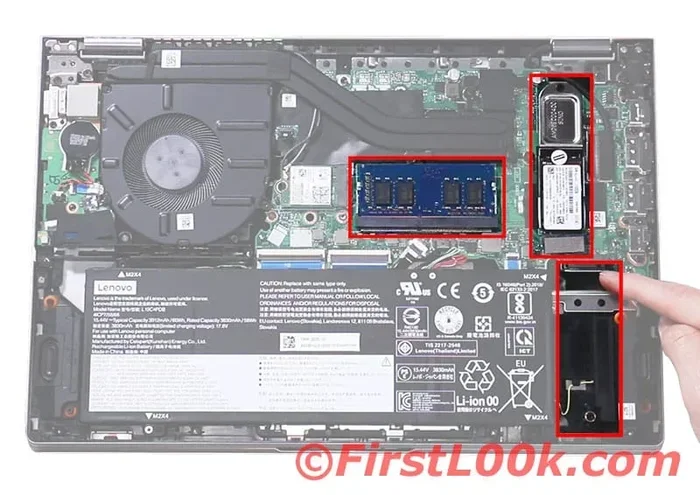
Planning a big upgrade like adding a new SSD or swapping out your motherboard? You might need your product key to reactivate Windows afterward. For example, if you are going to install an NVMe SSD in your PC, having your Windows key ready ensures a smooth transition without activation headaches.
Method 1: View Your Product Key Through Settings
The easiest way to find your product key is right inside Windows Settings. This method works on both Windows 10 and Windows 11 and requires no extra tools. Let me walk you through it.
Steps for Windows 11
- Click the Start menu and select Settings.
- Go to System on the left sidebar.
- Scroll down and click on Activation.
- Look for the product ID under the Windows activation section.
You will see a message that says Windows is activated. Right next to it, you should see your product ID. This method shows a simplified version of your key, which is usually enough for most needs.
Steps for Windows 10
- Open Settings by pressing the Windows key plus I.
- Click on Update and Security.
- Select Activation from the left menu.
- Your product key will appear on the right side of the screen.
Both methods are quick and straightforward. If for some reason the key does not show up, do not worry. There are other methods we will cover below that will get the job done.
Method 2: Use Command Prompt to Find Your Key
Command Prompt is a powerful built-in tool that many people overlook. It gives you access to detailed system information, including your full product key. This method works great if the Settings app does not show what you need.
Step-by-Step Instructions
- Click the Start menu and type cmd.
- Right-click on Command Prompt and select Run as administrator.
- Type the following command and press Enter:
wmic path softwarelicensingservice get OA3xOriginalProductKey - Your product key will appear on the screen.
This command pulls the key directly from your system firmware. It works especially well on newer computers that came with Windows preinstalled. The key you see here is your full 25-character product key, exactly what you need for a clean install.
What If the Command Does Not Work?
Sometimes the WMIC command returns nothing. This can happen on older systems or certain PC brands. If that happens, try the alternative command below:
powershell "(Get-WmiObject -query 'select from SoftwareLicensingService').OA3xOriginalProductKey"
This PowerShell command does the same thing and often works when WMIC fails. Both commands are safe and will not change anything on your computer.
Method 3: Use PowerShell for Advanced Users
PowerShell is like Command Prompt on steroids. It gives you more control and can pull detailed information about your system. If you are comfortable with a little bit of technical work, PowerShell is a great option.
Open PowerShell as administrator and run the same command mentioned above. You can also use this script to pull more details about your Windows license:
(Get-WmiObject -query 'select from SoftwareLicensingService').OA3xOriginalProductKey
PowerShell is especially useful when you need to check multiple PCs at once. IT professionals and tech enthusiasts love it because it saves time. If you are someone who likes to stay on top of your system, learning a few PowerShell commands is well worth the effort.
Method 4: Check Your Product Key Through Third-Party Tools
Not everyone loves using the command line. If you prefer a graphical interface, third-party tools can help. These programs read your system registry and display your product key in plain text. Here are a few reliable options.
ProduKey by NirSoft
ProduKey is a lightweight free tool that shows your Windows product key and other software keys. It does not install anything, so you can run it straight from a USB drive. Just download it, open the file, and your key appears instantly.
Belarc Advisor
Belarc Advisor goes a step further. It creates a detailed report of all the software and licenses on your PC. This is great if you want to keep track of everything in one place. The report is saved locally on your computer, so your data stays private.
Just remember to download these tools from the official websites only. Third-party software can sometimes come bundled with unwanted extras if you are not careful.
Method 5: Find Your Key in Your Microsoft Account
Microsoft has made it even easier by letting you view your product key online. If you linked your Windows copy to your Microsoft account, you can find it through their website.
- Go to account.microsoft.com and sign in.
- Click on Services and subscriptions.
- Look for your Windows license under your purchases.
- Your product key should be listed there.
This method is perfect for people who bought Windows digitally. It also works well if you need to check your key on a different device. Just make sure you remember your Microsoft account password before you start.
How to Save Your Product Key for the Future
Finding your key is only half the battle. Keeping it safe for the future is just as important. Losing your product key can turn a simple reinstall into a frustrating experience. Here are a few tips to make sure you never lose it again.
Save It in a Password Manager
Password managers like Bitwarden, 1Password, or LastPass are perfect for storing product keys. They encrypt your data and keep it safe. You can access your key from any device, which is super convenient.
Write It Down and Store It Physically
Sometimes the old-fashioned way is the best way. Write your product key on a piece of paper and keep it with your important documents. A fireproof safe or a locked drawer works great for this.
Create a Digital Backup File
Save a text file on your computer with your product key. Name it something generic like “System Info” so no one would guess what it contains. Better yet, encrypt the file with a password or save it to a cloud storage service like OneDrive or Google Drive.
Understanding OEM vs Retail Product Keys
Not all product keys are the same. Knowing the difference between OEM and retail keys helps you understand what you can and cannot do with your license.
| Feature | OEM Key | Retail Key |
|---|---|---|
| Tied to hardware | Yes | No |
| Can be transferred | No | Yes |
| Cheaper price | Yes | No |
| Support from Microsoft | Limited | Full |
| Works after motherboard swap | No | Yes |
OEM keys come preinstalled on new computers. They are tied to the motherboard of that specific device. Retail keys give you more flexibility. You can transfer them to a new PC whenever you want. If you are planning to upgrade your RAM or change hardware, knowing which type of key you have matters a lot.
Common Mistakes People Make with Product Keys
There are a few mistakes that trip people up when dealing with product keys. Avoiding these can save you a lot of time and frustration.
- Not backing up your key: This is the number one mistake. Always save your key before you need it.
- Using a key generator: These tools are risky and often contain malware. Stick to official methods.
- Confusing the key with a license ID: These are not the same thing. Make sure you are looking at the right number.
- Sharing your key publicly: Your product key is personal. Do not post it online or share it with strangers.
- Ignoring activation warnings: If Windows tells you something is wrong, check your key right away.
By steering clear of these mistakes, you keep your system running smoothly and your license fully legit.
Expert Tips to Keep Your Windows System Running Smoothly
Once you have your product key sorted out, you might want to think about the overall health of your system. A well-maintained PC runs faster and has fewer activation issues. Here are a few quick tips.
- Keep Windows updated: Updates fix bugs and improve security. They also help with activation problems.
- Clean your registry regularly: A cluttered registry can slow things down. Use a trusted cleaner or do it manually.
- Check your drivers: Outdated drivers can cause all sorts of issues. Update them regularly through Device Manager.
- Scan for malware: Viruses can mess with your activation. Run a full scan at least once a month.
- Consider upgrading your storage: If your PC feels slow, switching to an NVMe drive can make a huge difference. Check out our guide on how to install an NVMe SSD in your PC for a step-by-step walkthrough.
Taking care of your PC pays off in the long run. Your system stays fast, secure, and properly activated.
Frequently Asked Questions
Can I view my product key without using the command line?
Yes, absolutely. The Settings app in both Windows 10 and Windows 11 lets you see a simplified version of your product key without touching the command line. Just go to Settings, then System, then Activation. Your product ID will be right there on the screen.
Is it safe to use third-party tools to find my product key?
It is safe as long as you download from the official website. Stick with trusted tools like ProduKey by NirSoft or Belarc Advisor. Always avoid shady download sites that bundle extra software with their downloads. Reading reviews before downloading also helps you stay safe.
What happens if I lose my product key?
If you lose your key, you can try retrieving it through your Microsoft account or by using the Command Prompt methods above. If those do not work, you may need to contact Microsoft Support for help. That is why it is so important to save your key somewhere safe from the start.
Can I transfer my OEM product key to a new PC?
No, OEM keys are tied to the original hardware they came with. They cannot be transferred to a new PC. If you buy a new computer, you will need a new license. Retail keys are the ones that let you move your Windows license between devices freely.
How do I know if my Windows is activated or not?
Go to Settings, then System, then Activation. If Windows is activated, you will see a message that says Windows is activated with a digital license or product key. If it is not activated, you will see a prompt asking you to enter a product key or activate Windows.
Does reinstalling Windows delete my product key?
No, reinstalling Windows does not delete your product key. Your key is stored in your system firmware or linked to your Microsoft account. After a clean install, Windows should automatically reactivate using your existing key as long as you are connected to the internet.
Final Thoughts
Knowing how to view your product key in Windows is one of those basic skills that everyone should have. It takes just a few minutes and can save you hours of headaches later on. Whether you use the Settings app, Command Prompt, PowerShell, or a third-party tool, you now have multiple ways to pull up your key whenever you need it.
Do not wait until you are in the middle of a reinstall to realize you do not have your key. Take five minutes right now to find it and save it somewhere safe. Your future self will thank you. And if you ever need to do more with your PC, remember that every small bit of knowledge adds up. You have got this.