How to Upgrade Ram and Ssd on Huawei Matebook 16s 2023

The Huawei Matebook 16s 2023 is a powerful laptop, but upgrading its RAM and SSD can take your productivity and speed to the next level. This guide walks you through everything you need to know, from choosing compatible parts to the actual installation process. Whether you want more memory for multitasking or faster storage for quick boot times, this Huawei Matebook 16s upgrade guide has you covered.
The Huawei Matebook 16s 2023 is a fantastic laptop. It delivers strong performance, a beautiful display, and solid build quality. But over time, you might notice your machine slowing down. Maybe you need more memory for heavy tasks. Perhaps your storage is running out of space. Whatever the reason, upgrading the RAM and SSD on your Matebook 16s can breathe new life into your device.
Many people think laptops are sealed units. They believe upgrades are impossible. That is simply not true. The Huawei Matebook 16s 2023 offers upgradeable components that are easy to access. With the right guidance, you can boost your laptop’s system performance in under an hour. This guide covers everything from choosing the right parts to the actual installation steps.
Upgrading your laptop memory and storage is one of the best ways to improve speed. It costs a fraction of what a new laptop would cost. Plus, it gives you the satisfaction of doing it yourself. Let us dive into the details of how to upgrade the RAM and SSD on your Huawei Matebook 16s 2023.
Key Takeaways
- Easy SSD Upgrade: The Huawei Matebook 16s 2023 uses a standard M.2 NVMe SSD slot, making storage upgrades simple and affordable.
- RAM Options Vary: Some models have soldered RAM, while others allow upgrades. Check your specific model before purchasing new memory.
- Performance Boost: Adding more RAM and a faster SSD can significantly improve laptop speed, multitasking, and boot times.
- Affordable Investment: Upgrading your RAM and SSD costs far less than buying a new laptop with similar specs.
- DIY-Friendly Process: With basic tools and patience, most users can complete the upgrade at home without professional help.
📑 Table of Contents
- Understanding the Huawei Matebook 16s 2023 Hardware
- How to Upgrade RAM on the Huawei Matebook 16s 2023
- How to Upgrade the SSD on the Huawei Matebook 16s 2023
- Benefits of Upgrading RAM and SSD
- Common Mistakes to Avoid
- Expert Tips for Maximum Performance
- How Much Does It Cost to Upgrade?
- When to Seek Professional Help
Understanding the Huawei Matebook 16s 2023 Hardware
Before you start any upgrade, you need to understand what your laptop has inside. The Huawei Matebook 16s 2023 comes in several configurations. Knowing your current setup helps you plan the right upgrade path.
RAM Configuration
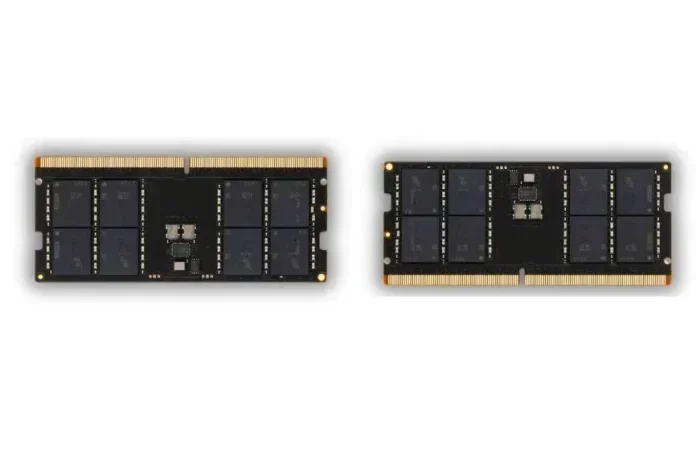
The Matebook 16s 2023 typically comes with 16GB DDR5 RAM in most models. Some higher-end variants may ship with 32GB. Here is the important part: not all RAM in this laptop is upgradeable. Some models have the memory soldered to the motherboard. This means you cannot add or replace it. Other models have a memory module slot that allows you to swap or add RAM sticks.
To check if your RAM is upgradeable, you need to identify your exact model number. You can find this in the System Information section of Windows. Look for the model name and check the specifications on Huawei’s website. If your model has a free RAM slot, you can add more memory. If the RAM is soldered, you are limited to what you already have.
SSD Configuration
The good news is that the SSD upgrade on the Huawei Matebook 16s 2023 is straightforward. The laptop uses a standard M.2 NVMe SSD form factor. This is the same type of drive found in most modern laptops. You can easily replace the existing drive with a larger or faster one. The 2023 model supports PCIe Gen 4 NVMe drives, which offer excellent read and write speeds.
Most Matebook 16s 2023 models come with a single M.2 slot. This means you will replace your current SSD rather than add a second one. You can choose from a range of capacities, starting at 512GB and going up to 2TB or more. The upgrade process is simple and does not require any special tools beyond a basic screwdriver.
How to Upgrade RAM on the Huawei Matebook 16s 2023
If your model supports RAM upgrades, the process is quite simple. Here is a detailed walkthrough to help you through it. Before touching any internal components, make sure you have the right compatible RAM for your laptop.
What You Will Need
- A Phillips-head screwdriver (small size)
- An anti-static wrist strap (optional but recommended)
- The new DDR5 RAM module (check the exact spec for your model)
- A clean, flat workspace
Step-by-Step RAM Upgrade Process
First, power off your laptop completely. Unplug the charger and disconnect any external devices. Place the laptop on a soft, clean surface with the bottom facing up.
Locate the screws on the bottom panel. The Huawei Matebook 16s 2023 has several screws holding the back cover in place. Use your screwdriver to carefully remove each one. Keep the screws in a safe place, like a small container or magnetic mat.
Once all screws are removed, gently lift the bottom panel. It may have small clips holding it in place. Use a plastic spudger or your fingernail to carefully release these clips. Avoid using metal tools, as they can damage the interior.
Now you should see the internal components. Locate the RAM module. If there is a free slot, you can simply insert the new DDR5 memory module at a 45-degree angle and press it down until it clicks. If you are replacing an existing stick, release the clips on either side of the module and gently remove it.
After installing the new RAM, place the bottom panel back on. Secure it with the screws you removed earlier. Power on your laptop and check the System Information to confirm the new RAM capacity is recognized.
How to Upgrade the SSD on the Huawei Matebook 16s 2023
Upgrading the solid state drive on your Matebook 16s is one of the most impactful upgrades you can make. A new SSD will dramatically improve boot times, file transfers, and overall responsiveness. Here is how to do it.
Choosing the Right SSD
When selecting a new M.2 NVMe SSD, make sure it matches the form factor your laptop supports. The Huawei Matebook 16s 2023 uses the M.2 2280 size with PCIe Gen 4 support. Popular choices include the Samsung 980 Pro, WD Black SN850X, and Crucial P5 Plus. These drives offer excellent speeds and reliability.
Consider your storage needs carefully. If you currently have a 512GB drive and find yourself running out of space, a 1TB or 2TB upgrade is a wise choice. The price difference between sizes has become quite reasonable in recent years. You can find great deals on laptop deals 16gb ram 512gb ssd configurations, but for the Matebook 16s, aim for at least 1TB if you store large files or games.
Step-by-Step SSD Upgrade Process
The SSD installation process is very similar to the RAM upgrade. Start by powering off your laptop and removing the back panel as described earlier.
Locate the M.2 SSD on the motherboard. It will be secured with a small screw. Remove the screw carefully and set it aside. The SSD will be slightly angled in its slot. Gently pull it out at a low angle to release it from the connector.
Take your new SSD and insert it at a 30-degree angle into the M.2 slot. Press it down firmly and secure it with the screw you removed. Make sure the SSD sits flat and the screw is snug but not overly tight.
Replace the bottom panel and screw it back in place. When you power on the laptop, you will need to install Windows or your operating system on the new drive. You can use a USB installation drive or clone your old drive to the new one using software like Macrium Reflect or Clonezilla.
Benefits of Upgrading RAM and SSD
Upgrading both RAM and storage on your Huawei Matebook 16s 2023 delivers noticeable improvements. Here are the key benefits you can expect.
Faster Performance
A new SSD upgrade makes your laptop feel brand new. Boot times drop significantly. Applications open almost instantly. File transfers happen at lightning speed. If you are coming from a slower HDD or an older SSD, the difference is night and day.
Better Multitasking
Adding more laptop memory allows you to run multiple applications simultaneously without slowdowns. If you use your Matebook for work, you can have dozens of browser tabs open alongside Microsoft Office, video conferencing, and other tools without any lag. This is especially true for users who often work with laptop i7 16gb ram 512gb ssd level configurations and want to push beyond that.
Increased Storage Capacity
Modern files, photos, videos, and games take up a lot of space. Upgrading to a larger SSD gives you the room you need. You no longer have to worry about deleting files to make space. A 1tb ssd 16gb ram configuration provides plenty of room for most users, and a 2TB drive offers even more freedom.
Improved Laptop Lifespan
Instead of buying a new laptop, an upgrade extends the life of your current one. This saves you money and reduces electronic waste. A ram upgrade for laptop is one of the most cost-effective ways to keep your device performing well for years to come.
Common Mistakes to Avoid
While upgrading the Huawei Matebook 16s 2023 is not difficult, there are some common pitfalls you should watch out for.
- Buying incompatible RAM: Not all DDR5 modules are the same. Check the exact speed and form factor your laptop requires before purchasing.
- Forgetting to backup data: Before replacing your SSD, always backup your important files. Use an external drive or cloud storage to keep your data safe.
- Over-tightening screws: When securing the SSD or the bottom panel, use gentle pressure. Over-tightening can strip the screw holes or damage the motherboard.
- Skipping the BIOS update: After a major hardware change, check if there is a BIOS update available. This can improve compatibility and stability.
- Not grounding yourself: Static electricity can damage sensitive components. Touch a metal surface before handling internal parts, or use an anti-static wrist strap.
Expert Tips for Maximum Performance
Once you have completed your Huawei Matebook 16s 2023 upgrade, there are a few extra steps you can take to get the most out of your new components.
First, make sure your operating system is optimized for the new hardware. Run Windows Update to install the latest drivers. Check that your SSD firmware is up to date. This can improve performance and fix any known issues.
Second, enable the TRIM command for your new SSD. This helps maintain optimal write speeds over time. You can check if TRIM is enabled by opening the Command Prompt and typing fsutil behavior query DisableDeleteNotify. A result of 0 means TRIM is active.
Third, consider your power settings. Switching to the High Performance mode can help you get the most out of your upgraded components. You can adjust this in the Power Options section of Windows Settings.
Finally, if you want to explore what your upgraded laptop is capable of, check out options like laptops with 16gb ram and ssd configurations to understand the kind of performance you now have at your fingertips.
How Much Does It Cost to Upgrade?
The cost of upgrading your Huawei Matebook 16s depends on the components you choose. A 1TB NVMe SSD typically costs between $60 and $100. A 2TB drive ranges from $120 to $200. DDR5 RAM modules vary in price based on capacity and speed, but a 16GB DDR5 stick usually costs around $50 to $80.
Compared to the cost of a new laptop, these upgrades are incredibly affordable. For less than $200, you can transform your Matebook 16s into a machine that feels like it just came out of the box. The cost of ram upgrade on laptop is one of the best investments you can make for your device.
If you are unsure about the exact process, you can also refer to a general how to upgrade the RAM of a laptop guide for additional tips. The basic principles are the same across most laptop brands, and understanding the fundamentals makes the process even smoother.
When to Seek Professional Help
Most users can complete these upgrades without any issues. However, there are situations where professional help is a good idea. If your laptop is still under warranty, opening the back panel might void the warranty. Check Huawei’s warranty terms before proceeding with any internal modifications.
If you feel uncomfortable handling sensitive electronic components, a local repair shop can perform the upgrade for you. They typically charge between $50 and $100 for the service. This is a small price to pay for peace of mind, especially if you are new to laptop repairs.
You should also consider professional help if you are unsure about compatibility. A technician can confirm which RAM and SSD options work best for your specific Matebook 16s model and ensure the installation is done correctly.
Frequently Asked Questions
Can I upgrade the RAM on the Huawei Matebook 16s 2023?
It depends on your specific model. Some configurations have soldered RAM that cannot be upgraded, while others have a free slot that allows you to add or replace memory. Check your model number on Huawei’s website or in System Information to confirm before purchasing any components.
What type of SSD does the Huawei Matebook 16s 2023 use?
The Matebook 16s 2023 uses an M.2 NVMe PCIe Gen 4 SSD in the 2280 form factor. This is a standard size and widely available from manufacturers like Samsung, WD, and Crucial. Make sure to confirm this specification before buying a replacement drive.
How long does the upgrade process take?
Most users can complete both the RAM and SSD upgrade in under an hour. The SSD swap is particularly quick and straightforward. The RAM upgrade takes a few extra minutes if you need to remove existing modules. Overall, it is a simple process that does not require advanced technical skills.
Will upgrading my RAM void the warranty?
This depends on your warranty terms. In many cases, opening the laptop can void the manufacturer’s warranty. If your Matebook 16s is still under warranty, contact Huawei support or visit an authorized service center for upgrades. Once the warranty expires, you can safely perform the upgrade yourself.
Can I clone my old SSD to the new one?
Yes, you can clone your existing drive to the new SSD using software like Macrium Reflect, Clonezilla, or Samsung Data Migration. Cloning ensures your operating system, applications, and files transfer over without needing to reinstall everything. Just make sure the new drive has equal or greater capacity than your old one.
What is the maximum RAM I can install in the Matebook 16s 2023?
The maximum RAM depends on your specific model and whether the slots are soldered or socketed. Most upgradeable models support up to 32GB of DDR5 RAM. Check your laptop’s exact specifications on Huawei’s support page to determine the maximum supported capacity for your configuration.
=== CONCLUSION ===
Upgrading the RAM and SSD on your Huawei Matebook 16s 2023 is one of the smartest things you can do for your laptop. It is affordable, straightforward, and delivers immediate results. Whether you need more memory for demanding tasks or faster storage for everyday use, these upgrades transform your device into a high-performance machine.
The process is manageable for most users, even those with limited technical experience. With the right parts, a basic toolkit, and a little patience, you can complete the upgrade at home. The benefits of a laptop speed improvement through RAM and storage upgrades are undeniable. Your Matebook 16s will feel faster, more responsive, and ready to handle whatever you throw at it.
Take the time to research your specific model, choose compatible components, and follow the steps in this guide. Your upgraded Huawei Matebook 16s 2023 will reward you with years of excellent performance. Start your laptop upgrade journey today and enjoy the difference a simple upgrade can make.