Single Vs Dual Channel Ram Which Configuration Is Best

Single vs dual channel RAM comes down to how your memory modules communicate with the processor. Dual channel setups double the data pathway, delivering better performance for gaming, editing, and multitasking. If you want the best results, matching RAM sticks in the correct slots is the way to go.
When you build or upgrade a PC, one decision that often gets overlooked is how you set up your memory. The choice between single vs dual channel ram can make a real difference in how your system feels and performs. Many people buy RAM sticks without thinking about the configuration, only to wonder why their PC isn’t running as fast as they expected.
This guide breaks down everything you need to know about single channel vs dual channel RAM. We will cover what each setup means, how they compare, and which configuration is best for your needs. Whether you are a gamer, a content creator, or just someone who wants a smoother PC experience, this article has you covered.
Key Takeaways
- Dual channel RAM doubles the bandwidth compared to single channel, leading to faster data transfer.
- Single channel is fine for basic tasks like web browsing and office work, but dual channel shines in demanding applications.
- Matching RAM sticks in the right slots is essential for enabling dual channel mode.
- Integrated graphics benefit greatly from dual channel memory configurations.
- Mixing RAM sizes can work but may limit dual channel performance on some systems.
- Real-world gains from dual channel range from 5% to 30% depending on the workload.
- Always check your motherboard manual to know which slots to fill for dual channel.
📑 Table of Contents
- What Is Single Channel RAM?
- What Is Dual Channel RAM?
- Single Channel vs Dual Channel RAM: Key Differences
- Which Configuration Is Best for You?
- How to Set Up Dual Channel RAM Correctly
- Common Mistakes People Make with RAM Configuration
- Expert Insights: When Does Dual Channel Really Matter?
- Quick Tips for Optimal RAM Performance
- Conclusion
What Is Single Channel RAM?
Single channel RAM means your system uses one memory channel to communicate between the RAM and the processor. Think of it like a single-lane road. Data travels back and forth, but only one piece at a time. This is the default setup when you install just one RAM stick in your computer.
Most budget PCs and older systems run on single channel memory. It works perfectly fine for light tasks. Browsing the web, watching videos, and using office applications feel smooth enough. But when you push the system harder, the single lane starts to feel like a bottleneck.
How Single Channel Memory Works
Your processor connects to the RAM through a memory controller. In a single channel setup, there is one 64-bit data path. This means data moves in one stream at a time. The speed of that stream depends on your RAM’s frequency and latency.
For example, if you have one 8GB stick of DDR4 RAM running at 3200MHz, it will operate in single channel mode. The system will read and write data through that single pathway. It gets the job done, but it leaves performance on the table for heavier workloads.
What Is Dual Channel RAM?
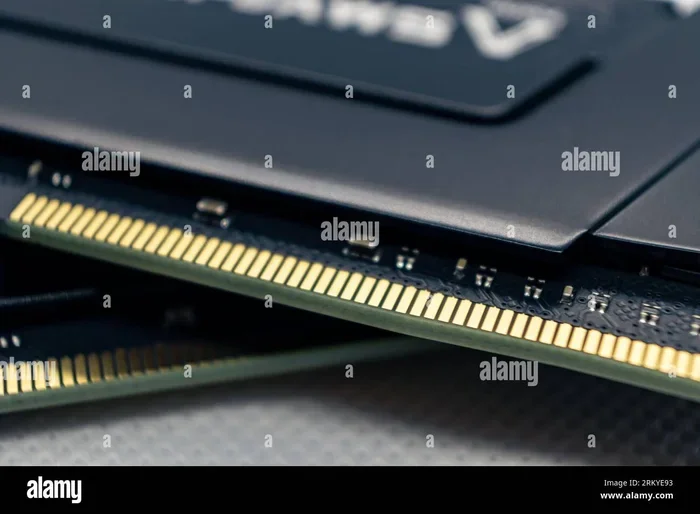
Dual channel RAM uses two memory channels instead of one. Imagine turning that single-lane road into a two-lane highway. Now data can flow in both directions at the same time. This effectively doubles the bandwidth available to your processor.
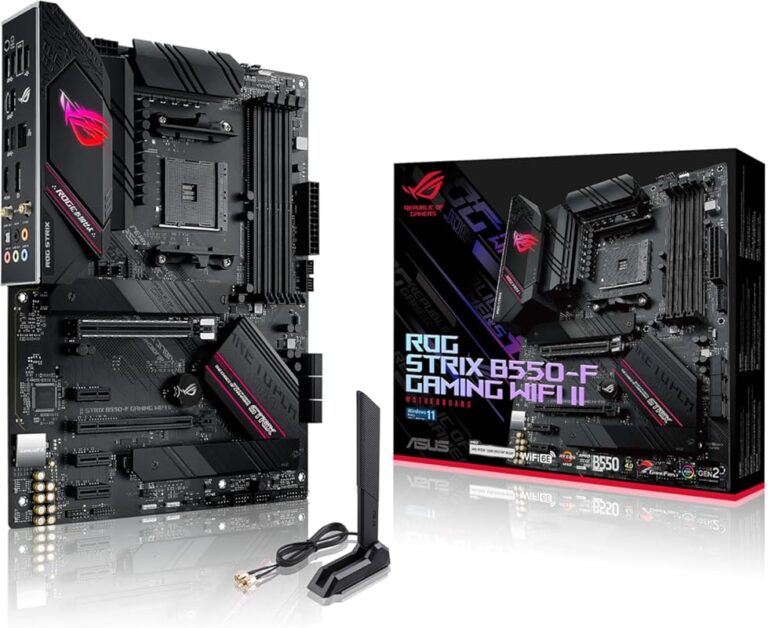
To set up dual channel, you need at least two RAM sticks. You install them in matching slots on your motherboard, usually color-coded. When the system detects the matched pair, it enables dual channel mode automatically. The result is faster data transfer and smoother performance.
How Dual Channel Memory Works
In a dual channel setup, the memory controller splits data across both sticks. Each stick handles its own 64-bit path, combining for a 128-bit total. This means your CPU can read and write twice as much data at the same time.
For instance, if you install two 8GB sticks of DDR4 RAM at 3200MHz, your system runs in dual channel mode. The bandwidth effectively doubles compared to a single stick. This is where the real performance gains kick in, especially in tasks that rely heavily on memory speed.
Single Channel vs Dual Channel RAM: Key Differences
The core difference between single channel and dual channel RAM comes down to bandwidth and data flow. But the impact goes beyond just numbers on a spec sheet. Let us look at the real differences that matter to everyday users.
Bandwidth Comparison
Bandwidth is the amount of data that can move between the RAM and the CPU per second. Single channel offers one 64-bit channel. Dual channel offers two 64-bit channels, effectively doubling the bandwidth. This is the biggest advantage of dual channel setups.
Higher bandwidth means your processor gets data faster. This reduces wait times and improves responsiveness. For tasks that constantly shuffle large amounts of data, the difference is very noticeable.
Performance in Real-World Tasks
The performance gap between single and dual channel varies by workload. Here are some quick examples:
- Web browsing and office tasks: Barely any difference. Single channel handles these just fine.
- Gaming: Dual channel can improve frame rates by 10% to 30%, especially with integrated graphics.
- Video editing: Dual channel helps with smoother playback and faster exports.
- 3D rendering: The extra bandwidth helps the processor crunch data faster.
- Multitasking: Running many apps at once feels smoother with dual channel memory.
Latency Considerations
Some people worry that dual channel adds latency. In practice, the latency per request stays the same. But because you have double the bandwidth, the overall throughput is much higher. You get more data delivered per clock cycle, which outweighs any minor latency concerns.
Which Configuration Is Best for You?
The answer depends on what you use your PC for. Let us break it down by use case so you can make the right call.
Best for Gaming
If you are a gamer, dual channel is the clear winner. Modern games are memory-hungry. They constantly load textures, assets, and world data. Dual channel RAM feeds the GPU and CPU faster, which translates to higher and more stable frame rates. If you are using a system with integrated graphics, dual channel is absolutely essential. Integrated GPUs share system memory, so bandwidth matters even more.
For dedicated GPU setups, the gains are smaller but still meaningful. Pairing your graphics card with dual channel RAM ensures nothing holds back your frame rate. If you are curious about how RAM affects gaming performance, check out our guide on does overclocking RAM increase FPS.
Best for Content Creation
Video editors, 3D modelers, and graphic designers benefit greatly from dual channel memory. These workloads involve large files and heavy multitasking. The extra bandwidth helps applications like Premiere Pro, Blender, and Photoshop run more smoothly. If you do 3D rendering or work with large datasets, dual channel can cut down your render times noticeably.
For lighter creative work like photo editing or basic video cuts, single channel may still be acceptable. But if you want a future-proof setup, dual channel is the smarter investment.
Best for Everyday Use
If your PC is mainly for browsing, streaming, and office work, single channel RAM is perfectly fine. You will not notice a big difference in day-to-day use. However, even for casual users, dual channel is a nice bonus. It makes the system feel a bit snappier and handles unexpected multitasking better.
Best for Budget Builds
Budget builds often start with a single stick of RAM. This keeps costs down initially. But if you plan to expand later, buy a matching pair from the start. Starting with dual channel saves you from an upgrade later. It also ensures you get the most out of your system right away.
How to Set Up Dual Channel RAM Correctly
Setting up dual channel is not hard, but it does require a little attention. Follow these steps to make sure you get the most out of your configuration.
Step 1: Check Your Motherboard Manual
Every motherboard has specific slot configurations for dual channel. Some boards use slots 2 and 4 (counting from the CPU). Others use slots 1 and 3. The motherboard manual will tell you exactly which slots to use. Filling the wrong slots can leave you running in single channel mode without you even knowing.
Step 2: Match Your RAM Sticks
For the best results, use two identical RAM sticks. Same brand, same size, same speed, and same timings. This is called a matched pair. When the sticks match, the memory controller can manage them more efficiently. Mismatched RAM can still work in dual channel, but it may run at the slower stick’s speed.
If you are unsure about your current RAM setup, you can learn how to find your RAM DDR type to make sure everything is compatible.
Step 3: Enable XMP or DOCP Profiles
Most modern RAM sticks come with XMP (Intel) or DOCP (AMD) profiles. These profiles let you run the RAM at its rated speed instead of the default JEDEC speed. Go into your BIOS and enable the appropriate profile. This step is crucial for getting the full performance out of your dual channel setup.
Step 4: Test Your Configuration
After installing the RAM, use a tool like CPU-Z to verify that dual channel is active. Open CPU-Z and go to the Memory tab. Look for the “Channel” field. It should say “Dual” if everything is set up correctly. If it says “Single,” check your slot placement and BIOS settings.
Common Mistakes People Make with RAM Configuration
Even experienced PC builders sometimes make mistakes with RAM setup. Here are the most common ones to avoid.
- Installing RAM in the wrong slots: This is the number one mistake. Always refer to your motherboard manual for the correct slot order.
- Mixing different RAM kits: Different brands or speeds can cause instability. Stick to a matched pair whenever possible.
- Ignoring XMP profiles: Your RAM will run at default speeds without XMP enabled. This can leave significant performance on the table.
- Assuming more RAM always means better performance: A single 16GB stick in single channel will not outperform two 8GB sticks in dual channel. Bandwidth matters as much as capacity.
- Neglecting cooling: While RAM does not get very hot, tight cases with poor airflow can affect stability. If you want to learn more about RAM cooling, read our article on does RAM need cooling.
Expert Insights: When Does Dual Channel Really Matter?
The truth is, dual channel RAM does not help every single task equally. Here is what the experts say about when the upgrade truly matters.
For integrated graphics users: The difference is massive. Systems with APUs or Intel Iris graphics rely entirely on system memory. Dual channel can double the graphics performance in some cases. If you are gaming on a budget without a dedicated GPU, dual channel is non-negotiable.
For CPU-bound workloads: Tasks that stress the memory subsystem, like compiling code, running simulations, or processing large spreadsheets, benefit from the extra bandwidth. The CPU spends less time waiting for data and more time computing.
For dedicated GPU gaming: The gains are smaller but still real. You can expect a 5% to 15% boost in average frame rates. At higher resolutions like 4K, the GPU becomes the bottleneck, so the difference shrinks. But at 1080p and 1440p, dual channel can give you a competitive edge.
If you want to learn more about how RAM affects rendering tasks, our article on does RAM affect 3D rendering speed dives deeper into this topic.
Quick Tips for Optimal RAM Performance
- Always install RAM in matched pairs for dual channel.
- Use the same slots recommended by your motherboard manual.
- Enable XMP or DOCP in BIOS for rated speeds.
- Keep your BIOS updated for the best memory compatibility.
- If upgrading, check whether your laptop or desktop supports RAM upgrades before buying new sticks.
- For the best results, use RAM sticks of the same capacity, speed, and brand.
Conclusion
The debate between single vs dual channel RAM comes down to one simple truth: dual channel gives you more bandwidth, and more bandwidth means better performance. For gaming, content creation, and multitasking, dual channel is the clear winner. Single channel still has its place for basic tasks and tight budgets, but it is becoming the exception rather than the rule.
If you are building a new PC or upgrading an existing one, invest in a matched pair of RAM sticks. The small extra cost pays off in smoother performance and better responsiveness. Your system will thank you every time you open a heavy application or launch a demanding game. Dual channel RAM is the best configuration for almost everyone, and now you know exactly why.
Frequently Asked Questions
Can I use single channel RAM and dual channel RAM together?
Yes, but it is not ideal. Your system will run in a flexible mode that uses some dual channel and some single channel bandwidth. This can lead to uneven performance. For the best results, always use matched pairs of RAM sticks.
Does dual channel RAM increase FPS?
Yes, dual channel RAM can increase FPS, especially in games that are memory-intensive. The extra bandwidth helps the CPU and GPU communicate faster with the memory, leading to smoother and more consistent frame rates.
Is single channel RAM bad?
Not at all. Single channel RAM works perfectly fine for everyday tasks like browsing, streaming, and office work. It only becomes a limitation when you run demanding applications like gaming, video editing, or 3D rendering.
How do I know if my RAM is running in dual channel mode?
You can use a free tool called CPU-Z. Open it and go to the Memory tab. Look at the “Channel” field. If it says “Dual,” your RAM is running in dual channel mode. If it says “Single,” you may need to adjust your RAM slot placement.
Does dual channel RAM make a difference for gaming?
Yes, dual channel RAM makes a noticeable difference for gaming, especially at lower resolutions and with integrated graphics. Even with a dedicated GPU, you can see a 10% to 30% improvement in frame rates depending on the game.
What happens if I mix different RAM sizes in dual channel?
Mixing different sizes can still enable dual channel, but the system may run in flex mode. This means part of the memory runs in dual channel and the rest runs in single channel. Performance is somewhere between full dual and full single channel.