Is Usb 2 0 Hi Speed or Full Speed
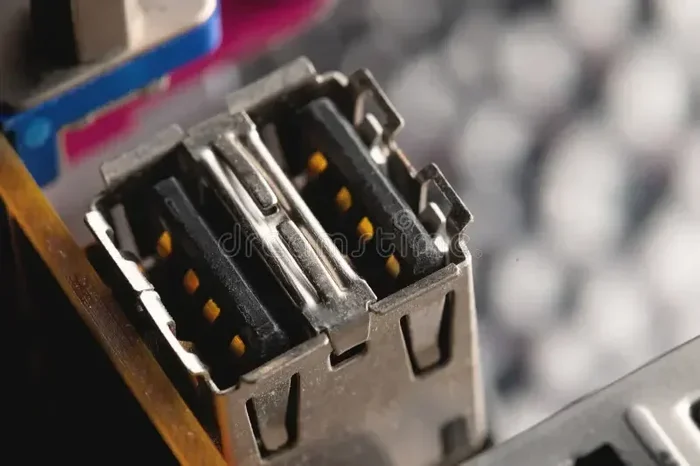
USB 2.0 is officially known as Hi Speed USB, not Full Speed USB. Full Speed refers to the older USB 1.1 standard, while Hi Speed is the correct name for USB 2.0. Understanding this distinction helps you choose the right cables, devices, and external storage for your needs.
You plug in a USB cable and wait. And wait. The file copy craws along at a painfully slow pace. You wonder, is my USB port even running at full speed? The answer might surprise you. Many people confuse USB 2.0 Hi Speed with Full Speed, and that confusion can cost you real performance.
Here is the truth: USB 2.0 is Hi Speed, not Full Speed. Full Speed belongs to the older USB 1.1 standard from the late 1990s. USB 2.0 arrived in April 2000 and brought a massive speed boost. Understanding this difference matters more than you might think, especially when you are choosing cables, external drives, or adapters for your setup.
In this guide, we break down everything you need to know about USB 2.0 speeds. We will cover what Hi Speed and Full Speed actually mean, how they compare, and what this means for your everyday tech use. Whether you are copying files to an external SSD or charging a device, the right USB speed knowledge saves you time and frustration.
Key Takeaways
- USB 2.0 is Hi Speed: The official USB 2.0 specification is called Hi Speed, offering up to 480 Mbps transfer rates.
- Full Speed is USB 1.1: Full Speed refers to the older USB 1.1 standard, capped at 12 Mbps.
- Real-world speeds are lower: Actual USB 2.0 transfers typically reach 25-35 MB/s, not the theoretical maximum.
- USB 2.0 is still widely used: Many devices, cables, and ports still rely on USB 2.0 for compatibility.
- Upgrading to USB 3.0 or higher makes a big difference: If you need faster transfers, consider a USB 3.1 adapter for your external drive.
- Check your device specs: Always verify whether your port supports Hi Speed or Full Speed before purchasing cables or peripherals.
📑 Table of Contents
- What Does USB 2.0 Hi Speed Actually Mean?
- Full Speed USB: What Is It Exactly?
- USB 2.0 Hi Speed vs Full Speed: Head-to-Head Comparison
- How to Check if Your USB Port Is Running at Hi Speed
- Real-World USB 2.0 Hi Speed Performance
- Common USB 2.0 Speed Myths Debunked
- When Should You Upgrade from USB 2.0 Hi Speed?
- The Bottom Line on USB 2.0 Hi Speed vs Full Speed
What Does USB 2.0 Hi Speed Actually Mean?
When the USB Implementers Forum (USB-IF) created the USB 2.0 standard, they gave it a specific name: Hi Speed USB. This is not marketing jargon. It is the official designation defined in the USB 2.0 specification document.
So what does Hi Speed mean in practice?
- Maximum theoretical transfer rate: 480 megabits per second (Mbps)
- Real-world throughput: Typically 25 to 35 megabytes per second (MB/s)
- Backward compatible: Works with USB 1.1 Full Speed and Low Speed devices
- Power delivery: Up to 500 milliamps at 5 volts
Think of it this way. Your USB port has a speed limit, just like a highway has a speed limit. Hi Speed USB 2.0 is a fast highway compared to the old Full Speed road. But even on the fast highway, traffic, bottlenecks, and device limitations can slow you down.
Why the Name “Hi Speed” Matters
The naming convention is not random. USB 1.0 and 1.1 used the term “Full Speed” for devices running at 12 Mbps. When USB 2.0 launched, the committee wanted a clear way to distinguish the faster standard. They chose “Hi Speed” to signal a significant leap forward. This naming convention helps users and manufacturers quickly identify what their equipment supports.
Many people assume “Hi Speed” means the fastest USB available. That is not true. USB 3.0 (also called SuperSpeed) offers 5 Gbps, and USB 3.1 Gen 2 pushes that to 10 Gbps. But among USB 2.0 devices, Hi Speed is the correct and only term.
Full Speed USB: What Is It Exactly?
Full Speed USB belongs to the USB 1.1 era. It was the standard before USB 2.0 came along. Full Speed operates at a maximum of 12 Mbps. That is 40 times slower than USB 2.0 Hi Speed.
Here is a quick comparison to put things in perspective:
- USB 1.0: Low Speed, 1.5 Mbps (mostly for keyboards and mice)
- USB 1.1 Full Speed: 12 Mbps
- USB 2.0 Hi Speed: 480 Mbps
- USB 3.0 SuperSpeed: 5,000 Mbps (5 Gbps)
- USB 3.1 Gen 2: 10,000 Mbps (10 Gbps)
- USB 3.2 Gen 2×2: 20,000 Mbps (20 Gbps)
Full Speed USB is essentially obsolete today. You rarely encounter it in modern devices. However, some very old peripherals, legacy industrial equipment, or certain embedded systems might still use Full Speed connections. If you have an older device that only supports Full Speed, upgrading to a USB 2.0 Hi Speed setup will feel like a night and day difference.
USB 2.0 Hi Speed vs Full Speed: Head-to-Head Comparison
Let us put the two standards side by side so you can see exactly what you are working with.
| Feature | USB 1.1 Full Speed | USB 2.0 Hi Speed |
|---|---|---|
| Max Theoretical Speed | 12 Mbps | 480 Mbps |
| Real-World Speed | 1 to 2 MB/s | 25 to 35 MB/s |
| Release Year | 1998 | 2000 |
| Common Devices | Old keyboards, mice | Flash drives, external HDDs, printers |
| Power Output | 500 mA at 5V | 500 mA at 5V |
| Backward Compatible | N/A | Yes, with Full Speed and Low Speed |
| Connector Types | Type-A, Type-B | Type-A, Type-B, Mini, Micro |
The gap between Full Speed and Hi Speed is enormous. A 1 GB file takes roughly 8 minutes on Full Speed USB 1.1 but only about 30 seconds on USB 2.0 Hi Speed. That alone is a strong reason to check your port and cable speeds before blaming your device for slow transfers.
Also keep in mind that the cable you use matters. A cheap or damaged USB 2.0 cable can limit your speeds well below the Hi Speed standard. Always use cables that are certified and in good condition.
How to Check if Your USB Port Is Running at Hi Speed
Not sure if your computer or device is actually using USB 2.0 Hi Speed? Here are simple ways to check.
On Windows
Open Device Manager, expand the Universal Serial Bus controllers section, and look for entries labeled “USB 2.0” or “Enhanced Host Controller.” If you see “USB Root Hub” properties showing 480 Mbps, you are connected to a Hi Speed port.
On macOS
Click the Apple menu, choose About This Mac, then System Report. Navigate to USB under the Hardware section. Your connected devices will list their speed there.
On Linux
Open a terminal and type lsusb -t. This command shows the speed of each connected USB device. Look for “480M” in the output, which confirms Hi Speed.
If your port shows 12 Mbps or lower, it is running at Full Speed or even Low Speed. You may need to update drivers, replace a cable, or use a different port to get the full Hi Speed USB 2.0 performance.
Real-World USB 2.0 Hi Speed Performance
Theoretical speeds and real-world speeds are always different. USB 2.0 Hi Speed promises 480 Mbps, but you will never hit that number in everyday use. Here is what to expect.
- USB flash drives: Typically 15 to 30 MB/s read speeds
- External hard drives: Around 25 to 35 MB/s, limited by the drive itself
- Printers and scanners: Transfer speed depends on file size, but Hi Speed handles these easily
- Charging devices: Hi Speed USB 2.0 provides enough power for most phones and tablets
If you need faster real-world performance, consider upgrading to USB 3.0 or higher. Many modern external NVMe SSD enclosures take advantage of faster USB standards. For example, if you want to use an M.2 NVMe SSD as an external drive, a USB 3.1 adapter will give you dramatically faster transfer speeds than USB 2.0 ever could.
Similarly, if you are using an M.2 NVMe SSD with a USB enclosure, the enclosure adapter and cable quality matter a lot. A USB 3.1 enclosure adapter ensures your SSD runs at its full potential, far beyond what USB 2.0 Hi Speed can deliver.
Common USB 2.0 Speed Myths Debunked
There are a lot of misconceptions floating around about USB speeds. Let us clear up a few of the biggest ones.
Myth 1: Hi Speed Means the Fastest USB Available
This is the most common mistake. Hi Speed is just the name for USB 2.0. It is fast compared to Full Speed, but it is nowhere near USB 3.0 or USB 3.1 speeds. Do not assume Hi Speed is the top tier.
Myth 2: All USB 2.0 Ports Are the Same Speed
In theory, yes. In practice, no. Some motherboard manufacturers use lower-quality USB 2.0 controllers that cannot sustain the full 480 Mbps. Cheap hubs and cables also introduce bottlenecks.
Myth 3: USB 2.0 Hi Speed Is Obsolete
USB 2.0 is still everywhere. Many printers, budget external drives, and embedded systems rely on it. It is not going away anytime soon. Plus, Hi Speed is perfectly fine for basic tasks like charging devices or transferring small files.
Myth 4: Full Speed and Hi Speed Are Interchangeable Terms
They are not. Full Speed is USB 1.1. Hi Speed is USB 2.0. They are completely different standards with very different performance levels. Using these terms interchangeably causes confusion and poor purchasing decisions.
When Should You Upgrade from USB 2.0 Hi Speed?
USB 2.0 Hi Speed works fine for many tasks. But there are clear situations where upgrading makes sense.
- You regularly transfer large files: Videos, photo libraries, and backups take forever on Hi Speed USB 2.0.
- You use an external SSD: An NVMe SSD is capable of hundreds of MB/s, but USB 2.0 bottlenecks it hard. An M.2 NVMe to USB-C enclosure with USB 3.1 or higher unlocks that speed.
- You need faster charging: USB 2.0 only provides 2.5 watts of power. USB 3.0 and higher deliver more, and USB Power Delivery can provide up to 100 watts.
- You connect multiple devices: Hi Speed USB 2.0 hubs can become congested quickly with several devices drawing bandwidth.
If any of these situations sound familiar, it is time to look at USB 3.0 or newer options. The performance jump is dramatic and well worth the small investment in new cables or adapters.
The Bottom Line on USB 2.0 Hi Speed vs Full Speed
USB 2.0 is Hi Speed, and Full Speed belongs to USB 1.1. This is not a matter of opinion or marketing. It is a defined technical standard set by the USB Implementers Forum. Knowing this distinction helps you make smarter choices about cables, ports, and peripherals.
USB 2.0 Hi Speed served the tech world well for over two decades. It remains relevant today for many everyday tasks. But if you need serious speed, look to USB 3.0, USB 3.1, or USB 3.2. And if you are using external storage, consider an adapter or enclosure that supports faster USB standards to get the most out of your drives.
The next time someone asks you, “Is USB 2.0 Hi Speed or Full Speed?” you will know the answer with confidence. Share this knowledge, check your own devices, and never let a slow USB connection slow you down again.
Frequently Asked Questions
Is USB 2.0 Hi Speed the same as SuperSpeed USB?
No. Hi Speed is the official name for USB 2.0, which runs at 480 Mbps. SuperSpeed is the name for USB 3.0, which runs at 5 Gbps. They are completely different standards with very different performance levels.
Can I use a Full Speed USB 1.1 device with a USB 2.0 Hi Speed port?
Yes. USB 2.0 Hi Speed ports are backward compatible with Full Speed and Low Speed devices. The connection will work, but it will operate at the slower device’s speed, not the port’s maximum speed.
Why is my USB 2.0 transfer speed slower than 480 Mbps?
Several factors affect real-world speed, including cable quality, the device’s own speed limits, the file system overhead, and the host controller. Most users see actual transfer rates of 25 to 35 MB/s on USB 2.0 Hi Speed.
Does USB 2.0 Hi Speed support charging?
Yes. USB 2.0 Hi Speed ports provide up to 500 mA at 5 volts, which is 2.5 watts. This is enough to charge most phones and small devices, though it is slower than modern USB charging standards.
How do I know if my cable supports Hi Speed USB 2.0?
Look for the USB 2.0 logo on the cable or packaging. Certified Hi Speed cables will have the standard USB 2.0 trident logo. Cheap or unmarked cables may not support the full 480 Mbps speed.
Is it worth upgrading from USB 2.0 Hi Speed to USB 3.0?
If you frequently transfer large files or use external SSDs, absolutely. USB 3.0 offers 5 Gbps, which is over 10 times faster than USB 2.0 Hi Speed. The upgrade can be as simple as a new cable or a USB 3.0 adapter.