Is Usb 2 0 Still Good

USB 2.0 is still around and still works for basic tasks like charging devices, transferring small files, and connecting older peripherals. While it’s much slower than USB 3.0 and USB-C, it remains a reliable and widely compatible option for many everyday needs. If you’re not moving large files constantly, USB 2.0 can still do the job just fine.
This is a comprehensive guide about Is Usb 2 0 Still Good.
Key Takeaways
- USB 2.0 is still usable: It handles basic tasks like charging, printing, and small file transfers without any issues.
- Speed is the main limitation: With a max transfer rate of 480 Mbps, USB 2.0 is significantly slower than modern USB standards.
- Backward compatibility is a strength: USB 2.0 ports and cables still work with newer devices, even if they support faster speeds.
- Many devices still rely on it: Keyboards, mice, older flash drives, and some peripherals function perfectly over USB 2.0.
- Upgrading makes sense for heavy use: If you regularly transfer large files or use external drives, moving to USB 3.0 or USB-C is worth it.
- Cost matters: USB 2.0 cables and devices are cheap and widely available, making them a budget-friendly choice.
[FEATURED_IMAGE_PLACEHOLDER]
You might have noticed that USB 2.0 has been around for a really long time. It showed up back in April 2000, and somehow it is still everywhere. From old printers to basic flash drives, USB 2.0 connections are still plugged into millions of devices every single day. So the question is simple: is USB 2.0 still good, or is it time to let it go?
The short answer is yes, USB 2.0 is still good for many everyday tasks. But the longer answer depends on what you are using it for. If you just need to charge a phone, connect a keyboard, or move a few documents, USB 2.0 gets the job done. However, if you are working with large video files or using fast external storage, you will notice the difference right away. Let us break this down and help you figure out where USB 2.0 still makes sense.
In this article, we will look at the real-world performance of USB 2.0, compare it to newer USB versions, and help you decide whether to stick with it or upgrade. We will also cover the devices that still use USB 2.0 and share practical tips to get the most out of your connections.
What Is USB 2.0 and Why Does It Still Matter
USB 2.0 stands for Universal Serial Bus version 2.0. It was released in the year 2000 and quickly became the standard connector for computers and peripherals. Before USB 2.0, people dealt with serial and parallel ports that were slow and frustrating. USB 2.0 changed all of that by offering a much faster and more universal connection.
Even today, USB 2.0 remains relevant because of one key factor: compatibility. Almost every computer, laptop, and device made in the last two decades supports USB 2.0. That means your old USB 2.0 flash drive, printer, or mouse will still work with a brand-new laptop. This backward compatibility is a huge reason why USB 2.0 has survived for so long.
Another reason USB 2.0 still matters is cost. USB 2.0 cables and devices are incredibly cheap. You can buy a USB 2.0 cable for just a few dollars, and many budget accessories still ship with USB 2.0 ports. For casual users who do not need blazing-fast speeds, this makes USB 2.0 a practical and affordable choice.
The Basics of USB 2.0 Technology
USB 2.0 has a maximum theoretical transfer speed of 480 Mbps, which is about 60 megabytes per second. That sounds fast, but compare it to USB 3.0, which can reach speeds of 5 Gbps, and USB 2.0 starts to look slow. Still, for many simple tasks, 480 Mbps is more than enough.
Here are some quick facts about USB 2.0:
- Release year: April 2000
- Max transfer speed: 480 Mbps (60 MB/s)
- Connector types: Type-A and Type-B (mini and micro)
- Power output: Up to 2.5 watts at 5 volts
- Common uses: Flash drives, mice, keyboards, printers, older hard drives
USB 2.0 also supports charging, though at a slower rate than newer USB standards. If you are charging a basic device like an e-reader or a Bluetooth headset, USB 2.0 works perfectly. But for fast-charging phones or tablets, you will want a USB 3.0 or USB-C connection.
USB 2.0 Speed: How Fast Is It Really
The real-world speed of USB 2.0 is always lower than the theoretical maximum. In practice, you can expect transfer speeds between 20 and 35 MB/s for most USB 2.0 devices. That means copying a 1 GB file would take roughly 30 to 50 seconds. Not terrible for small files, but painfully slow for larger ones.
Here is a simple comparison of what USB 2.0 feels like in everyday use:
- Small files (documents, photos): Barely noticeable wait time. USB 2.0 handles these fine.
- Medium files (video clips, music albums): Slight delay, but still usable for most people.
- Large files (full-length movies, big backups): This is where USB 2.0 becomes frustrating. A 10 GB file could take over four minutes.
- Bootable drives or system backups: USB 2.0 is not ideal for this. The slow transfer rate makes the process much longer.
If you are wondering whether USB 2.0 speed is still acceptable for your needs, think about how often you transfer large files. For occasional use with small to medium files, USB 2.0 is perfectly fine. But if speed is a priority, you should definitely look at faster options.
Real-World Performance Test
In real-world testing, USB 2.0 flash drives typically deliver read speeds of around 20 to 30 MB/s and write speeds of 10 to 20 MB/s. These numbers are consistent across most budget USB 2.0 drives. The speed depends more on the flash memory inside the drive than the USB 2.0 connection itself.
For comparison, a modern USB 3.0 flash drive can hit 100 to 150 MB/s, which is five to seven times faster. So the speed gap between USB 2.0 and USB 3.0 is significant. But again, for simple tasks like saving a Word document or transferring a few photos, you might not even notice the difference.
When USB 2.0 Is Still Good Enough
There are plenty of situations where USB 2.0 is more than adequate. Understanding these scenarios can help you decide whether to keep using your USB 2.0 devices or invest in something faster.
Everyday Peripherals
Devices like keyboards, mice, and webcams do not need fast data transfer. They send small amounts of data constantly, and USB 2.0 handles this with ease. In fact, many people use USB 2.0 keyboards and mice every day without any problems at all.
Similarly, printers and scanners work well over USB 2.0. Printing a document or scanning a photo does not require high bandwidth, so USB 2.0 delivers reliable performance. If your printer only has a USB 2.0 port, there is no need to worry.
Basic File Storage and Backup
Using a USB 2.0 flash drive for storing documents, presentations, and spreadsheets is perfectly fine. These files are usually small and transfer quickly even on USB 2.0. Many people also use USB 2.0 drives for simple backup tasks, like copying important files once a week.
However, if you are backing up your entire computer or transferring large media libraries, USB 2.0 will test your patience. In those cases, upgrading to a faster connection makes a big difference.
Budget and Legacy Devices
Budget tablets, older laptops, and entry-level devices often come with USB 2.0 ports. If you are working with such a device, USB 2.0 is all you have. The good news is that USB 2.0 is still perfectly functional for basic computing tasks on these machines.
Also, many older accessories and electronics still use USB 2.0. If you have a collection of USB 2.0 gadgets, there is no reason to throw them away. They still work and serve their purpose well.
USB 2.0 vs Newer USB Versions
To understand whether USB 2.0 is still good, it helps to compare it directly with newer USB standards. Here is a side-by-side look at the main differences.
| Feature | USB 2.0 | USB 3.0 | USB 3.1 | USB 3.2 | USB-C |
|---|---|---|---|---|---|
| Max Speed | 480 Mbps | 5 Gbps | 10 Gbps | 20 Gbps | Up to 40 Gbps |
| Release Year | 2000 | 2008 | 2013 | 2017 | 2014 |
| Power Output | 2.5W | 4.5W | 15W | 100W | Up to 240W |
| Connector Types | Type-A, Type-B | Type-A, Type-B | Type-A, Type-C | Type-A, Type-C | Type-C only |
| Common Use | Basic peripherals | External storage | Fast transfers | High-speed data | Modern devices |
The speed difference between USB 2.0 and USB 3.0 is massive. USB 3.0 is over ten times faster than USB 2.0 in theory, and real-world speeds reflect that gap. If you are using an external hard drive or transferring large files regularly, USB 3.0 or higher is a must.
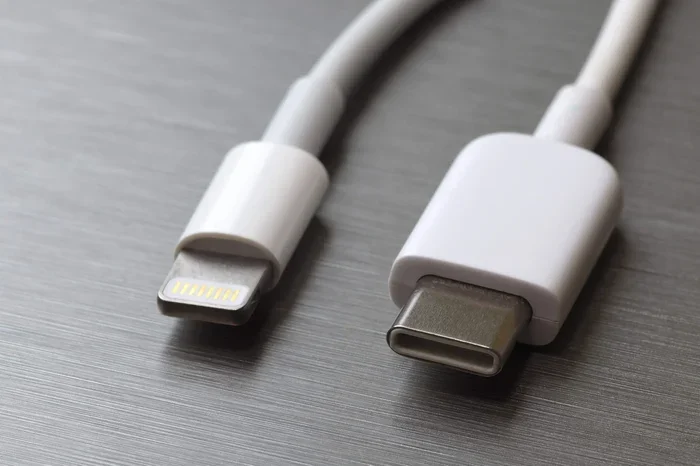
USB-C is the newest standard and offers the fastest speeds and highest power delivery. Many modern laptops, phones, and tablets now use USB-C exclusively. However, USB-C is not just about speed. It is also reversible, more durable, and supports video output and charging through a single cable.
That said, USB 2.0 still has a place in the ecosystem. Many USB-C devices are backward compatible with USB 2.0, which means a USB 2.0 cable can still work with a USB-C port, just at slower speeds. This compatibility ensures that USB 2.0 remains relevant even as newer standards take over.
Common Devices That Still Use USB 2.0
You might be surprised by how many devices still rely on USB 2.0. Here are some common examples:
- Older printers and scanners: Many home printers still use USB 2.0 connections and work perfectly fine.
- Budget flash drives: Cheap USB drives often use USB 2.0 to keep costs low.
- Keyboards and mice: These low-bandwidth devices do not need USB 3.0 speeds.
- Older external hard drives: Many portable hard drives from the 2010s use USB 2.0.
- Car stereos and GPS devices: Some older car audio systems only support USB 2.0.
- Raspberry Pi and microcontrollers: Many hobbyist boards use USB 2.0 for data and power.
- Older smartphones and tablets: Budget devices and older models often charge via USB 2.0.
If any of these devices are part of your daily routine, USB 2.0 is still serving you well. The key is knowing when to upgrade and when to keep what you have.
Should You Upgrade From USB 2.0
Deciding whether to upgrade from USB 2.0 depends on your specific needs. Here are some factors to consider:
Reasons to Stick with USB 2.0
- You only use USB devices for basic tasks like typing, browsing, or charging.
- You have older devices that only support USB 2.0.
- You are on a tight budget and do not need faster speeds.
- You only transfer small files occasionally.
- You want maximum compatibility with older equipment.
Reasons to Upgrade to USB 3.0 or USB-C
- You regularly transfer large files like videos, photos, or backups.
- You use external SSDs or hard drives and want faster read/write speeds.
- You need faster charging for your phone or tablet.
- You want to future-proof your setup with modern connectors.
- You are using a modern laptop that only has USB-C ports.
If you are currently using a USB 2.0 external drive and find the transfer speeds frustrating, consider upgrading to a USB 3.0 or USB-C enclosure. Many affordable options are available that can breathe new life into your existing drives. For example, if you have an NVMe M.2 SSD, you can use an M.2 NVMe SSD to USB 3.1 adapter to get much faster speeds without buying a new drive.
Similarly, if you want to connect an NVMe SSD externally, an M.2 NVMe SSD enclosure with USB 3.1 is a great investment. These enclosures are affordable and offer dramatically faster transfer speeds compared to USB 2.0.
For those who want the most modern and versatile option, a USB-C enclosure for M.2 NVMe SSDs gives you the fastest possible speeds and the convenience of a reversible connector. These are ideal for anyone who works with large files on the go.
In summary, USB 2.0 is still a perfectly good connection for many everyday uses. It is reliable, compatible, and affordable. But if your needs have grown beyond basic tasks, upgrading to a faster USB standard will make a noticeable difference in your daily workflow.
Common Mistakes People Make with USB 2.0
Here are a few mistakes to avoid when using USB 2.0 devices:
- Using USB 2.0 for large backups: The slow speed will waste a lot of your time. Use USB 3.0 or higher for backups.
- Assuming all USB cables are the same: USB 2.0 cables are not the same as USB 3.0 cables. Using the wrong cable can limit your speed.
- Ignoring port types: Plugging a USB 2.0 device into a USB 3.0 port is fine, but plugging a USB 3.0 device into a USB 2.0 port will slow it down to USB 2.0 speeds.
- Overlooking cable length: Longer USB 2.0 cables can result in signal loss and slower speeds. Keep cables as short as practical.
- Using damaged cables: Frayed or damaged USB 2.0 cables can cause connection issues and data corruption. Replace them when needed.
Expert Tips for Getting the Most Out of USB 2.0
Even though USB 2.0 is an older standard, you can still get the best performance out of it with a few simple tips:
- Always use a high-quality USB 2.0 cable from a reputable brand to ensure stable connections.
- Keep your USB 2.0 ports clean and free of dust to maintain good contact.
- If you are using a USB 2.0 hub, avoid connecting too many devices at once, as this can reduce bandwidth.
- For charging devices, USB 2.0 ports deliver enough power for most small electronics like e-readers and Bluetooth headphones.
- When in doubt, check your device specifications to confirm it supports USB 2.0 and understand its limitations.
Final Verdict: Is USB 2.0 Still Good
So, is USB 2.0 still good? The answer is a clear yes, with a caveat. USB 2.0 is still good for basic tasks like charging devices, connecting peripherals, and transferring small files. It is reliable, compatible, and affordable. For many people, USB 2.0 is all they need, and it will continue to work well for years to come.
However, if you are dealing with large files, fast external storage, or modern devices that demand higher bandwidth, USB 2.0 will hold you back. In those cases, upgrading to USB 3.0, USB 3.1, or USB-C is the smarter choice.
The beauty of USB 2.0 is that it does not need to be the fastest option to be useful. It simply needs to work, and it does that job remarkably well after more than two decades. So the next time you reach for that old USB 2.0 flash drive or plug in your trusty USB 2.0 keyboard, know that it is still doing its job just fine.
Whether you keep USB 2.0 or upgrade to something faster, the most important thing is choosing the right tool for your specific needs. USB 2.0 has earned its place as a reliable and enduring standard, and it will likely be around for many more years to come.
Frequently Asked Questions
Can I use a USB 2.0 flash drive on a modern computer?
Yes, absolutely. Modern computers and laptops still include USB 2.0 ports, and USB 2.0 flash drives work perfectly with them. The drive will simply operate at USB 2.0 speeds, which is fine for basic file transfers.
Is USB 2.0 fast enough for gaming?
USB 2.0 is not ideal for gaming if you are loading large game files from an external drive. The slow transfer speed can cause long load times. However, for casual games or smaller titles, USB 2.0 is still usable.
What is the difference between USB 2.0 and USB 3.0?
The main difference is speed. USB 2.0 has a maximum transfer rate of 480 Mbps, while USB 3.0 can reach 5 Gbps. USB 3.0 is also more efficient and offers better power delivery for charging devices.
Should I replace all my USB 2.0 cables with USB 3.0 cables?
Not necessarily. If you only use USB 2.0 devices, there is no benefit to USB 3.0 cables. Replace your cables only when you upgrade to faster devices or need the additional speed and power that USB 3.0 offers.
Can USB 2.0 charge my phone?
Yes, USB 2.0 can charge most phones and small devices. However, the charging speed will be slower compared to USB 3.0 or USB-C fast charging. It is fine for overnight charging or low-power devices.
Are there any risks in using USB 2.0 devices today?
There are no major risks. USB 2.0 devices are safe and reliable. The only limitation is speed, which may be a factor if you frequently work with large files or need fast data transfers.