Laptop Pressing Keys on Its Own
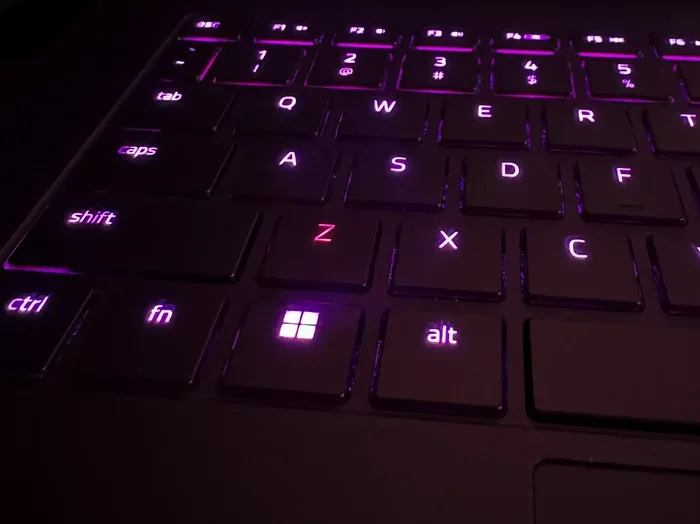
Laptop pressing keys on its own is a frustrating problem caused by sticky keys, driver issues, hardware damage, or touchpad interference. This guide walks you through every fix step by step. You will learn quick solutions, common causes, and when to seek professional help.
Have you ever been typing an email and suddenly seen letters appear on screen that you never pressed? Or maybe your laptop pressing keys on its own while sitting idle on your desk. It is a weird and annoying experience that can happen to anyone.
This issue is more common than you might think. Many laptop users face random key presses and ghost typing at some point. The good news is that most causes are easy to fix at home. In this guide, we will explore every reason your laptop might be pressing keys on its own and give you clear steps to solve it.
Whether you use your laptop for work, school, or gaming, a keyboard that acts up can slow you down. Let us dive into the causes and fixes so you can get back to typing smoothly.
Key Takeaways
- Sticky or damaged keys are the most common reason your laptop pressing keys on its own.
- Updating or reinstalling keyboard drivers often resolves ghost typing and random key presses.
- Adjusting touchpad settings can stop your laptop from thinking your palm is a keypress.
- Physical debris under keys causes many keyboard malfunctions that look like software bugs.
- Knowing when to seek help saves time and prevents further damage to your laptop.
- Right-click the Start button and select Device Manager.
- Expand the Keyboards section.
- Right-click your keyboard driver and select Update Driver.
- Choose Search automatically for drivers.
- Follow the on-screen prompts and restart your laptop.
- Go to Settings and open Accessibility.
- Click on Keyboard.
- Toggle off Sticky Keys, Filter Keys, and Toggle Keys.
- Go to Settings and select System.
- Click on Troubleshoot, then Other Troubleshooters.
- Find Keyboard and click Run.
- Follow the on-screen instructions.
- Using too much liquid when cleaning. Excess moisture can seep under keys and damage the circuit board. Use minimal liquid and let everything dry fully.
- Ignoring software updates. Outdated operating systems often have bugs that affect keyboard input. Keep Windows and your drivers up to date.
- Eating over your laptop. Crumbs fall between keys and build up over weeks. This leads to sticky keys and phantom presses.
- Pressing too hard on the touchpad. Aggressive tapping can confuse the sensor and trigger random actions on screen.
- Using incompatible accessories. Some USB hubs or keyboard docks conflict with laptop input devices. Disconnect them to test if they are the cause.
- Keys physically stick and do not spring back up.
- Multiple keys stop working even after cleaning and driver updates.
- You can see visible damage, such as cracked keys or a loose ribbon cable.
- Liquid damage has caused keys to malfunction permanently.
- The problem persists across multiple troubleshooting steps.
- Use a keyboard cover when you are not typing.
- Clean your keyboard regularly with compressed air.
- Avoid eating or drinking near your laptop.
- Keep your drivers and operating system updated.
- Use a laptop stand to improve airflow and reduce heat buildup.
- Store your laptop in a protective sleeve when traveling.
📑 Table of Contents
Why Is Your Laptop Pressing Keys on Its Own?
Before you try any fix, it helps to understand what is going on. When your laptop pressing keys on its own, the root cause usually falls into one of a few categories. Let us break them down.
Sticky or Physically Stuck Keys
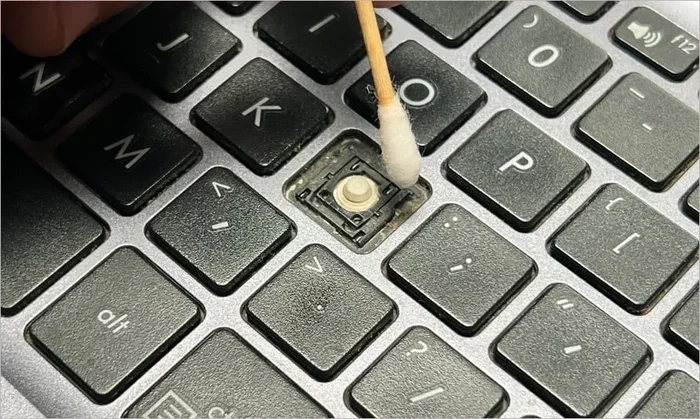
Dust, crumbs, and spills can get under your keys. Over time, this gunk makes keys stick or register presses when you are not actually touching them. Even tiny particles can cause a key to send signals to your laptop as if you pressed it.
If you notice the same key repeating over and over, debris is likely the culprit. This is especially true if you eat or drink near your laptop often.
Driver or Software Glitches
Your laptop uses keyboard drivers to translate physical key presses into on-screen letters. When these drivers get corrupted or outdated, your laptop can start sending fake signals. This is called ghost typing.
Sometimes a Windows update changes how your keyboard behaves. Other times, a background app conflicts with your keyboard settings. Either way, the result is the same — keys seem to press themselves.
Touchpad Interference
Many laptops have touchpads that double as mouse buttons. If your touchpad is too sensitive, resting your palms while typing can trigger clicks or cursor movements. Some users even report their laptop mouse keeps moving on its own because of this issue.
This is not a keyboard problem at all, but it feels like one because random actions happen on screen without your input.
Hardware Damage or Wear
Laptop keyboards take a beating over time. The rubber dome under each key wears out, and the ribbon cable connecting the keyboard to the motherboard can loosen. When this happens, keys may press on their own or stop working entirely.
Dropping your laptop or spilling liquid on it speeds up this damage. If your laptop has seen better days, hardware failure could be the reason.
Faulty Keyboard Firmware
Some laptops have firmware that controls how the keyboard communicates with the system. A firmware bug can cause keys to repeat or trigger randomly. This is less common but still worth checking if nothing else explains the problem.
How to Fix a Laptop Pressing Keys on Its Own
Now that you know the common causes, let us get into the fixes. Try these steps in order, starting with the simplest solutions.
Step 1: Clean Your Keyboard
Start with the easiest fix first. Turn off your laptop and gently tilt it upside down. Shake it lightly to dislodge any loose particles. Then use a can of compressed air to blow debris out from between the keys.
For sticky keys, dampen a cotton swab with a tiny bit of rubbing alcohol and gently clean around the affected keys. Do not use too much liquid. Let the keyboard dry completely before turning your laptop back on.
Quick Tip: Regular cleaning prevents most keyboard issues. Try to clean your laptop keyboard once a month.
Step 2: Restart Your Laptop
This sounds too simple, but a restart clears temporary software glitches. Many users have fixed random key presses just by rebooting their laptop. It resets the keyboard driver and clears any conflicting background processes.
If restarting does not help, move on to the next step.
Step 3: Update or Reinstall Keyboard Drivers
Outdated or corrupted drivers are a leading cause of ghost typing. Here is how to update them:
If updating does not work, try uninstalling the driver. Restart your laptop, and Windows will automatically reinstall a fresh copy of the driver.
Step 4: Adjust Touchpad Settings
If your laptop mouse moving on its own is causing phantom keypresses, adjusting touchpad sensitivity can help. Go to Settings, then Bluetooth and Devices, then Touchpad. Reduce the sensitivity and turn off Tap to Click if you do not need it.
You can also try disabling the touchpad temporarily while you type. Many laptops let you do this with a function key shortcut, usually Fn plus a dedicated touchpad toggle key.
Quick Tip: If you use an external mouse, plug it in and disable the touchpad completely. This eliminates palm interference for good.
Step 5: Check for Sticky Keys and Filter Keys
Windows has accessibility features that can sometimes cause strange keyboard behavior. Sticky Keys makes modifier keys (like Shift and Ctrl) stay pressed after you release them. Filter Keys ignores brief or repeated keystrokes.
Both of these can make your laptop seem like it is pressing keys on its own. Here is how to turn them off:
This simple change fixes the problem for many users.
Step 6: Run the Keyboard Troubleshooter
Windows has a built-in tool that automatically detects and fixes keyboard problems. To run it:
The troubleshooter checks for driver issues, incorrect settings, and other common problems. It is a great first step before trying more advanced fixes.
Step 7: Check for Malware or Background Apps
Some malicious software can simulate key presses or interfere with your keyboard input. Run a full system scan using Windows Defender or a trusted antivirus program.
Also, check your Task Manager for any suspicious apps running in the background. Close anything you do not recognize and see if the problem stops.
Step 8: Update Your Laptop BIOS
If firmware is causing the issue, updating your BIOS can help. Go to your laptop manufacturer’s website, find your model number, and download the latest BIOS update. Follow their instructions carefully, as flashing BIOS incorrectly can cause other problems.
Expert Insight: BIOS updates are powerful but risky. Only update if you are comfortable following the manufacturer’s guide exactly. If you are unsure, skip this step and move to professional help.
Common Mistakes That Cause Keyboard Problems
Many laptop users accidentally make things worse without realizing it. Here are the most common mistakes to avoid.
Avoiding these habits goes a long way in keeping your keyboard working properly.
When to Replace Your Keyboard
Sometimes software fixes are not enough. If your keyboard is physically damaged or worn out, you may need a replacement. Here are signs that it is time to replace:
Replacing a laptop keyboard is not as hard as it sounds. You can buy replacement keyboards online for most popular models. Some laptops even let you swap the keyboard yourself with just a screwdriver. If you are not comfortable doing it yourself, a repair shop can handle it for a reasonable cost.
Quick Tip: Before buying a replacement, check if your laptop is still under warranty. Many manufacturers cover keyboard defects for one to two years.
Preventing Future Keyboard Problems
Once you fix the issue, you want to keep it from coming back. Here is how to protect your laptop keyboard going forward:
These small habits add up and can extend the life of your keyboard by years.
Final Thoughts
Dealing with a laptop pressing keys on its own can be stressful, but it is almost always fixable. Start with the simple solutions like cleaning and restarting. Then move to driver updates and settings adjustments. Most users find relief within the first few steps.
If the problem persists, it may be time for a keyboard replacement or professional repair. The key is to act quickly before the issue gets worse. With the right approach, your laptop keyboard will be back to normal in no time.
Remember, you are not alone in dealing with this. Thousands of laptop users face the same problem every day, and the fixes in this guide work for most of them. Give them a try and see which one solves your issue.
Frequently Asked Questions
Why does my laptop press keys by itself when I am not touching it?
The most common reasons are sticky keys, debris under the keys, outdated keyboard drivers, or touchpad interference. Cleaning your keyboard and updating drivers usually fixes this problem quickly.
Can a virus cause my laptop to press keys on its own?
Yes, some malware can simulate keystrokes or interfere with keyboard input. Run a full antivirus scan to rule out this possibility. Windows Defender handles most threats effectively.
How do I know if my keyboard needs to be replaced?
If keys are physically stuck, multiple keys stop working, or you see visible damage like cracks or a loose ribbon cable, replacement is likely needed. Try all software fixes first to confirm it is a hardware issue.
Is it safe to clean my laptop keyboard with rubbing alcohol?
Yes, but use only a small amount on a cotton swab. Never spray liquid directly onto the keyboard. Make sure your laptop is powered off and let it dry completely before turning it back on.
Why does my laptop press keys when I rest my hands on the touchpad?
This is usually caused by an overly sensitive touchpad. Adjust the touchpad sensitivity in Settings or disable Tap to Click. You can also turn off the touchpad temporarily using a function key shortcut.
How long does it take to fix a laptop pressing keys on its own?
Most fixes take only a few minutes. Cleaning and restarting can solve the problem instantly. Driver updates and settings changes usually take 10 to 15 minutes. Hardware replacement may take longer depending on the model.