Is It Bad If Laptop Fan Is Loud
A loud laptop fan is not always a bad sign, but it can point to underlying issues like overheating, dust buildup, or heavy workload. Understanding why your laptop fan is loud helps you decide whether it is normal or needs attention. Most of the time, you can fix the problem with simple steps like cleaning vents or adjusting power settings. This guide covers every reason your fan might be noisy and gives you practical solutions. By the end, you will know exactly what to do to keep your laptop cool and quiet.
You are working on your laptop, and suddenly you notice a loud whirring sound. It sounds like a small jet engine sitting on your desk. Your first thought is probably, is it bad if laptop fan is loud? The short answer is: not always. But sometimes, a noisy fan is your laptop screaming for help.
Laptop fans play a huge role in keeping your device from overheating. They pull cool air in and push hot air out. When everything works as it should, you barely notice the fan. But when something goes wrong, that fan can get incredibly loud. This guide will walk you through every reason your laptop fan might be noisy and what you can do about it.
Whether you use your laptop for gaming, schoolwork, or casual browsing, understanding fan noise saves you from bigger problems down the road. Let us break it all down.
Key Takeaways
- Loud fans are often normal: They spin faster when your laptop works hard, which is expected behavior.
- Dust buildup is the #1 culprit: Dirty air vents and fan blades force your laptop to work harder and get louder.
- Overheating signals a bigger problem: If your laptop feels hot and the fan is screaming, it needs immediate attention.
- Software settings can help: Adjusting power plans and closing background apps reduces fan noise significantly.
- Hardware upgrades make a difference: Adding more RAM or switching to a cooling pad can ease the load on your fan.
- Know when to replace: A failing fan or dried-out thermal paste may need professional replacement.
📑 Table of Contents
Why Does My Laptop Fan Get So Loud?
There are many reasons a laptop fan gets loud. Most of them are easy to fix. Some, however, need a bit more attention. Here are the most common causes of laptop fan noise.
Heavy Workload
When you run demanding programs, your laptop works harder. Video editing, gaming, and running multiple apps at once all push your CPU and GPU to their limits. As these components heat up, the fan spins faster to keep temperatures safe. This is completely normal and not something to worry about.
If you notice the fan gets loud only during heavy tasks, that is a good sign. It means your cooling system is doing its job. Once the workload drops, the fan should quiet down.
Dust and Debris Buildup
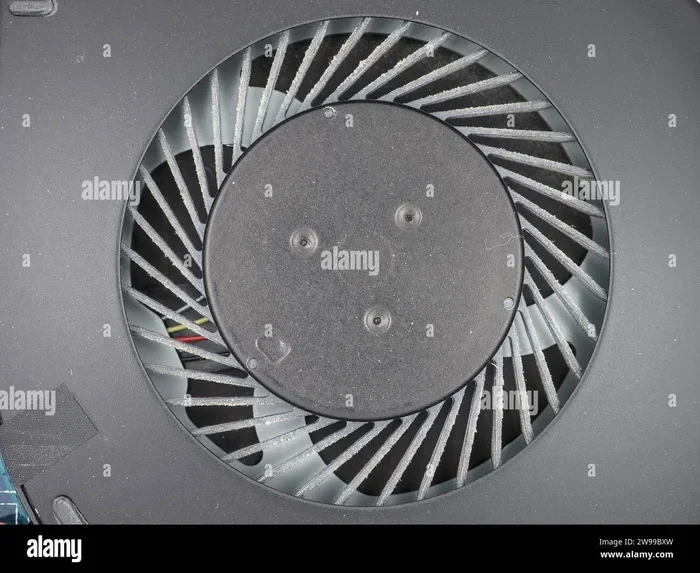
Over time, dust collects inside your laptop. It clogs air vents and coats fan blades. This makes it harder for air to flow through the system. When air cannot move freely, the fan has to spin faster to cool things down. The result is a louder fan.
This is one of the most common reasons for noisy laptop fans. Even if you do not smoke or eat near your laptop, dust finds its way inside. Regular cleaning can prevent this problem.
Blocked Air Vents
Laptops need airflow to stay cool. If you use your laptop on a bed, couch, or pillow, the vents get blocked. Soft surfaces trap heat and restrict airflow. The fan ramps up to compensate, and it gets loud fast.
Always use your laptop on a hard, flat surface. A simple laptop stand can make a big difference in keeping things cool and quiet.
Old or Dried-Out Thermal Paste
Thermal paste sits between your CPU and the heat sink. It helps transfer heat away from the processor. Over time, this paste dries out and loses its effectiveness. When that happens, heat builds up, and the fan works overtime.
This is more common in older laptops or devices that have not been serviced in a while. Replacing the thermal paste can significantly reduce fan noise.
Malware or Background Processes
Sometimes, a loud fan has nothing to do with hardware. Malware or too many background processes can push your CPU to work hard even when you are not doing anything demanding. This causes the fan to spin up and get loud.
Running a virus scan and checking your task manager can help you find the culprit. Closing unnecessary programs also reduces the load on your system.
Is a Loud Laptop Fan Dangerous?
A loud fan is not inherently dangerous. In most cases, it is just your laptop trying to stay cool. However, there are times when loud fan noise signals a real problem that needs attention.
When Loud Fan Noise Is Normal
Your fan gets loud when your laptop is under heavy load. This includes gaming, video rendering, or running multiple apps. High ambient room temperature also makes the fan work harder. In all these cases, loud noise is a normal response. Your laptop is protecting itself from overheating.
If you have a powerful laptop with a strong GPU, it will naturally run warmer and louder than a basic model. That is just how these devices are designed.
When Loud Fan Noise Is a Warning Sign
There are situations where a loud fan is a red flag. If your laptop is idle and the fan is still screaming, something is wrong. If the laptop feels hot to the touch and shuts down unexpectedly, that is a serious warning sign. A grinding or clicking noise from the fan could mean the fan is failing or has debris stuck in it.
Ignoring these signs can lead to permanent damage. Overheating can hurt your CPU, GPU, and battery over time. It is always better to address the problem early.
How to Fix a Loud Laptop Fan
The good news is that most causes of loud fan noise are easy to fix. Here are practical steps you can take right now.
Clean Your Vents and Fan
Grab a can of compressed air and gently blow out the dust from your air vents. Hold the fan blades still while you do this to avoid damaging the motor. Do this every few months to keep airflow clear.
If you are comfortable opening your laptop, you can clean the fan blade directly. Just be careful and follow proper safety steps. Power off the laptop and unplug it before you start.
Adjust Your Power Settings
Your laptop’s power plan affects how hard your hardware works. Switching to a balanced or power-saver mode can reduce fan noise. On Windows, go to Control Panel and select a power plan that is less aggressive. On Mac, check Energy Saver settings.
This simple change can lower the workload on your CPU and GPU, which in turn reduces fan speed and noise.
Use a Cooling Pad
A cooling pad is an external stand with built-in fans. It blows cool air directly into your laptop’s vents. This helps your internal fan work less hard, which means less noise.
Look for a cooling pad that matches the size of your laptop. Even a basic model can make a noticeable difference in temperature and noise levels.
Close Unnecessary Programs
Every open program uses system resources. The more programs running, the harder your laptop works. Close anything you are not using. Check your task manager to see which apps are consuming the most CPU power.
This is especially helpful if you have many browser tabs open. Each tab uses memory and processing power, which generates heat and triggers the fan.
Update Your Drivers and Software
Outdated drivers can cause your hardware to work harder than it needs to. Keep your system updated. Check for BIOS updates from your laptop manufacturer. These updates often include improvements to fan control and thermal management.
Consider a Hardware Upgrade
If your laptop struggles with modern tasks, it might be time for an upgrade. Adding more RAM helps your laptop handle multitasking without pushing the CPU too hard. For example, if you are running 8 Gb Ram and constantly hitting the limit, upgrading to 16 Gb can ease the load. Check out Is 8 Gb Ram Enough For Laptop to learn more about RAM requirements.
If you are already at 16 Gb, make sure you have enough. Find out more at Is 16 Gb Ram Enough For Laptop. Better hardware means less heat, which means a quieter fan.
Another option worth exploring is liquid cooling. If you have a desktop setup or an upgraded laptop, check out Is Liquid Cooling Worth It to see if an upgrade makes sense for your situation.
How to Prevent Loud Fan Noise in the Future
Prevention is always better than repair. Here are habits that keep your laptop fan quiet and your system running smoothly.
- Clean your vents regularly: Use compressed air every two to three months.
- Use a hard, flat surface: Never block your air vents with soft materials.
- Monitor your temperatures: Use free software like HWMonitor or Core Temp to keep an eye on heat levels.
- Keep software updated: Updated drivers and OS patches improve performance and cooling efficiency.
- Avoid overheating environments: Do not leave your laptop in a hot car or in direct sunlight.
- Use a surge protector: Power fluctuations can stress your hardware and cause it to run hotter.
These small habits add up over time. They keep your laptop running efficiently and quietly for years.
When Should You Replace Your Laptop Fan?
Sometimes, cleaning and software fixes are not enough. If your fan makes a grinding or rattling sound that does not go away, the fan itself might be damaged. A fan that spins irregularly or stops working entirely needs replacement.
Other signs include your laptop shutting down randomly or running extremely hot even during light tasks. These could mean the fan is no longer cooling the system properly. Replacing a fan is usually affordable, and many repair shops can do it the same day.
If you are handy, you can even replace the fan yourself. Just make sure you buy the right part for your laptop model. Search for your laptop brand and model number followed by “fan replacement” to find the correct component.
Quick Tips to Reduce Laptop Fan Noise
- Elevate the back of your laptop to improve airflow.
- Use a laptop stand to keep vents unobstructed.
- Switch to a power-saver mode during light tasks.
- Close tabs and apps you are not using.
- Keep your laptop in a cool, well-ventilated room.
- Run a malware scan to rule out hidden processes.
- Replace thermal paste every two to three years.
These tips take just a few minutes but can dramatically reduce fan noise. They are simple enough for anyone to try, even if you are not tech-savvy.
Expert Insight on Laptop Cooling
Most laptop manufacturers design their cooling systems for the expected workload. A fan that ramps up during heavy tasks is working as intended. The real concern is when the fan is loud during idle or light use. That usually points to dust buildup, poor ventilation, or a hardware issue.
Thermal management is one of the most important aspects of laptop maintenance. If your laptop consistently runs hot, it is worth investigating before the problem gets worse. A little prevention goes a long way in extending the life of your device.
Final Thoughts
So, is it bad if laptop fan is loud? Not always. A loud fan during heavy work is normal and healthy. But a constantly loud fan, especially during idle, is a sign that something needs your attention. Dust, blocked vents, outdated software, and failing hardware can all cause excessive fan noise.
The good news is that most fixes are simple and affordable. Regular cleaning, smart power settings, and proper ventilation can keep your fan quiet. And if the problem persists, a fan replacement or thermal paste refresh might be all it takes.
Take care of your laptop’s cooling system, and it will take care of you. Your laptop will run cooler, quieter, and last much longer.
Frequently Asked Questions
Why is my laptop fan so loud all of a sudden?
A sudden increase in fan noise usually means your laptop is working harder than usual. This could be caused by a new program, a background update, or a malware infection. It could also mean dust has built up and blocked airflow. Check your task manager to see what is using your CPU and close anything unnecessary.
Is it safe to use a laptop with a loud fan?
Yes, it is generally safe. A loud fan means your laptop is trying to cool itself down. However, if the laptop is also very hot to the touch or shutting down, you should address the issue. Prolonged overheating can damage internal components over time.
Can a loud laptop fan damage my laptop?
The fan itself will not damage your laptop. But the heat that causes the fan to work hard can. If your laptop is consistently overheating, the CPU, GPU, and battery can degrade faster. It is important to find and fix the root cause of the heat buildup.
How do I know if my laptop fan needs replacing?
Listen for grinding, clicking, or rattling sounds. If the fan spins irregularly or stops working completely, it likely needs replacement. Also, if your laptop overheats even during light tasks and the fan is loud, the fan may be failing. A professional can diagnose this quickly and affordably.
Does a cooling pad really help reduce fan noise?
Yes, a cooling pad can make a noticeable difference. It provides extra airflow to your laptop, which helps the internal fan work less hard. This means lower temperatures and less noise. A cooling pad is especially helpful if you often use your laptop on soft surfaces like beds or couches.
How often should I clean my laptop fan?
You should clean your laptop vents and fan every two to three months. If you use your laptop in a dusty environment or have pets, you may need to clean more often. Regular cleaning prevents dust buildup and keeps your fan running quietly and efficiently.
=== CONCLUSION ===
A loud laptop fan is usually not a reason to panic. It is often a sign that your laptop is working hard or needs a little maintenance. Whether the cause is dust, blocked vents, heavy workload, or outdated hardware, most fixes are simple and within your reach. Regular cleaning, smart usage habits, and occasional upgrades can keep your laptop cool and quiet for years to come. Pay attention to what your laptop is telling you, and you will avoid bigger problems down the road.