Will Factory Resetting a Laptop Remove Viruses
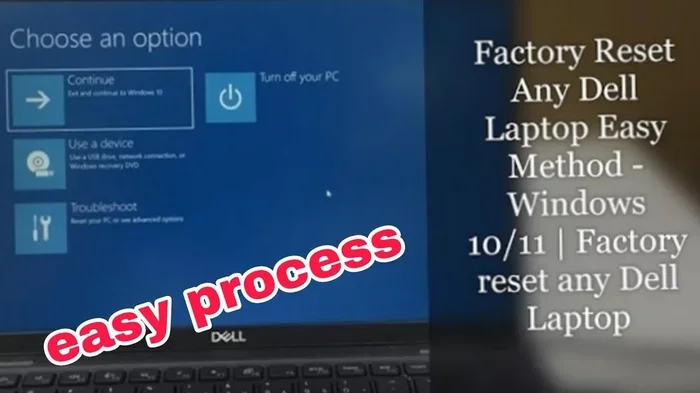
A factory reset can remove most viruses and malware from your laptop, but it is not a guaranteed fix for every type of infection. This guide explains how a reset works, what it can and cannot do, and the steps you should take afterward to keep your laptop safe.
Have you ever wondered if factory resetting a laptop will actually remove viruses? It is a common question, especially when your laptop starts acting strange. Pop-ups, slow performance, and mysterious error messages can make anyone worry about malware. The good news is that a factory reset is one of the most effective ways to clean an infected laptop.
But here is the catch. A factory reset does not always remove every single threat. Some viruses are sneaky and hide in places the reset process might miss. In this article, we will walk you through exactly how a factory reset works, what it can and cannot do, and what extra steps you should take to make sure your laptop is completely clean. Whether you are dealing with a minor annoyance or a serious infection, this guide has you covered.
Key Takeaways
- A factory reset removes most viruses: It restores your laptop to its original state and deletes installed programs, including many types of malware.
- Some stubborn malware may survive: Certain rootkits and boot-level viruses can hide deep in your system and may not be fully removed by a reset alone.
- Back up your data first: Always save important files before resetting, because the process wipes everything from your hard drive.
- Reinstall antivirus software after resetting: A clean laptop is vulnerable without proper protection, so install a trusted antivirus right away.
- Updating your operating system is critical: Updates patch security holes that malware can exploit, making your laptop safer after a reset.
- A factory reset improves laptop performance: Removing junk files, bloatware, and malware can make your laptop run faster and smoother.
📑 Table of Contents
- What Happens When You Factory Reset a Laptop?
- Will a Factory Reset Remove All Types of Viruses?
- How to Factory Reset Your Laptop Safely
- What to Do After a Factory Reset to Stay Protected
- When a Factory Reset Is Not Enough
- Factory Reset vs. Other Virus Removal Methods
- Common Mistakes People Make When Factory Resetting
- How to Prevent Viruses After a Factory Reset
- FAQ Section
- Conclusion
What Happens When You Factory Reset a Laptop?
When you factory reset a laptop, the system restores your computer to the exact condition it was in when you first bought it. This means all your personal files, downloaded programs, settings changes, and installed applications get deleted. The operating system goes back to its original state with the manufacturer’s default settings.
Think of it like hitting a big reset button on your entire laptop. Everything gets wiped clean. Your desktop icons, browser bookmarks, saved passwords, and even your user profile all disappear. The hard drive gets formatted, and the operating system gets reinstalled from scratch. This is why a factory reset is so powerful when dealing with malware.
Most viruses and malware live inside your installed programs, user files, or system folders. When a factory reset wipes all of these away, the malware goes with them. However, some particularly nasty threats can survive in hidden areas of your hard drive or even in your laptop’s firmware. We will talk more about that later.
How the Reset Process Works
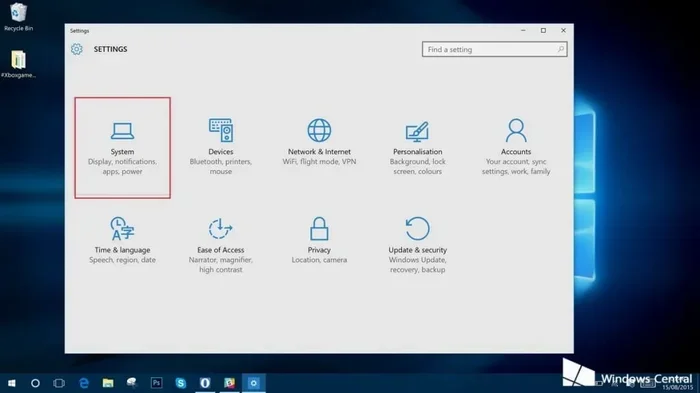
The reset process varies depending on your operating system. On Windows laptops, you can go to Settings, then Update and Security, and choose the Reset option. On Mac laptops, you use Disk Utility to erase the drive and then reinstall macOS. Both methods wipe your data and give you a fresh start.
Here is what typically happens during a factory reset:
- Backup warning: Your laptop reminds you to save important files before proceeding.
- Drive wipe: The hard drive or SSD gets completely formatted.
- OS reinstallation: The original operating system gets reinstalled.
- Driver installation: Your laptop installs the necessary drivers for hardware components.
- Fresh setup: You go through the initial setup process like a brand new laptop.
After the reset, your laptop should be free of any software-based malware. But remember, this only applies to threats that lived in the software and user data areas of your laptop.
Will a Factory Reset Remove All Types of Viruses?
This is where things get tricky. A factory reset removes the vast majority of viruses, but not all of them. Let us break down the different types of malware and how a reset affects each one.
Viruses That a Factory Reset Removes
Most common types of malware will be completely removed by a factory reset. These include:
- Trojans: These pretend to be legitimate programs but carry malicious code. They live in your installed apps and user folders, so a reset wipes them out.
- Adware and spyware: These programs track your activity or show unwanted ads. They install themselves like regular software, making them easy targets for a reset.
- Browser hijackers: These change your browser settings and redirect your searches. Since they live in your browser profile, a reset deletes them.
- Ransomware: These encrypt your files and demand payment. A reset removes the ransomware software, though it does not recover your encrypted files.
- Worms: These spread through your system and replicate themselves. A clean install stops them in their tracks.
For these common threats, a factory reset is highly effective. You will walk away with a clean, fresh laptop that is free of the infection.
Viruses That May Survive a Factory Reset
Some advanced threats are designed to survive even a full factory reset. These include:
- Rootkits: These hide deep in your system, sometimes even below the operating system. They can infect your laptop’s firmware or master boot record, which a standard reset does not touch.
- Bootkit viruses: These infect the boot sector of your hard drive. They load before your operating system starts, making them very hard to detect and remove.
- Firmware malware: Some viruses can infect your laptop’s BIOS or UEFI firmware. These survive a reset because the firmware is stored on a separate chip on your motherboard.
- Hardware-level implants: In rare cases, malware can be embedded directly into hardware components, though this is extremely uncommon for everyday users.
If you suspect your laptop has one of these advanced threats, a factory reset alone may not be enough. You may need specialized removal tools or professional help. More on that below.
How to Factory Reset Your Laptop Safely
Before you start the reset process, preparation is key. Rushing into a reset without the right steps can cause data loss or leave your laptop vulnerable afterward. Here is a step-by-step guide to doing it safely.
Step 1: Back Up Your Important Files
This is the most important step. Before you reset anything, make sure you have saved all your important files. Copy them to an external hard drive, a USB flash drive, or a cloud storage service. Be careful not to back up infected files, as this could spread the virus to your backup.
Scan your backup drive after copying files to make sure it is clean. You do not want to restore your laptop only to find the virus came back with your files.
Step 2: Sign Out of All Accounts
Sign out of your Microsoft account, Apple ID, Google account, and any other services you use. This prevents your laptop from automatically syncing infected settings or files after the reset.
Step 3: Start the Reset Process
On Windows, go to Settings, then Update and Security, then Recovery. Choose “Reset this PC” and select “Remove Everything” for the most thorough clean. On Mac, restart your laptop and hold Command and R to enter Recovery Mode, then use Disk Utility to erase your drive.
Step 4: Reinstall Everything After the Reset
Once the reset is complete, you need to reinstall your programs and restore your files. Only reinstall programs from trusted sources like official websites or the Microsoft Store. Avoid downloading software from sketchy websites, as this is how many infections start.
Also, consider upgrading your laptop RAM if your laptop has been running slowly. A factory reset can improve performance, but adding more memory gives your laptop an even bigger boost. You can learn more about how to upgrade the RAM of a laptop to get the most out of your freshly reset system.
What to Do After a Factory Reset to Stay Protected
A factory reset gives you a clean slate, but your laptop is vulnerable right after the reset. Without proper protection, a new infection can happen quickly. Here is what you should do to keep your laptop safe.
Install Antivirus Software
Install a reputable antivirus program as soon as possible. Windows comes with Windows Defender built in, which is quite good for most users. You can also choose a third-party antivirus like Norton, Bitdefender, or Malwarebytes. Make sure your antivirus is set to update automatically and run regular scans.
Update Your Operating System
Operating system updates patch security vulnerabilities that malware can exploit. After a factory reset, check for and install all available updates immediately. On Windows, go to Settings, then Update and Security, and click Check for Updates. On Mac, go to System Preferences, then Software Update.
Enable Your Firewall
Your laptop’s built-in firewall adds an extra layer of protection. It monitors incoming and outgoing network traffic and blocks suspicious connections. Make sure your firewall is turned on before you start using the internet again.
Be Careful What You Download
Many laptop infections come from downloading free software, clicking on suspicious links, or opening email attachments from unknown senders. Be cautious about what you download and where you download it from. Stick to official websites and trusted sources.
Consider Upgrading Your Laptop’s Hardware
After a reset, your laptop should run faster. But if it still feels sluggish, the problem might be your hardware. Adding more RAM or switching to a solid-state drive can dramatically improve performance. Check out our article on how much RAM a laptop needs to find the right upgrade for your model.
When a Factory Reset Is Not Enough
Sometimes, a factory reset does not solve the problem. If you still notice strange behavior after resetting your laptop, the infection may be deeper than expected. Here are some signs that you need more than just a reset.
- Your laptop still runs slowly after a reset: This could indicate a hardware issue or a rootkit that survived the reset.
- You see unfamiliar programs or processes: If strange software appears after a reset, your laptop may have a firmware-level infection.
- Your antivirus keeps detecting threats: If your antivirus finds malware immediately after a reset, the virus may be hiding in your system firmware.
- Your browser settings keep changing: This is a sign of persistent malware that a standard reset did not remove.
In these cases, you should consider using specialized malware removal tools or consulting a professional technician. Tools like Malwarebytes, Kaspersky Rescue Disk, and TDSSKiller are designed to detect and remove deep-rooted infections that survive a factory reset.
You might also want to check if your laptop’s overheating issues are causing problems that look like malware. Sometimes, an overheating laptop runs slowly and behaves strangely, mimicking the symptoms of a virus. Learn more about whether a laptop can explode from overheating to understand how heat affects your device.
Factory Reset vs. Other Virus Removal Methods
There are several ways to remove viruses from a laptop. Let us compare factory resetting with other common methods so you can decide which approach is best for your situation.
| Method | Effectiveness | Difficulty | Data Loss |
|---|---|---|---|
| Factory Reset | High for most malware | Easy | Yes, all data wiped |
| Antivirus Scan | Moderate to high | Easy | No |
| Safe Mode Removal | Moderate | Medium | No |
| Boot from USB and Clean Install | Very high | Hard | Yes, all data wiped |
| Professional Repair | Very high | Easy (for user) | Depends on method |
As you can see, a factory reset is one of the most effective methods for removing viruses, especially for everyday users. It is simple, thorough, and gives you a completely fresh start. However, it does come with the downside of wiping all your data, which is why backing up is so important.
If you are not sure whether your laptop has a virus, you can run a full antivirus scan first. If the scan finds and removes the threat, you might not need a reset at all. But if the virus keeps coming back or your laptop is heavily infected, a factory reset is your best bet.
Common Mistakes People Make When Factory Resetting
Even though a factory reset is straightforward, people often make mistakes that reduce its effectiveness. Here are some common errors to avoid.
- Skipping the backup: This is the number one mistake. Always back up your files first, even if you think the virus might have infected them.
- Choosing the quick reset option: Some reset options only remove your files but keep the operating system recovery partition. Choose the option that fully wipes your drive for the best results.
- Not updating after the reset: A fresh laptop is only as secure as its latest updates. Always install all available updates immediately after resetting.
- Reinstalling old, infected files: If you restore files from a backup without scanning them first, you might reintroduce the virus to your clean laptop.
- Skipping antivirus installation: A reset laptop with no antivirus protection is an easy target for new infections. Install protection before going online.
Avoiding these mistakes ensures that your factory reset actually does its job and leaves your laptop clean and secure.
How to Prevent Viruses After a Factory Reset
Getting rid of a virus is only half the battle. Preventing future infections is equally important. Here are some simple habits that keep your laptop safe.
- Keep your operating system and software updated: Updates fix security holes that viruses use to get in.
- Use antivirus software and keep it active: A good antivirus catches threats before they can do damage.
- Be careful with email attachments: Do not open attachments from people you do not know or trust.
- Avoid suspicious websites: If a website looks sketchy or offers free downloads of paid software, stay away.
- Use strong, unique passwords: This prevents hackers from gaining access to your accounts and installing malware remotely.
- Enable two-factor authentication: This adds an extra layer of security to your important accounts.
- Regularly scan your laptop: Even if everything seems fine, run a full antivirus scan at least once a week.
These habits take only a few minutes each day but can save you from a lot of headaches in the long run. Prevention is always better than cure, especially when it comes to laptop viruses.
FAQ Section
How long does a factory reset take to remove a virus?
A factory reset usually takes between 30 minutes and 2 hours, depending on your laptop model and the amount of data on your drive. The actual reset process is fairly quick, but you should also factor in time for reinstalling your operating system, drivers, and necessary software afterward. Once the reset is complete, your laptop should be free of most common viruses immediately.
Can a virus survive a factory reset on Windows 10 or 11?
Most viruses cannot survive a factory reset on Windows 10 or 11. However, advanced threats like rootkits or bootkit viruses can sometimes hide in your laptop’s firmware or master boot record, which a standard reset does not touch. If you suspect a deep-level infection, you may need to use specialized removal tools or perform a clean installation from a USB drive.
Do I need to reinstall antivirus after a factory reset?
Yes, absolutely. After a factory reset, your laptop has no antivirus protection until you install one. Make sure to install a reputable antivirus program before connecting to the internet. Windows Defender comes built into Windows 10 and 11 and works well for most users, but you can also choose a third-party option.
Will a factory reset remove a ransomware infection?
A factory reset will remove the ransomware software from your laptop, but it will not decrypt your files. If your files have been encrypted by ransomware, the reset removes the threat but does not recover your data. This is why backing up your files regularly is so important for ransomware protection.
Should I factory reset my laptop if it has a virus?
Yes, a factory reset is one of the most effective ways to remove a virus from your laptop. It wipes your entire system and gives you a fresh start. However, make sure you back up your important files first and scan them for malware before restoring them to your clean laptop.
Can I use my laptop right after a factory reset?
You can use your laptop right after a factory reset, but you should take a few precautions first. Install antivirus software, run all available operating system updates, and avoid downloading anything suspicious until your laptop is fully protected. Taking these quick steps ensures your freshly reset laptop stays clean and secure.
Conclusion
So, will factory resetting a laptop remove viruses? The short answer is yes, for most types of malware. A factory reset is a powerful tool that wipes your laptop clean and gives you a fresh, secure start. It removes the vast majority of common viruses, including trojans, adware, spyware, and ransomware.
However, a factory reset is not a magic fix for every situation. Advanced threats like rootkits and bootkits can survive a reset and require additional steps to remove. If you suspect a deep-level infection, use specialized malware removal tools or consult a professional.
The key takeaway is that a factory reset works best when combined with good aftercare. Install antivirus software, update your operating system, and practice safe browsing habits to keep your laptop protected. With the right approach, you can erase viruses and enjoy a faster, cleaner laptop.
Do not let a virus ruin your laptop experience. Take action today, follow the steps in this guide, and give your laptop the fresh start it deserves. A clean laptop is a safe laptop, and a safe laptop gives you peace of mind every time you turn it on.