Laptop Screen Flicker
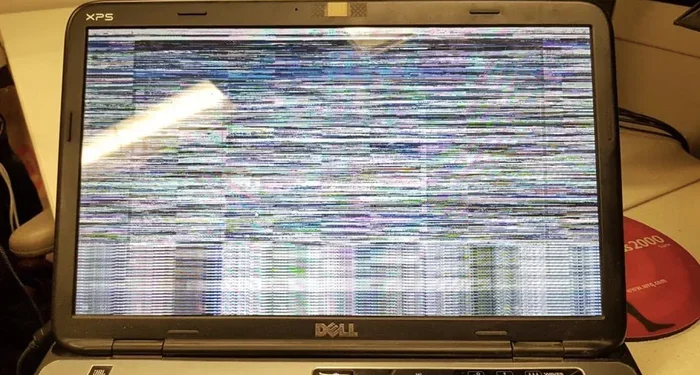
A laptop screen flicker can be annoying and disruptive, but it is usually fixable. Whether your laptop display flickering stems from a loose cable, outdated driver, or incompatible settings, this guide walks you through every solution. You will learn how to diagnose the root cause and apply simple fixes that restore a clear, stable screen.
Nothing is more frustrating than sitting down to work and your laptop screen flicker starts right away. Your eyes strain, your focus breaks, and you wonder if your computer is dying. The good news is that a flickering laptop screen is rarely a death sentence for your device.
Most causes of laptop display flickering are simple to fix. A loose connection, an outdated driver, or a setting you accidentally changed can all trigger the problem. This guide covers every major cause and gives you clear steps to stop the flicker for good.
Whether you use your laptop for work, study, or entertainment, a stable screen matters. You deserve a display that works without distraction. Let us dive into the reasons behind laptop screen flickering and how you can fix them right now.
Key Takeaways
- Loose or damaged cables are the most common cause of laptop screen flicker and are easy to check.
- Outdated or corrupted display drivers can trigger screen flickering and are simple to update.
- Incorrect refresh rate or resolution settings often cause the display to blink or strobe.
- Overheating and hardware failure can lead to persistent flickering that needs professional attention.
- Software conflicts from new apps or Windows updates sometimes cause temporary screen glitches.
- Touchscreen panels are more prone to flickering, especially when the digitizer cable is loose.
- Most flicker issues can be resolved at home with basic troubleshooting steps.
📑 Table of Contents
What Causes a Laptop Screen Flicker?
A laptop screen flicker can come from many sources. Some causes are software-related, while others point to hardware problems. Understanding the root cause is the first step toward a fix.
Loose or Damaged Display Cable
The most common reason for screen flicker on laptop is a loose or pinched display cable. This cable connects your screen to the motherboard. When it shifts or wears out, the signal drops in and out, causing a blinking or flickering effect.
This happens often in laptops that get opened and closed frequently. Over time, the cable can stretch or develop tiny breaks. If you notice the flicker gets worse when you open or close the lid, the cable is likely the culprit.
Outdated or Corrupted Display Drivers
Your display driver is the software that tells your laptop how to send images to the screen. When this driver becomes outdated or corrupted, laptop screen flickering can start suddenly. You may also notice screen artifacts, glitches, or horizontal lines.
Windows updates sometimes replace your current driver with a version that does not work well with your hardware. This is a common trigger for flickering laptop display problems after a system update.
Incorrect Refresh Rate or Resolution
Your screen refreshes at a set rate, usually 60Hz. If this rate is set too low or too high for your panel, you may see a screen strobe on laptop. The same goes for resolution settings that do not match your display.
When you connect an external monitor or change display settings, the refresh rate can shift without you noticing. This simple change can cause a persistent laptop screen flicker that looks alarming but is easy to correct.
Overheating
Heat is the enemy of electronics. When your laptop overheats, components can behave unpredictably. A laptop screen flicker may be one of the first signs that your device is running too hot.
If the flicker comes with a hot keyboard or loud fan noise, overheating is a strong possibility. Dust buildup inside the laptop blocks airflow and causes temperatures to rise. This can affect the display connector and the GPU, leading to laptop display flickering.
Software Conflicts and Windows Updates
Sometimes a new app or a recent Windows update conflicts with your display settings. This can cause temporary screen glitching on laptop that comes and goes. Anti-virus software, screen recorders, and overlay tools are common offenders.
If the flicker started right after installing something new, that software is likely the cause. Uninstalling or updating the program often resolves the issue quickly.
How to Fix a Flickering Laptop Screen
Now that you know the causes, let us look at the fixes. These steps are ordered from the simplest to the most advanced. Try each one and check if the laptop screen flicker stops.
Step 1: Check the Display Cable Connection
Start by opening and closing your laptop lid gently. Watch for any change in the flicker. If the screen clears up when the lid is at a certain angle, the cable is loose.
Here is what you can do:
- Power off your laptop completely.
- Remove the battery if it is removable.
- Carefully open the back panel near the hinge.
- Reseat the display cable connector.
- Power on and test the screen.
If you are not comfortable opening your laptop, take it to a repair shop. They can check and replace the cable for a small fee. A new display cable usually costs between $10 and $30.
Step 2: Update Your Display Driver
An outdated driver is one of the top reasons for laptop screen flickering. Updating it often solves the problem in minutes.
Here is how to do it:
- Right-click the Start button and select Device Manager.
- Expand the Display adapters section.
- Right-click your graphics card and select Update driver.
- Choose Search automatically for drivers.
- Restart your laptop after the update completes.
If Windows does not find a new driver, visit your laptop or graphics card manufacturer’s website. Download the latest driver manually and install it. This method works better than relying on Windows Update alone.
Step 3: Adjust the Refresh Rate
Setting the wrong refresh rate can cause a laptop screen flicker. Here is how to check and fix it:
- Right-click on your desktop and select Display settings.
- Scroll down and click Advanced display settings.
- Look for the Refresh rate dropdown menu.
- Select the recommended rate, usually 60Hz.
- Click Apply and check if the flicker stops.
If you have a high-refresh-rate monitor, you can try setting it higher. But if flickering starts, go back to the default rate. Your panel may not support the higher setting.
Step 4: Roll Back or Uninstall Recent Updates
If the flicker started after a Windows update, rolling it back can help. Go to Settings, then Update and Security, then Windows Update. Click View update history and select Uninstall updates. Find the most recent update and remove it.
This is a quick fix for screen flicker on laptop caused by a bad update. You can always reinstall the update later once the manufacturer releases a patch.
Step 5: Check for Overheating
Use a free temperature monitoring tool like HWMonitor to check your laptop’s heat levels. If the CPU or GPU runs above 90 degrees Celsius, you have an overheating problem.
To reduce heat and prevent laptop screen flicker caused by thermal issues:
- Clean the vents and fan with compressed air.
- Use a laptop cooling pad.
- Avoid using your laptop on soft surfaces like beds or couches.
- Replace the thermal paste if the laptop is older than two years.
Keeping your laptop cool helps every component work better, including the display. If you want to learn more about how heat affects your laptop, you can read our guide on can a laptop explode from overheating for important safety tips.
Step 6: Perform a Clean Boot
A clean boot starts Windows with only the essential services and drivers. This helps you find out if a background program is causing the laptop display flickering.
Here is how to do a clean boot:
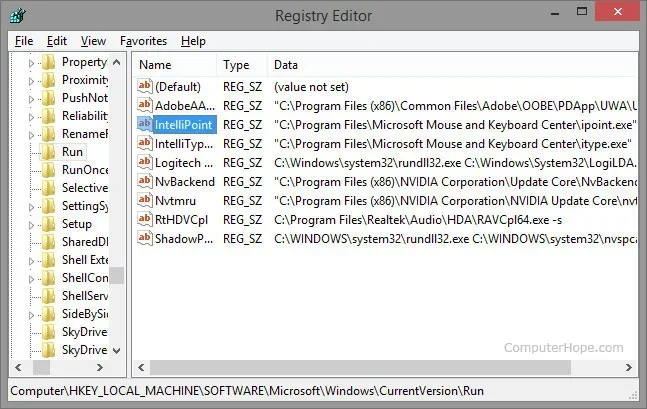
- Press Windows Key + R and type msconfig.
- Go to the Services tab and check Hide all Microsoft services.
- Click Disable all.
- Go to the Startup tab and open Task Manager.
- Disable all startup items.
- Restart your laptop and check for the flicker.
If the flicker stops, re-enable services and startup items one by one to find the culprit. This method takes patience but is very effective for tracking down software conflicts.
Common Mistakes That Cause Laptop Screen Flicker
Some habits and mistakes make laptop screen flickering more likely. Avoiding these can save you a lot of trouble.
Ignoring Driver Updates
Many people never update their graphics drivers. Over time, drivers become outdated and stop working well with new software. This is one of the easiest causes of flickering laptop display to prevent. Set a reminder to check for driver updates once a month.
Using Cheap or Incompatible Chargers
A low-quality charger can send unstable power to your laptop. This instability can affect the display and cause screen flicker on laptop. Always use the charger that came with your laptop or a certified replacement from the manufacturer.
Not Cleaning the Screen and Vents
Dust buildup is a silent problem. It blocks vents and causes overheating, which in turn can trigger laptop screen flicker. Regular cleaning keeps your laptop running smoothly. For tips on cleaning your screen safely, check out our article on best way to clean computer screen laptop.
Forcing the Screen Open at Extreme Angles
Opening your laptop lid too wide or at awkward angles can stress the display cable. Over time, this causes the cable to fray or lose connection. The result is a laptop screen flicker that comes and goes based on the lid position. Be gentle with your hinge.
When to Seek Professional Help
Most laptop screen flicker issues can be fixed at home. But some situations need a professional. Here is when you should stop troubleshooting and seek help.
If you have tried all the steps above and the flicker persists, the problem may be a hardware failure. A damaged LCD panel or a failing GPU cannot be fixed with software. You will need a technician to diagnose and replace the faulty part.
Also, if your laptop is under warranty, contact the manufacturer before opening it yourself. Opening the laptop can void the warranty. A touch screen laptop 16 gb ram or any other high-spec machine may have specialized components that require expert handling.
Look for these warning signs that point to a serious hardware issue:
- The screen flicker is constant and does not change with lid angle.
- You see vertical lines or dead zones on the display.
- The screen goes completely black but the laptop is still running.
- The flicker is accompanied by strange noises or burning smells.
- Your laptop overheats even with a clean fan and good ventilation.
Do not ignore these signs. A quick visit to a repair center can save you from a bigger problem later. For more on laptop hardware upgrades that can improve overall performance, read our guide on RAM upgrade for my laptop to keep your system running smoothly.
Preventing Laptop Screen Flicker in the Future
Prevention is always better than cure. A few simple habits can keep your laptop screen flicker away for years.
First, keep your drivers updated. Set a monthly reminder to check for graphics driver updates. Second, avoid extreme temperatures. Do not leave your laptop in a hot car or use it in direct sunlight for long periods.
Third, handle your laptop gently. Avoid dropping it or applying pressure to the screen. Fourth, keep your laptop clean. Dust is the enemy of airflow and cooling. A quick cleaning session every few months goes a long way.
Finally, use quality accessories. A good charger and a proper laptop stand make a big difference. These small investments protect your display and extend the life of your machine.
Final Thoughts
A laptop screen flicker is annoying, but it is almost always fixable. Start with the simple steps like checking your cable, updating your driver, and adjusting your refresh rate. Most people find relief within minutes of trying these fixes.
If the problem persists, do not panic. Overheating, software conflicts, and hardware failures are all treatable. The key is to act quickly before a small issue turns into a big repair bill.
Keep your laptop clean, updated, and handled with care. Your display will reward you with a clear, stable image every time you open the lid. A flicker-free screen makes work, study, and play much more enjoyable.
Frequently Asked Questions
Why does my laptop screen flicker only when I open the lid?
This usually means the display cable is loose or damaged. The cable runs through the hinge and can shift over time. Reseating or replacing the cable typically fixes this type of laptop screen flicker quickly.
Can a bad charger cause laptop screen flickering?
Yes. An unstable power supply can cause voltage fluctuations that affect the display. Using a cheap or incompatible charger is a common but overlooked cause of flickering laptop display problems.
Is laptop screen flicker a sign of a dying laptop?
Not usually. Most flicker issues are caused by simple problems like loose cables or outdated drivers. Only in rare cases does persistent flickering indicate a failing GPU or a damaged panel that needs replacement.
How do I stop my laptop screen from flickering on Windows 11?
Start by updating your display driver through Device Manager. Then check your refresh rate in Advanced Display Settings. If the flicker began after a recent update, roll it back temporarily. These steps solve the majority of laptop screen flickering cases on Windows 11.
Can overheating really cause a laptop screen to flicker?
Yes. When internal temperatures rise too high, components can malfunction temporarily. The display connector and GPU are especially sensitive to heat. Keeping your laptop cool with clean vents and proper airflow helps prevent laptop display flickering caused by overheating.
Should I worry if my touchscreen laptop flickers more than a regular laptop?
Touchscreen panels have an extra layer, the digitizer, that can be sensitive to loose connections. If you own a touch screen laptop 16 gb ram or similar model, the digitizer cable is a common source of extra flickering. Reseating or replacing this cable usually resolves the issue.