Lenovo Laptop with Expandable Ram

A Lenovo laptop with expandable RAM gives you the freedom to upgrade memory as your needs grow. Whether you use your laptop for work, school, or gaming, adding RAM can seriously boost speed and multitasking. This guide covers everything from compatible models to step-by-step upgrade tips.
A Lenovo laptop with expandable RAM is a smart choice for anyone who wants flexibility and long-term value. Instead of being stuck with the memory your laptop came with, you can add more when you need it. This simple upgrade can transform a slow machine into a fast, responsive powerhouse.
Many people buy laptops without thinking about future needs. But workloads change. Apps get heavier. What felt like plenty of memory two years ago might feel painfully slow today. That is exactly why expandable RAM matters so much. With a Lenovo laptop that supports memory upgrades, you stay ahead of the curve without spending money on a whole new device.
In this guide, we will walk you through everything you need to know. We will cover which Lenovo models support RAM upgrades, how much memory you can add, and the step-by-step process for doing it yourself. By the end, you will feel confident about choosing and upgrading the right laptop for your budget and workflow.
Key Takeaways
- Expandable RAM means you can add more memory later without buying a new laptop.
- Most Lenovo laptops support RAM upgrades, including ThinkPad and Legion series.
- Check your model before buying RAM to ensure compatibility with the right type and speed.
- Upgrading RAM is affordable and one of the easiest ways to refresh an older laptop.
- Dual-channel setup can double your memory bandwidth for better performance.
- Maximum RAM limits vary by model, so always check Lenovo specs before purchasing.
- DIY upgrades are simple and usually take less than 15 minutes.
📑 Table of Contents
- What Does Expandable RAM Mean on a Lenovo Laptop?
- Best Lenovo Laptop Models with Expandable RAM
- How to Check if Your Lenovo Laptop Supports RAM Expansion
- Step-by-Step Guide to Upgrading RAM in Your Lenovo Laptop
- How Much RAM Do You Really Need?
- Common Mistakes to Avoid When Upgrading Lenovo Laptop RAM
- Expert Tips for Getting the Most from Your Lenovo Laptop RAM
- Frequently Asked Questions
- Conclusion
What Does Expandable RAM Mean on a Lenovo Laptop?
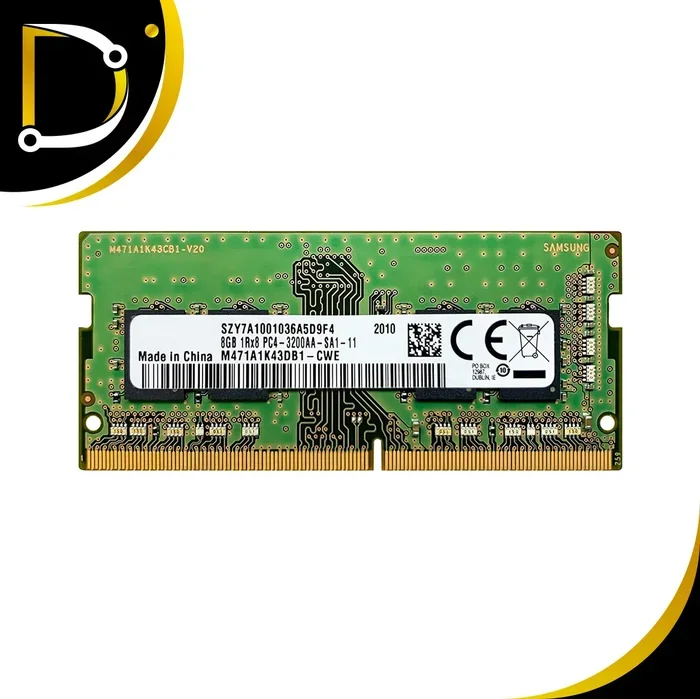
Expandable RAM means your laptop has room to grow. Instead of having all memory soldered onto the motherboard, some models include open RAM slots. These slots let you insert additional memory modules whenever you want. This is different from laptops where the RAM is permanently fixed and cannot be changed.
When a Lenovo laptop with expandable RAM has open slots, you can buy new sticks and install them yourself. You do not need advanced technical skills. Most upgrades take less than fifteen minutes and cost far less than a new computer. This is one of the biggest advantages of choosing Lenovo laptops for long-term use.
Why Expandable RAM Matters
Here are some real reasons why expandable RAM makes a difference in everyday use:
- Future-proofing: You can add memory as software demands grow. New operating systems and applications keep getting heavier.
- Cost savings: Upgrading RAM costs a fraction of buying a new laptop.
- Better multitasking: More RAM means you can run many apps at once without slowdowns.
- Longer laptop lifespan: Your machine stays useful for years instead of becoming obsolete quickly.
- Customization: You choose exactly how much memory you need based on your actual workload.
If you are comparing laptops, always check whether the model has upgradeable memory. A laptop with soldered RAM might seem cheaper upfront, but it limits what you can do in the future. With a Lenovo laptop with expandable RAM, you get both affordability now and flexibility later.
Best Lenovo Laptop Models with Expandable RAM
Not every Lenovo laptop supports RAM upgrades. Some models have all memory soldered in place. But many popular lines offer expandable options. Let us look at the best choices available right now.
Lenovo ThinkPad Series
The ThinkPad line is legendary for durability and upgradeability. Most ThinkPad models include at least one open RAM slot. Some even have two slots, which lets you run a dual-channel memory setup. The ThinkPad T-series, X-series, and L-series are especially popular for users who want easy access to memory slots.
If you are looking for a reliable business laptop that you can upgrade over time, the ThinkPad line is hard to beat. A Lenovo Laptop with 16 GB RAM from the ThinkPad series gives you excellent baseline performance, and you can expand from there if needed.
Lenovo Legion Gaming Series
Gaming laptops need serious memory to handle modern titles. The Legion series from Lenovo is designed with performance in mind, and many models feature expandable RAM. You can start with 16 GB and upgrade to 32 GB or more as gaming demands increase.
For serious gamers, checking the Lenovo Legion Laptop Max RAM capacity before buying is essential. Some Legion models support up to 64 GB of memory across multiple slots. This kind of expandability ensures your gaming laptop stays relevant for years.
Lenovo IdeaPad Series
The IdeaPad line offers budget-friendly options, and several models include expandable RAM. While not every IdeaPad supports upgrades, many mid-range and higher-end versions do. Always verify the specs before purchasing an IdeaPad if upgradeability matters to you.
If you want a solid everyday laptop with room to grow, look for IdeaPad models that list RAM slots in their specifications. Pairing a 16GB RAM for Lenovo Laptop with an expandable slot gives you a great balance of price and performance.
How to Check if Your Lenovo Laptop Supports RAM Expansion
Before you buy any RAM, you need to confirm your specific Lenovo model supports expansion. Here is how you can find out quickly.
Method 1: Check Lenovo Official Specs
Visit the Lenovo support website and enter your laptop model number. The specifications page will clearly state whether the RAM is soldered or expandable. Look for terms like “upgradeable memory” or “user-replaceable RAM.”
Method 2: Use System Information Tools
On Windows, open the Task Manager and go to the Performance tab. Click on Memory. Here you can see how many RAM slots are available and how many are currently in use. If you see empty slots, your laptop supports expansion.
Method 3: Open the Laptop Back Panel
For a hands-on check, power off your laptop, remove the battery if possible, and unscrew the back panel. Look inside for RAM slots. If you see empty slots with no RAM sticks installed, you have room to expand. This method works well if you are comfortable opening your laptop.
Knowing your laptop’s RAM capacity before buying is critical. Buying the wrong type of memory can waste money and cause compatibility issues. Always match the RAM type (DDR4 or DDR5), speed, and maximum supported capacity to your specific model.
Step-by-Step Guide to Upgrading RAM in Your Lenovo Laptop
Upgrading RAM in a Lenovo laptop is one of the simplest DIY computer tasks you can do. You do not need to be a tech expert. Follow these steps carefully and you will have your new memory running in minutes.
Step 1: Gather Your Tools
You will need a small Phillips-head screwdriver, an anti-static wrist strap (optional but recommended), and your new RAM sticks. Make sure the RAM matches your laptop’s specifications for type, speed, and capacity.
Step 2: Power Down and Disconnect
Shut down your laptop completely. Unplug the power adapter and disconnect any peripheral devices. Remove the battery if your model allows it. This protects both you and the laptop’s components.
Step 3: Open the Back Panel
Use your screwdriver to remove the screws on the bottom of the laptop. Keep them in a safe place. Gently lift off the back panel. You should see the internal components, including the RAM slots.
Step 4: Install the New RAM
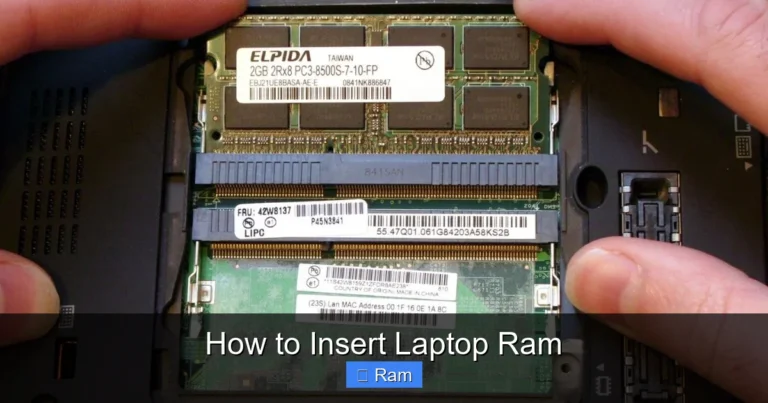
Locate the RAM slots. If there is existing RAM, gently push the clips on each side outward. The stick will pop up at an angle. Remove it carefully. To install new RAM, align the notch on the stick with the slot. Press it down firmly until the clips click into place.
Step 5: Test Your Upgrade
Replace the back panel, reconnect the battery, and power on your laptop. Go to the Task Manager or Settings to confirm the new memory is recognized. You should see the upgraded total memory amount listed.
If you ever need to add RAM temporarily or use an external solution, you can also explore how to get extra RAM on laptop with USB as a supplementary option for light tasks.
How Much RAM Do You Really Need?
One of the most common questions people ask is how much memory is enough. The answer depends entirely on what you use your laptop for. Here is a simple breakdown to help you decide.
For Everyday Use and Browsing
If you mainly use your laptop for web browsing, streaming videos, and light document work, 8 GB of RAM is usually sufficient. However, if you want your laptop to feel fast for years to come, 16 GB is a much better choice. A Lenovo laptop with expandable RAM starting at 16 GB gives you a comfortable buffer for future needs.
For Work and Productivity
Professionals who run multiple applications at once, use virtual machines, or work with large spreadsheets benefit greatly from 16 GB to 32 GB of RAM. The extra memory keeps everything running smoothly even when you have dozens of browser tabs and apps open.
For Gaming and Creative Work
Modern games and creative applications like video editing and 3D rendering demand serious memory. 32 GB is the sweet spot for most gaming and creative workflows. Some heavy users eventually upgrade to 64 GB, especially when working with complex projects.
If you are unsure how much memory is right for you, start with 16 GB and upgrade later. A laptop with expandable RAM lets you begin with what you need and add more when your demands grow.
Common Mistakes to Avoid When Upgrading Lenovo Laptop RAM
Upgrading RAM is straightforward, but a few common mistakes can cause problems. Here is what to watch out for.
- Buying the wrong RAM type: DDR3, DDR4, and DDR5 are not interchangeable. Always match the RAM type to your laptop’s specifications.
- Ignoring speed ratings: Mixing RAM sticks with different speeds can cause compatibility issues. Try to match the speed of your existing memory.
- Overlooking maximum capacity: Every laptop has a maximum RAM limit. Exceeding this limit will not give you extra performance and may cause errors.
- Skipping the manual: Your laptop’s user manual contains specific instructions for accessing and upgrading RAM. Skipping it can lead to accidental damage.
- Forgetting to ground yourself: Static electricity can damage sensitive components. Use an anti-static wrist strap or touch a metal surface before handling RAM.
Avoiding these simple mistakes ensures a smooth upgrade experience and protects your investment in your Lenovo laptop.
Expert Tips for Getting the Most from Your Lenovo Laptop RAM
Once you have upgraded your memory, there are a few extra steps you can take to maximize the benefits. These tips come from experienced users and tech professionals who work with laptops daily.
Enable Dual-Channel Mode
If your Lenovo laptop has two RAM slots, install matching pairs of RAM sticks. This activates dual-channel mode, which effectively doubles the data bandwidth between memory and the processor. The performance improvement is noticeable in multitasking and memory-intensive applications.
Keep Your BIOS Updated
Lenovo regularly releases BIOS updates that improve memory compatibility and stability. Before upgrading, check the Lenovo website for the latest BIOS version for your model. An updated BIOS can prevent issues with newer RAM sticks.
Monitor Your Memory Usage
After upgrading, keep an eye on how much memory your laptop uses during normal tasks. The Task Manager in Windows gives you a clear picture of memory usage over time. If you find you are regularly using less than 70 percent of your total RAM, you have plenty of headroom for future needs.
Consider a Full Memory Kit
Instead of buying individual sticks, consider purchasing a matched memory kit. These kits include two or more sticks designed to work together perfectly. They often come with warranties and guaranteed compatibility, which gives you peace of mind.
For users who want to explore related Lenovo laptop options with strong memory configurations, check out our detailed review of the Laptop with 16GB RAM and i7 Processor to understand how memory and processor upgrades work together for peak performance.
Frequently Asked Questions
Can I upgrade the RAM on any Lenovo laptop?
No, not all Lenovo laptops support RAM upgrades. Some models have memory soldered directly to the motherboard, which means it cannot be changed. Before purchasing or upgrading, always check your specific model’s specifications on the Lenovo website to confirm whether it has user-replaceable RAM slots.
How much does it cost to upgrade RAM in a Lenovo laptop?
RAM upgrades are very affordable. A single 16 GB DDR4 stick typically costs between $30 and $60, depending on the brand and speed. If you need two sticks for a dual-channel setup, you can expect to spend around $60 to $120 total. This is a small price for a significant performance boost.
What happens if I install too much RAM in my Lenovo laptop?
Your laptop will only recognize memory up to its maximum supported capacity. Installing more RAM than your laptop supports will not cause damage, but the extra memory will not be used. Always check the maximum RAM limit for your specific model before purchasing new memory.
Can I mix different brands of RAM in my Lenovo laptop?
Yes, you can mix RAM brands, but it is best to match the type, speed, and size of the sticks. Mixing different speeds may cause both sticks to run at the slower speed. For the best performance and stability, use identical RAM modules from the same generation and speed rating.
Is it hard to upgrade RAM in a Lenovo laptop?
Not at all. Most Lenovo laptops are designed with easy access to RAM slots. The process typically involves removing a few screws, sliding off the bottom panel, and gently inserting the new RAM stick. The entire upgrade usually takes less than fifteen minutes and requires no special technical skills.
Will upgrading RAM make my Lenovo laptop faster?
Yes, upgrading RAM can make a noticeable difference, especially if your laptop was running low on memory. More RAM allows your laptop to handle more applications simultaneously, reduces slowdowns when multitasking, and improves overall responsiveness. However, if your processor or storage is the bottleneck, RAM alone may not solve all performance issues.
Conclusion
A Lenovo laptop with expandable RAM is one of the smartest investments you can make for long-term computing. It gives you the freedom to upgrade memory whenever your needs change, without replacing the entire device. From ThinkPad to Legion to IdeaPad, Lenovo offers a wide range of models that support RAM expansion.
Whether you are a student, a professional, or a gamer, upgrading your laptop’s memory is one of the easiest and most cost-effective ways to improve performance. The process is simple, the cost is low, and the results are immediate. You will notice faster multitasking, smoother application switching, and better overall responsiveness.
Take the time to research your specific Lenovo model, choose the right RAM, and follow the upgrade steps carefully. Your future self will thank you every time you open your laptop and experience the speed and flexibility that expanded memory provides. Upgrade today and keep your Lenovo laptop running strong for years to come.