M 2 Nvme Ssd to Pcie

M 2 NVMe SSD to PCIe is the key connection that unlocks ultra-fast storage speeds for your PC. This guide breaks down how NVMe SSDs plug into PCIe lanes, what speeds you can expect, and how to choose the right drive for your setup. Whether you are upgrading a laptop or building a desktop, understanding this connection matters.
Key Takeaways
- M.2 NVMe SSDs use PCIe lanes: They connect directly to your motherboard through the PCIe interface for much faster speeds than SATA SSDs.
- Gen3 and Gen4 are the most common: PCIe Gen3 NVMe SSDs offer great value, while Gen4 drives deliver nearly double the speed.
- Compatibility matters: Not all M.2 slots support NVMe. Check your motherboard manual before buying.
- Installation is simple: Most M.2 NVMe SSDs slide right into the slot with no cables needed.
- Speed depends on your setup: The drive, the PCIe generation, and your motherboard all affect real-world performance.
📑 Table of Contents
- What Is M 2 NVMe SSD to PCIe?
- How Does the M 2 NVMe SSD to PCIe Connection Work?
- M.2 NVMe SSD vs SATA SSD: Why PCIe Matters
- How to Install an M 2 NVMe SSD to PCIe
- Choosing the Right M 2 NVMe SSD for Your PCIe Setup
- Common Mistakes to Avoid with M 2 NVMe SSD to PCIe
- The Future of M 2 NVMe SSD to PCIe Technology
- Conclusion
What Is M 2 NVMe SSD to PCIe?
If you have been shopping for SSDs, you have probably seen the terms M.2, NVMe, and PCIe thrown around. These three words describe how modern storage drives connect to your computer. The M 2 NVMe SSD to PCIe connection is the fastest and most popular way to add storage to a PC today.
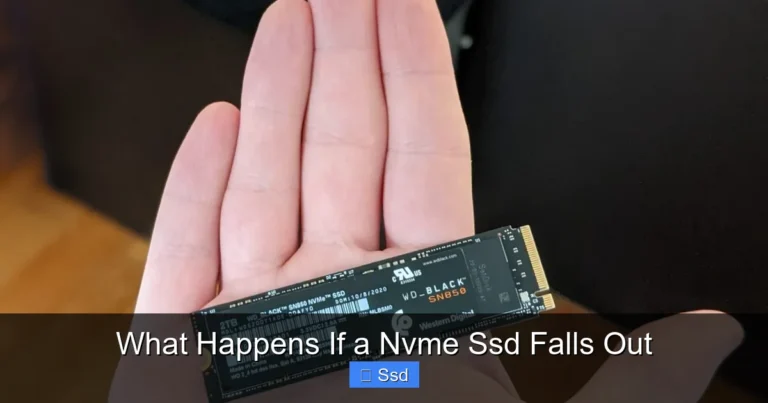
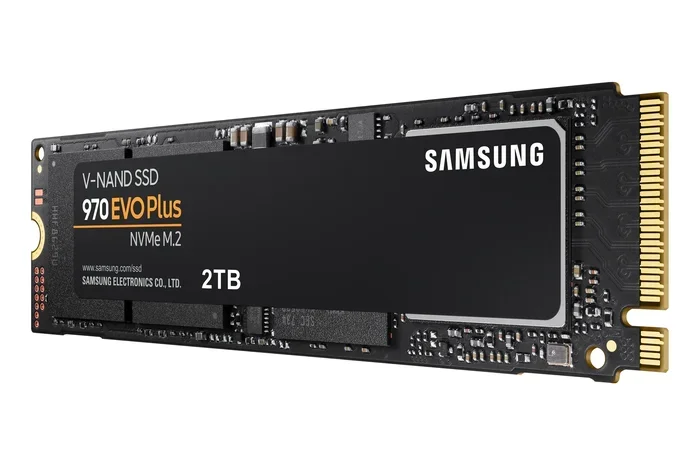
Let us break this down in simple terms. M.2 is the physical shape and size of the drive. It looks like a small stick that plugs straight into your motherboard. NVMe stands for Non-Volatile Memory Express. This is the protocol that tells the drive how to communicate with your system. And PCIe stands for Peripheral Component Interconnect Express. This is the bus — the highway — that carries data between the drive and your processor.
When you put all three together, you get an M.2 NVMe SSD that plugs directly into a PCIe slot or M.2 connector on your board. This setup bypasses the older SATA connection entirely. The result? Much faster read and write speeds, lower latency, and better overall performance.
The M 2 NVMe SSD to PCIe link is what makes modern NVMe drives so much quicker than traditional hard drives and even older SATA SSDs. If you want your PC to boot in seconds and load games or large files almost instantly, this is the connection you need.
How Does the M 2 NVMe SSD to PCIe Connection Work?
Understanding how this connection works helps you make smarter buying decisions. The M.2 slot on your motherboard provides both the physical connector and the electrical connection. When you insert an M.2 NVMe SSD, it connects directly to the PCIe lanes of your CPU or chipset.
Here is how the data flows:
- The SSD stores your data on NAND flash memory chips.
- When your computer needs that data, the NVMe protocol sends the request.
- The request travels through the PCIe lanes to the CPU.
- The CPU processes the request and sends data back the same way.
This direct path is why NVMe SSDs are so fast. There is no middleman like a SATA controller. The M 2 NVMe SSD to PCIe connection keeps things streamlined and efficient.
PCIe Generations Explained
PCIe has different generations, and each one doubles the bandwidth of the previous version. Here is a quick look at what you will encounter:
- PCIe Gen 3: Each lane offers about 1 GB per second of bandwidth. Most NVMe SSDs on the market today use Gen 3. They deliver excellent real-world speeds at a great price.
- PCIe Gen 4: Each lane offers about 2 GB per second. Gen 4 NVMe SSDs are noticeably faster and are becoming the new standard in mid-range and high-end systems.
- PCIe Gen 5: Each lane offers about 4 GB per second. These are the newest drives and are still quite expensive, but they offer incredible future-proofing.
When you choose an M.2 NVMe SSD, check which PCIe generation your motherboard supports. A Gen 4 drive in a Gen 3 slot will still work but will run at Gen 3 speeds. Similarly, a Gen 3 drive in a Gen 4 slot works fine but will not reach Gen 4 speeds. This is an important detail when you are looking at the M 2 NVMe SSD to PCIe relationship.
M.2 NVMe SSD vs SATA SSD: Why PCIe Matters
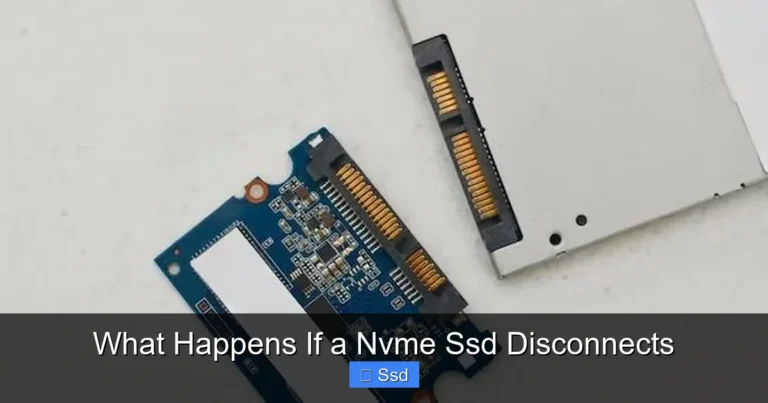
Not all M.2 drives are created equal. Some M.2 drives use the SATA protocol, while others use NVMe over PCIe. The difference is huge, and it matters a lot for performance.
SATA SSDs max out at about 550 MB per second. That is fine for everyday tasks. But NVMe SSDs connected through PCIe can reach speeds of 3,500 MB per second on Gen 3 and over 7,000 MB per second on Gen 4. That is more than ten times faster than SATA.
Here is a side-by-side comparison:
- SATA M.2 SSD: Uses the AHCI protocol over SATA III. Max speed around 550 MB per second. Good for basic storage needs.
- NVMe M.2 SSD over PCIe: Uses the NVMe protocol over PCIe lanes. Max speed ranges from 3,500 MB per second (Gen 3) to 7,000+ MB per second (Gen 4). Perfect for gaming, video editing, and heavy workloads.
If you want the best performance from your M 2 NVMe SSD to PCIe setup, always choose an NVMe drive over a SATA M.2 drive. The speed difference is dramatic and easy to notice in everyday use.
Real-World Performance Benefits
What does this speed difference mean for you in real life? Here are some practical examples:
- Boot times: Your PC can go from cold start to desktop in under 10 seconds.
- Game loading: Large open-world games load significantly faster on NVMe drives.
- File transfers: Moving a 50 GB folder takes seconds instead of minutes.
- Video editing: Scrubbing through 4K footage becomes much smoother.
- Application launches: Heavy software like Adobe Premiere or AutoCAD opens almost instantly.
The M 2 NVMe SSD to PCIe connection makes all of these improvements possible. It is one of the easiest upgrades you can do to breathe new life into an older PC or get the most out of a new build.
How to Install an M 2 NVMe SSD to PCIe
Installing an M.2 NVMe SSD is one of the simplest upgrades you can do. You do not need cables or special tools. Here is how it works step by step.
First, find the M.2 slot on your motherboard. It usually looks like a small slot with a screw hole nearby. Some motherboards have a heatsink covering the slot, which you will need to remove first.
Second, insert the drive at a 30-degree angle into the slot. The gold connectors on the bottom of the drive should face down and slide into the connector. Gently press the drive flat and secure it with the small screw.
Third, go into your BIOS or UEFI settings and make sure the M.2 slot is enabled. Most modern boards detect NVMe SSDs automatically, but it is always good to double-check.
Fourth, install your operating system or format the drive through your operating system. Windows 10 and 11 support NVMe drives out of the box, so you should not need any extra drivers.
That is it. Your M 2 NVMe SSD to PCIe connection is live. You should see the full speed of the drive right away.
Quick Installation Tips
- Always ground yourself before touching components to avoid static damage.
- Do not force the drive into the slot. It should slide in smoothly.
- If your motherboard has multiple M.2 slots, check which ones are connected to PCIe lanes and which are connected to SATA.
- Some M.2 slots share bandwidth with SATA ports. Using one may disable a SATA port. Read your motherboard manual carefully.
Choosing the Right M 2 NVMe SSD for Your PCIe Setup
Not all NVMe SSDs are the same. When you are shopping for an M.2 NVMe drive, there are a few key things to keep in mind.
Check Your Motherboard Compatibility
Before buying any drive, check what M.2 slots your motherboard has. Look for the key type — most NVMe drives use the M key. Also check the PCIe generation supported by each slot. This ensures you get the full speed of your M 2 NVMe SSD to PCIe connection.
Consider Your Storage Needs
M.2 NVMe SSDs come in many capacities. Here are some common options:
- 500 GB: Great for an operating system and a few games or applications.
- 1 TB: The sweet spot for most users. Enough for your OS, games, and everyday files.
- 2 TB: Ideal for content creators, gamers with large libraries, or professionals working with heavy files.
- 4 TB: Best for extreme workloads and users who need maximum storage without sacrificing speed.
Brand and Reliability
Stick with well-known brands like Samsung, Crucial, WD, Kingston, and Corsair. These manufacturers offer solid warranties, good endurance ratings, and reliable performance. A M 2 NVMe SSD to PCIe drive from a reputable brand will last you for years.
Budget vs Performance
If you are on a tight budget, a PCIe Gen 3 NVMe drive still offers massive speed gains over SATA. If you want the absolute fastest speeds and have a compatible motherboard, go for a PCIe Gen 4 or Gen 5 drive. The price difference is smaller now than it was a few years ago.
Common Mistakes to Avoid with M 2 NVMe SSD to PCIe
Even though installing an NVMe SSD is straightforward, there are a few common mistakes that can cause problems. Here is what to watch out for.
- Buying the wrong key type: M.2 slots come in different key types (B key, M key, B+M key). Make sure your NVMe SSD matches your slot. An M key drive will not work in a B key slot.
- Ignoring PCIe generation: A Gen 4 drive in a Gen 3 slot works, but you will not get Gen 4 speeds. Know your board first.
- Forgetting to update BIOS: Some older motherboards need a BIOS update to properly support newer NVMe SSDs. Check the manufacturer website before installing.
- Not enabling the NVMe mode in BIOS: Some boards default to SATA mode for M.2 slots. You may need to switch to NVMe or PCIe mode in the BIOS settings.
- Overlooking heatsinks: High-performance NVMe drives can run hot. If your motherboard does not have a built-in heatsink, consider adding one to maintain peak speeds.
Avoiding these mistakes ensures you get the best possible performance from your M 2 NVMe SSD to PCIe setup. A little preparation goes a long way.
The Future of M 2 NVMe SSD to PCIe Technology
The world of SSD technology is moving fast. PCIe Gen 5 NVMe SSDs are already on the market, and Gen 6 is on the horizon. Each new generation brings double the bandwidth and faster real-world speeds.
M.2 form factors are also becoming more versatile. Newer motherboards now feature multiple M.2 slots, some with individual heatsinks and direct CPU connections. This means you can run multiple NVMe drives without bottlenecks.
For the average user, a Gen 3 or Gen 4 NVMe SSD is more than enough. But if you are a power user or enthusiast, Gen 5 drives offer a glimpse into the future of storage. The M 2 NVMe SSD to PCIe connection will continue to be the backbone of fast storage for years to come.
Whether you are building a new PC or upgrading an existing one, understanding this connection helps you make the right choice. Pick the right drive, install it correctly, and enjoy the speed boost that only a direct PCIe NVMe connection can deliver.
Conclusion
The M 2 NVMe SSD to PCIe connection is the gold standard for modern PC storage. It offers incredible speeds, simple installation, and a direct link to your processor through PCIe lanes. Whether you are a gamer, a content creator, or just someone who wants a faster PC, this is the upgrade you should consider.
Remember to check your motherboard compatibility, choose the right PCIe generation, and pick a drive that fits your needs and budget. With the right M.2 NVMe SSD, you will wonder how you ever lived with slower storage.
Take the time to understand your M 2 NVMe SSD to PCIe setup, and you will enjoy faster boot times, quicker game loads, and a much more responsive computer overall. Happy upgrading.
Frequently Asked Questions
What does M 2 NVMe SSD to PCIe mean?
It refers to how an M.2 form factor NVMe SSD connects to your computer through PCIe lanes on the motherboard. This direct connection provides much faster speeds than older SATA-based drives.
Is M 2 NVMe faster than SATA SSD?
Yes, significantly faster. NVMe SSDs connected via PCIe can reach speeds of 3,500 MB per second or more, while SATA SSDs max out around 550 MB per second. The difference is very noticeable in everyday use.
Can I use any M 2 NVMe SSD in any M 2 slot?
Not always. You need to check the key type and the PCIe generation supported by your motherboard slot. An M key drive works in an M key slot, and a Gen 4 drive works best in a Gen 4 slot.
Do I need special drivers for an M 2 NVMe SSD to PCIe setup?
No. Modern operating systems like Windows 10 and 11 support NVMe drives natively. You do not need to install any special drivers to get your drive working.
What is the difference between PCIe Gen 3 and Gen 4 for NVMe SSDs?
PCIe Gen 4 offers roughly double the bandwidth of Gen 3. This means Gen 4 NVMe SSDs can read and write data at much higher speeds. However, Gen 3 drives are still very fast and offer great value for most users.
Can I install an M 2 NVMe SSD alongside a SATA SSD?
Yes, absolutely. Most motherboards have multiple M.2 slots and SATA ports. You can use both types of drives together. Just make sure you have enough PCIe lanes and SATA ports available on your board.