1tb M 2 Ssd Nvme
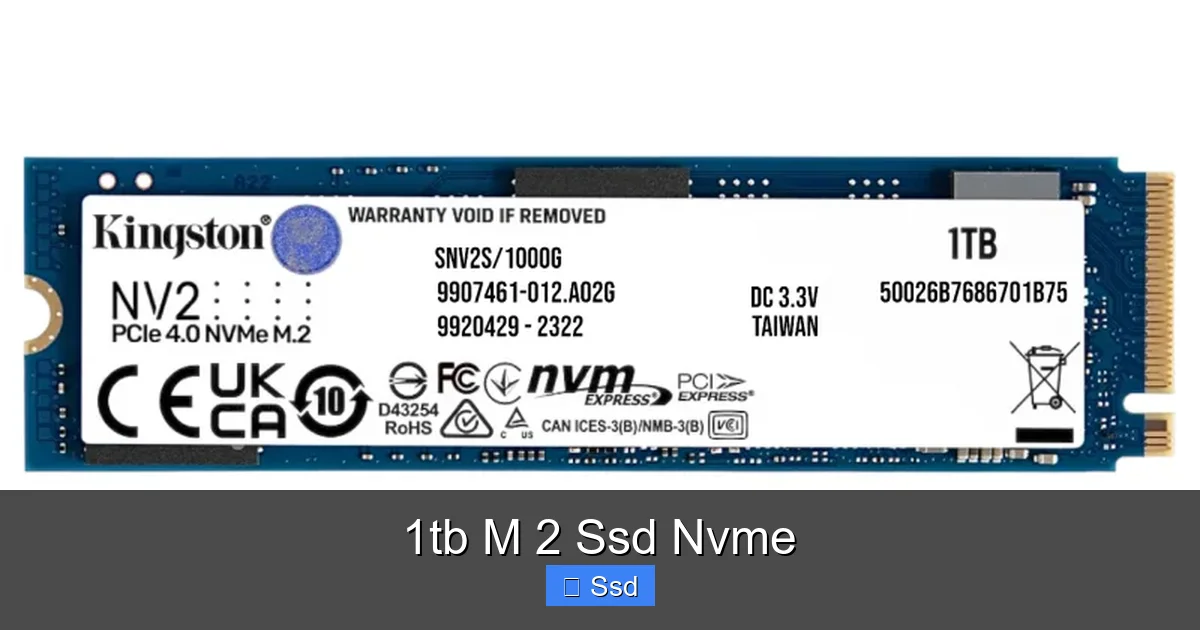
A 1TB M.2 NVMe SSD is a high-performance storage drive that uses the latest PCIe interface to deliver speeds far beyond traditional SATA SSDs and hard drives. Its compact, gumstick-shaped M.2 form factor saves space inside modern desktops and laptops, while the 1TB capacity offers an excellent balance of ample storage and affordability. This drive is the definitive upgrade for gamers, content creators, and professionals seeking to eliminate storage bottlenecks and revolutionize system responsiveness.
Remember the days of waiting for your computer to boot? Or watching a loading screen in a game, wondering if it was broken? Those frustrating pauses are often caused by one thing: your storage. For years, we relied on hard disk drives (HDDs), spinning platters of magnetic rust that were slow, fragile, and noisy. Then came the SATA SSD, a revelation of speed and silence. But technology never stops. The current champion for everyday users is the 1TB M.2 NVMe SSD. It’s not just an incremental upgrade; it’s a leap into a new tier of computing responsiveness that changes how you interact with your machine. If you’re building a new PC, upgrading an old one, or shopping for a performance laptop, understanding this little stick of power is essential. Let’s dive in and demystify everything about the 1TB M.2 NVMe SSD.
Key Takeaways
- Unmatched Speed: NVMe drives use the PCIe bus, offering 3-6x faster sequential read/write speeds than SATA SSDs, drastically reducing load times and transfer durations.
- Space-Saving Form Factor: The M.2 “gumstick” design mounts directly to the motherboard, eliminating cables and saving significant space in small-form-factor PCs and laptops.
- Sweet Spot Capacity: 1TB provides enough space for a modern OS, dozens of AAA games, a large media library, and professional projects without the premium cost of 2TB+ models.
- Compatibility is Key: Ensure your motherboard has an M.2 slot with NVMe support (PCIe) and that your laptop’s BIOS can boot from it. Not all M.2 slots accept NVMe drives.
- Performance for Demanding Tasks: Ideal for 4K video editing, large file compression, virtual machines, and modern game streaming, where fast asset loading is critical.
- Future-Proof Investment: As software and games grow larger, a fast 1TB NVMe SSD provides a lasting performance foundation for 3-5 years or more.
- Heat Management Matters: High-performance NVMe SSDs can throttle under heavy, sustained loads. A motherboard heatsink or a standalone heatsink is recommended for optimal sustained performance.
📑 Table of Contents
- What Exactly Is a 1TB M.2 NVMe SSD? Breaking Down the Jargon
- The Staggering Speed Difference: NVMe vs. SATA vs. HDD
- The M.2 Form Factor: Why Size and Shape Matter
- Your 1TB M.2 NVMe SSD Buying Guide: What to Look For
- Installation: A Simple Process with Critical Checks
- Who Needs a 1TB M.2 NVMe SSD? Perfect Use Cases
- The Future is Fast: PCIe 5.0, Prices, and Final Thoughts
What Exactly Is a 1TB M.2 NVMe SSD? Breaking Down the Jargon
Let’s unpack that name, because it’s a mouthful. “1TB” is the capacity—one terabyte, or about 1,000 gigabytes of storage. That’s a substantial amount of space. “M.2” refers to the physical form factor, the shape and size of the drive. It’s a small, flat card, usually 22mm wide and either 42mm, 60mm, 80mm, or 110mm long (the “2280” size is most common for 1TB drives). It plugs directly into a dedicated slot on your motherboard, held in place by a tiny screw. No power or data cables needed.
The Magic is in “NVMe”
This is the most important part. NVMe stands for Non-Volatile Memory Express. It’s a communications protocol and driver designed specifically for flash storage (like SSDs) to communicate over the PCI Express (PCIe) bus. Think of it this way: SATA SSDs are like cars driving on a country road (SATA III’s ~600MB/s limit). NVMe SSDs are like Formula 1 cars on a multi-lane superhighway (PCIe 3.0 x4, PCIe 4.0 x4, PCIe 5.0 x4). That “highway” has many more lanes and much higher speed limits, allowing the drive’s controller to send and receive data at incredible rates. This direct, streamlined communication is what unlocks those blistering speeds.
The Staggering Speed Difference: NVMe vs. SATA vs. HDD
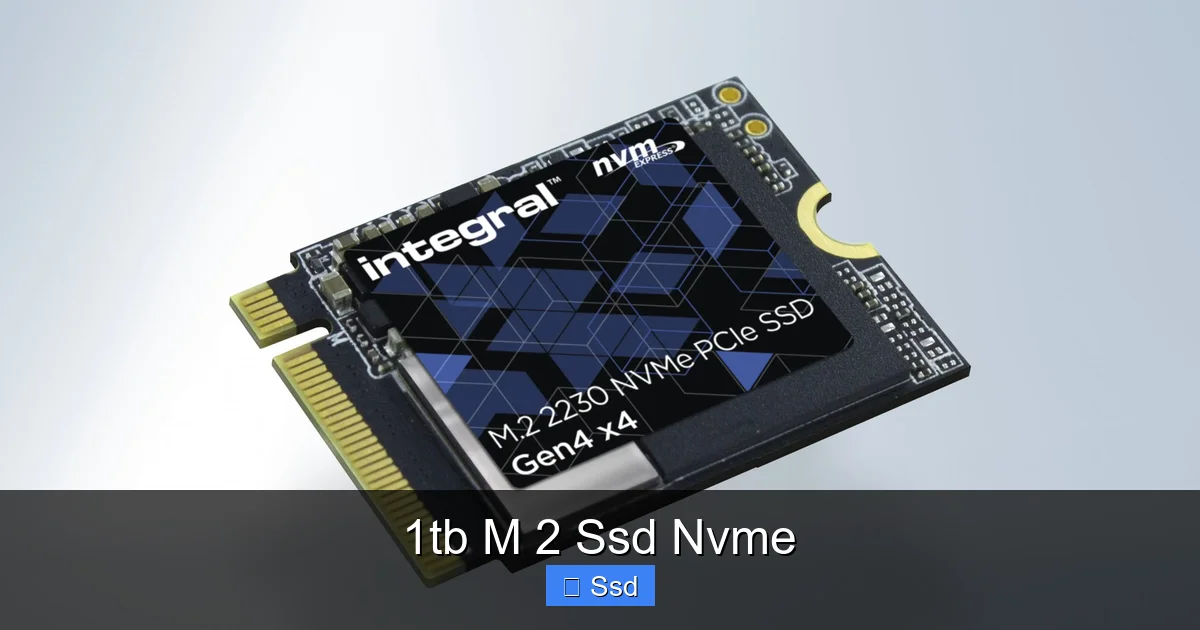
Numbers tell the story. A traditional 7200RPM hard drive might manage 80-160MB/s. A good SATA III SSD tops out around 550MB/s read and 520MB/s write. Now, look at a modern 1TB M.2 NVMe SSD.
Visual guide about 1tb M 2 Ssd Nvme
Image source: integralmemory.com
- PCIe 3.0 NVMe: Typically 2,500 – 3,500 MB/s read, 1,500 – 3,000 MB/s write.
- PCIe 4.0 NVMe: Typically 5,000 – 7,000 MB/s read and write.
- PCIe 5.0 NVMe: Can exceed 10,000 – 14,000 MB/s (though these are rarer and require newer platforms).
That’s not just a small bump; that’s a 5x to 10x increase in raw throughput over SATA! What does this mean in the real world? You’ll copy a 50GB folder of video files in seconds, not minutes. Your operating system will boot to a usable desktop in under 10 seconds. Games will load into new areas almost instantly. Large applications like Adobe Photoshop or Visual Studio will launch in a blink. The constant, subtle friction of waiting on storage vanishes. Your workflow becomes fluid.
Real-World Performance Isn’t Just About Peak Speeds
Don’t get too hung up on the highest advertised sequential speeds. For most users, 4K random read/write performance is more important for system responsiveness—opening programs, loading OS files, accessing small game assets. All modern NVMe SSDs excel here, but some are tuned better than others. Sustained write speed is also key; if you’re a video editor constantly writing massive 4K/8K files, a drive with a large SLC cache and good sustained performance (like those with high-end controllers and DRAM caches) will maintain its speed without throttling down after a few seconds.
The M.2 Form Factor: Why Size and Shape Matter
The shift from 2.5” SATA drives to the M.2 form factor is about elegance and efficiency. A 2.5” SSD requires a mounting bay in your case and a SATA data cable plus a power cable from your PSU. It’s fine, but it’s clutter. The M.2 drive solves this.
- No Cables: It slots directly into the motherboard. This improves airflow in your case by reducing cable clutter and makes building a PC cleaner and easier.
- Space Saver: This is huge for small form factor (SFF) builds, mini-ITX motherboards, and especially laptops. Every millimeter of space counts, and eliminating a 2.5” drive bay and its cabling is a major victory.
- Direct Connection: By connecting directly to the PCIe lanes on the motherboard, it avoids any potential bottlenecks from SATA controller chips or cables, ensuring the fullest possible performance from the NVMe protocol.
M.2 Slots Are Not All Created Equal
This is a critical compatibility check. An M.2 slot is just a physical connector. It can support different “keys” (notches) and different protocols. The two you care about are:
- M Key (B+M): The most common. It supports both SATA *and* NVMe (PCIe) SSDs, but not at the same time. The motherboard’s BIOS or a physical switch decides which protocol is active for that slot. Always check your motherboard manual.
- M Key (PCIe x4): This slot is NVMe-only and typically offers the full x4 PCIe lane bandwidth. This is what you want for the fastest 1TB NVMe SSDs.
Some motherboards have multiple M.2 slots, but adding drives may share PCIe lanes with other components like SATA ports or graphics card slots. Again, the manual is your bible. For laptops, you must research the exact model to see if it has an available M.2 NVMe slot and whether the BIOS supports booting from it.
Your 1TB M.2 NVMe SSD Buying Guide: What to Look For
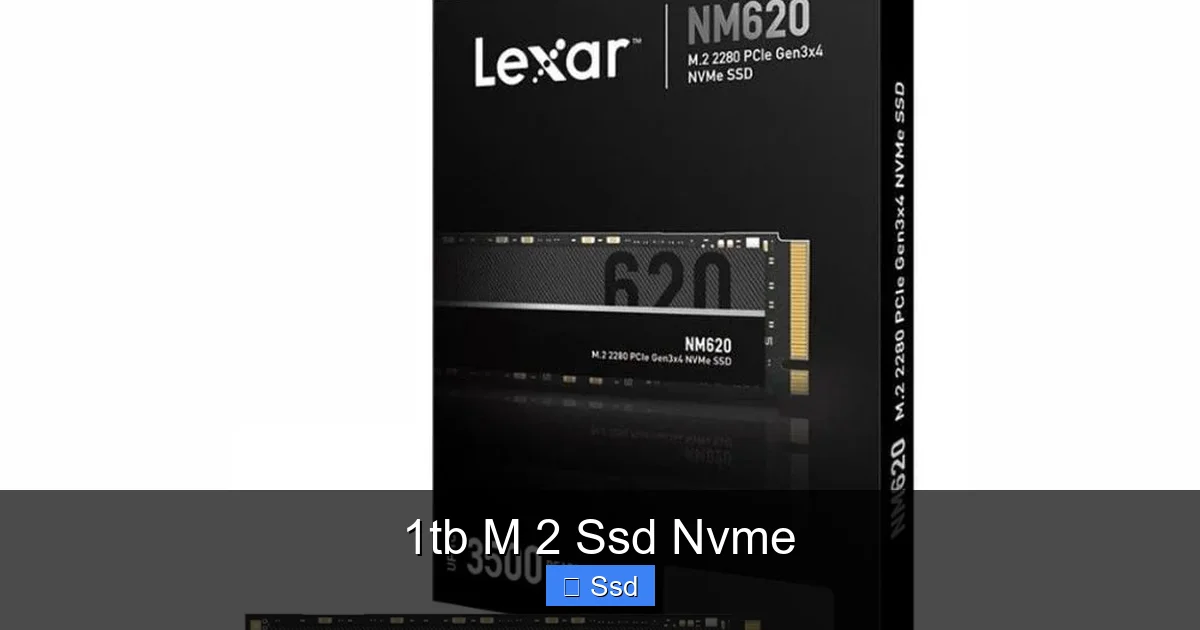
Walking into a store or scrolling online, you’ll see dozens of 1TB NVMe drives. They all look the same. So how do you choose? Focus on these pillars: Performance, Endurance, Price, and Cooling.
Visual guide about 1tb M 2 Ssd Nvme
Image source: basitcomputers.com
Performance: Controller, NAND, and DRAM
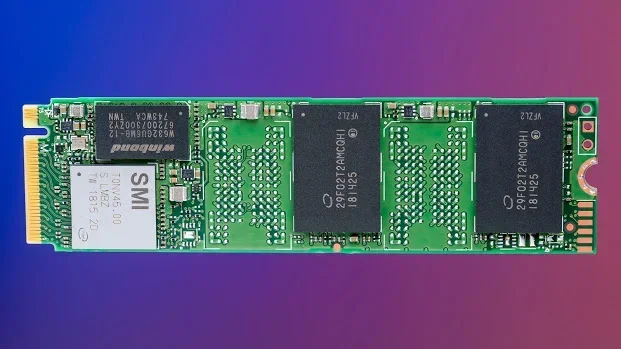
The magic happens under the label. The controller is the drive’s brain (like Phison, Samsung, Silicon Motion, Western Digital). The NAND flash is the memory cells where your data lives (TLC is most common and cost-effective; QLC is cheaper but slower for sustained writes). The DRAM cache is a small pool of fast memory that stores a map of your data’s location (FTL table), dramatically improving random read performance.
- DRAM-less Drives: Use a portion of the NAND as “Host Memory Buffer” (HMB) if your system supports it. They are cheaper and still very fast for general use and gaming, but can show weakness in heavy, multi-tasking professional workloads.
- With DRAM: The traditional, often slightly more premium design. More consistent performance, especially under heavy load.
Tip: For gaming and general use, a high-end PCIe 3.0 or a mid-range PCIe 4.0 DRAM-less drive is fantastic value. For professional content creation, prioritize a drive with a good DRAM cache and strong sustained write specs.
Endurance (TBW) and Warranty
SSDs wear out. TBW (Terabytes Written) is the manufacturer’s guarantee of how much data you can write before the drive is likely to fail. For a 1TB consumer drive, 600 TBW is common, while higher-end models offer 1,200 TBW or more. For the average user writing 20-50GB a day, even 600 TBW translates to over 30 years of use. Don’t stress this unless you’re doing massive, daily video renders. The warranty (usually 5 years) is a good proxy for confidence.
Heat and the Heatsink Question
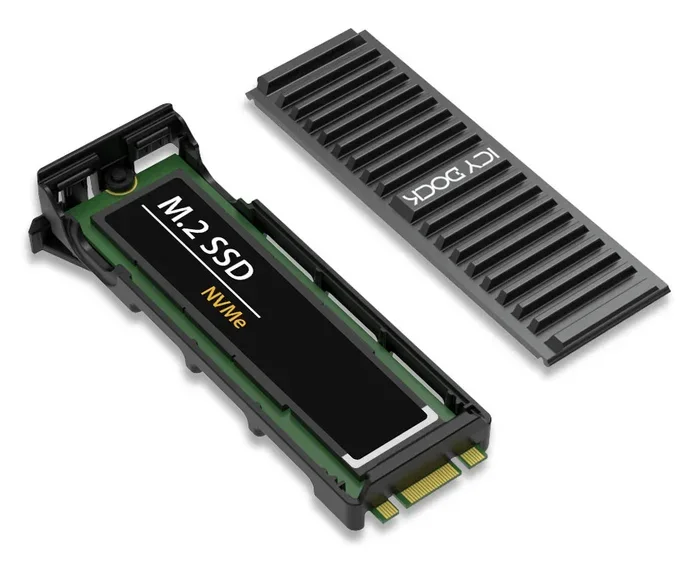
NVMe SSDs get hot, especially PCIe 4.0 and 5.0 models under sustained loads. Excessive heat causes thermal throttling—the controller slows down to cool off, killing performance. Many motherboards now include M.2 heatsinks (a metal plate with thermal pads). You should use it if provided. If your motherboard doesn’t have one, consider a cheap aftermarket M.2 heatsink. It’s a $10-15 insurance policy for maintaining peak speed during long file transfers or game installs.
Installation: A Simple Process with Critical Checks
Physically installing an M.2 SSD is one of the easiest PC upgrades. But the prep work is everything.
- Backup Your Data: If this is an upgrade in an existing system, back up everything important first.
- Check Compatibility: Confirm your motherboard has an available M.2 slot that supports NVMe (PCIe) and the length you’re buying (2280 is standard). Check the manual for lane sharing that might disable SATA ports or PCIe slots.
- Update BIOS: Before installing, check the motherboard manufacturer’s website for a BIOS update. Newer BIOS versions improve M.2/NVMe compatibility and stability. This is a crucial, often overlooked step.
- Physically Install: Power off and unplug the PC. Ground yourself. Find the M.2 slot. Remove the tiny mounting screw. Insert the drive at a ~30-degree angle, gold contacts first, into the slot. Gently press it down flat and secure it with the screw. Don’t overtighten.
- Format and Install: Boot into your existing system or a USB installer. The new drive will appear in Disk Management (Windows) as unallocated space. Create a new simple volume, format as NTFS, and assign a drive letter. If it’s your new primary drive, you’ll need to install your operating system from a USB installation media.
Common Pitfalls to Avoid
- Drive Not Detected: Usually a BIOS setting (CSM/Legacy mode vs. UEFI). NVMe booting almost always requires UEFI mode. Disable CSM/Legacy in BIOS.
- Slow Speeds: If you’re getting SATA-like speeds (~500MB/s), your drive is likely running in SATA mode, not NVMe mode. This is a BIOS setting for the M.2 slot.
- Missing Boot Drive: After installing Windows on the new NVMe, you must go into the BIOS and set the NVMe drive as the #1 boot priority.
Who Needs a 1TB M.2 NVMe SSD? Perfect Use Cases
Is this upgrade for you? Here’s who will feel the difference most:
The Modern Gamer
This is the #1 audience. Game install sizes are ballooning (100GB+ for AAA titles). A 1TB NVMe means you can keep your library of 10-15 games installed and load into them in seconds. Games like *Cyberpunk 2077*, *Red Dead Redemption 2*, and *Call of Duty* benefit immensely from fast streaming of open-world assets, reducing pop-in and stuttering. Pair it with a fast GPU, and your entire gaming experience feels premium.
The Content Creator & Professional
If you work with 4K/8K video, high-resolution photo batches, 3D renders, or large datasets, storage speed is your workflow’s gatekeeper. Scrubbing through 4K footage in Premiere Pro, loading complex project files in DaVinci Resolve, or exporting a final render all happen faster. The time saved adds up to hours per week. The 1TB capacity is perfect for active projects, with a larger, slower HDD or SATA SSD for archival.
The Power User & Developer
Running multiple virtual machines, compiling massive codebases, working with huge databases, or simply having 50+ browser tabs and dozens of applications open—all of this taxes storage I/O. The snappy, lag-free feel of an NVMe SSD makes multitasking on a modern OS a dream. Your IDE, Docker containers, and local servers will all start and respond faster.
The General User Seeking a “New Computer” Feel
Have an older laptop or desktop with a HDD? Swapping in a 1TB NVMe SSD (if the machine supports it) is the single most effective upgrade you can make. It will feel like a brand-new machine. Windows 10/11 will boot lightning-fast, everything will open instantly, and the system will feel perpetually responsive. It breathes new life into aging hardware.
The Future is Fast: PCIe 5.0, Prices, and Final Thoughts
The market is evolving. PCIe 5.0 SSDs are here, doubling the theoretical bandwidth of PCIe 4.0. However, for the vast majority of users, even a PCIe 4.0 1TB NVMe SSD is more than fast enough. The bottlenecks in most games and applications are no longer the storage, but the GPU and CPU. The real benefit of PCIe 5.0 right now is for extreme professional workloads with massive sequential reads/writes.
Prices continue to fall. The cost per gigabyte for a 1TB NVMe SSD is now very close to a high-end SATA SSD. The value proposition is undeniable. You are getting a transformative performance increase for a minimal price premium over older technology.
So, should you buy a 1TB M.2 NVMe SSD? For any new build, for any significant upgrade in the last 5 years, and for anyone tired of waiting on their computer—the answer is a resounding yes. It is the foundational component of a modern, responsive computing experience. Do your compatibility homework, pick a reputable brand with good reviews (Samsung, WD/SanDisk, Crucial, SK Hynix, Sabrent, TeamGroup are all solid), and get ready to be amazed. The wait is finally over.
Frequently Asked Questions
Can I use a 1TB M.2 NVMe SSD in my old laptop or desktop?
Only if it has a spare M.2 slot that supports the NVMe (PCIe) protocol. Many older systems only have M.2 slots for Wi-Fi cards or SATA SSDs. Check your exact model’s specifications online. If it lacks the slot, a USB-to-NVMe enclosure can provide external super-fast storage, but not booting.
What’s the real difference between a NVMe SSD and a SATA SSD for gaming?
For most current games, the difference in average FPS is negligible. The major benefit is in load times and asset streaming. Open-world games will load faster and experience less pop-in. Future games designed for the Xbox Series X/S and PlayStation 5 (which use NVMe-like storage) will increasingly leverage these speeds for seamless world streaming, making the difference more pronounced over time.
Is installing a 1TB M.2 NVMe SSD difficult?
Physically, it’s one of the easiest upgrades. It’s a simple slide-and-screw process. The difficulty lies in compatibility and software setup. You must ensure your motherboard supports it, update the BIOS, and correctly configure the boot order. The physical install takes two minutes; the prep work takes 15.
Do I need a heatsink for my 1TB M.2 NVMe SSD?
For PCIe 3.0 drives, it’s often optional. For PCIe 4.0 and all PCIe 5.0 drives, it’s highly recommended. Under sustained heavy workloads (large file transfers, video rendering), these drives can throttle without a heatsink. Use the motherboard’s included heatsink if it has one, or buy a cheap aftermarket one. It’s a simple way to protect your performance investment.
How long will a 1TB NVMe SSD last?
Extremely long. Modern NAND flash has a finite number of write cycles, but the endurance ratings are high. A typical 1TB consumer NVMe SSD has a TBW (Total Bytes Written) rating of 600-1,200 TB. If you wrote 50GB to it every single day, it would take over 30-65 years to reach that limit. For average users, the drive will likely become obsolete due to technology changes long before it wears out.
Should I get a PCIe 3.0 or PCIe 4.0 1TB NVMe SSD?
For most users, PCIe 3.0 is still excellent value and more than fast enough for gaming and general use. The price difference is shrinking, so if the PCIe 4.0 model is within $10-20, it’s a good future-proof choice. Only professionals doing massive sequential writes (multiple GB/s for hours) will regularly saturate PCIe 3.0 and see a real-world benefit from PCIe 4.0. Check your motherboard supports PCIe 4.0 first; older platforms only run PCIe 3.0.