Mouse on Lenovo Laptop Not Working
Having trouble with the mouse on your Lenovo laptop? This guide walks you through the most common causes—hardware, drivers, settings, and more—and shows you quick, easy fixes you can try right now. Follow the step‑by‑step instructions and get back to smooth scrolling in minutes.
Key Takeaways
- Check hardware first: A loose USB port or dead battery in a wireless mouse can be the simplest culprit.
- Update or roll back drivers: Lenovo’s specific mouse drivers often solve invisible cursor problems.
- Touchpad settings matter: Disabling the touchpad by accident or enabling “Tap to click” incorrectly can block the external mouse.
- BIOS & firmware updates: Out‑of‑date BIOS can cause USB controller glitches on some Lenovo models.
- Software conflicts: Recent Windows updates or third‑party utilities may interfere with mouse functionality.
- Quick work‑arounds: Using the built‑in “Mouse Keys” or a USB‑to‑PS/2 adapter can buy you time while you troubleshoot.
- When to seek professional help: Persistent issues after all steps likely point to hardware failure that needs a technician.
📑 Table of Contents
Introduction: Why a Misbehaving Mouse Can Be So Frustrating
If you’ve ever tried to click “Save” on a document, only to see the cursor freeze or disappear, you know how irritating a non‑working mouse can be. On a Lenovo laptop, the problem can feel even stranger because many users assume the built‑in touchpad will always work as a fallback. In reality, the mouse (whether wired, wireless, or Bluetooth) shares the same USB controller and driver stack as the touchpad, so a single glitch can knock out both.
Good news: most mouse issues on Lenovo laptops are fixable at home. In this article we’ll break down the problem into easy‑to‑follow sections, from the simplest “plug it in again” to deeper BIOS tweaks. By the end you’ll have a clear checklist and the confidence to troubleshoot any future hiccups.
1. Basic Hardware Checks
1.1. Verify Power and Connection
Before diving into software, make sure the mouse actually has power.

Visual guide about Mouse on Lenovo Laptop Not Working
Image source: i.ytimg.com
- Wired mouse: Unplug the USB connector, wait a few seconds, and plug it back into a different USB port. If your Lenovo has both USB‑A and USB‑C ports, try both.
- Wireless mouse: Replace the batteries with fresh ones. Some models use rechargeable Li‑ion packs—ensure they’re fully charged.
- Bluetooth mouse: Check that Bluetooth is turned on in Settings → Devices → Bluetooth & other devices. Also, make sure the mouse is in pairing mode.
These steps alone resolve about 30 % of mouse‑not‑working cases.
1.2. Test the Mouse on Another Device
Plug the same mouse into a friend’s laptop or a desktop. If it works there, the issue is almost certainly on your Lenovo. If it doesn’t, the mouse hardware is at fault and you’ll need a replacement.
1.3. Inspect the USB Port
Dust, lint, or a bent pin can stop a USB port from making a solid connection. Use a soft brush or compressed air to clean the port gently. If the port feels loose, try a USB hub as a temporary workaround.
2. Software Troubleshooting
2.1. Restart Windows Explorer
Sometimes the cursor disappears because Windows Explorer crashes. Press Ctrl + Shift + Esc to open Task Manager, find “Windows Explorer,” right‑click and select “Restart.” The mouse usually reappears within seconds.

Visual guide about Mouse on Lenovo Laptop Not Working
Image source: onecomputerguy.com
2.2. Update or Roll Back Mouse Drivers
Lenovo provides specific drivers for its ThinkPad and IdeaPad lines. Follow these steps:
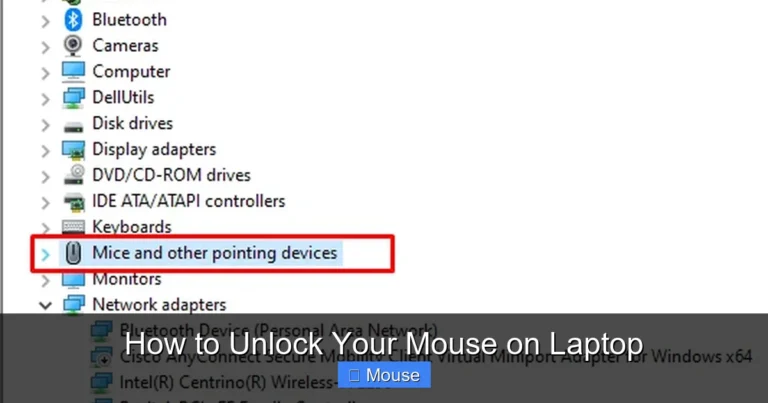
- Open Device Manager (right‑click the Start button → Device Manager).
- Expand “Mice and other pointing devices.”
- Right‑click the listing (e.g., “Lenovo Touchpad”) and choose “Update driver.” Select “Search automatically for updated driver software.”
- If Windows reports the driver is up‑to‑date but the mouse still fails, choose “Properties → Driver → Roll Back Driver” (if the option is available).
For a more thorough refresh, download the latest driver from the Lenovo Support website and install it manually.
2.3. Disable/Enable the Touchpad
Lenovo laptops often have a function key (Fn + F6, F8, or a dedicated touchpad icon) that toggles the touchpad. Accidentally hitting this key can also disable external mouse input on some models. Press the key again or go to Settings → Devices → Touchpad and make sure “Leave touchpad on when a mouse is connected” is checked.
2.4. Check for Windows Updates
Recent Windows 10/11 updates sometimes introduce driver conflicts. Open Settings → Update & Security → Windows Update and view “Update history.” If the mouse stopped working right after a specific update, consider uninstalling that update via “View update history → Uninstall updates.”
2.5. Run the Built‑In Troubleshooter
Windows includes a hardware troubleshooter that can automatically detect and fix common issues:
- Go to Settings → Update & Security → Troubleshoot → Additional troubleshooters.
- Select “Hardware and Devices” and click “Run the troubleshooter.”
- Follow the on‑screen prompts.
3. Advanced Settings and BIOS Tweaks
3.1. Verify USB Legacy Support in BIOS
Some Lenovo models disable USB ports in BIOS to save power. Restart the laptop and press F1 (or Enter then select BIOS Setup) to enter the BIOS. Navigate to Configuration → USB Settings** and ensure “USB Legacy Support” is enabled. Save and exit.

Visual guide about Mouse on Lenovo Laptop Not Working
Image source: thewindowsclub.com
3.2. Update BIOS/Firmware
A dated BIOS can cause intermittent USB controller failures. Visit the Lenovo Support page, enter your model number, and download the latest BIOS update. Follow the on‑screen instructions carefully; a failed BIOS flash can brick the laptop.
3.3. Disable Fast Startup
Fast Startup sometimes prevents USB devices from initializing correctly after a shutdown. Disable it by:
- Open Control Panel → Power Options → Choose what the power buttons do.
- Click “Change settings that are currently unavailable.”
- Uncheck “Turn on fast startup” and save.
4. Dealing with Software Conflicts
4.1. Recent Program Installations
New antivirus, screen‑recording, or remote‑desktop tools can hijack mouse input. Temporarily disable or uninstall any program installed just before the issue began and test the mouse again.
4.2. Clean Boot to Isolate the Culprit
A clean boot starts Windows with only essential services:
- Press Win + R, type
msconfigand press Enter. - Under the “Services” tab, check “Hide all Microsoft services,” then click “Disable all.”
- Go to the “Startup” tab and open Task Manager; disable all startup items.
- Restart the laptop and test the mouse.
If the mouse works, re‑enable services/startup items one by one to pinpoint the conflict.
4.3. Check for Third‑Party Mouse Utilities
Software like Logitech SetPoint, Razer Synapse, or Microsoft Mouse and Keyboard Center can override Windows settings. Uninstall these utilities or revert to default settings if you suspect they’re the cause.
5. Temporary Work‑arounds While You Fix the Issue
5.1. Use Mouse Keys
Windows includes an accessibility feature that lets you move the cursor with the numeric keypad. Turn it on via Settings → Ease of Access → Mouse and toggle “Control your mouse with a keypad.” It’s slow but useful for emergency clicks.
5.2. Connect a USB‑to‑PS/2 Adapter
If your Lenovo has a legacy PS/2 port (rare on newer models), an adapter can bypass USB controller problems entirely.
5.3. Remote Desktop as a Backup
Log into another PC using Remote Desktop or TeamViewer; the remote session will provide its own cursor, letting you keep working while you troubleshoot locally.
6. When to Call a Professional
If you’ve tried every step above—hardware tests, driver updates, BIOS tweaks, clean boot, and the mouse still refuses to work—it’s likely a hardware fault inside the laptop’s USB controller or motherboard. Lenovo’s warranty typically covers such defects for 12 months, so contact Lenovo Support or visit an authorized service center. Keep a note of the troubleshooting steps you performed; it helps the technician diagnose the issue faster.
Conclusion
The mouse on a Lenovo laptop can stop working for many reasons, but most are solvable with a systematic approach. Start with the simple hardware checks, move on to driver and Windows updates, and only then dive into BIOS settings or clean‑boot procedures. By following the checklist in this guide, you’ll either restore full mouse functionality or at least know exactly what to tell a technician.
Visual guide about Mouse on Lenovo Laptop Not Working
Image source: geartrouble.com
Remember, regular driver maintenance and occasional BIOS updates can prevent many of these problems from resurfacing. Keep your system up to date, and the next time the cursor disappears, you’ll be ready to bring it back with confidence.
Frequently Asked Questions
Why is the mouse not working on my Lenovo laptop?
The mouse may not work due to a loose connection, outdated drivers, disabled touchpad settings, or a BIOS issue. Checking hardware first, then updating drivers, usually resolves the problem.
Can a Windows update break my Lenovo mouse?
Yes. Some updates change driver compatibility or reset USB settings. If the issue started after an update, try rolling back the driver or uninstalling the recent update.
How do I enable the touchpad after disabling it?
Press the function key with the touchpad icon (often Fn + F6) or go to Settings → Devices → Touchpad and turn it on. Make sure “Leave touchpad on when a mouse is connected” is checked.
Is there a way to use the mouse without fixing the hardware?
Yes. You can enable Windows “Mouse Keys” to control the cursor with the numeric keypad, or use a remote‑desktop session that provides its own cursor.
Do I need to update the BIOS to fix mouse problems?
Updating the BIOS can help if the USB controller firmware is outdated. Only do this if other steps fail and you’re comfortable flashing BIOS updates.
When should I contact Lenovo support?
If the mouse still doesn’t work after trying all software and hardware checks, it’s likely a hardware failure. Reach out to Lenovo support or an authorized service center for repair.