Wireless Mouse for Laptop Computer
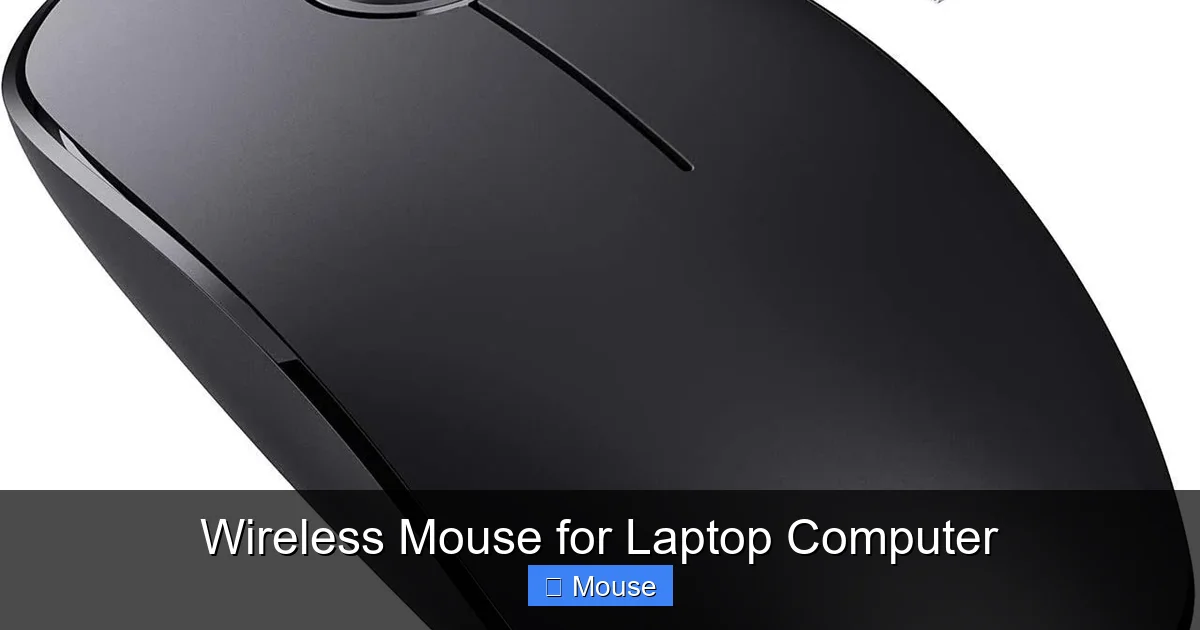
A wireless mouse for laptop computer is the ultimate tool for enhancing portability and workspace cleanliness. It eliminates tangled cords, offers seamless connectivity via Bluetooth or USB receiver, and comes in ergonomic designs to prevent strain. Choosing the right one depends on your specific needs, from battery life and sensor precision to grip style and extra features.
Let’s be honest: that little trackpad on your laptop, while marvelously engineered, can be a real pain for extended work. It’s often the first thing we curse when trying to edit a photo, navigate a large spreadsheet, or just get some general clicking done. This is where the humble, yet revolutionary, wireless mouse for laptop computer enters the scene. It’s not just an accessory; for many, it’s a necessity that transforms the laptop from a constrained device into a truly versatile productivity or entertainment hub. Gone are the days of being tethered to a specific spot or wrestling with a cable that catches on everything. The modern wireless mouse offers a blend of freedom, precision, and comfort that can fundamentally improve how you interact with your digital world. Whether you’re a digital nomad, a student in a coffee shop, or a professional working from a home office, finding the right cordless companion is a small investment that pays massive dividends in daily comfort and efficiency.
But with the market flooded with options, how do you choose? It’s more than just picking the prettiest one. It’s about understanding the technology inside, matching the form factor to your hand, and ensuring the features align with your actual tasks. This guide will walk you through everything you need to know about the wireless mouse for laptop computer. We’ll demystify the tech specs, break down the different types, explore ergonomic principles, and give you practical advice to make a choice you won’t regret. By the end, you’ll be equipped with the knowledge to select a mouse that feels like an extension of your own hand, making every click, scroll, and swipe a seamless part of your workflow.
Key Takeaways
- Unmatched Freedom & Cleanliness: A wireless mouse for laptop computer eradicates cable clutter, providing true freedom of movement and a tidy desk, which is especially crucial for mobile and minimalist setups.
- Two Main Connectivity Types: Choose between RF (USB dongle) for plug-and-play reliability and low latency, or Bluetooth for built-in laptop compatibility and saving a USB port, each with distinct advantages.
- Battery Life is Key: Modern wireless mice offer impressive battery life, from months to years on a single AA/AAA battery or via rechargeable internal batteries, impacting convenience and long-term cost.
- Ergonomics Dictate Comfort: Your grip style (palm, claw, fingertip) and hand size must match the mouse shape and size to prevent fatigue and potential repetitive strain injury during long sessions.
- Sensor & DPI Matter for Precision: A high-quality sensor with adjustable DPI (dots per inch) settings allows for cursor speed customization, essential for tasks ranging from detailed photo editing to fast-paced gaming.
- Extra Features Add Value: Consider programmable buttons, scroll wheel types (notched vs. free-spin), onboard memory for profiles, and build quality based on your primary use case, be it travel, office work, or play.
- Setup is Usually Simple: Most wireless mice for laptop computers are plug-and-play or pair easily via system settings, but understanding the basics of pairing, driver updates, and troubleshooting ensures a smooth experience.
📑 Table of Contents
- The Undeniable Advantages of Going Cordless
- Understanding the Connectivity: RF vs. Bluetooth
- Essential Features to Scrutinize Before You Buy
- The Critical Role of Ergonomics: Finding Your Perfect Fit
- Setup, Pairing, and Troubleshooting 101
- Maintenance and Longevity: Keeping Your Mouse Happy
- Conclusion: Your Perfect Wireless Companion Awaits
The Undeniable Advantages of Going Cordless
Before diving into the “how,” let’s solidify the “why.” Switching from a wired mouse or relying solely on a trackpad to using a dedicated wireless mouse for laptop computer offers a cascade of benefits that impact your productivity, comfort, and even the aesthetics of your workspace.
Clutter-Free Workspace and Unrestricted Movement
The most obvious perk is the elimination of the cord. A cluttered desk with cables snaking around your laptop can feel chaotic and restrictive. A wireless mouse, paired with a wireless keyboard if you use one, creates a clean, minimalist environment that’s easier to manage and simply looks better. This freedom of movement is a game-changer for laptop users who aren’t glued to a desk. You can easily pass the mouse to someone across the table, shift your position without dragging a cable, or pack up in two seconds flat. For frequent travelers or anyone who uses their laptop in different locations (couch, bed, kitchen table), this portability is invaluable. You just slip the tiny USB receiver into your laptop’s side pocket or rely on Bluetooth, and you’re set anywhere.
Enhanced Ergonomics and Reduced Strain
Laptop trackpads are small and require precise, often awkward, finger movements. Over time, this can lead to finger, wrist, and even shoulder strain—a condition sometimes called “trackpad thumb” or “gorilla arm.” A full-sized wireless mouse for laptop computer allows your hand to rest in a more natural, relaxed position. The shape is designed to support the contours of your palm, distributing weight and pressure evenly. This proper support minimizes muscle tension and can significantly reduce the risk of repetitive strain injury (RSI). You have more surface area to move, meaning less micro-movement of the fingers and wrist for the same on-screen cursor travel. It’s a simple change that can have profound long-term health benefits for anyone who spends hours at a computer.
Precision and Customization
Modern optical and laser sensors in wireless mice are incredibly precise, often far surpassing the accuracy of a trackpad. This is critical for tasks requiring pixel-perfect control, such as graphic design, photo editing, video editing, and detailed document work. Furthermore, many wireless mouse options come with software that allows you to customize settings. You can adjust the DPI (dots per inch) sensitivity on the fly, reprogram buttons for specific functions in your favorite software (like undo, copy/paste, or brush tools), and create profiles for different applications. This level of personalization tailors the mouse to *your* workflow, not the other way around.
Understanding the Connectivity: RF vs. Bluetooth
This is the first major decision point. Not all wireless connections are created equal, and the choice between RF (Radio Frequency) and Bluetooth will affect your setup, performance, and convenience.
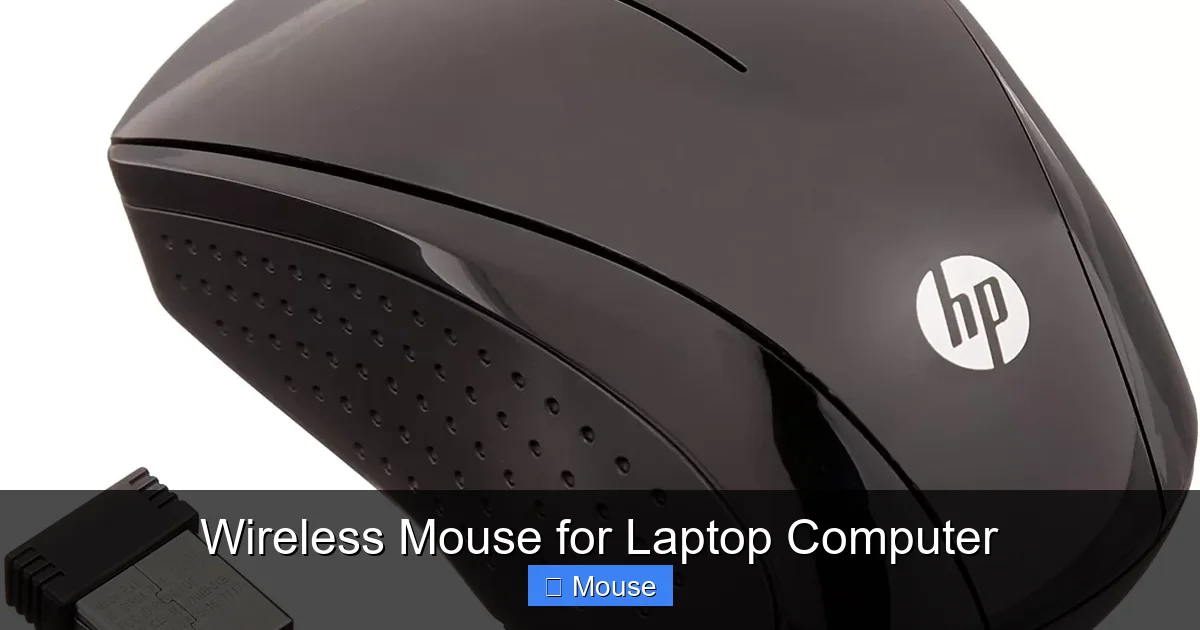
Visual guide about Wireless Mouse for Laptop Computer
Image source: reviewsxp.com
RF (Radio Frequency) with USB Dongle
This is the traditional wireless setup. The mouse communicates with a small USB receiver (often called a dongle) that you plug into your laptop’s USB-A or USB-C port. The connection is typically established via a proprietary 2.4GHz wireless protocol.
- Pros: Generally offers the lowest latency (input lag), which is crucial for gaming or any task requiring instant cursor response. The connection is often more robust and less prone to interference from other Bluetooth devices. Setup is usually as simple as plugging in the dongle—no pairing process needed.
- Cons: It occupies one of your laptop’s precious USB ports. The dongle is small and easy to lose, though many mice now have storage compartments built into the bottom. If your laptop only has USB-C ports, you may need an adapter.
Bluetooth
Bluetooth mice connect directly to your laptop’s built-in Bluetooth radio. There’s no dongle required.
- Pros: Saves a USB port, which is a huge plus for modern laptops with limited connectivity. The pairing process is simple through your operating system’s settings. It’s the cleaner, more integrated solution. Modern Bluetooth (especially Bluetooth 5.0 and later) has significantly improved latency and stability.
- Cons: Historically, Bluetooth had higher latency than RF, but the gap has narrowed dramatically. In very crowded wireless environments (like an office with many devices), it can sometimes be more susceptible to minor interference. Setup requires going into your OS Bluetooth menu to pair, which is still very easy but an extra step.
Practical Tip: If you are a gamer, video editor working with high-frame-rate content, or simply demand the absolute most responsive feel, an RF mouse is still the gold standard. For the vast majority of office work, web browsing, and general use, a high-quality Bluetooth wireless mouse for laptop computer is more than sufficient and offers the superior convenience of no dongle.
Essential Features to Scrutinize Before You Buy
Beyond connectivity, a handful of technical specifications and features define a mouse’s capability and suitability for you. Don’t get overwhelmed; think about your primary use case.
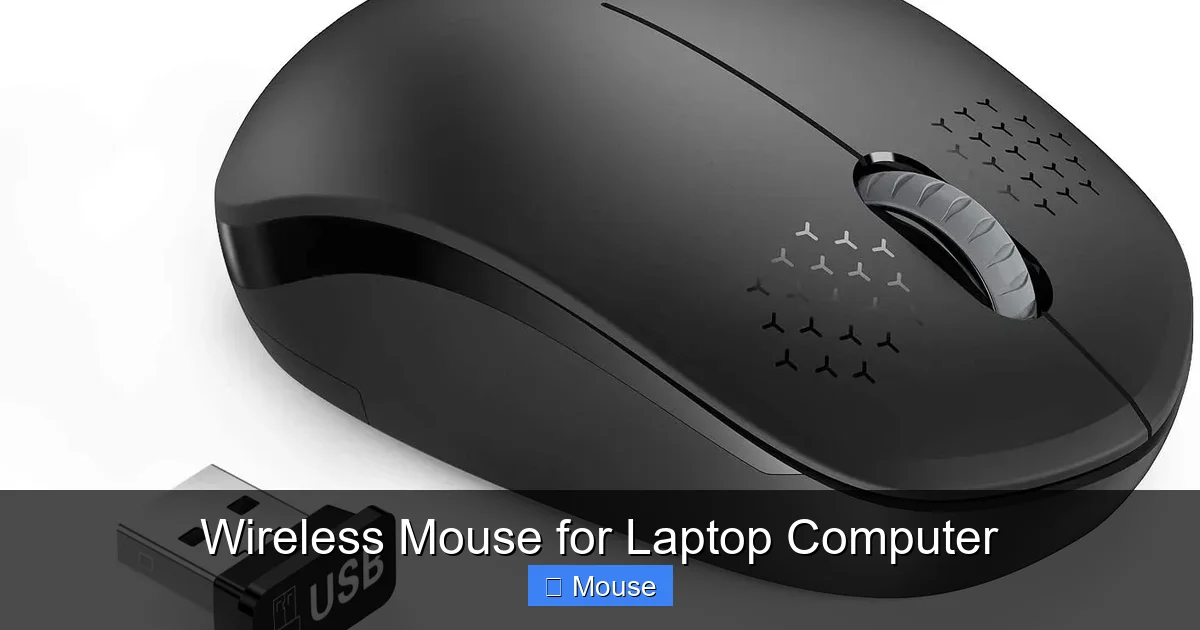
Visual guide about Wireless Mouse for Laptop Computer
Image source: i5.walmartimages.com
Sensor Type and DPI (DPI/CPI)
The sensor is the mouse’s brain. It tracks movement and translates it into cursor motion on your screen.
- Optical vs. Laser: Most modern mice use LED optical sensors. They are power-efficient and work perfectly on most surfaces. Laser sensors can track on glossy or transparent surfaces (like glass) but can sometimes be “too precise,” causing jitter on certain textures. For a wireless mouse for laptop computer used on a desk pad or mousepad, a good optical sensor is ideal.
- DPI/CPI: This stands for Dots (or Counts) Per Inch. Simply, it measures how sensitive the mouse is. Higher DPI means the cursor moves further across the screen for the same physical mouse movement. A range of 800-3200 DPI is standard and more than enough for general use. Gamers and designers often prefer mice with a wider, adjustable range (up to 20,000+ DPI) and a dedicated DPI switch button to toggle between settings on the fly. Example: A low DPI (800-1200) is great for precision work in Photoshop, while a high DPI (2400+) is better for quickly moving across multiple monitors or fast-paced gameplay.
Battery Life and Power Source
This is a major practical consideration. You don’t want to be hunting for batteries every week.
- Replaceable Batteries (AA/AAA): Many wireless mice use a single AA or AAA battery. With modern power-efficient sensors and sleep modes, these can last anywhere from 6 months to over 2 years. The advantage is you can swap in a fresh battery instantly anywhere. The downside is ongoing battery cost and waste.
- Rechargeable (Internal Battery): An increasing number of mice have a built-in lithium-ion battery, charged via a USB-C or micro-USB cable. Premium models can last weeks or months on a single charge and often support fast charging (e.g., 1 minute charge for hours of use). This is more eco-friendly and cost-effective long-term but requires remembering to plug it in occasionally.
- Look for: Auto-sleep/wake functionality that conserves power when the mouse is idle. An LED battery indicator is also very helpful.
Button Count and Programmability
The standard is left, right, and scroll wheel (which often clicks). Additional buttons (often called “thumb buttons” on the side) can be incredibly useful. These can be programmed via software to perform keyboard shortcuts (like Ctrl+C, Alt+Tab), launch applications, or perform macros. For a general user, 2-4 extra buttons are plenty. For a power user or gamer, mice with 8-12 programmable buttons offer deep customization but require a learning curve.
Scroll Wheel and Tactility
Scrolling is a daily action, so the wheel’s feel matters.
- Notched (Ratched): The classic, tactile click for each line of scroll. Great for precise, controlled scrolling through documents and web pages.
- Free-Spin (Infinite): A mechanism that allows the wheel to spin freely with a flick, enabling ultra-fast scrolling through long pages. Many free-spin wheels have a button to toggle between free-spin and notched modes. This is a premium feature loved by heavy readers and data analysts.
The Critical Role of Ergonomics: Finding Your Perfect Fit
You could have a mouse with the best sensor and longest battery life, but if it doesn’t fit your hand, you’ll be miserable. Ergonomics is not a luxury; it’s a necessity for sustained comfort.

Visual guide about Wireless Mouse for Laptop Computer
Image source: i.ytimg.com
Understanding Grip Styles
First, identify your natural grip:
- Palm Grip: Your entire hand rests flat on the mouse. This is the most relaxed style. You need a larger, often higher-profile mouse with a contoured shape that supports the palm.
- Claw Grip: Your palm rests on the back of the mouse, while your fingertips and the base of your fingers arch over the buttons, resembling a claw. This offers a good balance of control and speed. You need a medium-sized mouse with a defined hump for palm support and room for finger articulation.
- Fingertip Grip: Only the tips of your fingers and thumb make contact with the mouse. The palm hovers above. This is for maximum speed and agility, common in gaming. You need a smaller, flatter, often ambidextrous mouse that can be easily pivoted.
Sizing and Shape
Hand size varies dramatically. A mouse that’s too large forces you to stretch, causing strain. One that’s too small makes you curl your fingers, also causing strain. Most manufacturers provide length and width measurements. The best advice is to try to hold the mouse in your hand if possible. Look for a shape that feels like a natural extension of your hand. Some mice are specifically designed for left-handed users, though the selection is smaller. Ambidextrous shapes work for both but may lack true ergonomic contouring.
Materials and Weight
The mouse’s surface material affects grip. Rubberized sides provide a secure hold, while smooth plastic can feel slippery. Some premium mice use textured or coated finishes. Weight is another personal preference. A heavier mouse can feel more substantial and stable, requiring less micro-movement for precise tasks. A lighter mouse is easier to move quickly and is preferred by many gamers. Some mice even have removable weights for customization.
Setup, Pairing, and Troubleshooting 101
Getting your new wireless mouse for laptop computer working should be painless. Here’s a quick guide.
For RF (Dongle) Mice
1. Insert the USB receiver into an available USB port on your laptop. For USB-C only laptops, use a simple USB-C to USB-A adapter.
2. Turn on the mouse using the power switch, usually on the bottom.
3. That’s it. The mouse should connect automatically within seconds. If not, press the pairing/connect button (often a small recessed button on the bottom) while the mouse is on.
For Bluetooth Mice
1. Ensure your laptop’s Bluetooth is turned on.
2. Turn on the mouse. It may automatically enter pairing mode (indicated by a blinking LED). If not, press and hold the pairing button (check the manual).
3. On Windows: Go to Settings > Bluetooth & devices > Add device. On macOS: Go to System Preferences > Bluetooth.
4. Select the mouse from the list of discovered devices. It will connect and remember your laptop.
Common Troubleshooting Tips
- Mouse not moving/cursor laggy: Check battery. Ensure the receiver is plugged in firmly and not in a USB 3.0 port (blue plastic inside) which can cause 2.4GHz interference—try a USB 2.0 port or use a USB extension cable to move the dongle away from the laptop. For Bluetooth, ensure it’s paired and the laptop’s Bluetooth is on.
- Cursor is jittery or jumps: Clean the sensor lens on the bottom of the mouse with a dry cotton swab. Ensure you’re using it on a non-reflective, opaque surface. A mousepad is always recommended.
- Interference issues: Keep the receiver away from other USB devices, especially those with their own cables (like external hard drives).
- Install drivers/software: For advanced features (button reprogramming, DPI adjustment), download the manufacturer’s software from their website. This is often optional for basic use.
Maintenance and Longevity: Keeping Your Mouse Happy
A little care goes a long way in ensuring your wireless mouse for laptop computer lasts for years.
- Regular Cleaning: Dust, skin oils, and crumbs accumulate. Turn the mouse upside down and gently roll it to dislodge debris from the sensor. Use a slightly damp microfiber cloth to wipe the exterior. For grime around buttons, use a cotton swab dipped in a tiny bit of isopropyl alcohol. Never spray liquid directly onto the mouse.
- Sensor Care: The optical sensor window must be clean for accurate tracking. Use a dry, soft brush or compressed air to gently remove dust from the sensor lens.
- Battery Management: For replaceable batteries, keep spares in your laptop bag. For rechargeable mice, get into the habit of plugging it in when you charge your laptop overnight. Avoid completely draining lithium-ion batteries regularly.
- Storage and Travel: When packing your laptop bag, either turn the mouse off or remove its battery to prevent accidental clicks and drain. Many mice have a hidden storage slot for the USB dongle on the underside—always use it to avoid losing the tiny receiver.
- Software Updates: Occasionally check the manufacturer’s website for firmware updates for your mouse, which can improve performance and battery life.
Conclusion: Your Perfect Wireless Companion Awaits
Choosing the right wireless mouse for laptop computer is a personal journey that hinges on understanding your own hands and habits. It’s the intersection of form and function: a tool that must fit your grip, match your speed, and suit your typical environment—be it a cluttered home office, a sterile corporate desk, or a cozy coffee shop corner. The technology has matured to a point where even mid-range options offer exceptional performance and battery life. The key is to move beyond the “one-size-fits-all” mentality. Ask yourself: Will I travel with this? Do I need ultra-low latency? How many hours a day will I use it? What’s my hand size?
Investing in a good wireless mouse is an investment in your daily comfort and long-term physical well-being. It’s the difference between a tool that fights you and one that works for you. Don’t just buy the cheapest or the one with the most lights. Prioritize ergonomics, consider the connectivity type that fits your port situation, and choose a sensor and feature set that aligns with your primary tasks. With the knowledge from this guide, you are now empowered to cut the cord, clear your desk, and experience the seamless, liberating precision that a great wireless mouse brings to your laptop computing life. Your future, less-strained self will thank you.
Frequently Asked Questions
How long do batteries typically last in a wireless mouse for a laptop?
Battery life varies widely by model and usage. Mice using a single AA or AAA battery can last from 6 months to over 2 years on a single charge, thanks to efficient sensors and sleep modes. Rechargeable models often last 1-4 weeks between charges. Always check the manufacturer’s estimated battery life as a key comparison point.
Should I choose a Bluetooth mouse or one with a USB dongle?
Choose Bluetooth if you want to save a USB port and have a modern laptop with good built-in Bluetooth. It’s simpler and cleaner. Choose an RF mouse with a USB dongle if you prioritize the absolute lowest possible latency (best for gaming) or have experienced Bluetooth connectivity issues in a crowded wireless environment.
Can a wireless mouse cause lag or input delay?
Modern wireless technology has minimized this issue. High-quality RF mice offer near-zero perceptible lag. Good Bluetooth mice are also very responsive for general use. Lag might be noticeable in very fast-paced, competitive gaming with a low-end Bluetooth mouse. For such use, a premium RF gaming mouse is recommended.
What’s the most important ergonomic feature to look for?
The most important feature is a shape that matches your natural grip style (palm, claw, or fingertip) and hand size. A mouse that is too large or too small will cause discomfort regardless of other features. Look for a contoured design that supports your palm and allows your fingers to rest comfortably on the buttons.
How do I clean my wireless mouse properly?
First, turn it off or remove the battery. Use a dry microfiber cloth to wipe the exterior. For stuck-on grime, lightly dampen the cloth. Use a dry cotton swab to clean around buttons and the scroll wheel. To clean the sensor lens on the bottom, use a dry, soft brush or a cotton swab gently. Never spray liquids directly onto the mouse.
Is a wireless mouse suitable for gaming?
Yes, absolutely. Many professional gamers use wireless mice. Look for a gaming-specific model that uses a high-performance RF connection (like Logitech’s Lightspeed or Razer’s HyperSpeed) which eliminates lag. Also, prioritize a high-precision sensor, lightweight design, and programmable buttons. Casual gaming is perfectly fine on any modern wireless mouse.