Find Out Why Your Windows Update Services Ended In Bkp
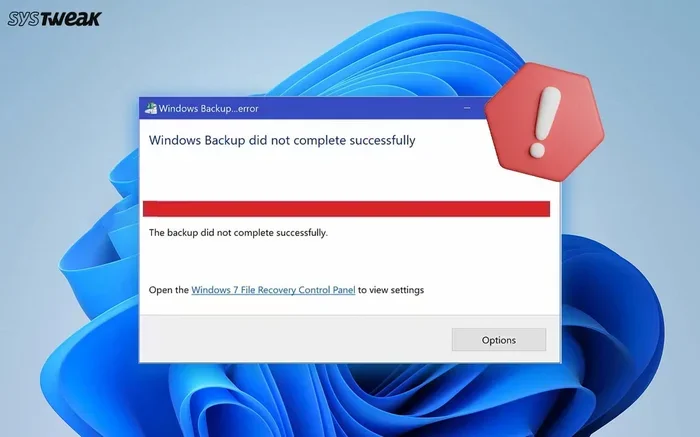
Your Windows Update Services Ended In Bkp because of corrupted system files, stuck update caches, or misconfigured service settings. This guide walks you through every proven fix to get your Windows Update Services Ended In Bkp error resolved quickly and safely. You will learn what the Bkp status means, why it happens, and how to prevent it from returning.
If you have ever looked at your Windows Update screen and seen the words “Services Ended In Bkp,” you are not alone. This confusing message stops many people in their tracks. It looks technical and scary, but the fix is often simpler than you think. In this guide, we will break down exactly what this error means and how to solve it step by step.
The Windows Update Services Ended In Bkp message appears when the Windows Update service stops after creating a backup of update files. This can happen on Windows 10 and Windows 11 machines. Sometimes it is a temporary glitch. Other times, it signals a deeper problem that needs attention. Either way, you do not need to be a tech expert to fix it.
Many users search for answers when their updates suddenly stop working. The Bkp status can block important security patches and feature upgrades. This article covers everything you need to know. From understanding the root cause to applying the best fixes, you will find practical solutions that work. Let us dive in and get your updates running again.
Key Takeaways
- Bkp means backup: The Windows Update service stopped after attempting a backup of update files.
- Corrupted update cache is the most common cause of this error.
- Running the Windows Update Troubleshooter can resolve the issue in minutes.
- Resetting the Windows Update components manually often fixes stubborn Bkp errors.
- Checking your system files with SFC and DISM prevents recurring problems.
- Keeping your drivers updated reduces the chance of update service failures.
- Regular maintenance like clearing the temp folder keeps updates running smoothly.
📑 Table of Contents
What Does “Services Ended In Bkp” Actually Mean?
Understanding the Bkp Status Code
The term “Bkp” stands for backup. When your Windows Update Services Ended In Bkp, it means the update service shut down after saving a backup of update components. Think of it like your computer creating a safety net before trying something new. The backup is meant to protect your system if the update goes wrong.
In most cases, this backup process completes without any issues. The service then restarts and continues with the update. However, sometimes the service does not restart properly. When that happens, you see the “Services Ended In Bkp” message on your screen. The update stalls, and your system stays unprotected.
Why the Bkp Error Keeps Showing Up
Several factors can trigger the Bkp error repeatedly. A corrupted update cache is one of the top culprits. When old update files pile up, they can conflict with new downloads. Your system gets confused and stops the service prematurely.
Another common cause is misconfigured Windows services. If the Windows Update service is set to manual instead of automatic, it may not restart after the backup phase. System file corruption can also play a role. Damaged files interfere with the entire update pipeline, causing the service to end in backup mode.
Common Causes of the Bkp Error
Corrupted Windows Update Cache
The Windows Update cache stores temporary files needed for updates. Over time, these files can become corrupted or outdated. When the system tries to use them, the update process fails. This is the leading reason many users see the Windows Update Services Ended In Bkp message on their screens.
Clearing the cache forces Windows to download fresh copies of all update files. This simple step resolves the issue for a large number of users. It is safe and does not delete any personal data.
Stuck or Frozen Update Processes
Sometimes an update process gets stuck in the background. Even after you restart your computer, the stuck process continues running. When a new update attempt starts, it detects the old process and ends the service in Bkp mode. This is your system’s way of preventing conflicts.
You can fix this by stopping all Windows Update-related services through the Services app. Once the stuck processes are cleared, new updates can run without interference. This is one of the most effective fixes for persistent Bkp errors.
Insufficient Disk Space
Windows Update requires a significant amount of free disk space. If your system drive is nearly full, the update service may fail during the backup phase. The Bkp status appears because the system cannot complete the backup of update files.
Freeing up space on your C: drive can quickly resolve this issue. Delete temporary files, empty the recycle bin, and remove old downloads. You should aim for at least 20 GB of free space before running any major updates.
Third-Party Software Interference
Certain third-party programs can interfere with Windows Update. Antivirus software, in particular, may block update components from running correctly. Some optimization tools or registry cleaners can also cause problems by removing files that Windows Update needs.
If you recently installed new software and started seeing the Bkp error, that program might be the cause. Try temporarily disabling your antivirus or uninstalling recent additions. Then run the update again to see if the error disappears.
Step-by-Step Fixes for the Bkp Error
Fix 1: Run the Windows Update Troubleshooter
The built-in troubleshooter is the easiest place to start. It automatically detects common update problems and applies fixes. Many users resolve the Windows Update Services Ended In Bkp error with this simple tool alone.
Here is how to run it:
- Open the Settings app by pressing Windows Key + I.
- Go to System and then click Troubleshoot.
- Select Other troubleshooters from the list.
- Find Windows Update and click Run.
- Follow the on-screen instructions and apply any recommended fixes.
The troubleshooter will check your update services, registry settings, and component store. It can reset stuck services and clear minor errors automatically. This makes it a great first step before trying more advanced fixes.
Fix 2: Reset Windows Update Components Manually
If the troubleshooter does not work, resetting the update components manually is the next best step. This clears out corrupted files and forces Windows to rebuild the update infrastructure from scratch.
Here is what you need to do:
- Open Command Prompt as Administrator.
- Type net stop wuauserv and press Enter.
- Type net stop bits and press Enter.
- Type net stop cryptsvc and press Enter.
- Navigate to C:\Windows\SoftwareDistribution and delete all contents.
- Navigate to C:\Windows\System32\catroot2 and delete all contents.
- Restart the services by running net start wuauserv, net start bits, and net start cryptsvc.
After completing these steps, restart your computer and try running Windows Update again. The Windows Update Services Ended In Bkp error should no longer appear. This method has helped thousands of users get their updates back on track.
Fix 3: Run SFC and DISM Scans
System File Checker (SFC) and Deployment Image Servicing and Management (DISM) are powerful built-in tools. They scan for and repair corrupted system files that might be causing the Bkp error.
Start with SFC first:
- Open Command Prompt as Administrator.
- Type sfc /scannow and press Enter.
- Wait for the scan to complete. It may take 10 to 15 minutes.
- Restart your computer after the scan finishes.
Then run DISM:
- Open Command Prompt as Administrator.
- Type DISM /Online /Cleanup-Image /RestoreHealth and press Enter.
- Wait for the process to complete. This can take up to 20 minutes.
- Restart your computer again.
These scans repair the components that Windows Update relies on. If the Bkp error was caused by damaged system files, SFC and DISM will fix it. This is one of the most thorough approaches to resolving update service issues.
Fix 4: Check Your Disk Space and Clear Temp Files
As mentioned earlier, low disk space is a frequent cause of the Bkp error. Before trying anything else, make sure your system drive has enough free space. Use the built-in Disk Cleanup tool to remove unnecessary files quickly.
Here is a quick way to free up space:
- Open Disk Cleanup by searching for it in the Start menu.
- Select your C: drive and click OK.
- Check all boxes, including Temporary files and Windows Update Cleanup.
- Click Clean up system files to remove deeper junk files.
- Confirm and let the tool do its work.
You should also manually clear your Temp folder. Press Windows Key + R, type %temp%, and press Enter. Select all files and delete them. Some files may be in use and cannot be deleted, which is fine. Just skip those and delete the rest.
Fix 5: Update Your Drivers
Outdated drivers can interfere with Windows Update in surprising ways. Device drivers manage how your hardware communicates with the operating system. When a driver is outdated or incompatible, it can cause the update service to fail during the backup phase.
To update your drivers:
- Open Device Manager by right-clicking the Start button.
- Expand each category and right-click on a device.
- Select Update driver and choose Search automatically.
- Repeat for all devices, especially network adapters and storage controllers.
You can also visit your PC manufacturer’s website to download the latest drivers. For example, if you have an HP laptop, check HP Support for the most recent driver packages. Keeping drivers current helps prevent the Windows Update Services Ended In Bkp error from returning.
Preventing the Bkp Error From Coming Back
Schedule Regular Update Checks
The best defense against the Bkp error is staying on top of your updates. Set a regular schedule to check for Windows updates at least once a week. This prevents update files from piling up and becoming corrupted.
Go to Settings, then Windows Update, and click Check for updates. If any updates are available, install them promptly. Regular updates keep your system secure and reduce the chances of encountering the Bkp status.
Keep Your System Well-Maintained
A well-maintained system runs updates more smoothly. Clear your temp files regularly, keep your disk at least 20% free, and avoid installing suspicious software. These simple habits go a long way toward preventing update errors.
You should also be cautious with third-party optimization tools. Some of these tools aggressively clean your system and may remove files that Windows Update needs. Stick with built-in Windows tools for maintenance whenever possible.
Monitor Your System Performance
Pay attention to how your system behaves during updates. If updates start taking longer than usual or your computer becomes unusually slow, investigate early. Catching problems before they escalate can prevent the Bkp error from appearing in the first place.
You can use the built-in Task Manager to monitor update-related processes. Press Ctrl + Shift + Esc and look for processes named Windows Update or Service Host. If any of these are using excessive resources, it may be a sign of trouble brewing.
Expert Insights on Windows Update Reliability
Windows Update is one of the most complex systems in the operating system. It involves multiple services, components, and background processes working together. When one part fails, the entire chain can break. The Windows Update Services Ended In Bkp error is a perfect example of how interconnected these systems are.
Experts recommend keeping your system updated but also being patient. Large feature updates can take a long time to download and install. During this process, you might see various status messages, including Bkp. Most of the time, these messages are harmless and resolve on their own. However, if the update does not complete after several hours, it is worth investigating.
One thing many users overlook is the impact of their internet connection. A stable, fast connection helps Windows Update download files smoothly. If your connection drops during a download, the update files can become corrupted. This corruption can trigger the Bkp error on your next update attempt. Using a wired Ethernet connection instead of Wi-Fi during major updates can help prevent this issue.
Another pro tip is to check your Windows Update log for detailed error information. You can find the log at C:\Windows\WindowsUpdate.log. This file contains information about what went wrong during the update process. If you are still struggling with the Bkp error after trying all the fixes above, the log file might reveal the specific cause.
For users who deal with update issues frequently, consider visiting the Windows support community or official Microsoft forums. Other users often share solutions that work for specific Bkp error scenarios. Community knowledge can be incredibly valuable when built-in tools do not solve the problem.
Remember that keeping your laptop healthy overall supports smooth updates too. If your laptop is running low on RAM or storage, updates are more likely to fail. Consider checking your system specifications and making upgrades where needed. A well-resourced system handles updates far more reliably than an overloaded one.
Key Takeaways
- The Bkp status means Windows Update stopped after creating a backup of update files.
- Corrupted update cache is the number one cause of this error.
- Running the Windows Update Troubleshooter resolves the issue for many users quickly.
- Resetting update components manually clears out corrupted files and rebuilds the update system.
- SFC and DISM scans repair damaged system files that interfere with updates.
- Regular maintenance like clearing temp files and updating drivers prevents recurring errors.
- A stable internet connection and sufficient disk space are essential for reliable updates.
Conclusion
The Windows Update Services Ended In Bkp error can be frustrating, but it is far from unsolvable. As we have covered in this guide, the root cause is usually a corrupted cache, stuck process, or system file issue. By following the step-by-step fixes outlined above, you can resolve the error and get your updates running again.
Start with the simplest solutions first. Run the troubleshooter, clear your cache, and check your disk space. If those do not work, move on to resetting the update components and running SFC and DISM scans. These methods cover the vast majority of Bkp error scenarios.
Prevention is just as important as the fix. Keep your system well-maintained, update your drivers regularly, and monitor your update process. These habits will help you avoid the Bkp error in the future. Your system will stay secure, up to date, and running smoothly.
If you are still experiencing issues after trying everything in this guide, do not hesitate to reach out to Microsoft Support or a qualified technician. Sometimes the Bkp error is caused by a deeper system issue that requires professional diagnosis. But for most users, the fixes in this article will get the job done.
Take action today. Your Windows system deserves to stay updated and protected. Follow these steps, and you will be back to enjoying a hassle-free update experience in no time.
Frequently Asked Questions
What does Bkp mean in Windows Update?
Bkp stands for backup. When your Windows Update Services Ended In Bkp, it means the update service stopped after creating a backup of update components. This is normally a protective measure, but if the service does not restart, the update fails to complete.
Is the Bkp error harmful to my computer?
The Bkp error itself is not harmful. It simply means the update process stopped prematurely. However, if your updates are not completing, your system may miss important security patches and bug fixes. It is best to resolve the error promptly to keep your computer protected.
Can I ignore the Windows Update Services Ended In Bkp message?
You can ignore it temporarily, but you should not leave it unresolved for long. Ignoring the error means your system will not receive the latest updates. Over time, this can leave your computer vulnerable to security threats and performance issues.
How do I prevent the Bkp error from happening again?
Keep your disk space above 20 GB, clear your temp files regularly, update your drivers, and run Windows Update consistently. These simple maintenance habits prevent the corrupted files and stuck processes that cause the Bkp error.
Does the Bkp error only affect Windows 11?
No, the Bkp error can occur on both Windows 10 and Windows 11. The causes and fixes are the same across both operating systems. If you are still running Windows 10, consider upgrading to Windows 11 for better support and security.
What should I do if none of the fixes work?
If you have tried all the fixes in this guide and the Bkp error persists, try resetting your entire Windows Update system using the Microsoft Update Troubleshooter. You can also check the Windows Update log file for specific error codes. If the problem continues, contact Microsoft Support or a professional technician for help.