Lenovo ThinkSystem SR665 RAM SSD Upgrade Tips and Tricks
The Lenovo ThinkSystem SR665 RAM SSD upgrade can transform your server speed, storage capacity, and overall efficiency. Whether you are running a data center or managing enterprise workloads, upgrading your memory and storage is one of the smartest investments you can make. This guide covers everything from choosing the right components to avoiding common pitfalls during installation.
The Lenovo ThinkSystem SR665 is a powerful rack server built for demanding workloads. But even the best hardware can fall behind over time. If your server feels slow or you need more storage space, a Lenovo ThinkSystem SR665 RAM SSD upgrade might be exactly what you need.
Upgrading your server does not have to be scary. With the right knowledge and a few simple tools, you can breathe new life into your existing hardware. In this guide, we walk you through every step of the process. You will learn how to pick the right memory and storage, how to install them safely, and how to get the most out of your upgraded system.
Whether you are a small business owner or an IT professional managing multiple servers, this guide has you covered. We keep things simple and practical so you can get started right away. Let us dive in and explore how to make your ThinkSystem SR665 faster and more capable.
Key Takeaways
- Know Your Specs: Understanding the SR665 memory and storage limits is essential before buying any upgrade.
- Choose Compatible Parts: Not all RAM or SSDs work with the ThinkSystem SR665. Always verify compatibility first.
- Upgrade RAM and SSD Together: Combining a memory boost with faster storage delivers the best performance gains.
- Follow Safety Steps: Proper handling and installation prevent damage to your server components.
- Monitor Performance After Upgrading: Use built-in tools to track improvements and catch issues early.
📑 Table of Contents
- Why Upgrade the RAM and SSD on Your ThinkSystem SR665
- Understanding the ThinkSystem SR665 Memory Architecture
- Choosing the Right SSD for Your SR665
- Step-by-Step Guide to Upgrading RAM and SSD
- Optimizing Performance After the Upgrade
- Common Mistakes to Avoid During Upgrade
- Expert Tips for Maximum Server Performance
- How to Know If Your Upgrade Was Successful
- Final Thoughts on the Lenovo ThinkSystem SR665 RAM SSD Upgrade
Why Upgrade the RAM and SSD on Your ThinkSystem SR665
Servers handle a lot of work every day. They run applications, manage databases, host websites, and process large datasets. Over time, the original components may no longer keep up with growing demands. A Lenovo ThinkSystem SR665 RAM SSD upgrade addresses this problem directly.
More RAM allows your server to handle more tasks at the same time. It reduces the need to swap data to disk, which slows everything down. A faster or larger SSD improves read and write speeds. This means applications load quicker, databases respond faster, and users experience less waiting.
Here are some clear signs that your server needs an upgrade:
- Applications take longer to open or respond.
- Your server uses swap memory frequently.
- Storage space runs out quickly.
- Boot times and file transfers feel sluggish.
- You notice high CPU usage even during light tasks.
If you recognize any of these signs, it is time to consider upgrading. The good news is that the ThinkSystem SR665 supports easy access to both memory and storage slots. This makes the upgrade process straightforward for most users.
Understanding the ThinkSystem SR665 Memory Architecture
Before you buy any RAM, you need to understand how the SR665 handles memory. The server supports DDR4 ECC registered DIMMs. These are specialized memory modules designed for servers. They correct errors automatically, which keeps your data safe and your system stable.
The SR665 typically comes with multiple memory slots. Depending on the model, you may have access to 16, 24, or even 32 DIMM slots. This gives you plenty of room to expand your memory capacity. The maximum supported RAM can reach impressive levels, making it ideal for heavy workloads.
Types of RAM Compatible with the SR665
Not all RAM sticks are the same. The ThinkSystem SR665 works with specific types of memory modules. Here are the key specifications to keep in mind:
- DDR4 ECC Registered DIMMs: These are the standard memory modules for the SR665. They offer error correction for reliability.
- Speed Options: Common speeds include 2666 MHz, 2933 MHz, and 3200 MHz. Higher speeds can improve performance in memory-intensive tasks.
- Capacity Options: Modules typically range from 8 GB to 64 GB per stick. Mixing capacities is possible but may limit performance.
- Rank Configuration: Single-rank and dual-rank modules behave differently. Dual-rank modules often provide better performance in multi-tasking scenarios.
When planning your Lenovo ThinkSystem SR665 RAM SSD upgrade, always check the Lenovo compatibility list. Using unsupported memory can cause instability or even prevent the server from booting.
How Much RAM Do You Really Need?
The right amount of RAM depends on what your server does. Here is a quick guide to help you decide:
- Light Workloads (16 GB to 32 GB): Suitable for basic file serving, small databases, and light virtualization.
- Medium Workloads (64 GB to 128 GB): Great for running multiple virtual machines, medium-sized databases, and application hosting.
- Heavy Workloads (192 GB to 512 GB+): Ideal for large databases, data analytics, virtualization hosts, and enterprise applications.
Start by checking your current memory usage. Most server operating systems include built-in tools to monitor RAM usage over time. If you regularly see usage above 80 percent, you should add more memory.
Choosing the Right SSD for Your SR665
Storage is just as important as memory when it comes to server performance. The ThinkSystem SR665 supports multiple drive configurations. You can choose from SATA SSDs or NVMe SSDs depending on your needs and budget.
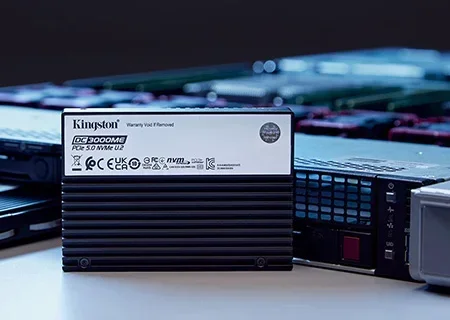
NVMe SSDs offer significantly faster speeds compared to traditional SATA drives. They use the PCIe bus for data transfer, which dramatically reduces latency. If your server handles intensive read and write operations, NVMe drives are the way to go.
SSD Form Factors and Interfaces
The SR665 supports different drive form factors. Understanding these options helps you choose the right drives:
- 2.5-inch SATA SSDs: These are the most common and affordable option. They work well for general storage needs.
- U.2 NVMe SSDs: These offer much faster speeds and are ideal for databases and high-performance applications.
- M.2 NVMe SSDs: Some configurations support M.2 drives for even more compact and fast storage solutions.
When selecting drives, consider both capacity and endurance. Enterprise SSDs come with higher TBW (terabytes written) ratings. This means they can handle more data over their lifetime without failing. For a server environment, endurance matters more than in a home PC setup.
For the best results from your Lenovo ThinkSystem SR665 RAM SSD upgrade, pair high-capacity NVMe drives with a solid memory configuration. This combination delivers the fastest and most responsive server experience.
Step-by-Step Guide to Upgrading RAM and SSD
Now that you know what components to choose, let us walk through the installation process. The ThinkSystem SR665 is designed for easy maintenance. Most upgrades can be done without specialized tools or advanced technical skills.
Preparing for the Upgrade
Before you open the server, take a few preparation steps:
- Back up all important data. Even though upgrades rarely cause data loss, it is always better to be safe.
- Check the server model number and current configuration. You can find this information in the BIOS or through Lenovo XClarity Controller.
- Purchase compatible RAM and SSD modules. Refer to the Lenovo compatibility list for guaranteed support.
- Prepare your workspace. Use an anti-static mat and wear an anti-static wrist strap to protect sensitive components.
For general guidance on RAM upgrades, you can also refer to our upgrade RAM for Lenovo laptop guide, which covers fundamental RAM upgrade principles that apply across Lenovo systems.
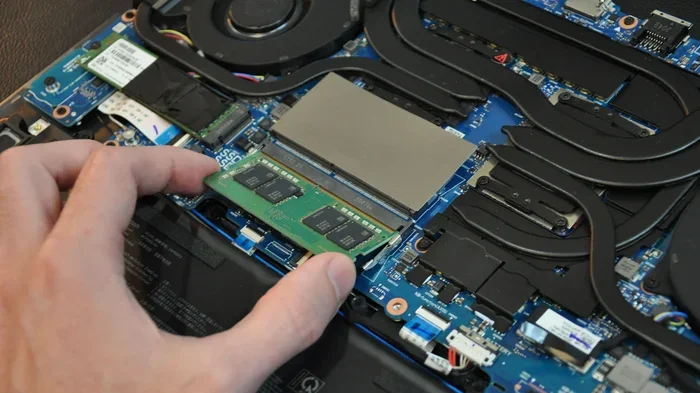
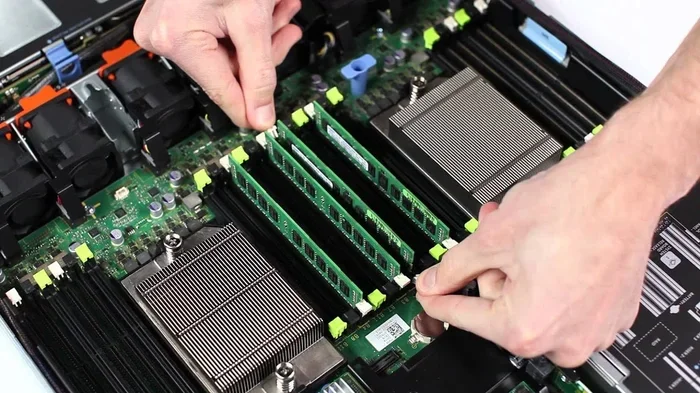
Installing New RAM Modules
Follow these steps to install memory in your SR665:
- Power off the server and disconnect all cables.
- Open the server chassis according to the service manual instructions.
- Locate the DIMM slots. They are clearly labeled inside the chassis.
- Release the existing memory clips if you are replacing modules.
- Align the new DIMM with the slot at the correct angle.
- Press the module firmly until the clips lock into place with a click.
- Repeat for each new memory module.
- Close the chassis and reconnect all cables.
- Power on the server and verify the new memory is recognized in the BIOS.
Take your time during installation. If a module does not seat properly, the server may not boot. If you are new to this, watching a quick video tutorial can help build confidence before you start.
Installing New SSD Drives
Adding or replacing SSDs follows a similar careful process:
- Ensure the server is powered off and disconnected.
- Locate the drive bays or NVMe slots inside the chassis.
- Remove any existing drive brackets or caddies if needed.
- Insert the new SSD into the appropriate slot or bay.
- Secure the drive with screws or the retention mechanism.
- Connect any necessary cables for SATA drives.
- Close the chassis and power on the server.
- Enter the BIOS or RAID controller to initialize the new drive.
- Format and partition the drive through your operating system.
For more detailed instructions on RAM upgrade procedures across Lenovo systems, you might find our how to upgrade the RAM of a laptop article helpful for understanding general upgrade principles.
Optimizing Performance After the Upgrade
Once your new RAM and SSD are installed, you are not quite done. A few optimization steps ensure you get the full benefit of your upgrade. Without proper configuration, even the best components may not perform at their best.
Configure RAID for Better Storage Performance
If you have multiple SSDs, consider setting up a RAID array. RAID 0 stripes data across drives for faster read and write speeds. RAID 1 mirrors data for redundancy. RAID 10 combines both speed and safety. The choice depends on your priorities and how much data you need to protect.
Enable XMP or Server Memory Profiles
Some memory modules support profiles that optimize timing and speed settings. Check your BIOS for memory profile options. Enabling these profiles can unlock better performance from your new RAM without additional configuration.
Update Firmware and Drivers
After any hardware change, update your server firmware. Lenovo regularly releases BIOS updates and driver patches. These updates often include performance improvements and compatibility fixes for newer memory and storage components.
Monitor Performance with Built-In Tools
Use Lenovo XClarity Controller to monitor your server after the upgrade. Check memory usage, disk speeds, and overall system health. You should notice improvements in boot times, application loading, and data transfer rates. If something does not look right, the monitoring tools can help you identify the issue.
For additional tips on maximizing RAM performance, you can explore our RAM upgrade for my laptop guide, which shares practical optimization tips applicable to server environments as well.
Common Mistakes to Avoid During Upgrade
Even experienced technicians can make mistakes during server upgrades. Here are some common pitfalls to watch out for:
- Buying Incompatible RAM: Always double-check the part number against the Lenovo compatibility list. Using the wrong type of memory can damage your server or cause boot failures.
- Mixing RAM Speeds: If you mix modules with different speeds, all modules will run at the slowest speed. Try to match speeds and timings for best results.
- Skipping Anti-Static Precautions: Static electricity can destroy sensitive components. Always use an anti-static wrist strap and work on a non-conductive surface.
- Forcing Modules Into Slots: RAM modules should slide in smoothly with gentle pressure. If you feel resistance, stop and check the alignment.
- Ignoring Firmware Updates: Skipping BIOS updates after an upgrade can lead to compatibility issues and missed performance improvements.
- Not Testing Before Closing Up: Always boot the server and verify everything works before fully reassembling the chassis. This saves you from having to reopen it later.
Avoiding these mistakes keeps your upgrade process smooth and your server running reliably. A little preparation goes a long way toward a successful Lenovo ThinkSystem SR665 RAM SSD upgrade.
Expert Tips for Maximum Server Performance
Want to squeeze every bit of performance from your upgraded SR665? Here are some expert-level tips:
- Fill Memory Slots in Pairs: The SR665 performs best when you install RAM in matched pairs. This enables dual-channel memory mode, which doubles the memory bandwidth.
- Use Identical Modules: Matching RAM modules by brand, speed, capacity, and rank ensures the most stable and fastest operation.
- Place NVMe Drives on Dedicated PCIe Lanes: NVMe drives perform best when they are not sharing PCIe lanes with other high-bandwidth devices.
- Enable Trim on SSDs: The TRIM command helps SSDs maintain peak performance over time. Make sure it is enabled in your operating system.
- Schedule Regular Firmware Updates: Set a quarterly reminder to check for Lenovo firmware updates. These often include performance tweaks and bug fixes.
These small steps add up to a big difference in day-to-day server performance. Your upgraded ThinkSystem SR665 will reward you with faster response times and greater reliability.
How to Know If Your Upgrade Was Successful
After completing your Lenovo ThinkSystem SR665 RAM SSD upgrade, you want to confirm everything is working as expected. Here are the key indicators of a successful upgrade:
- The BIOS or UEFI shows the correct total memory capacity.
- Your operating system recognizes the new SSD drives and their full capacity.
- Boot times are noticeably faster than before the upgrade.
- Application loading times have improved.
- Memory usage during normal operations is lower than before.
- Disk benchmarks show significantly higher read and write speeds.
If any of these indicators are missing, double-check your installation. Make sure all modules are fully seated and all cables are connected properly. Firmware updates may also be needed to recognize the newest components.
Final Thoughts on the Lenovo ThinkSystem SR665 RAM SSD Upgrade
A Lenovo ThinkSystem SR665 RAM SSD upgrade is one of the most cost-effective ways to extend the life and performance of your server. Instead of replacing the entire system, you can achieve dramatic improvements by adding more memory and faster storage. The process is straightforward, the components are widely available, and the results are immediately noticeable.
Take the time to plan your upgrade carefully. Choose compatible parts, follow the installation steps, and optimize your settings afterward. Your ThinkSystem SR665 will reward you with faster speeds, greater reliability, and the capacity to handle even the most demanding workloads.
Upgrading your server is an investment in your business. Whether you support a small team or manage enterprise infrastructure, the performance gains from a RAM and SSD upgrade pay for themselves many times over. Start planning your upgrade today and experience the difference a well-executed Lenovo ThinkSystem SR665 RAM SSD upgrade can make.
Frequently Asked Questions
What is the maximum RAM supported by the Lenovo ThinkSystem SR665?
The ThinkSystem SR665 supports up to 512 GB or more of DDR4 ECC registered DIMM memory, depending on the specific model and configuration. Always check the exact specifications for your server variant to confirm the maximum supported capacity.
Can I mix different brands of RAM in the ThinkSystem SR665?
While mixing brands is technically possible, it is not recommended. Using matched RAM modules from the same manufacturer ensures the best compatibility, stability, and performance. Mixing different speeds or timings can force all modules to run at the slowest common speed.
How long does a Lenovo ThinkSystem SR665 RAM SSD upgrade take?
Most upgrades can be completed in under an hour. Installing RAM typically takes 15 to 20 minutes, while SSD installation may take a bit longer depending on the drive configuration and whether you need to set up RAID.
Do I need to reinstall my operating system after an SSD upgrade?
Not necessarily. If you add a new SSD as a secondary drive, you can use it without reinstalling anything. However, if you clone your existing drive or replace the boot drive, you may need to reinstall or restore your operating system.
What type of SSD is best for the ThinkSystem SR665?
NVMe U.2 SSDs offer the best performance for the SR665 due to their PCIe interface and low latency. However, 2.5-inch SATA SSDs are a good budget option for general storage needs where extreme speed is not required.
Will upgrading RAM and SSD void my server warranty?
Upgrading RAM and SSD typically does not void the warranty, as long as you use compatible components and follow proper installation procedures. Always check with Lenovo or your service provider to confirm your specific warranty terms before proceeding.