How to Open Notepad in Windows 11 Quickly and Easily
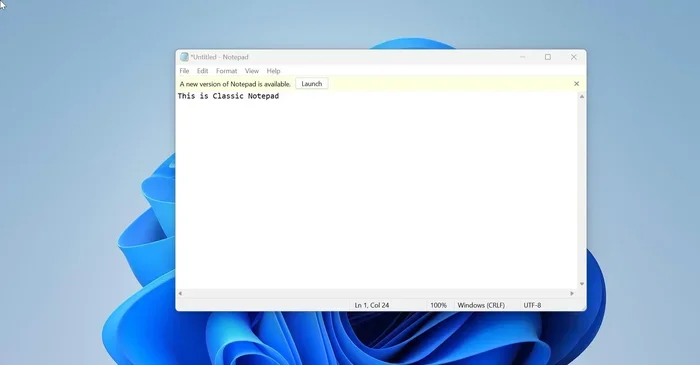
Opening Notepad in Windows 11 is simple and can be done in several quick ways. Whether you prefer using the Start menu, keyboard shortcuts, or the Run command, this guide shows you every method. You will also learn how to create shortcuts, pin Notepad to your taskbar, and troubleshoot common issues.
Need to open Notepad in Windows 11 but not sure how? You are not alone. Many users wonder about the fastest way to launch this handy text editor. The good news is that there are several easy methods you can use. Some take just a second, while others give you more control over how you work.
Notepad has been a part of Windows for decades. It is a simple, lightweight text editor that comes built into every Windows system. Whether you need to jot down a quick note, edit a config file, or just test some text, Notepad gets the job done. In this guide, we will walk you through every way to open it in Windows 11. We will also share tips to make the process even faster.
By the end of this article, you will know the quickest method for your workflow. You will also learn how to set up Notepad so it is always ready when you need it. Let us dive in.
Key Takeaways
- Multiple Methods Available: You can open Notepad using the Start menu, search bar, Run command, keyboard shortcut, or Command Prompt.
- Keyboard Shortcut is Fastest: The Ctrl + N shortcut opens a new Notepad window instantly once the app is running.
- Create a Desktop Shortcut: A desktop shortcut gives you one-click access every time you need to jot something down.
- Pinning to Taskbar Saves Time: Keeping Notepad on your taskbar means it is always just one click away.
- Troubleshooting is Easy: Most issues with opening Notepad can be fixed with simple steps like resetting or reinstalling the app.
- Notepad Still Works Great in Windows 11: Microsoft has kept the classic Notepad app fully functional and improved it with new features.
📑 Table of Contents
- What Is Notepad and Why Use It in Windows 11?
- Method 1: Use the Windows Search Bar
- Method 2: Use the Run Command
- Method 3: Use the Start Menu
- Method 4: Create a Desktop Shortcut
- Method 5: Pin Notepad to the Taskbar
- Troubleshooting: Notepad Not Opening in Windows 11
- Advanced Tips for Using Notepad in Windows 11
- Final Thoughts
What Is Notepad and Why Use It in Windows 11?
Notepad is a basic text editor that comes pre-installed on every Windows PC. It does not have fancy formatting tools like Microsoft Word. Instead, it focuses on plain text. This makes it perfect for quick notes, code editing, and log file reviews.
Many people overlook Notepad because it seems too simple. But that simplicity is exactly what makes it so useful. It opens fast, uses almost no system resources, and works reliably. If you are using a Windows 11 laptop, Notepad is already waiting for you.
Who Uses Notepad Regularly?
Notepad is popular among many types of users. Developers use it to write and edit code snippets. Students use it for quick notes during lectures. IT professionals use it to view system logs and configuration files. Even casual users rely on it for to-do lists and quick memos. It is one of those tools that everyone needs but rarely thinks about until they need it.
Method 1: Use the Windows Search Bar
The easiest way to open Notepad in Windows 11 is through the search bar. This method works for almost everyone and takes just a few seconds.
- Click on the Start button or press the Windows key on your keyboard.
- Type “Notepad” in the search bar.
- Click on the Notepad app from the search results.
- Notepad will open instantly.
This is the most straightforward approach. You do not need to remember any shortcuts or commands. Just type and click. If you use your Windows 11 laptop for everyday tasks, this method will feel very natural to you.
Tip: Pin Notepad to Start
Once you find Notepad in the search results, you can right-click on it and select “Pin to Start.” This way, Notepad will always appear in your Start menu for quick access. It saves you from typing every time.
Method 2: Use the Run Command
The Run command is a powerful tool in Windows 11. It lets you open apps and files with just a few keystrokes. This method is perfect if you like keyboard shortcuts and want to work faster.
- Press Windows + R on your keyboard.
- A small Run dialog box will appear.
- Type “notepad” (without quotes).
- Press Enter or click OK.
- Notepad will open immediately.
This method is incredibly fast once you get used to it. The Run command also works for many other Windows tools. For example, you can use it to open Command Prompt, Control Panel, or even specific folders. It is a great skill to have if you use your PC often.
Why the Run Command Is So Useful
The Run command bypasses the need to navigate through menus. It goes straight to the app. This is especially helpful when you are working on a Windows 2 in 1 laptop and need to switch between tasks quickly. The Run command keeps your hands on the keyboard and your workflow uninterrupted.
Method 3: Use the Start Menu
You can also find Notepad directly in the Start menu. Windows 11 organizes your apps in a clean, easy-to-browse layout. Here is how to do it:
- Click the Start button or press the Windows key.
- Click on “All Apps” in the top-right corner of the Start menu.
- Scroll down to the “N” section.
- Click on “Notepad.”
This method works well if you prefer browsing through your apps. It is not the fastest option, but it is reliable. You will also see other useful Windows tools in the same area, which can be handy.
Compare: Search Bar vs. Start Menu vs. Run Command
Here is a quick comparison of the three methods we have covered so far:
| Method | Speed | Ease of Use | Best For |
|---|---|---|---|
| Search Bar | Fast | Very Easy | Most users |
| Run Command | Very Fast | Easy (once learned) | Power users |
| Start Menu | Moderate | Very Easy | Browsing users |
Each method has its strengths. The search bar is the most balanced option. The Run command wins for speed. The Start menu is great if you like to explore what Windows offers. Choose the one that fits your style best.
Method 4: Create a Desktop Shortcut
If you open Notepad often, creating a desktop shortcut is a smart move. This gives you one-click access from your desktop. Here is how to set it up:
- Right-click on an empty space on your desktop.
- Hover over “New” and click “Shortcut.”
- In the location field, type “notepad.exe” (without quotes).
- Click “Next.”
- Name the shortcut “Notepad” and click “Finish.”
Now you have a Notepad icon right on your desktop. Just double-click it whenever you need to open the app. This method is especially useful if you use your laptop for work and want quick access without searching.
Customize Your Shortcut
You can also change the icon of your Notepad shortcut to make it stand out. Right-click the shortcut, select “Properties,” and click the “Change Icon” button. Pick an icon that you will recognize easily. Small touches like this make your workflow more personal and efficient.
Method 5: Pin Notepad to the Taskbar
For the fastest access possible, pin Notepad to your taskbar. Once pinned, Notepad is always just one click away. Here is how to do it:
- Open Notepad using any method described above.
- Right-click on the Notepad icon in the taskbar.
- Select “Pin to taskbar.”
That is it. Notepad will now sit on your taskbar for quick access anytime. This is ideal if you use Notepad as part of your daily routine. Whether you are taking notes or editing text files, having it on the taskbar saves you valuable time.
Bonus: Use Keyboard Shortcuts
Once Notepad is pinned to your taskbar, you can use a keyboard shortcut to open it. Press Windows + [number] where the number corresponds to Notepad’s position on the taskbar. For example, if Notepad is the fourth icon, press Windows + 4. This is one of the fastest ways to launch any pinned app in Windows 11.
Troubleshooting: Notepad Not Opening in Windows 11
Sometimes Notepad may not open as expected. This can be frustrating, but the fix is usually simple. Here are common issues and their solutions:
Issue 1: Notepad Does Not Respond When You Click It
This can happen if the app is temporarily glitching. Try closing all open Notepad windows and reopening it. If that does not work, restart your computer. A simple reboot often fixes minor software hiccups.
Issue 2: Search Bar Does Not Find Notepad
If the Windows search bar cannot find Notepad, try using the Run command instead. You can also check if your Windows search index needs rebuilding. Go to Settings > Search > Searching Windows and click “Advanced search indexing options.”
Issue 3: Notepad Opens But Crashes Immediately
This may be caused by a corrupted app installation. Try resetting Notepad through Settings > Apps > Installed Apps > Notepad > Advanced Options > Reset. If the problem continues, you can also try reinstalling the app from the Microsoft Store.
Quick Troubleshooting Tips
- Restart your PC before trying anything else.
- Check for Windows updates that may fix bugs.
- Run the System File Checker tool to repair corrupted files.
- Try opening Notepad from Command Prompt by typing “notepad” and pressing Enter.
Most of the time, Notepad issues are minor and easy to fix. Do not let a small problem stop you from using this essential tool. If you are having issues with other Windows 11 settings, you might want to check out how to fix mouse speed problems in Windows 11 or explore tips for getting the most out of a Windows 2-in-1 laptop.
Advanced Tips for Using Notepad in Windows 11
Once you know how to open Notepad quickly, you can take your usage to the next level. Here are some advanced tips that power users love:
Enable Word Wrap
By default, Notepad wraps long lines of text automatically. If you need to see the full line without wrapping, go to Format > Word Wrap and uncheck it. This is helpful when working with code or data files.
Change the Font
Notepad uses a plain font by default, but you can change it. Go to Format > Font to pick a different typeface and size. Many users prefer Consolas or Courier New for better readability when editing code.
Use Notepad for Quick Edits
Notepad is great for quick edits to configuration files. You can open system files, batch scripts, or HTML files right in Notepad. Just remember to run Notepad as Administrator if you need to edit protected system files. Right-click the Notepad shortcut and select “Run as administrator.”
Save Time with Default Settings
Once you have your preferred Notepad settings, they will stay saved between sessions. Set your font, size, and word wrap preference once, and Notepad will remember them every time you open it. This small setup step pays off over time.
Final Thoughts
Opening Notepad in Windows 11 is quick and easy once you know the right methods. Whether you use the search bar, Run command, Start menu, desktop shortcut, or taskbar pin, you have options to suit your style. The search bar and Run command are the fastest for most users, while pinning to the taskbar gives you permanent one-click access.
Notepad may be a simple app, but it is incredibly useful. It has been a staple of Windows for over three decades, and it remains relevant in Windows 11. Once you set up your preferred way to open it, you will wonder how you ever lived without such quick access.
Try out the different methods in this guide and pick the one that works best for you. If you are using a Windows 11 laptop, you might also want to check out wireless mouse options for HP laptops to improve your overall productivity setup. Happy typing!
Frequently Asked Questions
What is the fastest way to open Notepad in Windows 11?
The fastest way is to press Windows + R, type “notepad,” and press Enter. This Run command method opens Notepad in under two seconds. You can also pin Notepad to your taskbar for one-click access.
Can I open Notepad without using the mouse?
Yes, you can. Press the Windows key, type “Notepad,” and press Enter to open it from the search results. If Notepad is pinned to your taskbar, press Windows plus the number key where Notepad is positioned.
Why is Notepad not showing up in Windows 11 search?
This can happen if the Windows search index is corrupted. Try resetting the search index through Settings. You can also use the Run command or find Notepad in the Start menu under All Apps.
Is Notepad still available in the latest version of Windows 11?
Yes, Notepad is fully available and functional in Windows 11. Microsoft continues to update it with the operating system. You can find it through the Start menu, search bar, or Run command.
How do I create a Notepad shortcut on my desktop in Windows 11?
Right-click on your desktop, select New > Shortcut, and type “notepad.exe” in the location field. Name it “Notepad” and click Finish. You will now have a one-click Notepad icon on your desktop.
Can I use Notepad to edit system files in Windows 11?
Yes, but you need to run Notepad as an Administrator to edit protected system files. Right-click the Notepad shortcut and select “Run as administrator.” Then use File > Open to navigate to the system file you want to edit.