Ram Not Working After Upgrade Try These Simple Fixes

Ram not working after upgrade is a common frustration, but most fixes are simple and quick. Whether your system won’t boot, the memory isn’t detected, or performance didn’t improve, this guide walks you through every solution step by step. You’ll learn how to reseat sticks, check compatibility, update BIOS, and more to get your ram upgrade working properly.
You just installed new memory into your laptop, powered it on, and… nothing changed. Or worse, your computer won’t even start. This is the frustrating reality of ram not working after upgrade, and it happens to a lot of people. The good news? In most cases, the fix is surprisingly simple.
Whether you’re upgrading an HP, Lenovo, Dell, or any other brand, the reasons your new memory isn’t being recognized usually fall into a few common categories. Loose connections, incompatible modules, outdated BIOS — these are all fixable without a trip to the repair shop. This guide covers every solution you need to try, step by step.
Before you panic or assume the new memory is defective, work through the fixes below. Most people resolve the issue within minutes. Let’s get your laptop ram not working problem solved for good.
Key Takeaways
- Reseating the RAM often solves the problem since loose connections are the #1 cause of memory not being detected.
- Check compatibility before buying new memory — wrong type, speed, or capacity can prevent it from working.
- Updating your BIOS can fix recognition issues with newer RAM modules.
- Testing one stick at a time helps isolate a faulty module or slot.
- Cleaning the contacts with a soft cloth or eraser removes oxidation that causes connection failures.
- Resetting CMOS can resolve BIOS-level configuration conflicts after a memory upgrade.
- Knowing your laptop’s max RAM capacity prevents buying modules that won’t be recognized.
📑 Table of Contents
Why Is My Ram Not Working After Upgrade?
Understanding the root cause makes fixing the problem much easier. Several things can go wrong when you install new memory. Here are the most common reasons your upgrade ram not recognized issue happens.
Loose or Improperly Seated Memory Sticks
This is the number one cause. When you push a RAM stick into its slot, it needs to click firmly into place. If it’s even slightly loose, the connection fails and your system won’t detect the module. This is especially common if you’re new to opening up your laptop.
Incompatible RAM Type or Speed
Not all memory is created equal. Your laptop motherboard supports specific types of RAM — DDR3, DDR4, or DDR5. Even if the physical slot fits, mixing incompatible types or speeds can cause the system to ignore the new module entirely. For example, installing DDR4 RAM in a slot that only supports DDR3 won’t work, even if it physically goes in.
BIOS or Firmware Issues
Your laptop’s BIOS controls how it recognizes hardware. If the BIOS is outdated, it might not support newer, higher-capacity memory modules. This is especially true for older laptops that weren’t designed for large amounts of RAM. A simple BIOS update often fixes this.
Faulty RAM Module or Damaged Slot
Sometimes the problem isn’t your installation technique — the memory stick itself could be defective. Or a slot on your motherboard might be damaged. Testing each module individually helps you figure out which one is the culprit.
Exceeding Maximum RAM Capacity
Every laptop has a maximum amount of RAM it can handle. If you install more than the motherboard supports, the excess memory simply won’t be recognized. Check your laptop’s specifications before purchasing new modules to avoid this issue.
Step-by-Step Fixes for Ram Not Working After Upgrade
Now that you know the common causes, let’s walk through the solutions. Try these in order, and test your system after each step.
Fix 1: Reseat the RAM Sticks
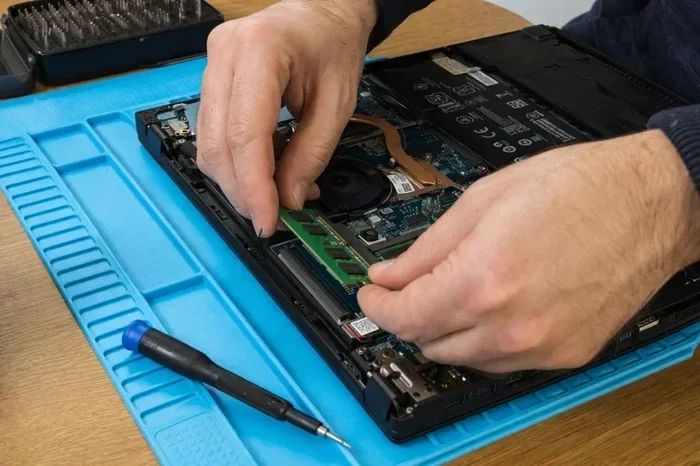
Start with the simplest fix. Power off your laptop completely, unplug it, and remove the battery if possible. Open the back panel and carefully remove each RAM stick. Then, firmly reinsert them, making sure you hear the click on both sides.
This alone resolves the issue for a surprising number of people. Don’t skip this step — loose connections are the most common reason for memory not being detected.
Fix 2: Clean the RAM Contacts
Over time, the gold contacts on your RAM sticks can collect dust or develop oxidation. This prevents a solid connection with the slot. Take a soft, lint-free cloth or a clean pencil eraser and gently rub the contacts on each stick.
Blow out any debris from the RAM slots too. A can of compressed air works great for this. Clean contacts often restore a working connection that seemed broken.
Fix 3: Test One Stick at a Time
If you installed multiple new modules, the problem might be with just one of them. Remove all the new RAM and test your system with the old modules first. Then, add each new stick back one at a time.
This helps you identify whether a single defective module is causing the problem. If your laptop works with one stick but not two, the modules might not be compatible with each other for dual channel mode.
Fix 4: Check RAM Compatibility
Before you blame the installation, double-check that your new memory is actually compatible with your laptop. Look up your laptop model and check the manufacturer’s specifications for supported RAM type, speed, and maximum capacity.
If you’re unsure, visit the manufacturer’s website or check your laptop’s user manual. Buying the right RAM for your specific model prevents most compatibility headaches. If you’re still figuring out whether upgrades are possible, you can read more about whether you can upgrade RAM in your laptop for guidance.
Fix 5: Update Your BIOS
An outdated BIOS can prevent your laptop from recognizing newer or higher-capacity memory modules. Visit your laptop manufacturer’s support page, enter your model number, and download the latest BIOS update.
Follow the manufacturer’s instructions carefully when updating BIOS. This process can be sensitive, so make sure your laptop is plugged in and won’t shut down during the update. After the update, restart and check if your new memory is detected.
Fix 6: Reset the CMOS
The CMOS stores your laptop’s hardware settings, including memory configuration. Sometimes after a hardware change, the CMOS needs to be reset to recognize the new components properly.
To reset the CMOS, you can either remove the CMOS battery from the motherboard for a few minutes or use the CMOS reset jumper if your laptop has one. After resetting, reconnect everything and power on. This often clears up BIOS-level detection issues.
Fix 7: Try Different RAM Slots
If one RAM slot is damaged, any stick you put in it won’t work. Try moving your memory modules to different slots. If a stick works in slot 1 but not slot 2, the problem is the slot, not the module.
Refer to your laptop’s manual to understand the correct slot configuration for optimal performance. Some laptops require you to fill slots in a specific order for dual channel mode to activate properly.
Common Mistakes When Upgrading Laptop RAM
Avoid these common pitfalls that lead to ram upgrade problems and wasted money.
- Buying the wrong RAM type: DDR3 and DDR4 look similar but are not interchangeable. Always verify the type before purchasing.
- Ignoring speed ratings: Mixing RAM sticks with different speeds can cause instability. Match the speed of your new modules to your existing ones.
- Overlooking max capacity: Your laptop might only support 16GB or 32GB total. Going over that limit means the extra memory simply won’t work.
- Forcing a stick into the slot: RAM should slide in with moderate pressure and click into place. Forcing it can damage both the stick and the slot.
- Not grounding yourself: Static electricity can damage sensitive components. Always touch a metal surface before handling RAM or other internal parts.
When to Seek Professional Help
Most ram not working after upgrade issues are solvable at home. But sometimes, the problem runs deeper than a loose connection or incompatible module.
If you’ve tried every fix above and your memory still isn’t detected, the motherboard slot itself might be damaged. Similarly, if your laptop still won’t boot after a successful RAM installation, there could be a deeper hardware issue at play. In these cases, it’s worth consulting a professional technician.
Also, if your laptop is still under warranty, avoid opening it yourself. Contact the manufacturer’s support team first. Opening the device might void your warranty, and they can often help with memory-related issues remotely or through authorized service centers.
How to Prevent RAM Issues After Upgrade
Prevention is always easier than troubleshooting. Here’s how to set yourself up for a smooth RAM upgrade experience every time.
- Research your laptop model thoroughly before buying any memory. Check the maximum supported capacity, RAM type, and speed.
- Purchase from reputable brands like Kingston, Corsair, Crucial, or Samsung. Cheap, no-name modules are more likely to be defective.
- Match your existing RAM as closely as possible. If you already have one 8GB DDR4-3200 stick, buy another identical one for the best results.
- Handle RAM carefully by the edges. Avoid touching the gold contacts, and always ground yourself before handling components.
- Update your BIOS before installing new memory if possible. This ensures your system is ready to recognize newer modules.
Following these steps dramatically reduces the chances of running into issues. For a detailed walkthrough of the entire installation process, check out this guide on how to upgrade the RAM of a laptop.
How Much Does a RAM Upgrade Cost?
If you’re wondering about the investment side of things, RAM upgrades are surprisingly affordable. A standard 8GB DDR4 stick typically costs between $25 and $45, while 16GB modules range from $50 to $80. Higher-capacity or high-speed modules can cost more, but for most users, a simple 16GB upgrade delivers a noticeable performance boost without breaking the bank.
If you’d like a more detailed breakdown of what to expect, you can check out the cost of RAM upgrade on a laptop to understand pricing across different options and scenarios.
Final Thoughts
Dealing with ram not working after upgrade is frustrating, but it’s almost always fixable. Start with the simplest solutions — reseating the sticks, cleaning the contacts, and testing one module at a time. Work your way up to BIOS updates and CMOS resets if needed. Most importantly, prevent future issues by buying compatible memory and handling components carefully.
Remember, every laptop has its quirks. What works for one model might not work for another. But armed with the right knowledge, you can troubleshoot like a pro. Your upgraded memory will be running smoothly in no time, and you’ll wonder why you ever worried.
For more help with laptop upgrades, explore our guides on how to upgrade my laptop RAM and get the most out of your system.
Frequently Asked Questions
Why is my new RAM not showing up in my system?
The most common reason is that the RAM sticks aren’t fully seated in their slots. Remove them, clean the contacts, and reinsert them firmly until they click into place. If that doesn’t work, try testing each stick individually in different slots to rule out a faulty module or damaged slot.
Can incompatible RAM damage my laptop?
In most cases, incompatible RAM simply won’t be recognized and won’t cause physical damage. However, forcing a RAM stick into the wrong type of slot can potentially harm the connector. Always verify compatibility before installation to avoid any risk.
How do I know if my laptop supports the RAM I bought?
Check your laptop’s user manual or visit the manufacturer’s website and enter your model number. Look for the supported RAM type (DDR3, DDR4, DDR5), maximum capacity, and speed ratings. Matching these specifications ensures your new memory will work properly.
Do I need to update my BIOS before adding new RAM?
It’s not always necessary, but updating your BIOS can help if your laptop doesn’t recognize newer or higher-capacity memory modules. Check your manufacturer’s support page for BIOS updates related to memory compatibility before assuming the RAM is faulty.
What should I do if only one of my new RAM sticks works?
This usually means the non-working stick is defective, or the two modules aren’t compatible with each other. Try swapping their positions and testing each one alone. If one stick consistently fails, it’s likely defective and should be replaced under warranty.
Can dust cause RAM not to be detected?
Yes, dust and oxidation on the gold contacts can prevent a solid connection between the RAM stick and the slot. Cleaning the contacts with a soft cloth or a pencil eraser, and blowing out the slots with compressed air, often resolves detection issues caused by debris.
=== CONCLUSION ===
Ram not working after upgrade doesn’t have to be a permanent problem. With the right approach, you can diagnose and fix the issue yourself in most cases. Start simple — reseat the sticks, clean the contacts, and check compatibility. Move to BIOS updates and CMOS resets if needed. And when all else fails, professional help is always an option.
The key is patience and methodical troubleshooting. Don’t assume the new memory is defective right away. Work through each fix systematically, and you’ll likely have your laptop running smoothly with upgraded RAM in no time. Share this guide with anyone you know who’s struggling with their memory upgrade — it might save them a trip to the repair shop.