How to Upgrade My Laptop Ram
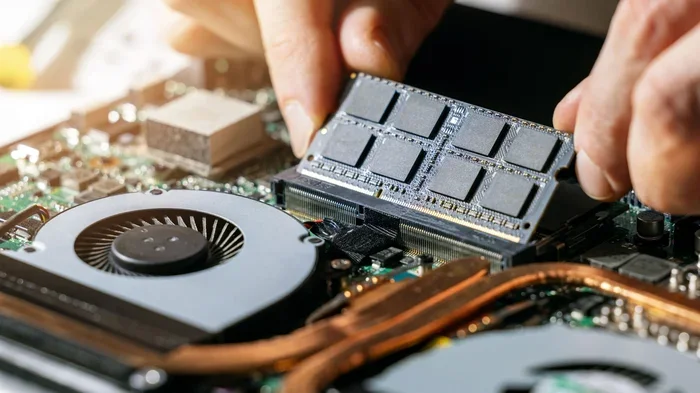
Upgrading your laptop RAM is one of the easiest and most affordable ways to breathe new life into a slow computer. This guide walks you through every step, from checking your current memory to installing new modules. You will learn how to choose the right RAM, avoid common mistakes, and enjoy a faster laptop in under an hour.
Is your laptop running slow? Do you find yourself waiting forever for apps to open or tabs to load? The answer might be simpler than you think. Upgrading your laptop RAM can transform a sluggish machine into a responsive powerhouse. In this guide, we will show you exactly how to do it yourself.
Random Access Memory, or RAM, is the short-term memory your laptop uses to handle everyday tasks. Think of it as your computer’s workspace. The more space you have, the more things you can juggle at once. When your RAM fills up, your laptop starts using your hard drive as a backup, which slows everything down dramatically.
The good news is that upgrading RAM is one of the cheapest and most effective upgrades you can make. A new memory upgrade can cost as little as $20 to $50, yet the performance boost feels like getting a whole new laptop. Whether you are a student, a remote worker, or a casual gamer, more RAM makes a real difference in your daily computing experience.
Key Takeaways
- Check compatibility first: Always verify your laptop model supports RAM upgrades before buying anything.
- Know your current specs: Use built-in tools to check how much RAM you have and what type you need.
- Choose the right RAM type: DDR4 and DDR5 are the most common options for modern laptops.
- Follow safety steps: Power off, unplug, and ground yourself before opening your laptop.
- Upgrade benefits are immediate: You will notice faster multitasking, smoother browsing, and better overall speed right away.
- Maximum capacity matters: Check your laptop’s max RAM limit to avoid wasting money on incompatible modules.
📑 Table of Contents
Why Upgrading Laptop RAM Matters
Many people ignore their laptop’s memory until things get painfully slow. But understanding why RAM matters helps you appreciate the upgrade process more. Here is what happens when you add more memory to your system.
Better Multitasking
With more RAM, you can keep dozens of browser tabs open while running other apps simultaneously. You will not experience that frustrating freeze when you switch between programs. System performance improves because your laptop has enough space to hold all active data in memory.
Faster Application Loading
Heavy applications like video editors, photo software, and even modern web browsers eat up memory fast. Adding RAM reduces load times significantly. Your programs will open almost instantly instead of making you wait.
Smoother Gaming and Creative Work
If you enjoy gaming or creative projects like video editing, RAM is essential. Modern games and editing software have minimum RAM requirements. Going below those requirements leads to stuttering, crashes, and poor performance. A laptop RAM upgrade ensures your machine can handle demanding workloads with ease.
How to Check Your Current RAM
Before you buy anything, you need to know what you currently have. Checking your existing RAM takes just a few minutes and saves you from buying the wrong type.
Using Built-In Windows Tools
On Windows, press Ctrl + Shift + Esc to open Task Manager. Click the Performance tab and look for Memory. You will see how much RAM is installed, what type it is, and how many slots are in use. This information is crucial before you shop for new modules.
Using System Information
You can also search for System Information in your Windows search bar. Look for Installed Physical Memory (RAM) in the details. This gives you the total amount of memory your laptop recognizes.
For a deeper dive into checking your memory, you can read our detailed guide on how to check the RAM on my laptop. It covers every method in detail.
Using Command Prompt
Open Command Prompt and type wmic memorychip get capacity, speed, memorytype. This command shows you each RAM stick’s details, including speed and type. It is a quick way to gather specs before shopping.
How to Choose the Right RAM for Your Laptop
Not all RAM is the same. Buying the wrong type will not work, so you need to pay attention to a few key specifications.
DDR4 vs DDR5 RAM
The two most common types today are DDR4 and DDR5. DDR4 is older but still widely used in many laptops. DDR5 is newer and faster, but it is also more expensive. Check your laptop’s specifications to determine which type you need. Mixing RAM types is not possible, so match your existing modules exactly.
RAM Speed and Frequency
RAM speed is measured in megahertz (MHz). Higher numbers mean faster data transfer. However, your laptop’s motherboard limits the maximum speed it can support. Always check your laptop’s specifications before buying faster RAM. Buying RAM that exceeds your motherboard’s capability will not give you any extra benefit.
Capacity: How Much RAM Do You Need?
The right amount depends on how you use your laptop. Here is a quick breakdown:
- 4GB: Basic browsing and word processing only. Not enough for modern multitasking.
- 8GB: The sweet spot for everyday users. Handles browsing, office work, and light gaming well.
- 16GB: Ideal for creative professionals, gamers, and heavy multitaskers.
- 32GB: Best for video editing, 3D rendering, and intensive programming work.
If you are unsure how much memory you actually need, check out our guide on how much RAM do I need on my laptop. It helps you find the perfect amount for your usage.
RAM Compatibility Checklist
Before purchasing RAM, run through this checklist to make sure everything matches:
- Check your laptop model’s maximum RAM capacity.
- Verify the RAM type (DDR4 or DDR5).
- Confirm the number of available memory slots.
- Match the RAM speed to what your laptop supports.
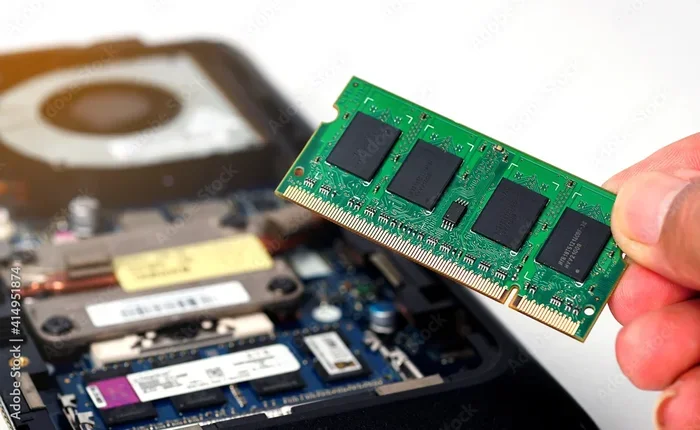
- Check if your laptop uses SO-DIMM modules (laptop-specific RAM sticks).
Step-by-Step: How to Upgrade My Laptop RAM
Now for the exciting part. Actually upgrading your RAM is surprisingly simple and takes less time than you might expect. Follow these steps carefully for a smooth process.
Step 1: Gather Your Tools
You will need a small Phillips-head screwdriver, an anti-static wrist strap (optional but recommended), and your new RAM modules. A clean, well-lit workspace is also important. Lay down a soft cloth to protect your laptop from scratches.
Step 2: Power Down and Disconnect
Shut down your laptop completely. Unplug the power cable and remove the battery if possible. This prevents any electrical damage during the upgrade process. Wait a few minutes after shutting down to let any residual charge dissipate.
Step 3: Open the Laptop Back Panel
Flip your laptop over and locate the screws holding the back panel. Use your screwdriver to carefully remove them. Keep the screws in a safe place. Gently pry the panel off using a plastic prying tool. Avoid using metal tools that could scratch the casing.
Step 4: Locate the RAM Slots
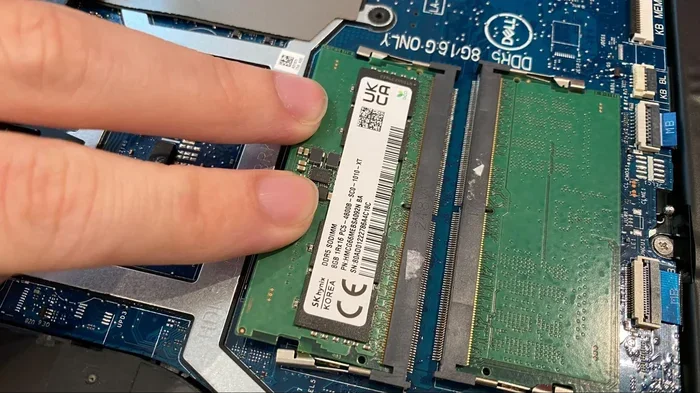
Once the back panel is removed, you will see the RAM slots. They are long, thin slots with clips on each end. Your existing RAM sticks will be seated in these slots. If both slots are occupied, you may need to remove the existing modules to replace them with higher-capacity ones.
Step 5: Remove Old RAM (If Needed)
To remove existing RAM, gently push the clips on each side outward. The module will pop up at an angle. Pull it straight out carefully. Handle the RAM by the edges only. Never touch the gold connectors on the bottom of the module.
Step 6: Install New RAM
Take your new RAM module and align it with the slot. The notch on the RAM stick should match the ridge in the slot. Push the module firmly at an angle until it clicks into place. The side clips should snap back and lock the module securely.
If you want a visual walkthrough of the installation process, our article on how to install RAM in HP laptop provides detailed images and extra tips.
Step 7: Close Up and Test
Replace the back panel and screw it back in. Reconnect the battery and power cable. Turn on your laptop and check if the new RAM is recognized. You can verify this by going to Task Manager and looking at the Memory section. The total RAM should now reflect your upgrade.
Common Mistakes to Avoid When Upgrading RAM
Even though upgrading RAM is straightforward, a few common mistakes can cause problems. Here is what to watch out for.
Buying Incompatible RAM
The most common mistake is buying RAM that does not match your laptop’s specifications. Always double-check the type, speed, and form factor before purchasing. When in doubt, check your laptop manufacturer’s website for the approved RAM list.
Forgetting to Ground Yourself
Static electricity can damage sensitive components like RAM modules. Always ground yourself by touching a metal surface before handling internal parts. An anti-static wrist strap provides extra protection and is a worthwhile investment.
Not Seating the RAM Properly
If the RAM is not fully clicked into place, your laptop may not recognize it. You should hear a clear click when the module seats properly. If you are unsure, remove and reinsert the module, making sure it locks in firmly.
Ignoring Maximum Capacity Limits
Every laptop has a maximum RAM capacity it can support. Installing more RAM than your laptop can handle will not work. Check your laptop’s specifications or manual to find the maximum supported capacity before buying.
Benefits of a RAM Upgrade You Will Notice Immediately
After completing your laptop RAM upgrade, you will notice several immediate improvements in how your computer performs.
- Faster boot times: Your laptop starts up more quickly with more available memory.
- Smoother multitasking: Switch between apps without any lag or freezing.
- Better browser performance: Keep more tabs open without slowdowns.
- Reduced loading times: Applications and games launch faster.
- Improved video playback: HD and 4K content plays more smoothly.
Many people think they need to buy a new laptop when their old one gets slow. In most cases, a simple memory upgrade solves the problem entirely. It is cost-effective, eco-friendly, and takes less than an hour to complete.
When a RAM Upgrade Is Not Enough
While RAM upgrades help significantly, they are not a cure-all. If your laptop still feels slow after adding more memory, other factors might be at play. An old hard drive, a slow processor, or insufficient storage space can all contribute to poor performance. In those cases, consider a solid-state drive upgrade or other improvements alongside your RAM boost.
For tips on other laptop maintenance topics, check out how to fix common laptop issues like fixing a malfunctioning mouse or getting your mouse back online.
Final Thoughts
Upgrading your laptop RAM is one of the best investments you can make for your computer’s longevity and performance. The process is straightforward, affordable, and delivers noticeable results almost immediately. Whether you are a student juggling multiple apps or a professional running demanding software, more RAM will make your daily workflow smoother and more enjoyable.
Start by checking your current memory, choose the right modules, and follow the installation steps carefully. You do not need to be a tech expert to upgrade your laptop RAM. With a little patience and the right tools, you can do it yourself in no time. Your laptop will thank you with faster speeds and better responsiveness every single day.
Frequently Asked Questions
Can I upgrade my laptop RAM myself?
Yes, upgrading laptop RAM is one of the easiest DIY computer upgrades. You only need a small screwdriver and about 20 to 30 minutes. Most laptops have an access panel on the bottom that gives you direct entry to the RAM slots. Just make sure to power off your laptop and ground yourself before touching any internal components.
How do I know if my laptop RAM is upgradeable?
Check your laptop manufacturer’s website or manual for specifications. Look for information about maximum RAM capacity and available memory slots. You can also open your laptop’s back panel to visually inspect the RAM slots. If your laptop has empty slots or removable modules, it is upgradeable.
What happens if I install the wrong type of RAM?
If you install incompatible RAM, your laptop may not boot at all or will only recognize partial capacity. Always match the RAM type (DDR4 or DDR5), speed, and form factor to your laptop’s specifications. When in doubt, consult your laptop’s user manual or the manufacturer’s website for approved RAM models.
How much RAM do most laptops support?
Most modern laptops support between 8GB and 32GB of RAM. Some high-end models can even support 64GB. Check your specific laptop model to find the exact maximum capacity. Keep in mind that some laptops have RAM soldered to the motherboard and cannot be upgraded at all.
Will upgrading RAM make my laptop faster?
Yes, upgrading RAM will make your laptop noticeably faster, especially during multitasking and heavy workloads. If your laptop currently has 4GB or 8GB of RAM, adding more will significantly improve performance. However, if your laptop already has 16GB or more, a RAM upgrade may not yield dramatic improvements.
How long does a laptop RAM upgrade take?
A laptop RAM upgrade typically takes 15 to 30 minutes from start to finish. The actual installation process is very quick. Most of the time is spent gathering the right tools, opening the back panel, and verifying the new RAM is recognized by the system.