Share Laptop Internet
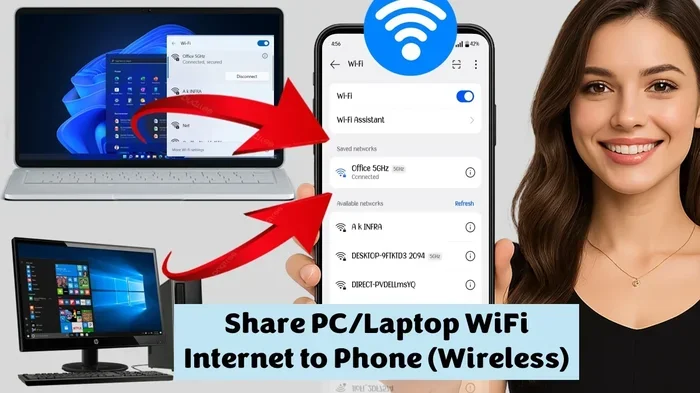
Sharing your laptop internet is one of the simplest ways to stay connected when Wi-Fi is unavailable. Whether you need to share your connection with a phone, tablet, or another computer, your laptop can act as a mobile hotspot in just a few minutes. This guide walks you through every method, from built-in Windows settings to third-party tools, so you can get all your devices online fast.
Have you ever been in a situation where your phone has no signal but your laptop does? Or maybe you are at a coffee shop and your friend needs to get online right away. Whatever the reason, sharing laptop internet is a handy skill everyone should know.
Your laptop can do more than just run apps and browse the web. It can also act as a portable hotspot that shares its internet connection with phones, tablets, and other computers. The process is simpler than most people think, and you do not need any fancy equipment to get started.
In this guide, we will cover every way you can share your laptop internet. From the built-in Windows hotspot tool to Bluetooth tethering and USB sharing, you will find the best method for your needs. Let us dive right in.
Key Takeaways
- Built-in Hotspot Feature: Windows 11 makes it easy to share laptop internet without extra software.
- Multiple Methods Available: You can use Wi-Fi hotspot, Bluetooth tethering, or a USB cable to share your connection.
- No Router Needed: Your laptop can become a portable router for temporary internet access.
- Easy to Set Up: Most methods take less than five minutes and require no technical skills.
- Security Matters: Always set a strong password when sharing your laptop internet to protect your data.
- Performance Varies: The method you choose affects speed, range, and battery life of your laptop.
📑 Table of Contents
- Why Share Laptop Internet?
- How to Share Laptop Internet Using Windows Built-In Hotspot
- Share Laptop Internet via USB Tethering
- Bluetooth Tethering for Sharing Internet
- Third-Party Software for Sharing Laptop Internet
- Tips for Optimizing Shared Internet Speed
- Security Best Practices When Sharing Internet
- Common Mistakes to Avoid
- Frequently Asked Questions
- Conclusion
Why Share Laptop Internet?
There are many real-world situations where sharing your laptop internet comes in handy. Understanding these scenarios helps you see the value in learning this skill.
First, imagine you are traveling and the hotel Wi-Fi is too weak to reach your phone. Your laptop is connected to the ethernet or a strong signal nearby. Instead of struggling with the router, you simply share your laptop internet with your phone. Problem solved.
Second, you might be at a location where only one device can connect to the internet. A laptop with ssd and 16gb ram handles this task smoothly without slowing down. You can share the connection with your phone or tablet while keeping your laptop online too.
Third, some people live in areas with limited internet options. Sharing a single connection across multiple devices saves money and keeps everyone connected.
Common Situations That Call for Sharing
- Weak or no Wi-Fi signal in your home or office
- Traveling with limited connectivity options
- Emergency situations when your phone data is low
- Working in a location with no internet infrastructure
- Needing to connect a second device quickly
How to Share Laptop Internet Using Windows Built-In Hotspot
The easiest and most popular way to share laptop internet is by using the built-in hotspot feature in Windows. This tool comes pre-installed on most modern laptops and requires no extra downloads.
Step-by-Step Setup for Windows 11
Follow these simple steps to turn your laptop into a Wi-Fi hotspot:
- Click the Start menu and open Settings.
- Go to Network and Internet.
- Click on Mobile Hotspot from the left sidebar.
- Turn on the Share my internet connection with other devices toggle.
- Choose your connection source from the dropdown menu.
- Set a network name and password.
- Click Save and turn on the hotspot.
That is it. Your laptop is now broadcasting a Wi-Fi signal. Other devices can find your network name and connect using the password you set.
Adjusting Hotspot Settings
You can customize your hotspot for better performance. Go to the Mobile Hotspot settings and change the share over option. You can choose to share via Wi-Fi, Bluetooth, or USB. For the fastest speeds, stick with Wi-Fi sharing.
Also, you can set a band preference. The 5GHz band offers faster speeds but shorter range. The 2.4GHz band covers more distance but is slower. Choose based on your needs. If you are sharing laptop internet in a large room, 2.4GHz works better.
Share Laptop Internet via USB Tethering
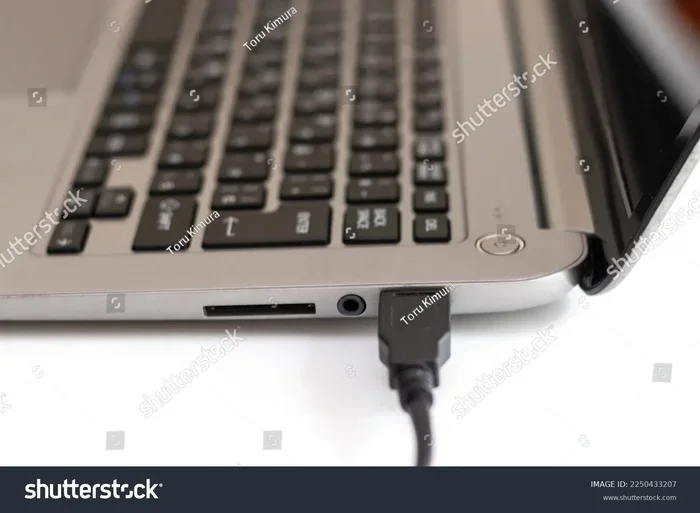
USB tethering is another great way to share laptop internet. This method uses a USB cable to connect your laptop to another device, like a phone or tablet. It provides a stable and fast connection.
How USB Tethering Works
When you use USB tethering, your laptop shares its internet connection through the cable. The connected device gets a wired-like connection, which is usually faster and more reliable than Wi-Fi.
This method is especially useful when you need a strong, stable connection for gaming or video calls. Unlike Wi-Fi hotspots, USB tethering does not drain your laptop battery as quickly. It also keeps your connection more secure since the signal does not broadcast through the air.
Setting Up USB Tethering
Here is how to set it up:
- Connect your laptop to the other device using a USB cable.
- On the receiving device, go to Settings and then Network and Internet.
- Look for Hotspot and tethering or USB settings.
- Enable USB tethering.
- The device should connect to the internet automatically.
Keep in mind that not all laptops support USB tethering the same way. Some may require you to install a driver or update your network adapter. If you run into issues, check your laptop specifications. A laptop with lots of ram and updated drivers usually handles tethering without problems.
Bluetooth Tethering for Sharing Internet
Bluetooth tethering is a wireless alternative to USB sharing. It uses Bluetooth technology to transfer your internet connection to another device. While slower than Wi-Fi or USB, it works well in a pinch.
When to Use Bluetooth Tethering
Bluetooth tethering is best for light internet tasks. Checking email, browsing the web, or sending messages works fine. For heavy downloads or streaming, this method may not be ideal.
One major advantage is battery usage. Bluetooth uses less power than Wi-Fi hotspot mode. So if you are trying to conserve your laptop battery while sharing laptop internet, Bluetooth is a good option.
How to Set Up Bluetooth Tethering
- Turn on Bluetooth on both your laptop and the receiving device.
- Pair the two devices by searching for available Bluetooth connections.
- Once paired, go to your laptop Network settings.
- Find the Bluetooth network and enable internet sharing.
- On the receiving device, connect to the Bluetooth network.
Bluetooth tethering has a shorter range than Wi-Fi, usually around 30 feet. Make sure both devices stay close for a stable connection.
Third-Party Software for Sharing Laptop Internet
While Windows has a built-in hotspot tool, some users prefer third-party applications. These programs offer more features, better control, and sometimes improved performance.
Popular Hotspot Software Options
- Connectify Hotspot: A widely used tool that turns your laptop into a full-featured router. It supports multiple devices and offers advanced security settings.
- mHotspot: A free and lightweight option for Windows users. It is easy to set up and works well for basic sharing needs.
- Virtual Router Plus: An open-source tool that requires no installation. It is a quick fix when you need to share laptop internet fast.
Pros and Cons of Third-Party Tools
Third-party software gives you more control over your hotspot settings. You can set bandwidth limits, manage connected devices, and customize security protocols. However, some tools may include ads or require a paid version for full features.
Before installing any software, make sure your laptop meets the requirements. A system with strong specs like a laptop intel core i7 32gb ram 1tb ssd runs these tools smoothly. Even older laptops with proper upgrades can handle basic hotspot software.
If you ever need to upgrade your laptop storage to support these tools or improve overall performance, consider installing an M.2 NVMe SSD for faster speeds and better multitasking.
Tips for Optimizing Shared Internet Speed
Sharing your laptop internet does not mean you have to sacrifice speed. A few simple tips can help you get the best performance out of your shared connection.
1. Use a Wired Connection When Possible
If your laptop is connected to the internet via an ethernet cable, the shared connection will be faster and more stable than if you are using Wi-Fi as the source. A wired connection provides consistent speeds that do not fluctuate with distance or interference.
2. Limit Connected Devices
The more devices connected to your shared hotspot, the slower the internet gets for everyone. Try to limit the number of connected devices to two or three for the best experience.
3. Keep Your Laptop Plugged In
Sharing internet drains your laptop battery faster. Keep your laptop plugged in while acting as a hotspot. This also prevents your laptop from going to sleep and interrupting the connection.
4. Update Your Network Drivers
Outdated network drivers can slow down your connection significantly. Regularly update your drivers through Device Manager or your laptop manufacturer’s website. A well-maintained system with good ram upgrade for my laptop practices keeps everything running smoothly.
5. Choose the Right Wi-Fi Band
As mentioned earlier, 5GHz is faster but shorter range. 2.4GHz is slower but covers more distance. Pick the band that matches your situation. For close-range sharing, go with 5GHz. For longer distances, 2.4GHz is better.
Security Best Practices When Sharing Internet
Sharing your laptop internet exposes your network to other devices. You should always follow security best practices to protect your data and privacy.
Use a Strong Password
Never leave your hotspot open or use a simple password like “123456.” Create a strong password with at least 12 characters, mixing letters, numbers, and symbols. This prevents unauthorized users from accessing your connection.
Turn Off Hotspot When Not in Use
Always disable your hotspot when you are not actively sharing. An open hotspot left running can attract unwanted connections and slow down your laptop.
Monitor Connected Devices
Most hotspot tools show you a list of connected devices. Check this list regularly to make sure only your trusted devices are connected. If you see unknown devices, change your password immediately.
Enable Firewall Protection
Make sure your Windows Firewall is active when sharing your connection. This adds a layer of protection between your laptop and the devices using your shared internet.
Common Mistakes to Avoid
Even though sharing laptop internet is straightforward, people often make mistakes that cause problems. Here are some common errors to watch out for.
- Forgetting to set a password: An open hotspot is a security risk. Always set a password before turning on the hotspot.
- Using outdated drivers: Old network drivers cause slow speeds and connection drops. Update them regularly.
- Overheating your laptop: Running a hotspot for long hours can cause your laptop to overheat. Place it on a hard surface and use a cooling pad if needed. Laptop overheating is a real concern that can damage your device.
- Ignoring data limits: If your internet plan has a data cap, sharing your connection can eat through it quickly. Monitor your usage.
- Not updating Windows: Outdated operating systems may have bugs that affect hotspot performance. Keep your system updated.
Frequently Asked Questions
Can I share my laptop internet with multiple devices at once?
Yes, you can. The Windows built-in hotspot supports multiple devices simultaneously. However, the more devices connected, the slower the speed for each one. Keep the number of connected devices manageable for the best performance.
Does sharing laptop internet slow down my laptop?
It can use some of your laptop’s processing power and memory. A laptop with solid specs handles this well. If your laptop is older or has limited resources, you may notice a slight slowdown. Keeping your system updated and well-maintained helps minimize this impact.
Is it safe to share my laptop internet over Wi-Fi?
It is safe as long as you use a strong password and keep your firewall enabled. Avoid sharing on public networks without protection. Always turn off the hotspot when you are not using it to reduce security risks.
Can I share laptop internet without Wi-Fi?
Yes. You can use USB tethering or Bluetooth tethering to share your internet without a Wi-Fi connection. USB tethering is faster and more stable, while Bluetooth uses less power and works over shorter distances.
How do I stop my laptop from sharing internet?
Go to Settings, then Network and Internet, and click Mobile Hotspot. Toggle it off to stop sharing. You can also turn off Bluetooth or disconnect the USB cable if you are using those methods.
What is the best way to share laptop internet for gaming?
USB tethering is the best option for gaming because it provides a wired-like connection with low latency. Wi-Fi hotspot works too but may have more lag. For the smoothest gaming experience, connect via USB cable.
Conclusion
Sharing laptop internet is a practical and valuable skill that everyone can learn. Whether you use the built-in Windows hotspot, USB tethering, Bluetooth sharing, or third-party software, the process is straightforward and takes only a few minutes.
Remember to always secure your shared connection with a strong password. Monitor connected devices and turn off the hotspot when you are done. These simple habits keep your data safe and your connection fast.
With the right setup and a few best practices, your laptop becomes a powerful tool for keeping all your devices online. So the next time you need to share your internet, you will know exactly what to do. Start sharing with confidence and stay connected wherever you go.