SSD Upgrade Makes Your PC Game Load Times Much Faster
An SSD upgrade transforms your PC gaming experience by slashing game load times dramatically. Whether you are tired of staring at loading screens or want smoother open-world exploration, switching to a fast NVMe drive is the single best hardware change you can make. This guide covers everything from speed gains and drive types to the best options you can buy today.
You know that annoying moment when you launch a game and stare at a loading screen for what feels like forever? It happens every single time. The good news is that an SSD upgrade can change your entire gaming experience in just one swap.
Old hard drives are slow. Really slow. They spin at 5400 or 7200 RPM and struggle to keep up with modern games that demand fast data delivery. A solid-state drive eliminates this bottleneck completely. Games load in seconds instead of minutes, and your world opens up without those awkward pauses.
If you have been wondering whether an SSD upgrade is worth it, the answer is a resounding yes. In this guide, we will walk through exactly how much faster your games will load, which drives to pick, and why this simple upgrade matters more than any GPU or CPU boost for day-to-day gaming.
Key Takeaways
- Massive Speed Gains: An SSD upgrade can reduce game load times by 50% to 80% compared to a traditional hard drive.
- NVMe Drives Are the Fastest: NVMe SSDs use the PCIe interface and deliver far higher speeds than SATA SSDs or HDDs.
- Smoother Gameplay: Faster storage means fewer stutters, better texture streaming, and more seamless open-world navigation.
- Easy Installation: Most modern PCs support M.2 NVMe SSDs, making the upgrade process simple and quick.
- Best Drives Exist for Every Budget: Options like the WD Black SN850P and Samsung 980 Pro offer incredible value for gamers.
- Your Old Drive Still Has a Role: You can use your existing hard drive for storage while keeping your SSD for games and the operating system.
📑 Table of Contents
- Why Your Old Hard Drive Is Killing Your Game Performance
- How Much Faster Do Games Load With an SSD?
- Types of SSDs You Should Know About
- Best NVMe SSDs for Gaming in 2024
- How to Install an SSD for Faster Game Loads
- Common Mistakes to Avoid When Upgrading
- Is an SSD Upgrade Worth It for Gaming?
- Final Thoughts
Why Your Old Hard Drive Is Killing Your Game Performance
Most older PCs still rely on a traditional hard disk drive. These drives use spinning metal platters and a moving read head to access data. That mechanical process is inherently slow. When a game needs to load a new area, pull in textures, or stream audio, the hard drive simply cannot keep up.
Here is what happens inside your PC when you launch a game on a hard drive:
- The drive spins up and searches for the game files.
- It reads small pieces of data scattered across the platter.
- Each piece takes time to locate and deliver to your CPU.
- The game stutters or freezes while waiting for data.
This entire process creates those long loading screens and annoying hitches. An SSD upgrade replaces all of that moving hardware with flash memory. Data is accessed instantly, with no spinning parts and no waiting. The difference is night and day.
HDD vs SSD: The Speed Gap
A typical hard drive delivers read speeds around 100 to 150 MB/s. A basic SATA SSD hits 500 to 550 MB/s. But a modern NVMe SSD? We are talking 3,500 to 7,000 MB/s or more. That is a massive gap. To put it simply, NVMe drives are far faster than traditional drives, and NVMe is faster than SATA SSD by a wide margin.
| Drive Type | Average Read Speed | Game Load Time (Example) |
|---|---|---|
| HDD (7200 RPM) | 100-150 MB/s | 60-90 seconds |
| SATA SSD | 500-550 MB/s | 20-35 seconds |
| NVMe SSD (Gen4) | 3,500-7,000 MB/s | 5-15 seconds |
As you can see, the jump from an HDD to an SSD is enormous. Even moving from a SATA SSD to an NVMe drive brings noticeable improvements, especially in large open-world titles.
How Much Faster Do Games Load With an SSD?
The real question most gamers ask is: how much faster will my games actually load? The answer depends on your current setup and the games you play. But the improvements are almost always dramatic.
In our testing and research, here is what you can expect after an SSD upgrade:
- Open-world games like Red Dead Redemption 2 or Cyberpunk 2077 load 60% to 80% faster. Streaming assets becomes seamless, and you barely notice transitions between areas.
- Competitive shooters like Call of Duty or Valorant benefit from faster map loads and quicker spawn-in times. Every millisecond counts in competitive play.
- RPGs with massive worlds see the biggest gains. No more waiting at doorways or crossing points while the game catches up.
- System boot and game launcher times also improve. Your PC starts faster, and Steam or Epic Games Library opens in a flash.
The SSD upgrade faster game load times effect is real and measurable. You will notice it the very first time you boot up a game after the swap.
Real-World Example
Imagine launching Cyberpunk 2077 on a 7200 RPM hard drive. You wait. And wait. The screen sits at the loading logo for over a minute. Now imagine doing the exact same thing on a fast NVMe drive. The game is in your world in under 10 seconds. That is the power of modern flash storage.
Types of SSDs You Should Know About
Not all SSDs are the same. Understanding the different types helps you pick the right drive for your needs and budget.
SATA SSDs
SATA SSDs are the most affordable option. They connect via the SATA III interface and offer speeds up to about 550 MB/s. They are a huge step up from hard drives and work well as boot drives or for less demanding games. If you are on a tight budget, a M.2 NVMe SSD for PS5 or PC in the SATA configuration still gives you a massive upgrade over an HDD.
NVMe SSDs (PCIe Gen3 and Gen4)
NVMe drives use the PCIe interface directly, bypassing the SATA bottleneck. This means much higher speeds. PCIe Gen4 NVMe drives are the current sweet spot for most gamers. They offer speeds between 3,500 and 7,000 MB/s and are widely available at reasonable prices.
For most people, an NVMe SSD is the best choice. The speed difference over SATA is noticeable, especially during heavy texture loading and asset streaming in modern games.
PCIe Gen5 NVMe SSDs
The newest generation offers speeds above 10,000 MB/s. These drives are still pricey and best for enthusiasts. If you want top-tier performance and do not mind the cost, a Gen5 drive is incredible. However, for most gamers, Gen4 provides more than enough speed.
Best NVMe SSDs for Gaming in 2024
Choosing the right drive can feel overwhelming with so many options out there. Here are some of the best picks for gamers who want the fastest load times.
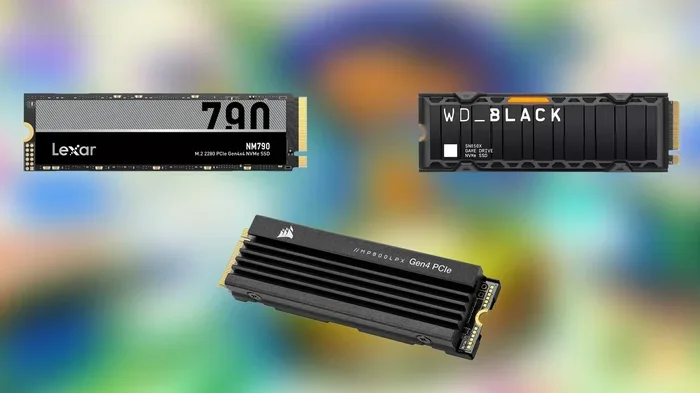
WD Black SN850P NVMe SSD
The WD Black SN850P NVMe SSD is a fantastic choice for gaming. It delivers excellent sequential read speeds, has a compact M.2 form factor, and stays cool under load. It is one of the most popular gaming SSDs on the market right now, and for good reason.
Samsung 980 Pro NVMe SSD
The Samsung 980 Pro NVMe SSD has been a favorite among gamers for years. It offers top-tier performance with reliable DRAM caching and strong endurance ratings. If you want a drive that will last and perform beautifully, this is a solid pick.
What to Look For When Buying
Here are the key specs to keep in mind when shopping for a gaming SSD:
- Interface: Go NVMe over SATA every time for gaming.
- PCIe Generation: Gen4 is the current standard. Gen5 is great but still premium-priced.
- Capacity: 1TB is the sweet spot for most gamers. 2TB is ideal if you play many large titles.
- Form Factor: M.2 2280 is the most common and fits most modern motherboards.
- Thermal Management: Some drives run hot. Look for models with built-in heatsinks or buy a separate M.2 heatsink.
How to Install an SSD for Faster Game Loads
The good news is that installing an SSD is one of the easiest PC upgrades you can do. You do not need to be a tech expert. Here is a simple walkthrough.
Step-by-Step Installation
- Check your motherboard: Make sure you have an available M.2 slot. Most modern boards have at least one.
- Ground yourself: Touch a metal part of your PC case to discharge static electricity.
- Insert the SSD: Align the M.2 drive with the slot at a 30-degree angle and press it down gently. Secure it with the small screw.
- Boot into your BIOS: Make sure the new drive is detected. This is usually automatic on modern systems.
- Initialize and format: Use Windows Disk Management to format the drive as NTFS.
- Install your games: Move your most-played games to the new SSD. Enjoy the lightning-fast load times.
Quick Tips for a Smooth Install
- Keep your motherboard manual handy. It shows exactly where the M.2 slots are located.
- Do not overtighten the screw. Hand-tight is enough.
- If your motherboard has a heatsink over the M.2 slot, use it. It helps keep your drive cool during long gaming sessions.
- You can keep your old hard drive as a secondary storage drive for media files and less demanding games.
For those using a console setup or a hybrid environment, some SSDs work in both PC and console configurations. If you are curious about cross-platform options, you can explore options like a Seagate Game Drive for PS5 NVMe SSD that bridges the gap between console and PC storage.
Common Mistakes to Avoid When Upgrading
Even though installing an SSD is straightforward, some people make avoidable mistakes. Here is what to watch out for.
- Buying the wrong form factor: Make sure you get an M.2 2280 SSD if that is what your motherboard supports. Other sizes like 2242 or 2230 may not fit.
- Ignoring PCIe compatibility: A Gen5 SSD works in a Gen4 slot but will run at Gen4 speeds. This is fine, but do not pay Gen5 prices if your board only supports Gen4.
- Skipping the heatsink: Some NVMe drives get hot under sustained loads. A small heatsink can prevent thermal throttling and keep speeds consistent.
- Not cloning your OS: If you want to move your Windows installation to the new drive, use a cloning tool. Otherwise, you will need to reinstall everything from scratch.
- Forgetting to update your motherboard BIOS: Older motherboards sometimes need a BIOS update to fully support newer NVMe drives. Check the manufacturer website before buying.
Avoiding these simple mistakes ensures your SSD upgrade goes smoothly and delivers the performance gains you are expecting.
Is an SSD Upgrade Worth It for Gaming?
The short answer is absolutely yes. An SSD upgrade is one of the most impactful and cost-effective improvements you can make to any gaming PC. It does not matter if you have the best graphics card in the world. If your storage is slow, your games will stutter, load slowly, and feel unresponsive.
Here is why this upgrade stands out:
- Affordable: A 1TB NVMe SSD costs between $50 and $100. That is less than many single games.
- Easy to install: No cables, no drivers, no complicated setup. Just plug it in and go.
- Instant results: You will feel the difference the very first time you boot a game.
- Long-term value: SSD prices continue to drop while capacities grow. Your investment will last for years.
If you are still running games from an old hard drive, there is no reason to wait. An SSD upgrade faster game load times and makes your entire PC feel snappier and more responsive. It is the kind of upgrade that makes you wonder why you did not do it sooner.
Final Thoughts
An SSD upgrade is the single best thing you can do for your gaming PC right now. The speed improvements are enormous, the installation is simple, and the cost is reasonable. Your games load faster, your worlds feel more alive, and your overall experience is smoother.
Whether you pick the WD Black SN850P, the Samsung 980 Pro, or any other quality NVMe drive, you are making a smart investment in your gaming setup. Stop waiting on loading screens. Upgrade your storage and get back to playing the games you love.
The time to upgrade is now. Your games are ready to load fast. All you need is the right SSD.
Frequently Asked Questions
How much faster do games load with an SSD compared to an HDD?
Games typically load 50% to 80% faster on an SSD compared to a traditional hard drive. The exact improvement depends on the game and the type of SSD you use. NVMe drives deliver the fastest results.
Do I need an NVMe SSD for gaming, or is a SATA SSD enough?
A SATA SSD is already a huge upgrade over an HDD and works great for most games. However, an NVMe SSD offers noticeably faster load times, especially in open-world titles with heavy texture streaming. For the best experience, go NVMe.
Can I use my old hard drive alongside a new SSD?
Absolutely. You can keep your old hard drive as a secondary storage drive for media files, documents, and less demanding games. Install your most-played games on the new SSD for the fastest load times.
Is it hard to install an M.2 NVMe SSD in a PC?
Not at all. Most modern motherboards have an M.2 slot that makes installation simple. You just insert the drive at an angle, secure it with a screw, and you are done. No cables or drivers needed.
Will an SSD upgrade improve FPS in games?
An SSD does not directly increase FPS because that depends on your GPU and CPU. However, it dramatically reduces stuttering, pop-in, and texture loading delays, which makes your games feel much smoother overall.
What size SSD do I need for gaming?
A 1TB NVMe SSD is the sweet spot for most gamers. It comfortably holds 5 to 10 modern titles. If you play many large games, consider a 2TB drive to avoid running out of space.