How To Change Date And Time Format In Windows 11 Taskbar
Changing the date and time format in Windows 11 taskbar is quick and easy once you know where to look. You can switch between short and long date styles, toggle between 12-hour and 24-hour time, and personalize your taskbar clock in just a few clicks. This guide walks you through every step with clear instructions and helpful tips.
Windows 11 gives you full control over how dates and times appear on your taskbar. Whether you prefer a short date like “01/15/2025” or a long date like “Tuesday, January 15, 2025,” the settings are right at your fingertips. Many users don’t realize how easy it is to change the date and time format in Windows 11 taskbar to match their personal style or work needs.
The taskbar clock sits quietly in the bottom-right corner of your screen. It shows you the time and date, but the default format may not always suit your preferences. Maybe you need a 24-hour clock for work, or perhaps you want a longer date display that includes the day of the week. Whatever your reason, Windows 11 has you covered. This guide will show you exactly how to adjust these settings step by step.
Key Takeaways
- Easy Access: You can change date and time formats through Windows 11 Settings or the Control Panel.
- Multiple Formats: Windows 11 lets you choose short date, long date, 12-hour, and 24-hour time formats.
- Customization Options: You can personalize how dates and times appear on your taskbar clock.
- Troubleshooting Available: Common display issues have simple fixes you can try at home.
- Regional Settings Matter: Your regional format choices affect how dates and times are displayed across your system.
📑 Table of Contents
- Why Date and Time Format Matters on the Taskbar
- How to Access Date and Time Settings in Windows 11
- Changing the Date Format on Your Taskbar
- Switching Between 12-Hour and 24-Hour Time Formats
- Customizing Short and Long Date Display
- Troubleshooting Common Date and Time Issues
- Final Thoughts on Customizing Your Windows 11 Taskbar Clock
Why Date and Time Format Matters on the Taskbar
The way your date and time appear on the taskbar might seem like a small detail. But it can make a big difference in your daily workflow. A clear, well-formatted clock helps you stay organized and avoid confusion. Here are a few reasons why customizing this setting is worth your time:
- Clarity: A format that works for you reduces the chance of misreading the date or time.
- Consistency: If you work across different regions or with international teams, matching your format to their standards helps avoid mix-ups.
- Personal Preference: Some people simply prefer seeing the full day name or a 24-hour clock over the default 12-hour format.
- Productivity: When your most-used information is displayed exactly how you want it, you spend less time decoding what you see.
It is also worth noting that if you use other devices like a Spypoint camera, keeping your time settings consistent across devices can help you manage logs and timestamps more effectively. The same principle applies to your Windows 11 taskbar display.
How to Access Date and Time Settings in Windows 11
Before you can change anything, you need to know where the settings live. Windows 11 offers two main paths to adjust your date and time format. You can use the Settings app or the older Control Panel. Both work well, so pick whichever feels more comfortable to you.
Using the Settings App
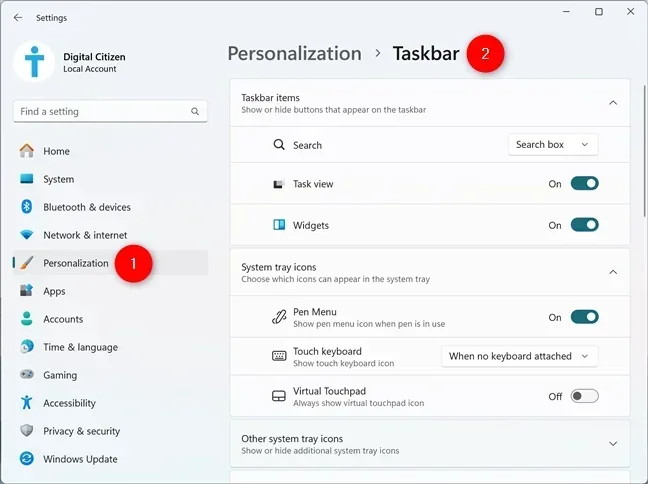
The Settings app is the modern way to manage your Windows 11 system. It has a clean interface and straightforward navigation. Here is how to get to your date and time settings:
- Right-click on an empty space on your taskbar.
- Select “Taskbar settings” from the menu that appears.
- Scroll down and click on “System” in the left sidebar.
- Choose “Date & time” from the list of options.
Once you are on the Date & time page, you will see options for adjusting your time zone, turning on automatic time sync, and changing your date and time format. This is the quickest route for most users.
Using the Control Panel
The Control Panel gives you access to more detailed format options. It is especially useful if you want to fine-tune your regional settings. To open it:
- Press the Windows key on your keyboard.
- Type “Control Panel” and hit Enter.
- Click on “Clock and Region.”
- Select “Region” and then click on the “Formats” tab.
Here you will find dropdown menus for short date, long date, short time, and long time formats. You can also click “Additional settings” to manually type in your preferred format patterns. This method gives you the most control over exactly how your date and time look.
Changing the Date Format on Your Taskbar
Now that you know where to find the settings, let us walk through changing the actual date format. Windows 11 offers several preset options, and you can also create a custom format if needed.
Short Date vs Long Date
The short date format typically shows just the numbers, like “1/15/2025” or “15/01/2025” depending on your region. The long date format includes the day of the week and the full month name, like “Wednesday, January 15, 2025.” Both formats are useful in different situations.
To switch between them, follow these steps:
- Open Settings and go to “System” then “Date & time.”
- Click on “Change date and time formats.”
- Under the “Short date” dropdown, pick your preferred format.
- Under the “Long date” dropdown, choose your desired style.
- Your taskbar clock will update immediately to reflect the change.
If none of the preset options work for you, you can create a custom format. Click “Additional date, time, and regional settings” in the Settings app, then go to the Region window and select “Additional settings.” From there, you can type in your own pattern using codes like “MM” for month, “dd” for day, and “yyyy” for year.
Quick Tips for Date Formatting
- Use “ddd” to display a shortened day name like “Wed.”
- Use “MMMM” for the full month name like “January.”
- Use “M” for a single-digit month without a leading zero.
- Always preview your format before saving to make sure it looks right.
- Keep in mind that changing the regional format may affect other apps that rely on date settings.
Switching Between 12-Hour and 24-Hour Time Formats
The 12-hour format shows times like “2:30 PM” while the 24-hour format shows “14:30.” Many people prefer the 24-hour clock because it removes any ambiguity about morning versus afternoon. Windows 11 makes it simple to switch between the two.
How to Change the Time Format
- Open Settings and navigate to “System” then “Date & time.”
- Click on “Change date and time formats.”
- Look for the “Short time” and “Long time” dropdown menus.
- Select your preferred format from the list.
- Your taskbar clock will switch to the new format right away.
Some users also want to know how to check their current system specs when troubleshooting display issues. If your laptop RAM is running low, it can sometimes cause display glitches or slow performance in the taskbar area. Keeping your system resources healthy helps ensure all settings display correctly.
Which Format Should You Choose?
The right choice depends on your personal preference and where you live. In the United States, the 12-hour format with AM and PM is standard. In most European and Asian countries, the 24-hour format is the norm. If you work remotely with international clients, the 24-hour format can help prevent confusion about meeting times.
| Feature | 12-Hour Format | 24-Hour Format |
|---|---|---|
| Display Example | 2:30 PM | 14:30 |
| AM/PM Indicator | Yes | No |
| Common Regions | United States, parts of Canada | Europe, Asia, military |
| Ambiguity Risk | Higher (AM vs PM) | Lower |
| Taskbar Space Used | Slightly more | Slightly less |
Customizing Short and Long Date Display
Beyond the preset options, Windows 11 lets you fully customize how your short and long dates appear. This is where you can really make the taskbar clock your own. The customization happens through the Additional Settings menu in the Region window.
Manual Format Codes
When you open the Additional Settings dialog, you will see fields for short date and long date. You can type custom codes directly into these fields. Here is a quick reference of the most common codes:
- yyyy – Full year (e.g., 2025)
- MM – Month as two digits (e.g., 01 for January)
- M – Month without leading zero (e.g., 1 for January)
- MMMM – Full month name (e.g., January)
- MMM – Abbreviated month name (e.g., Jan)
- dd – Day as two digits (e.g., 05)
- d – Day without leading zero (e.g., 5)
- ddd – Abbreviated day name (e.g., Wed)
- dddd – Full day name (e.g., Wednesday)
For example, if you want your long date to show “Wednesday, Jan 15, 2025,” you would type “dddd, MMM d, yyyy” in the long date field. Experiment with different combinations until you find a layout you love.
It is also a good idea to make sure your system is running smoothly when making these changes. If your computer is running slow and freezing, applying new settings might not take effect right away. A quick restart after changing format settings can help ensure everything updates properly.
Saving and Applying Your Custom Format
Once you have typed your custom format codes, click “Apply” and then “OK.” Your taskbar clock should immediately reflect the new format. If it does not change right away, try restarting your computer or signing out and back in. This forces Windows to refresh all display settings, including the taskbar clock.
Troubleshooting Common Date and Time Issues
Even with clear instructions, you might run into a few hiccups when changing your date and time format. Here are the most common problems and how to fix them.
Date Format Reverts After Restart
If your custom format keeps resetting to the default after you restart your computer, the issue might be related to your regional settings being overridden by a group policy or a sync setting. To fix this:
- Go to Settings > System > Date & time.
- Turn off “Set time automatically” and “Set time zone automatically.”
- Make your format changes again.
- Restart your computer and check if the format holds.
Taskbar Clock Not Updating
Sometimes the taskbar clock simply does not refresh after you change the format. This can happen if Windows Explorer is not responding properly. Try these steps:
- Right-click on the Start button and select “Task Manager.”
- Find “Windows Explorer” in the list.
- Right-click it and choose “Restart.”
- Your taskbar should reload with the updated date and time format.
Wrong Time Zone Displayed
If your date and time show the wrong values even after formatting changes, your time zone might be set incorrectly. Go to Settings > System > Date & time and make sure the correct time zone is selected. You can also toggle the “Adjust for daylight saving time” option if needed.
When to Check Your System Configuration
In rare cases, persistent date and time issues can be linked to your system’s overall configuration. If you have recently made hardware changes, such as you changed the RAM on your laptop, a system restart or BIOS update might be needed to ensure all settings, including clock formats, work correctly.
Final Thoughts on Customizing Your Windows 11 Taskbar Clock
Customizing the date and time format on your Windows 11 taskbar is a small change that can make your daily computing experience much more pleasant. You now know how to access the settings, choose between short and long date formats, switch between 12-hour and 24-hour time, and create fully custom display patterns. You also know how to troubleshoot the most common issues that might pop up along the way.
Take a few minutes today to adjust your taskbar clock to match your preferences. It is one of those quick wins that improves your workflow every single day. Once you have the format set the way you want it, you will wonder how you ever lived without it. Your taskbar clock is yours to customize, so make it work for you.
Remember, these settings apply across all apps and windows on your system. So any program that displays the date or time will follow your chosen format. This consistency is one of the best things about Windows 11’s approach to date and time customization.
Frequently Asked Questions
Can I change the date format without affecting other regional settings?
Yes, you can. When you change the date format through the Settings app or Control Panel, it only affects how dates appear on your taskbar and in most apps. Your currency, number formatting, and other regional settings remain unchanged unless you specifically modify them too.
Why does my taskbar clock show the wrong date after I change the format?
This usually happens when the time zone is set incorrectly or when the automatic time sync is turned off. Go to Settings > System > Date & time and make sure your time zone is correct. Also, turn on “Adjust for daylight saving time” if it is not already enabled.
Can I use different date formats for different users on the same PC?
Yes. Each user account on a Windows 11 PC has its own regional settings. If multiple people use the same computer, each person can set their own preferred date and time format without affecting other accounts.
Will changing the date format affect my files or documents?
No. Changing the date format on your taskbar only affects how dates are displayed visually. It does not change the actual date values stored in your files, documents, or databases. Your data remains safe and unchanged.
How do I reset my date and time format back to the default?
Go to Settings > System > Date & time and click “Change date and time formats.” From there, select the default options from the dropdown menus. Alternatively, you can reset your regional settings through the Control Panel by clicking “Reset” in the Region window.
Is there a keyboard shortcut to open the date and time settings?
There is no direct keyboard shortcut, but you can quickly access the settings by right-clicking on the taskbar clock and selecting “Adjust date and time.” This is the fastest way to jump to the relevant settings without navigating through menus.
=== CONCLUSION ===
Changing the date and time format in Windows 11 taskbar is a simple yet satisfying customization that improves your daily computing experience. You have learned how to access the settings through both the Settings app and Control Panel, how to choose between short and long date formats, and how to switch between 12-hour and 24-hour time displays. You also explored custom format codes and common troubleshooting steps.
Take what you have learned here and apply it to your own system. Spend a few minutes adjusting your taskbar clock until it looks exactly the way you want it. Small personalizations like this make using your computer more enjoyable and efficient every single day.