What Are Characteristics Of A Hard Drive And Why It Matters
The characteristics of a hard drive include storage capacity, read and write speed, form factor, and interface type. These traits determine how well your storage device performs in everyday tasks. Understanding these features helps you pick the right drive for your needs and budget.
When you buy a new computer or upgrade an old one, the hard drive is one of the most important parts to consider. It is where all your files, photos, videos, and programs live. But not all hard drives are the same. Each one comes with its own set of hard drive specifications that affect how fast, quiet, and reliable it is.
Knowing the characteristics of a hard drive can save you money, frustration, and time. Whether you are a casual user, a gamer, or a creative professional, the right drive makes a big difference. In this guide, we break down every key trait you should know before making a choice. We also explain why each characteristic matters in real-world use.
Think of a hard drive as the brain of your storage system. It handles every request you make, from opening a document to saving a large project. The better the drive, the smoother your experience. Let us dive into what makes each hard drive unique and how to pick the best one for your setup.
Key Takeaways
- Storage capacity is the most visible characteristic and ranges from hundreds of gigabytes to multiple terabytes.
- Read and write speed directly impacts how fast your system boots and loads files.
- Hard drive types like HDD and SSD offer very different performance levels.
- Form factor determines whether a drive fits a desktop, laptop, or external enclosure.
- Durability and reliability vary greatly between mechanical and solid-state drives.
- Interface type such as SATA or NVMe affects data transfer rates.
📑 Table of Contents
Understanding Hard Drive Basics
What Is a Hard Drive?
A hard drive is a storage device that holds your data even when the power is off. Unlike temporary memory, a hard drive keeps your files safe and ready for access whenever you need them. Every computer, laptop, and server uses some form of a hard drive to store information.
The hard drive characteristics define how well it performs its job. These include how much data it can hold, how fast it can read or write that data, and how long it will last. Each of these traits plays a role in your daily computing experience.
How Hard Drives Store Data
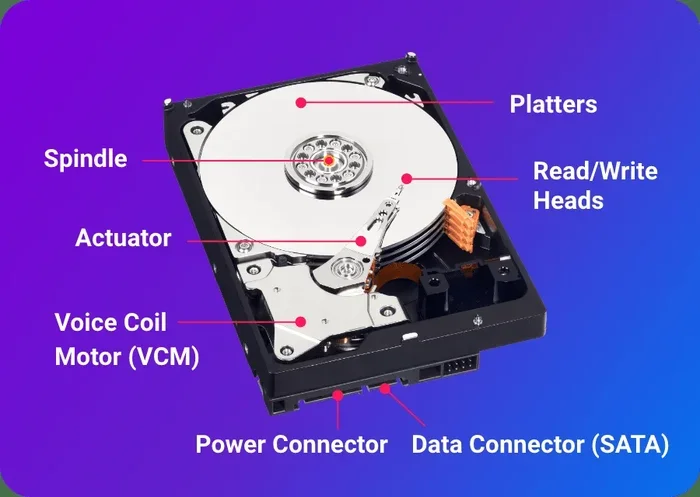
Traditional hard drives use magnetic platters to store data. These spinning disks coat a surface with magnetic material, and a read/write head moves across them to access information. The speed at which these platters spin is called rotational speed, and it is measured in RPM (revolutions per minute).
Solid state drives, on the other hand, use flash memory with no moving parts. This difference is one of the biggest factors in hard drive performance. Both types have their strengths, and understanding them helps you make a smarter buying decision.
Key Characteristics of a Hard Drive
Storage Capacity
Storage capacity is the first thing most people look at. It tells you how much data the drive can hold. Capacity is measured in gigabytes (GB) and terabytes (TB). A 1 TB drive can store roughly 250,000 photos or 500 hours of HD video.
Here is a simple breakdown of common capacities:
- 256 GB: Enough for basic tasks, documents, and a few apps.
- 512 GB: Good for most everyday users and light gaming.
- 1 TB: Great for families, photographers, and moderate gamers.
- 2 TB and above: Ideal for professionals, video editors, and heavy data users.
Your needs should guide your choice. If you store large media files or run many programs, a higher capacity drive is a wise investment.
Read and Write Speed
Read and write speed determines how fast your drive can access and save data. Read speed is how quickly the drive pulls up a file. Write speed is how fast it saves a new file. Both are measured in megabytes per second (MB/s).
Faster speeds mean quicker boot times, faster file transfers, and smoother multitasking. If you notice your computer lagging when opening large files, your drive speed might be the culprit. This is especially true for tasks like video editing or running multiple applications at once.
Rotational Speed and Seek Time
For traditional HDDs, rotational speed is a critical characteristic. A drive spinning at 7,200 RPM will generally outperform one at 5,400 RPM. Higher RPM means the read/write head reaches data faster, which improves overall hard drive performance.
Seek time measures how long it takes the read/write head to locate a specific piece of data. Lower seek time means faster access. Think of it like a record player needle finding a track. The less time it takes to find the right spot, the better the experience.
Hard Drive Types: HDD vs SSD
Not all hard drive types are created equal. The two main categories are HDDs (Hard Disk Drives) and SSDs (Solid State Drives). Each has its own strengths and weaknesses, and knowing the difference is key to making the right choice.
| Feature | HDD | SSD |
|---|---|---|
| Speed | Slower read/write speeds | Much faster read/write speeds |
| Moving Parts | Yes, spinning platters | No moving parts |
| Durability | More prone to damage from drops | More resistant to physical shock |
| Price | Lower cost per GB | Higher cost per GB |
| Capacity | Available in very large sizes | Commonly up to 4 TB |
| Power Use | Higher power consumption | Lower power consumption |
| Noise | Can be noisy during use | Silent operation |
If you want the best speed and reliability, an SSD is the way to go. However, if you need a lot of storage at a lower price, an HDD still makes sense. Many users choose a combination of both, using an SSD for the operating system and an HDD for mass storage.
Traditional Hard Disk Drives (HDD)
HDDs have been around for decades. They use spinning disks and mechanical parts to read and write data. Because of this design, they tend to be slower and more fragile than SSDs. However, they offer large capacities at affordable prices.
HDDs are a great choice for storing large files like movies, backups, and archives. If you need a lot of space without breaking the bank, an HDD is a solid option.
Solid State Drives (SSD)
SSDs use flash memory to store data. There are no moving parts, which makes them faster, quieter, and more durable. They are the preferred choice for hard drive performance in modern computers.
SSDs come in different form factors, including 2.5-inch drives and M.2 cards. The M.2 format plugs directly into the motherboard, which makes installation simple and saves space inside your case.
Hard Drive Interfaces and Form Factors
Common Interfaces
The hard drive interface is the connection between the drive and your computer. It affects the data transfer rate, which is how quickly data moves between the drive and the rest of your system.
The most common interfaces today are:
- SATA (Serial ATA): The most widely used interface for both HDDs and SSDs. It offers speeds up to 6 Gb/s.
- NVMe (Non-Volatile Memory Express): A much faster interface designed for SSDs. It uses the PCIe bus and can reach speeds of 35 Gb/s or more.
- IDE (Integrated Drive Electronics): An older interface found in legacy systems. It is much slower than SATA and NVMe.
If you are building or upgrading a modern PC, look for NVMe or SATA SSDs. They offer the best balance of speed and compatibility.
Physical Sizes and Form Factors
The form factor refers to the physical size and shape of the drive. The most common sizes are 3.5-inch (for desktops) and 2.5-inch (for laptops). M.2 drives are even smaller and mount directly onto the motherboard.
Choosing the right form factor ensures your drive fits properly in your system. Before buying, check your computer or laptop specs to confirm which sizes are supported.
Durability and Reliability
Mechanical vs Solid State Durability
Durability is one of the most overlooked characteristics of a hard drive. HDDs have moving parts that can wear out or break if dropped. SSDs have no moving parts, making them far more resistant to physical shocks and vibrations.
If you carry your laptop around often or work in a busy environment, an SSD is a safer bet. It can handle bumps and drops much better than a traditional hard drive.
Average Hard Drive Lifespan
Most HDDs last between 3 and 5 years under normal use. SSDs tend to last longer, often 5 to 7 years or more. However, lifespan depends on usage patterns, temperature, and build quality.
To extend your hard drive lifespan, keep your drive cool, avoid sudden power loss, and back up your data regularly. A good backup routine protects you from unexpected failures.
Hard Drive Reliability
Hard drive reliability is measured by factors like mean time between failures (MTBF) and annual failure rates. Enterprise-grade drives are built for continuous use and offer higher reliability than consumer models. If you run a server or store critical data, investing in a more reliable drive is worth the extra cost.
For everyday users, a reputable brand with good warranty coverage is usually enough. Look for drives that offer at least a 3-year warranty for peace of mind.
How to Choose the Right Hard Drive
Matching Drive Characteristics to Your Needs
Choosing the right drive starts with understanding your needs. Ask yourself a few key questions:
- How much storage do I need?
- How fast do I need my files to load?
- Will I be carrying this drive around?
- What is my budget?
If you are a gamer, speed matters a lot. Check out our guide on the best hard drive for gaming PC to find the right option for your setup. If you are setting up a surveillance system, a reliable storage device is essential. Our article on hard drive for security cameras covers the best options for that use case.
For general use, a 512 GB or 1 TB SSD strikes a great balance between speed and price. If you work with large files like video or raw photos, consider a larger capacity or a dual-drive setup.
Quick Tips for Buying a Hard Drive
Here are some practical tips to keep in mind when shopping:
- Check your motherboard compatibility before buying an SSD. Make sure it supports NVMe or SATA.
- Read reviews from trusted sources to learn about real-world performance.
- Consider warranty length as a sign of the manufacturer’s confidence in their product.
- Do not skip the cache memory. More cache usually means better sustained performance during large transfers.
- Watch for sales around holiday seasons. SSD prices have dropped significantly in recent years.
If you are curious about how memory works in a laptop, understanding what the ram of a laptop is can also help you see how storage and memory work together to create a smooth computing experience.
Common Mistakes to Avoid
Many buyers make the same mistakes when choosing a hard drive. One common error is focusing only on capacity and ignoring speed. A large HDD that is slow will frustrate you far more than a smaller SSD that is fast.
Another mistake is ignoring the form factor. Buying a 3.5-inch drive for a laptop that only supports 2.5-inch drives will not work. Always double-check your system specifications before making a purchase.
Some users also overlook the importance of the interface. An older SATA III connection will limit the speed of even the fastest NVMe SSD. Make sure your motherboard and cables support the interface of your chosen drive.
Expert Insights on Hard Drive Performance
Industry experts agree that the characteristics of a hard drive have evolved significantly over the past decade. SSDs have become more affordable, and their speed advantages are hard to ignore. Even budget SSDs today outperform most HDDs in every category except raw capacity.
When evaluating hard drive performance, experts recommend looking at more than just advertised speeds. Real-world performance depends on factors like latency, queue depth, and IOPS (input/output operations per second). These metrics give you a clearer picture of how a drive handles everyday tasks.
For most users, the best approach is to prioritize an SSD for your operating system and frequently used programs. You can add a larger HDD for bulk storage if needed. This combination gives you the best of both worlds: speed and space.
Conclusion
The characteristics of a hard drive play a huge role in how your computer feels and performs. From storage capacity to read and write speed, each trait matters. Understanding these features empowers you to make confident buying decisions and get the most out of your system.
Whether you choose an HDD or an SSD, make sure it fits your needs, budget, and system compatibility. A well-chosen drive delivers reliable performance for years to come. Take the time to evaluate your options, and your storage will reward you with speed, stability, and peace of mind.
Frequently Asked Questions
What are the main characteristics of a hard drive?
The main characteristics include storage capacity, read and write speed, form factor, interface type, and durability. Each of these traits affects how the drive performs in daily use. Choosing the right combination depends on your specific needs and budget.
What is the difference between HDD and SSD characteristics?
HDDs use spinning magnetic platters and have moving parts, while SSDs use flash memory with no moving parts. SSDs are faster, more durable, and quieter, but they cost more per gigabyte. HDDs offer larger capacities at lower prices, making them ideal for mass storage.
Why does storage capacity matter in a hard drive?
Storage capacity determines how much data you can save on the drive. If you work with large files like videos or photos, you need higher capacity. For basic tasks like browsing and documents, a smaller drive may be sufficient. Always estimate your future needs before buying.
How does the hard drive interface affect performance?
The interface controls the data transfer rate between the drive and your computer. Newer interfaces like NVMe offer much faster speeds than older ones like SATA III or IDE. Choosing the right interface ensures your drive can deliver its full speed potential.
What is a good hard drive lifespan?
Most HDDs last 3 to 5 years, while SSDs can last 5 to 7 years or more. Lifespan depends on usage, temperature, and build quality. Regular backups and proper care can help extend the life of any drive.
Can I upgrade my hard drive to improve performance?
Yes, upgrading to an SSD is one of the best ways to improve computer performance. It significantly reduces boot times and speeds up file access. Before upgrading, check your system for compatible drive sizes and interfaces.