What Causes a Dns Error
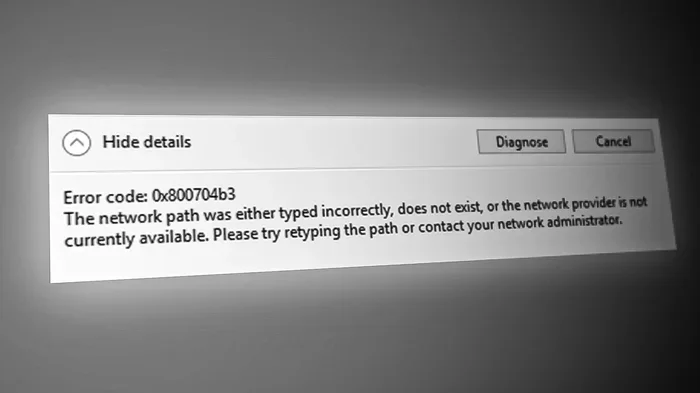
A DNS error happens when your device cannot translate a website name into an IP address. The most common causes include incorrect DNS server settings, corrupted DNS cache, firewall interference, and network configuration problems. This guide walks you through every major cause and gives you clear, step-by-step fixes you can try right now.
Key Takeaways
- Misconfigured DNS server addresses are the number one reason DNS errors occur on any device.
- Corrupted or stale DNS cache can block you from reaching websites even when your internet works fine.
- Firewall and antivirus software sometimes interfere with DNS resolution without you realizing it.
- ISP-related issues and temporary server outages can trigger DNS errors on all connected devices.
- Overheating hardware like a laptop running too hot can indirectly cause network instability and DNS failures.
- Flushing your DNS cache and switching to public DNS servers solve most DNS problems in minutes.
📑 Table of Contents
What Exactly Is a DNS Error?
The Domain Name System, or DNS, works like a phone book for the internet. When you type a website name into your browser, DNS translates that name into a numeric IP address your computer can understand. A DNS error means this translation process has failed somehow.
You have probably seen this happen before. A webpage refuses to load, and your browser shows messages like “DNS server not responding” or “DNS probe finished.” These errors are frustrating, but they are usually easy to fix once you understand what is going wrong.
DNS errors can happen on any device. Whether you are using a Windows PC, a Mac, a smartphone, or a tablet, the underlying cause is almost always the same. Your device simply cannot reach the DNS server it needs to look up the website address.
The good news is that most DNS problems stem from a handful of common causes. Once you identify the root issue, applying the right fix becomes straightforward. Let us walk through each major cause in detail so you can troubleshoot with confidence.
Common Causes of DNS Errors
Incorrect DNS Server Settings
The most frequent reason for a DNS error is incorrect DNS server configuration. Every device has a DNS server address it uses to look up website names. If that address is wrong, missing, or corrupted, your device simply cannot resolve domain names.
This often happens after a system update or a network change. Your operating system might reset your DNS settings to default values that do not work well with your internet service provider. In other cases, a manual configuration mistake causes the problem from the start.
Public DNS servers from Google, Cloudflare, or OpenDNS work as reliable alternatives. Switching to these servers often fixes DNS errors caused by misconfigured or unreliable ISP DNS addresses.
Corrupted DNS Cache
Your device stores recent DNS lookups in a DNS cache to speed up future browsing. This cache holds IP addresses and domain names you have visited recently. Sometimes this cache becomes corrupted or outdated, leading to DNS resolution failures.
A corrupted DNS cache can cause a wide range of symptoms. You might see a DNS server not responding error, or specific websites might refuse to load while others work perfectly fine. This happens because your device is trying to use a stale or incorrect IP address stored in the cache.
Flushing the DNS cache clears out all those old entries and forces your device to fetch fresh information from the DNS server. This simple fix resolves a surprising number of DNS errors.
Firewall and Antivirus Interference
Security software is essential, but it can sometimes block legitimate DNS traffic. Your firewall or antivirus program might flag DNS queries as suspicious and prevent them from reaching the DNS server.
This is especially common after installing new security software or updating your existing suite. The new rules might be overly aggressive and block the specific ports DNS uses to communicate. Port 53 is the standard DNS port, and any interference with it will cause DNS lookup failures.
If you notice DNS errors started appearing right after a security update, your firewall is likely the culprit. Temporarily disabling your firewall can confirm this. Just remember to turn it back on and adjust the settings instead of leaving it off.
Network Adapter Problems
Your network adapter is the hardware that connects your device to the internet. When it malfunctions, DNS errors can follow. Outdated drivers, disabled adapters, or corrupted network configurations all contribute to this problem.
A faulty network adapter might connect to Wi-Fi but fail to handle DNS requests properly. You might notice that some websites load slowly or not at all, while basic internet connectivity seems fine. This mixed behavior is a classic sign of a network adapter issue rather than a full internet outage.
Updating your network adapter drivers often resolves these issues. You can do this through your device manager on Windows or through system preferences on a Mac. Restarting your adapter by disabling and re-enabling it in your settings can also help.
ISP Server Outages
Sometimes the problem is not on your end at all. Your internet service provider operates DNS servers that handle millions of queries every day. When those servers go down or experience high traffic, DNS errors affect all their customers simultaneously.
ISP outages are usually temporary and resolve on their own within a few hours. However, if your ISP’s DNS servers are chronically unreliable, switching to a public DNS provider is a smart long-term solution. Many users report fewer DNS issues after making this change.
You can check whether an outage is happening by visiting a site like Downdetector or by asking neighbors if they are experiencing the same problem. If multiple people on the same ISP are affected, the issue is almost certainly on their side.
Overheating Hardware and System Instability
You might be surprised to learn that hardware temperature can play a role in DNS errors. When your laptop or desktop runs too hot, components can behave unpredictably. Network adapters and other hardware may malfunction under thermal stress.
For example, if your laptop is overheating, its network chip might struggle to maintain stable connections. This can manifest as intermittent DNS failures, slow browsing, or dropped connections. Keeping your device cool is an often overlooked part of maintaining reliable network performance.
Monitoring your system temperature can reveal whether heat is contributing to your DNS problems. If your GPU or CPU is running unusually hot, addressing the cooling issue may resolve your network instability too. You can check what a good idle GPU temperature looks like and compare it to your current readings. Similarly, if your device is running dangerously hot, it is worth checking whether it could overheat and cause broader system issues beyond just DNS errors.
How to Diagnose a DNS Error
Before jumping into fixes, it helps to confirm that you are actually dealing with a DNS error and not some other type of connection problem. A few simple diagnostic steps can point you in the right direction quickly.
Start by trying to access a website using its IP address directly. If you can reach the site by typing the IP but not the domain name, you are almost certainly facing a DNS issue. If neither method works, the problem might be a broader internet connectivity issue.
You can also try the ping and nslookup commands in your terminal or command prompt. These tools tell you whether your device can communicate with DNS servers at all. A failed ping to a known DNS server address confirms that the problem lies in DNS resolution specifically.
Another quick check is to try loading the same website on a different device connected to the same network. If the other device also fails, the problem is likely your router or ISP rather than your individual device.
Step-by-Step Fixes for DNS Errors
Fix 1: Flush Your DNS Cache
Flushing the DNS cache is the first and easiest fix to try. This clears out any corrupted or outdated entries that might be causing the error. On Windows, open Command Prompt and type ipconfig /flushdns. On Mac, open Terminal and enter sudo dscacheutil -flushcache.
After flushing the cache, restart your browser and try loading the website again. In most cases, this single step resolves the problem. It takes only a few seconds and requires no technical expertise.
Fix 2: Change Your DNS Server
Switching to a reliable public DNS server is one of the most effective long-term solutions. Google’s public DNS addresses are 8.8.8.8 and 8.8.4.4. Cloudflare offers 1.1.1.1 and 1.0.0.1. Both options are free and widely trusted.
To change your DNS server on Windows, go to Network Settings, select your active connection, and enter the new DNS addresses in the IPv4 properties. On Mac, you will find these options in Network Preferences under your active connection. On mobile devices, the setting is usually in Wi-Fi or cellular network settings.
After entering the new addresses, restart your browser and test a website. The change takes effect immediately and can dramatically improve both DNS reliability and browsing speed.
Fix 3: Reset Your Network Settings
If changing the DNS server alone does not work, a full network reset can help. This clears all network configurations, including DNS settings, and restores them to factory defaults. On Windows, go to Settings, then Network & Internet, and select Network Reset. On Mac, you can remove and re-add your network service in Network Preferences.
Be aware that a network reset removes all saved Wi-Fi passwords and custom configurations. Make sure you have your Wi-Fi credentials handy before proceeding. After the reset, reconnect to your network and test for DNS errors.
Fix 4: Update Network Drivers
Outdated or corrupted network drivers can cause DNS resolution failures. Updating these drivers ensures your network adapter communicates properly with your operating system. On Windows, open Device Manager, expand Network Adapters, right-click your adapter, and select Update Driver.
You can also visit your hardware manufacturer’s website to download the latest driver directly. Mac users typically receive driver updates through system updates, so keeping your operating system current is important for network stability.
Fix 5: Disable Your VPN or Proxy
If you use a VPN or proxy service, it might be interfering with DNS resolution. VPNs route your traffic through their own DNS servers, and if those servers are slow or unreachable, you will see DNS errors. Temporarily disabling your VPN can confirm whether it is the source of the problem.
If disabling the VPN fixes the issue, try switching to a different VPN provider or adjusting your VPN’s DNS settings. Some VPNs allow you to choose which DNS server they use, and selecting a reliable one can eliminate these errors entirely.
How to Prevent DNS Errors in the Future
Preventing DNS errors is much easier than fixing them repeatedly. A few simple habits can keep your DNS resolution running smoothly and save you from frustrating browsing interruptions.
First, stick with reliable DNS servers. Google, Cloudflare, and OpenDNS all offer stable and fast DNS resolution. Once you have configured them, you rarely need to change them again. Second, keep your operating system and network drivers updated. Updates often include fixes for known DNS and connectivity bugs.
Third, restart your router regularly. Like any device, routers benefit from occasional reboots. A monthly restart clears temporary glitches and keeps your network running at its best. Fourth, use a quality antivirus program and keep it updated. This prevents security software from accidentally blocking DNS traffic.
Finally, monitor your system temperature. Overheating hardware can cause intermittent network issues that look like DNS errors. Keeping your device well-ventilated and clean from dust helps maintain stable performance across all components, including your network adapter.
When to Contact a Professional
Most DNS errors resolve with the fixes described above. However, some situations call for professional help. If you have tried every solution and still face persistent DNS failures, the issue might be deeper than a simple configuration problem.
Recurring DNS errors across multiple devices on the same network could indicate a router hardware failure or a compromised network. In these cases, replacing your router or having a network specialist inspect your setup is the best course of action.
Similarly, if DNS errors are accompanied by other strange system behavior like unexpected shutdowns, blue screens, or extreme slowness, your hardware might be failing. A device running too hot can cause cascading issues across its components. In such situations, it is wise to have a professional diagnose the full picture rather than chasing individual symptoms.
Conclusion
A DNS error can feel like a roadblock when you just want to get online. But as we have covered, the causes are almost always identifiable and fixable. Whether it is incorrect DNS server settings, a corrupted cache, firewall interference, or even hardware running too hot, you now have the tools to diagnose and resolve the problem.
Start with the simplest fixes like flushing your DNS cache and changing your DNS server. Move on to network resets and driver updates if those do not work. And remember, keeping your system cool and well-maintained goes a long way in preventing these issues from returning. With the right approach, you can get back to browsing smoothly in just a few minutes.
Frequently Asked Questions
What does a DNS error mean?
A DNS error means your device cannot translate a website name into an IP address. This prevents your browser from loading the webpage. The error usually appears as “DNS server not responding” or “DNS probe finished.”
How do I fix a DNS error on Windows?
Open Command Prompt and type ipconfig /flushdns to clear your DNS cache. Then go to Network Settings and change your DNS server to 8.8.8.8 or 1.1.1.1. Restarting your computer after these steps often completes the fix.
Can a VPN cause DNS errors?
Yes, VPNs can cause DNS errors if their DNS servers are slow or unreachable. Temporarily disabling your VPN can confirm this. If the error goes away, try switching to a different VPN provider or adjusting its DNS settings.
Why does my DNS error keep coming back?
Recurring DNS errors often point to a deeper issue like outdated network drivers, a faulty router, or incorrect DNS configuration. Switching to a reliable public DNS server and updating your drivers usually stops the cycle. If it persists, your router hardware may need replacement.
Is a DNS error the same as no internet?
No, a DNS error specifically means your device cannot resolve website names, but your internet connection itself might still be working. You can often confirm this by accessing a website using its IP address directly instead of its domain name.
What is the best DNS server to use?
Google DNS (8.8.8.8 and 8.8.4.4) and Cloudflare DNS (1.1.1.1) are widely considered the best options. They are free, reliable, and fast. Switching to either of these servers can resolve most DNS errors and improve your browsing speed.
=== CONCLUSION ===
Understanding what causes a DNS error puts you ahead of most users who simply panic when a webpage will not load. The fixes are straightforward, and most of them take only a few minutes. Keep this guide bookmarked for the next time a DNS error interrupts your browsing. Share it with friends and family who might be struggling with the same frustrating problem. A little knowledge goes a long way toward staying connected.