What Does It Mean to Justify a Document in Microsoft Word
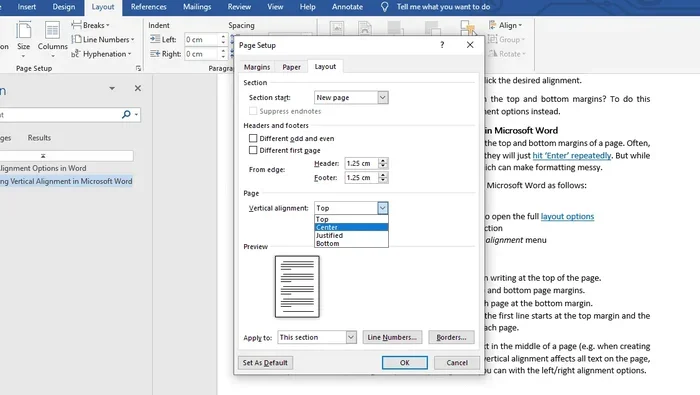
Justifying a document in Microsoft Word means aligning text evenly along both the left and right margins. This formatting option creates a clean, professional look by adjusting spacing between words on every line. You can justify text using the toolbar, keyboard shortcuts, or paragraph settings inside Word.
If you have ever opened a textbook, a legal contract, or a formal report, you may have noticed that the text lines up perfectly on both the left and right sides. That clean, even edge on both sides is the result of justification. When you justify a document in Microsoft Word, you are telling the software to stretch each line of text so it fills the entire horizontal space between the margins.
Understanding how to justify text in Word is one of the simplest yet most powerful formatting skills you can learn. Whether you are writing a school essay, a business report, or a personal letter, the way your text aligns affects how professional and readable your document looks. In this guide, we will walk you through everything you need to know about document justification in Word, from the basics to advanced tips that will level up your formatting game.
Most people use Microsoft Word every day without ever touching the justify button. They stick with left alignment because it feels safe and familiar. But justifying your text opens up a world of cleaner layouts and more polished documents. Let us dive into what justification really means and how you can use it to make your Word documents look their best.
Key Takeaways
- Justification aligns text to both margins: It makes your document look polished and professional by stretching each line to fill the full width.
- Multiple alignment options exist: Left, right, center, and full justify give you control over how your text appears.
- Keyboard shortcuts save time: Ctrl+J (Windows) or Cmd+J (Mac) lets you justify text instantly without navigating menus.
- Paragraph settings offer fine control: You can adjust spacing, indentation, and justification behavior for specific sections.
- Justification affects readability: Full justification can create uneven spacing, so knowing when to use it matters for document clarity.
- Last-line handling is customizable: Word lets you control how the final line of a justified paragraph appears.
📑 Table of Contents
- What Does It Mean to Justify a Document in Microsoft Word?
- The Four Alignment Options in Microsoft Word
- How to Justify Text in Microsoft Word
- When Should You Justify a Document?
- Common Problems with Justified Text and How to Fix Them
- Tips for Perfect Justification in Word
- Justification vs. Other Formatting Tools in Word
- Advanced Justification Settings in Word
- Frequently Asked Questions
What Does It Mean to Justify a Document in Microsoft Word?
When you justify a document in Microsoft Word, you are applying full paragraph alignment. This means Word adjusts the spacing between words on each line so that the text stretches evenly from the left margin to the right margin. The result is a clean rectangular block of text on the page.
Think of it like stretching a rubber band. The text on each line gets pulled outward so there are no gaps at the edges. The last line of a paragraph usually stays left-aligned by default, but you can change that behavior too. This is one of the most common text alignment options in word processing, and it is the standard format for many formal documents.
How Justification Works Behind the Scenes
When you click the justify button, Word does not change the font size or the margins. Instead, it increases or decreases the spacing between words on each line to fill the full width of the page. On some lines, the gaps between words will be wider. On other lines, they will be narrower. Word calculates all of this automatically based on the line length and the text you have typed.
This automatic word spacing is what gives justified text its smooth, even edges. However, it can sometimes create what people call “rivers” — visible vertical gaps of white space that run through a paragraph. We will talk more about how to fix that later in this article.
The Four Alignment Options in Microsoft Word
Before you start justifying documents, it helps to understand all four alignment choices Word offers. Each one serves a different purpose and works best in different situations.
Left Align
Left alignment is the default in most Word documents. The text lines up evenly along the left margin, but the right edge looks ragged. This is the most common alignment for everyday writing, emails, and casual documents. It is also the easiest to read for long blocks of text because the uneven right edge helps your eyes track from one line to the next.
Right Align
Right alignment flips things around. The text lines up along the right margin, and the left edge looks ragged. You will usually see right alignment used for dates, headers, footers, or special design elements. It is not common for body text, but it has its place in certain types of documents.
Center Align
Center alignment places text in the middle of the page, with uneven edges on both sides. This works well for titles, headings, invitations, and poetry. For body text, center alignment can be hard to read because the uneven starting point of each line makes it difficult for your eyes to find the beginning of the next line.
Full Justify (The Focus of This Guide)
Full justification aligns text evenly along both margins. This creates the neatest, most professional-looking blocks of text. It is the standard for books, academic papers, legal documents, and formal reports. When you justify a document in Microsoft Word, you are choosing this full justification option.
How to Justify Text in Microsoft Word
Applying justification in Word is straightforward. You can do it in a few different ways depending on your preference. Here are the most common methods.
Method 1: Using the Home Tab Toolbar
This is the easiest way to justify text. Follow these simple steps:
- Open your document in Microsoft Word.
- Highlight the paragraph or text you want to justify.
- Go to the Home tab on the ribbon at the top.
- Look for the Paragraph section. You will see four alignment buttons.
- Click the Justify button. It looks like four horizontal lines of equal length, aligned to both edges.
Once you click it, your selected text will immediately adjust to fill both margins. This is the fastest way to format text alignment in Word for most users.
Method 2: Using Keyboard Shortcuts
If you prefer working with your keyboard, shortcuts can save you a lot of time. The shortcut for justification is:
- Windows: Press Ctrl + J
- Mac: Press Cmd + J
These shortcuts work the same way as the toolbar button. Highlight your text first, then press the key combination, and Word will justify the paragraph instantly. Learning a few Word keyboard shortcuts like this one can make your document editing much faster and more efficient.
Method 3: Using Paragraph Settings
For more control, you can access the full paragraph dialog box:
- Right-click on the selected text.
- Choose Paragraph from the dropdown menu.
- In the Indents and Spacing tab, look for the Alignment dropdown.
- Select Justified from the list.
- Click OK to apply the changes.
This method gives you access to additional settings like line spacing, indentation, and special handling of the last line in a paragraph. It is especially useful when you need precise paragraph formatting for professional or academic documents.
When Should You Justify a Document?
Not every document benefits from full justification. Knowing when to use it — and when to avoid it — is an important part of good document design. Let us look at the best use cases and situations where you might want to choose a different alignment.
Best Scenarios for Justified Text
- Academic papers and essays: Most schools and universities expect justified text in formal papers. It gives the document a clean, publication-ready appearance.
- Business reports and proposals: Justified text looks professional and polished, which matters when you are presenting to clients or stakeholders.
- Books and manuscripts: Nearly all published books use full justification. It creates a uniform reading experience across hundreds of pages.
- Legal documents: Contracts, briefs, and legal briefs typically use justified text to maintain a formal, structured look.
- Newsletters and brochures: Justified text helps maximize space and creates a tidy layout in design-heavy documents.
When to Avoid Justification
- Casual emails and messages: Left alignment is perfectly fine and often preferred for informal communication.
- Documents with short lines: If your text columns are narrow, justification can create awkward word spacing and rivers of white space.
- Documents with lots of headings and bullet points: Mixed alignment can look confusing if everything is justified.
- Presentations and slides: Left-aligned text is generally easier to read on screens, especially from a distance.
Common Problems with Justified Text and How to Fix Them
Justification is not perfect. Even experienced Word users run into issues from time to time. Here are the most common problems and how to solve them.
Problem 1: Rivers of White Space
A river is a vertical streak of white space that runs through a justified paragraph. It happens when Word stretches the spacing between words too much on some lines, leaving gaps that your eyes naturally follow down the page. Rivers can make your document look messy and distract readers from the content.
To fix rivers, try these solutions:
- Adjust the line spacing slightly. Going from single to 1.15 spacing can help.
- Use the Word Hyphenation feature. Go to Layout tab, click Hyphens, and choose Auto. This adds hyphens at the end of lines, which reduces the need for extra word spacing.
- Manually adjust problem lines by adding or removing a word or two.
- Switch to a different font. Some fonts handle justification better than others.
Problem 2: Uneven Spacing Between Words
Sometimes justified text has lines where the gaps between words are noticeably wider or narrower than other lines. This happens most often with short lines or lines with long words.
The paragraph settings dialog (Method 3 above) lets you control how Word handles spacing. You can also adjust word spacing in the Font dialog box under the Advanced tab. This gives you finer control over how tight or loose the spacing appears.
Problem 3: The Last Line Looks Weird
By default, the last line of a justified paragraph stays left-aligned. This can look odd, especially in narrow columns or short paragraphs. You can change this behavior in the paragraph settings:
- Right-click the paragraph and choose Paragraph.
- Click the Line and Page Breaks tab.
- Check the box for Don’t add space between paragraphs of the same style.
- You can also adjust the Last line alignment setting if your version of Word supports it.
Tips for Perfect Justification in Word
Getting great-looking justified text in Word takes a little practice. Here are some expert tips that will help you get the best results every time.
Use the Right Font
Not all fonts justify equally well. Fonts with uniform character widths (called monospaced fonts) tend to create more spacing issues. Fonts with proportional spacing (like Times New Roman, Calibri, or Garamond) handle justification much better. If you are working on a formal document, choose a professional serif font for the best justified look.
Adjust Hyphenation Settings
Hyphenation is your best friend when working with justified text. It breaks long words at the end of lines, which helps Word maintain even spacing throughout the paragraph. To set up automatic hyphenation:
- Go to the Layout tab on the ribbon.
- Click the Hyphens button.
- Select Automatic.
- For more control, click Hyphenation Options and adjust the settings there.
Check Your Line Length
Very long lines or very short lines both cause justification problems. Aim for line lengths between 50 and 75 characters for optimal readability. If your margins are too wide or too narrow, adjust them to find the sweet spot. You can change margins by going to the Layout tab and clicking Margins.
Review Your Document on Different Devices
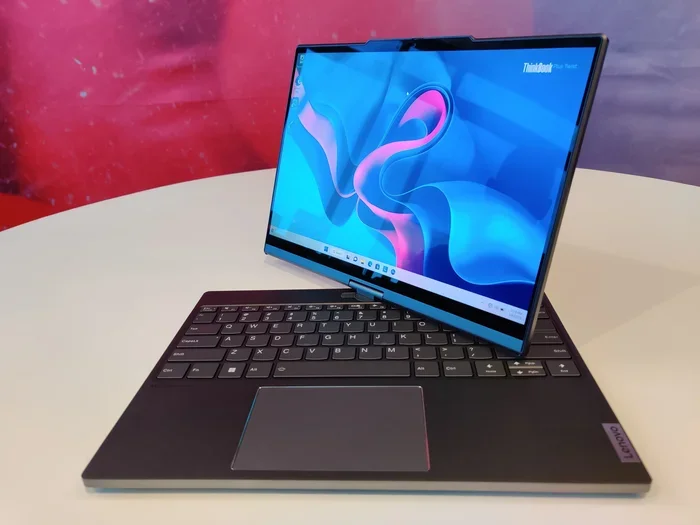
How your justified document looks on your screen may differ from how it prints. Always review the printed version or use the Print Preview feature before sharing important documents. If you are sharing digitally, remember that different screens and laptop displays can render text slightly differently. This is especially relevant if your reader is working on a device with limited RAM in a laptop — performance issues on older machines can sometimes affect how Word renders formatted text. For smoother performance, make sure your system has enough memory to handle the document. You can learn more about what RAM does in a laptop to understand how your hardware affects document editing.
Use the Show/Hide Formatting Marks Feature
Word has a handy feature that shows you hidden formatting marks like spaces, tabs, and paragraph breaks. You can turn this on by clicking the paragraph symbol (¶) on the Home tab toolbar. When you are working with justified text, this feature helps you see exactly where extra spaces are being added. It is a great way to spot problem areas and make manual adjustments where needed.
Justification vs. Other Formatting Tools in Word
Justification is just one piece of the document formatting puzzle in Microsoft Word. Understanding how it works alongside other tools will help you create documents that look professional and are easy to read.
Justification and Line Spacing
Line spacing and justification work together. Single-spaced justified text can look tighter and more prone to rivers. 1.5-spaced or double-spaced justified text gives Word more room to distribute words evenly. For academic papers, double spacing with justification is a common requirement. You can adjust line spacing from the Home tab or through the Paragraph dialog box.
Justification and Margins
Your margin settings directly impact how justification looks. Narrow margins give Word more horizontal space to work with, which usually results in better word distribution. Wide margins limit that space and can cause more spacing problems. A good starting point for most documents is 1-inch margins on all sides.
Justification and Indentation
First-line indentation is often used alongside justified text, especially in book-style layouts. You can set indentation in the Paragraph dialog box. A typical first-line indent is 0.5 inches. This combination of indentation and justification creates the classic book page look that readers are familiar with.
Advanced Justification Settings in Word
Microsoft Word offers several advanced settings that give you fine-grained control over how justification works. These settings are hidden inside the Paragraph dialog box and can make a big difference in the final look of your document.
Word Spacing Options
In the Font dialog box (accessed by clicking the small arrow in the Font group on the Home tab), the Advanced tab contains Word Spacing settings. You can set the spacing to Expanded or Condensed and adjust the point size. This is useful when you need to fine-tune justification for a specific paragraph or section without changing the font size.
Kerning and Scaling
Kerning adjusts the space between individual character pairs. Scaling changes the width of characters as a percentage. Both of these settings interact with justification and can help you achieve a more even look. These are advanced features, but they can be very helpful when you are working on documents that need to look absolutely perfect.
Character and Line Grid Alignment
Word also offers the option to align text to a character grid or line grid. This is especially useful for documents that will be printed professionally or that need to match a specific layout standard. You can find these settings in the Paragraph dialog box under the Line and Page Breaks tab.
Frequently Asked Questions
What is the shortcut to justify text in Microsoft Word?
The keyboard shortcut to justify text in Word is Ctrl + J on Windows or Cmd + J on Mac. Simply highlight the text you want to justify and press the key combination. This is the fastest way to apply full justification without using the mouse or the ribbon toolbar.
Can I justify only part of a paragraph in Word?
Yes, you can. Highlight only the specific lines or sentences you want to justify, then apply the justify command. However, this can sometimes create visual inconsistencies within the same paragraph. It is usually better to justify entire paragraphs for a cleaner, more uniform look.
Why does justified text sometimes look worse than left-aligned text?
Justified text can look worse when there are rivers of white space, uneven word spacing, or very short lines. These issues are more common with narrow columns, certain fonts, or documents with lots of hyphenated words. Using hyphenation and adjusting line spacing usually fixes most of these problems.
Is justified text easier or harder to read?
Research on readability is mixed. Some studies suggest that the even left and right edges of justified text make it easier to scan. Other studies indicate that uneven word spacing in justified text can slow down reading speed. For most formal documents, justified text is the standard and readers are accustomed to it.
Does justifying a document change the font or font size?
No, justification only changes the spacing between words on each line. It does not alter the font type, font size, or any other character-level formatting. Your text remains exactly the same size and style — only the horizontal spacing adjusts to fill both margins.
Can I justify text in Word Online (the browser version)?h3>
Yes, Word Online supports text justification. The option is located in the toolbar at the top of the document, represented by the four-line alignment icon. The feature works the same way as the desktop version, though you may have fewer advanced paragraph settings available compared to the full desktop application.
Conclusion
Knowing how to justify a document in Microsoft Word is a fundamental skill that can instantly improve the look and feel of your writing. Whether you are preparing a school assignment, a business proposal, or a formal report, full justification gives your document a clean, professional edge that readers will notice. The process is simple — just a few clicks or one keyboard shortcut — but the impact on your document’s appearance is significant.
Remember to pair justification with good hyphenation settings, appropriate line spacing, and well-chosen fonts to avoid common problems like rivers and uneven spacing. Use the tips and techniques in this guide to create documents that look polished and are easy to read. With a little practice, you will be able to format justified text in Word quickly and confidently, making every document you create look its absolute best.
Start experimenting with the different alignment options and paragraph settings today. Once you see the difference that proper justification makes, you will never go back to plain left alignment for your important documents again.