What Is a Bluetooth Port

A Bluetooth port is a wireless connection point on your device that lets you link peripherals like headphones, speakers, and mice without cables. It uses short-range radio waves to transfer data between devices, making it one of the most popular wireless standards today. Understanding how it works helps you set up, troubleshoot, and get the most from your Bluetooth devices.
You use Bluetooth every single day. You might not even think about it. But every time you connect your phone to a Bluetooth speaker or tap your wireless headphones to your laptop, a Bluetooth port is doing the heavy lifting behind the scenes.
So what exactly is a Bluetooth port? Simply put, it is a wireless connection point built into your device. It allows your phone, tablet, or computer to talk to other gadgets without any cables. Instead of plugging in a wire, you use radio waves to send and receive data. It is fast, it is convenient, and it has become one of the most widely used wireless standards in the world.
In this article, we will break down everything you need to know. We will cover how a Bluetooth port works, the different versions available, how to pair devices, common problems you might face, and tips to get the best performance. Whether you are a tech beginner or someone who just wants to understand their devices better, this guide has you covered.
Key Takeaways
- Bluetooth ports enable wireless data transfer between devices using short-range radio signals, replacing the need for cables.
- Bluetooth has evolved through multiple versions, with Bluetooth 5.0 offering faster speeds, longer range, and lower power consumption.
- Setting up a Bluetooth connection is simple and usually involves turning on pairing mode and selecting the device from a list.
- Common Bluetooth devices include headphones, speakers, mice, and keyboards, making wireless peripherals more convenient than ever.
- Troubleshooting Bluetooth issues often involves resetting the connection, updating drivers, or moving closer to the source device.
- Bluetooth Low Energy (BLE) saves battery life on small devices like fitness trackers and smartwatches.
- Not all devices have built-in Bluetooth, but you can add it using a USB Bluetooth dongle or adapter.
📑 Table of Contents
- What Is a Bluetooth Port?
- Bluetooth Versions and What They Mean
- How to Pair Devices Using a Bluetooth Port
- Common Bluetooth Port Problems and How to Fix Them
- Devices That Use Bluetooth Ports
- Bluetooth vs. Other Wireless Technologies
- Do You Always Have a Built-In Bluetooth Port?
- Tips to Get the Best Bluetooth Performance
- Frequently Asked Questions
- Final Thoughts
What Is a Bluetooth Port?
A Bluetooth port is a built-in wireless interface on your device. It lets your gadget communicate with other Bluetooth-enabled devices over short distances. Think of it as an invisible cable that connects your devices without any physical wires. The port uses radio frequency waves in the 2.4 GHz band to send and receive data.
You will find Bluetooth ports in almost every modern device. Smartphones, laptops, tablets, smart TVs, and even some kitchen appliances now come with Bluetooth built in. The technology is managed by a chip inside your device. This chip handles everything from discovering nearby devices to maintaining a stable connection.
The great thing about a Bluetooth port is that it works with many different types of wireless peripherals. You can connect keyboards, mice, headphones, speakers, fitness trackers, and even printers. All of this happens without you needing to install any extra software in most cases.
How Does Bluetooth Wireless Technology Work?
Bluetooth uses something called frequency-hopping spread spectrum. That sounds complicated, but it is actually simple. Your Bluetooth port sends data across 79 different frequencies very quickly. It switches between these frequencies up to 1,600 times per second. This hopping helps reduce interference from other wireless devices like Wi-Fi routers.
When you pair two devices, they agree on a frequency to use. They then hop together across the frequencies in sync. This creates a small, private wireless network between just those two devices. No one else can join unless you allow it.
The range of a standard Bluetooth connection is about 30 feet (10 meters). However, newer versions like Bluetooth 5.0 can reach up to 800 feet under ideal conditions. The actual range depends on your device, obstacles like walls, and the Bluetooth version you are using.
Bluetooth Versions and What They Mean
Bluetooth technology has improved a lot over the years. Each new version brings better speed, longer range, and less power usage. Here is a quick look at the major versions you should know about.
Bluetooth 1.0 and 2.0
These early versions were the foundation. Bluetooth 1.0 launched in 1999 and was very slow. Bluetooth 2.0 came out in 2004 and introduced Enhanced Data Rate (EDR). This made file transfers much faster. If you have older devices, they might still use these versions. You will notice slower connections and shorter range compared to newer tech.
Bluetooth 3.0 and 4.0
Bluetooth 3.0, released in 2009, added High Speed (HS) mode. This allowed faster data transfers by borrowing Wi-Fi power for big file transfers. Bluetooth 4.0 came in 2010 and introduced a game-changer: Bluetooth Low Energy (BLE). BLE uses very little power, which is why it is perfect for fitness bands, smartwatches, and health monitors. Your device battery lasts much longer with BLE.
Bluetooth 5.0 and Beyond
Bluetooth 5.0 launched in 2016 and is now the standard in most new devices. It doubled the range, quadrupled the speed, and improved broadcasting capacity. Bluetooth 5.0 also handles multiple connections better. You can connect more devices at once without lag.
Bluetooth 5.3, the latest version, focuses on better battery efficiency and improved security. If you are buying new devices, look for Bluetooth 5.0 or higher. It makes a real difference in daily use.
How to Pair Devices Using a Bluetooth Port
Pairing devices is the process of connecting two gadgets through their Bluetooth ports. It is usually very easy and takes less than a minute. Here is how it works step by step.
- Turn on Bluetooth on both devices. You can usually find this in your settings menu or quick settings panel.
- Put the receiving device in pairing mode. For headphones or speakers, this often means holding down the power button until a light flashes.
- Search for available devices on the sending device. Your phone or computer will scan and show a list of nearby Bluetooth devices.
- Select the device you want to connect. Wait for the connection to establish. You will usually hear a tone or see a confirmation message.
- Test the connection. Play some music or try typing on a paired keyboard to make sure everything works.
Once paired, your devices will remember each other. The next time you turn on Bluetooth, they should connect automatically. This is called reconnection, and it saves you from going through the pairing process every time.
If you are connecting a Bluetooth mouse or keyboard, the process is the same. Just make sure the peripheral is in pairing mode and your computer is scanning for new devices.
Common Bluetooth Port Problems and How to Fix Them
Bluetooth connections are not always perfect. Sometimes things go wrong. Here are the most common issues and easy fixes for each one.
Device Not Showing Up in the List
If your device does not appear during a scan, try turning Bluetooth off and back on again. Also check that the other device is in pairing mode. Some devices only stay in pairing mode for a few minutes before timing out. Restarting both devices often solves this problem too.
Poor Audio Quality or Lag
If your Bluetooth speaker sounds muffled or there is a delay, you might be too far away. Move closer to the source device. Walls and furniture can weaken the Bluetooth signal. Also, make sure you are not in a crowded area with lots of Wi-Fi networks competing for the same frequencies.
Connection Keeps Dropping
A dropping connection can be frustrating. First, check if your devices are fully charged. Low battery can cause Bluetooth to disconnect. Next, try removing the device from your paired list and pairing it again. Updating your device software can also fix connection bugs. Many manufacturers release updates that improve Bluetooth compatibility.
Bluetooth Won’t Turn On
If Bluetooth will not turn on at all, restart your device first. If that does not work, check if another device is interfering. Some USB 3.0 ports can cause Bluetooth interference. You can also try resetting your network settings. On phones, this usually wipes saved Wi-Fi passwords too, so be careful.
Devices That Use Bluetooth Ports
Bluetooth is everywhere in modern tech. Here are some of the most common devices that rely on a Bluetooth port to function wirelessly.
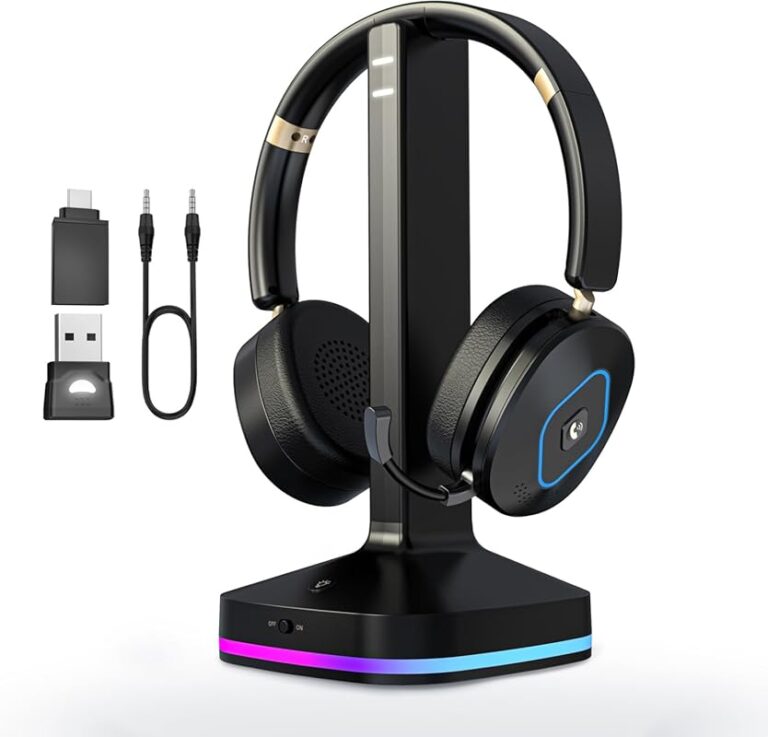
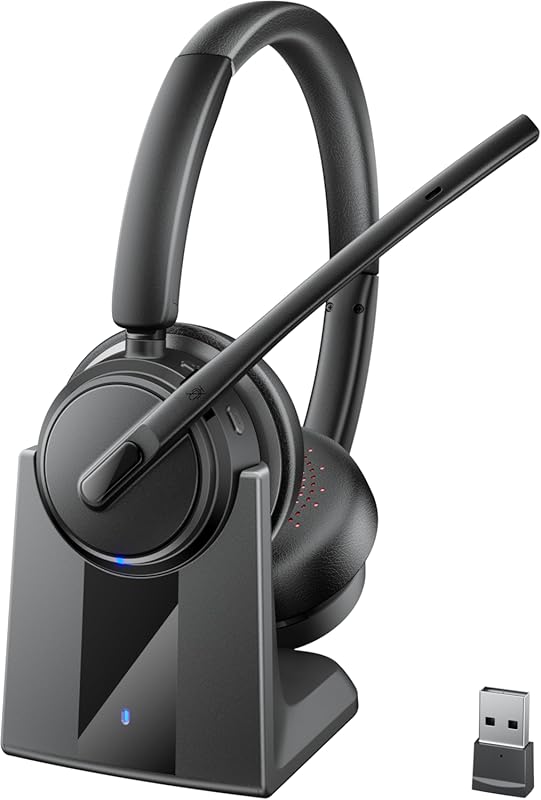
- Headphones and Earbuds: Wireless audio is now the norm. Most modern headphones use Bluetooth to connect to phones and computers.
- Speakers: Portable Bluetooth speakers let you play music anywhere without wires.
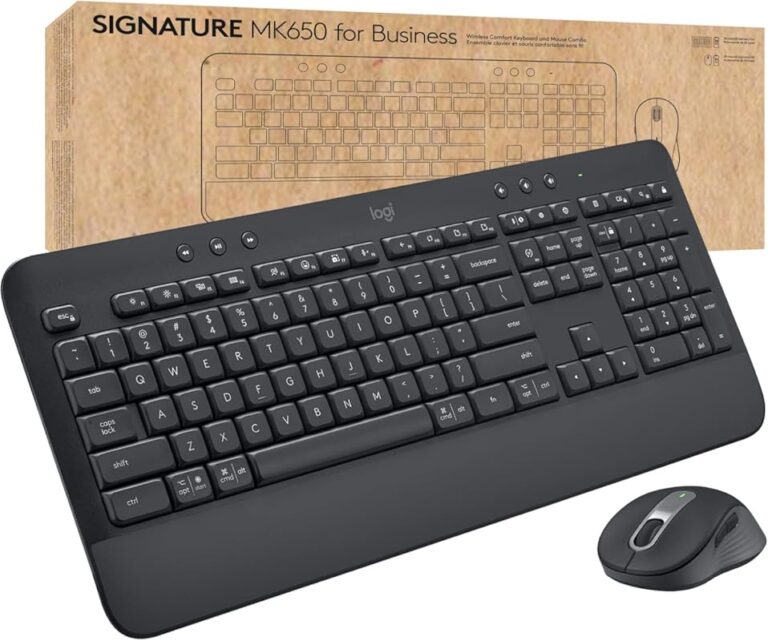
- Keyboards and Mice: Wireless peripherals use Bluetooth to connect to laptops and tablets, giving you a cleaner desk setup.
- Fitness Trackers and Smartwatches: These devices sync data to your phone using Bluetooth Low Energy, saving battery life.
- Car Audio Systems: Many cars now support Bluetooth for hands-free calling and music streaming through the car stereo.
- Printers: Wireless printers use Bluetooth to receive print jobs from your phone or laptop.
- Game Controllers: Wireless gamepads for consoles and PCs connect via Bluetooth for a clutter-free gaming experience.
As you can see, the list is long. Almost any wireless gadget you buy today likely uses a Bluetooth port. This is why understanding the technology is so useful in everyday life.
Bluetooth vs. Other Wireless Technologies
Bluetooth is not the only wireless technology out there. Here is how it compares to a few others.
| Feature | Bluetooth | Wi-Fi | NFC |
|---|---|---|---|
| Range | Up to 800 ft (BT 5.0) | Up to 150 ft | Up to 4 cm |
| Speed | Moderate | Fast | Very slow |
| Power Use | Low (especially BLE) | Moderate to High | Very Low |
| Best For | Peripherals, audio | Internet, file sharing | Payments, quick pairing |
Each technology has its strengths. Bluetooth is best for connecting personal devices like headphones and keyboards. Wi-Fi is better for internet access and large file transfers. NFC is great for quick, close-range tasks like tap-to-pay. But for everyday wireless peripherals, Bluetooth connectivity remains the top choice.
Do You Always Have a Built-In Bluetooth Port?
Most modern devices come with Bluetooth built in. But older computers and some budget gadgets might not have it. If your device lacks a built-in Bluetooth port, do not worry. You have options.
A USB Bluetooth dongle is the easiest fix. You plug it into a USB port, and your device gets Bluetooth capability instantly. These dongles are small, affordable, and work with most computers. Some even support the latest Bluetooth 5.0 standard.
Another option is a Bluetooth adapter that plugs into an audio jack or USB-C port. These are handy for older laptops or desktops that do not have built-in wireless support. Just plug in the adapter, install any drivers if needed, and you are ready to connect wireless devices.
Before buying an adapter, check what Bluetooth version it supports. Getting one that supports at least Bluetooth 5.0 ensures better speed and range. It also future-proofs your setup for newer devices.
Tips to Get the Best Bluetooth Performance
Want your Bluetooth connections to work better? Follow these simple tips.
- Keep your devices updated. Software updates often include Bluetooth improvements and bug fixes.
- Stay within range. The closer you are to the source device, the stronger and more stable the connection.
- Reduce interference. Keep your Bluetooth devices away from Wi-Fi routers, microwaves, and USB 3.0 devices that can cause signal noise.
- Turn off Bluetooth when not in use. This saves battery life on both your device and the connected peripheral.
- Limit the number of connected devices. Too many devices connected at once can slow things down and drain batteries faster.
- Reset connections regularly. If you notice lag or dropouts, unpair and re-pair your devices for a fresh connection.
These small habits make a big difference. Your Bluetooth connections will be faster, more stable, and last longer on battery power.
Frequently Asked Questions
Is a Bluetooth port the same as a Wi-Fi port?
No, they are different technologies. A Bluetooth port connects devices directly to each other over short distances. A Wi-Fi port connects your device to the internet through a router. They serve different purposes, though both use wireless signals.
Can I add Bluetooth to a device that does not have it?
Yes, you can. A USB Bluetooth dongle is the easiest way to add Bluetooth to a desktop computer or older laptop. Just plug it in, install any needed drivers, and your device will have Bluetooth capability.
Does using Bluetooth drain my phone battery?
It uses some battery, but not a lot. Modern Bluetooth, especially Bluetooth Low Energy, is very efficient. Active audio streaming uses more power than a passive connection like a fitness tracker. Overall, the battery cost is minimal for most daily uses.
What is the difference between Bluetooth and Bluetooth Low Energy?
Standard Bluetooth is designed for continuous data streaming, like audio. Bluetooth Low Energy (BLE) is designed for small bursts of data and uses much less power. BLE is used in fitness trackers, smartwatches, and health sensors where battery life is critical.
How far can Bluetooth reach?
Standard Bluetooth has a range of about 30 feet. Bluetooth 5.0 can reach up to 800 feet in open space. Walls, furniture, and other electronics can reduce the actual range significantly.
Is Bluetooth safe to use?
Yes, Bluetooth is considered safe. It uses low-power radio waves that are far weaker than cell phone signals. Bluetooth also uses encryption during pairing, which helps keep your data secure. As long as you pair with trusted devices, Bluetooth is a safe and reliable technology.
Final Thoughts
A Bluetooth port is one of the most useful features in modern tech. It lets you connect wireless headphones, speakers, keyboards, and many other devices without any cables. The technology has come a long way, from slow early versions to the fast and efficient Bluetooth 5.0 and beyond.
Understanding how your Bluetooth port works helps you troubleshoot problems, choose the right devices, and get the best performance. Whether you are connecting a Bluetooth speaker for a party or syncing your fitness tracker in the morning, the Bluetooth port is the invisible hero making it all possible.
Keep your devices updated, stay within range, and enjoy the freedom that wireless Bluetooth connectivity brings. Once you go wireless, going back to cables feels like a step backward.