What Is a Microsoft Bluetooth Enumerator
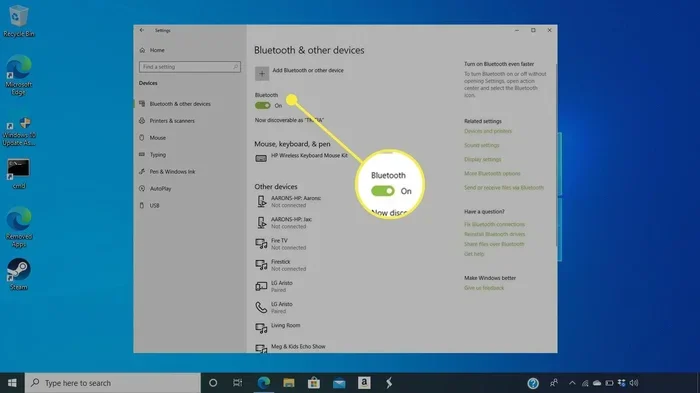
A Microsoft Bluetooth Enumerator is a built-in Windows component that helps your laptop detect and list Bluetooth devices. It works behind the scenes in Device Manager to make wireless connections smooth. Understanding it helps you troubleshoot connection issues and keep your laptop running well.
Have you ever opened Device Manager on your laptop and spotted a device called the Microsoft Bluetooth Enumerator? If you have, you are not alone. Many laptop users see this name and wonder what it actually does. The short answer is that it plays a quiet but essential role in helping your computer talk to wireless devices.
In this guide, we will break it all down. You will learn what the Microsoft Bluetooth Enumerator is, how it works, where to find it, and what to do when things go wrong. By the end, you will feel confident managing Bluetooth on your laptop like a pro.
## What Exactly Is a Microsoft Bluetooth Enumerator
At its core, a Bluetooth enumerator is a software component in Windows that identifies Bluetooth hardware. Think of it like a receptionist at a front desk. When a new Bluetooth device walks in, the enumerator checks it in and tells the system what it is.
The Microsoft Bluetooth Enumerator is built into Windows. It comes pre-installed on most laptops running Windows 10 or Windows 11. You do not need to download it separately. It is part of the Windows Bluetooth stack, which is the collection of software that handles all Bluetooth communication.
### How It Fits Into Your Laptop
Your laptop uses several drivers and software pieces to manage hardware. The Bluetooth enumerator sits in the middle of this system. It sits between the physical Bluetooth chip on your motherboard and the Windows operating system. When you try to pair a new device, the enumerator reads the device information and passes it along to Windows.
This process is called device enumeration. It simply means listing and identifying hardware. Without it, your laptop would not know that a Bluetooth speaker or wireless mouse even exists.
## Where to Find the Microsoft Bluetooth Enumerator
Finding the Bluetooth Enumerator on your laptop is straightforward. You just need to open Device Manager. Here is how to do it step by step.
1. Right-click on the Start button on your taskbar.
2. Select Device Manager from the menu.
3. Look for a category called Bluetooth.
4. Click the arrow to expand it.
5. You should see Microsoft Bluetooth Enumerator listed there.
Sometimes it appears under Other Devices instead. This usually means the driver needs a quick update.
### Why You Might See It Under Other Devices
If the Bluetooth Enumerator shows up with a yellow triangle, do not panic. This just means Windows has not fully installed the right driver yet. It happens often after a fresh Windows install or a major update. The fix is usually simple and quick.
## How the Microsoft Bluetooth Enumerator Works
The enumerator does its job every time you turn on your laptop. It scans for Bluetooth signals and keeps a list of known devices. When you want to connect something new, here is what happens behind the scenes.
First, the Bluetooth adapter sends out a signal. The new device responds. Then the Microsoft Bluetooth Enumerator picks up that response. It reads the device name, type, and capabilities. Finally, it passes all this information to Windows so you can choose to pair with it.
### The Role of the Bluetooth Stack
The Bluetooth stack is the full set of software that manages Bluetooth on your PC. The enumerator is just one piece of this stack. Other parts handle actual data transfer, security, and pairing logic. Together, they make sure your wireless devices work reliably.
Think of the Bluetooth stack like a restaurant kitchen. The enumerator is the person who takes orders and checks the menu. The other parts are the cooks who prepare the food. Everyone has a role, and the whole team needs to work together.
## Common Problems with the Bluetooth Enumerator
Like any software component, the Bluetooth Enumerator can run into issues. These problems usually show up in predictable ways. Here are the most common ones laptop users face.
### Bluetooth Devices Not Showing Up
This is the number one complaint. You turn on your wireless headphones, but your laptop does not see them. Often, the culprit is a problem with the enumerator not properly detecting the device.
### Yellow Warning Icons in Device Manager
A yellow triangle with an exclamation mark means something is wrong. It could be a missing driver, a corrupted file, or a conflict with another device. The good news is that these issues are usually easy to fix.
### Bluetooth Toggle Grayed Out
Sometimes the Bluetooth option in your settings is gray and cannot be turned on. This can happen if the enumerator driver is not working correctly. Restarting the Bluetooth support service often fixes this.
### Intermittent Connection Drops
If your Bluetooth devices keep disconnecting, the enumerator might be struggling to maintain the device list. This can happen with older drivers or after a Windows update.
## How to Fix Bluetooth Enumerator Issues
Fixing problems with the Microsoft Bluetooth Enumerator is usually not hard. Here are the steps that work most of the time.
### Step 1: Restart Your Laptop
This sounds too simple, but it works more often than you think. A restart clears temporary glitches and resets the Bluetooth stack.
### Step 2: Update the Bluetooth Driver
Open Device Manager. Right-click on the Bluetooth Enumerator. Select Update Driver. Choose Search Automatically for Drivers. Windows will look for the latest version online.
### Step 3: Run the Bluetooth Troubleshooter
Windows has a built-in troubleshooter for Bluetooth. Go to Settings > System > Troubleshoot > Other Troubleshooters. Click Run next to Bluetooth. Follow the on-screen prompts.
### Step 4: Reinstall the Bluetooth Adapter
If updating does not help, try removing the adapter. In Device Manager, right-click the Bluetooth Enumerator and select Uninstall Device. Restart your laptop. Windows will reinstall the driver automatically.
### Step 5: Check for Windows Updates
Sometimes a Windows update breaks Bluetooth functionality. Other times, an update fixes it. Go to Settings > Windows Update and check for the latest patches.
### Step 6: Reset Bluetooth Settings
Go to Settings > Bluetooth & Devices. Remove all paired devices. Then restart your laptop and pair them again one by one.
## Tips to Keep Your Bluetooth Running Smoothly
Prevention is always better than fixing. Here are some simple habits that keep your Bluetooth connection healthy on your laptop.
– Keep your Windows updated at all times.
– Avoid connecting too many devices at once.
– Remove unused Bluetooth pairings regularly.
– Keep your laptop drivers up to date.
– Restart your laptop at least once a week.
– Keep your Bluetooth devices charged and within range.
These small habits go a long way. They prevent most Bluetooth issues before they start.
## How the Bluetooth Enumerator Relates to Other Laptop Hardware
The Bluetooth Enumerator does not work alone. It is part of a larger system of hardware and software on your laptop. For example, the wireless capabilities on your laptop also include Wi-Fi, which works alongside Bluetooth.
Many laptop users also rely on peripherals like wireless mice and keyboards. If you want to learn more about how these devices connect and work, you can explore what the mouse on a laptop is called and how it interacts with your system. Understanding these connections helps you troubleshoot faster.
Similarly, keeping your laptop’s overall hardware healthy supports smooth Bluetooth performance. For instance, if you are dealing with overheating issues, checking what a good idle GPU temperature is can help ensure your system runs cool and stable.
Your laptop’s RAM also plays a role in how well it handles multiple wireless connections. Having enough memory helps your system manage Bluetooth devices without lag. If you are curious about how much RAM your laptop needs, check out guides on whether 8GB of RAM is good for a laptop to make sure your system is properly equipped.
## When to Seek Professional Help
Most Bluetooth issues are easy to fix at home. But sometimes, the problem goes deeper. If you have tried all the steps above and Bluetooth still does not work, it might be a hardware issue.
A failing Bluetooth chip on your motherboard needs professional repair. Similarly, if your laptop’s internal Bluetooth antenna is damaged, you will need a technician. These situations are rare, but they do happen.
Before seeking help, make sure you have tried a clean driver reinstall. Use a tool like DDU (Display Driver Uninstaller) in safe mode to remove all Bluetooth-related software. Then restart and let Windows reinstall everything fresh.
## Final Thoughts
The Microsoft Bluetooth Enumerator might not be the most exciting part of your laptop. But it is absolutely essential. It is the quiet worker that makes sure your wireless devices connect and stay connected.
Understanding what it does, where to find it, and how to fix common issues puts you ahead of most users. You do not need to be a tech expert to manage your Bluetooth settings. With the steps in this guide, you can handle most problems on your own.
Keep your drivers updated, restart regularly, and treat your Bluetooth devices well. Your laptop will reward you with smooth, reliable wireless connections every day.
Key Takeaways
- What it is: A Windows driver component that identifies and lists Bluetooth devices on your laptop.
- Where to find it: You can locate it in Device Manager under Bluetooth or Other Devices.
- Why it matters: Without it, your laptop cannot recognize or connect to Bluetooth peripherals like mice, headphones, and keyboards.
- Common issues: Problems often show up as yellow warning icons or missing Bluetooth options in settings.
- How to fix it: Updating drivers, restarting services, or reinstalling the adapter usually resolves most issues.
- Laptop connection: It is part of the broader laptop hardware ecosystem that includes components like the trackpad and pointing devices you use daily.
Frequently Asked Questions
What is the Microsoft Bluetooth Enumerator used for?
The Microsoft Bluetooth Enumerator is a Windows driver component that identifies and lists Bluetooth devices connected to your laptop. It helps the operating system recognize wireless peripherals like headphones, mice, and keyboards so they can be paired and used properly.
Is the Microsoft Bluetooth Enumerator a virus or malware?
No, it is a legitimate Windows system component. It is built into the operating system by Microsoft and is completely safe. You should not remove or disable it unless you are troubleshooting a specific driver conflict.
Why does my Bluetooth Enumerator show a yellow warning icon?
A yellow warning icon usually means the driver is missing, outdated, or corrupted. This commonly happens after a Windows update or a fresh installation. Updating or reinstalling the driver typically fixes the issue quickly.
Can I uninstall the Microsoft Bluetooth Enumerator?
You can uninstall the driver from Device Manager, but Windows will usually reinstall it automatically on restart. Uninstalling it does not provide any benefit and may cause Bluetooth devices to stop working until it is restored.
How do I update the Bluetooth Enumerator driver?
Open Device Manager, right-click on the Bluetooth Enumerator, and select Update Driver. Choose the option to search automatically for drivers. Windows will download and install the latest compatible version from its database.
Does the Bluetooth Enumerator affect Wi-Fi performance?
Not directly. The Bluetooth Enumerator only handles Bluetooth devices. However, both Bluetooth and Wi-Fi share the same wireless spectrum, so heavy Bluetooth activity can occasionally cause minor interference with Wi-Fi signals on older laptops.
=== CONCLUSION ===
The Microsoft Bluetooth Enumerator is a small but mighty part of your laptop’s wireless system. It handles the behind-the-scenes work of detecting and listing Bluetooth devices so you can connect effortlessly. Most users never think about it until something goes wrong, but understanding it gives you real power over your laptop’s Bluetooth experience.
By following the troubleshooting steps and maintenance tips in this guide, you can resolve most Bluetooth issues on your own. Keep your drivers updated, stay on top of Windows updates, and treat your wireless devices with care. Your laptop will stay connected and running smoothly for years to come.