What Is a Multimedia Projector
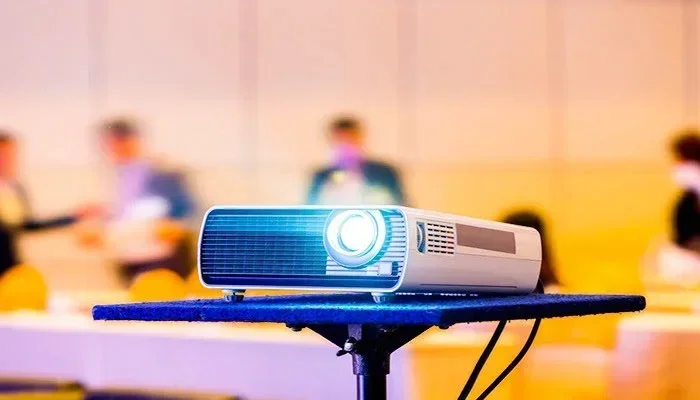
A multimedia projector is a device that displays images, videos, and presentations on a large screen or wall. It connects to computers, laptops, and media players to project content in high resolution. Whether you need one for work, school, or home entertainment, understanding the basics helps you make a smarter choice. This guide covers how projectors work, the types available, and what features matter most.
A multimedia projector is a device that takes visual content from a source and displays it on a large screen or flat surface. You probably have seen one in a classroom, a conference room, or a home theater setup. These devices have been around for decades, but modern projectors are lighter, brighter, and smarter than ever before.
If you have ever wondered how a projector turns a small image into a wall-sized display, you are in the right place. This guide breaks down everything you need to know about multimedia projectors. We will cover how they work, the different types, what features to look for, and how to set one up in your own space.
Key Takeaways
- A multimedia projector enlarges digital content: It takes a signal from a device and displays it on a big surface for everyone to see.
- There are three main types: LCD, DLP, and LED projectors each offer different benefits for image quality and durability.
- Brightness and resolution are key: Look at lumens and native resolution to match the projector to your room and use case.
- Setup is simple: Most modern projectors connect via HDMI and work within minutes of unboxing.
- They serve many purposes: From boardroom presentations to backyard movie nights, multimedia projectors are versatile tools.
📑 Table of Contents
What Is a Multimedia Projector?
At its core, a multimedia projector is an optical device that projects images and video onto a surface. It uses a light source and a series of lenses or chips to enlarge content from a connected device. The result is a big, clear image that everyone in the room can see.
You can connect a projector to a laptop, a DVD player, a gaming console, or even a smartphone. This flexibility is why the term “multimedia” is used. It handles many types of media, not just one. A multimedia projector is not the same as a simple slide projector from the old days. Modern units support high definition, wireless streaming, and smart features.
Think of a projector as a giant monitor that throws its image across a room instead of sitting on a desk. It is a powerful tool for sharing information and creating immersive experiences.
How Does a Multimedia Projector Work?
Understanding how a multimedia projector works is simpler than it sounds. The process involves three basic steps: receiving a signal, processing the image, and projecting it onto a surface.
Step One: Receiving the Signal
The projector receives a video or image signal from a source device. This could be a computer, a Blu-ray player, or a streaming stick. Most modern units use an HDMI connection for high-quality input. Some also support USB, VGA, or wireless connections like Bluetooth and Wi-Fi.
Step Two: Processing the Image
Once the signal is received, the projector’s internal processor breaks the image into pixels. Depending on the type of projector, this is done using different technology. LCD projectors use liquid crystals to filter light. DLP projectors use tiny mirrors on a chip. Each method has its own strengths, which we will cover below.
Step Three: Projecting the Image
The processed image is sent through a lens and projected onto a screen or wall. The size of the image depends on the distance between the projector and the surface. This distance is called the throw ratio. A short throw projector can create a big image from a short distance, while a standard projector needs more space.
Types of Multimedia Projectors
Not all projectors are the same. Different technologies deliver different image qualities, brightness levels, and price points. Here are the three most common types you will encounter.
LCD Projectors
LCD projectors use three liquid crystal panels to create images. They are known for producing bright, colorful pictures with smooth gradients. LCD units tend to be more affordable and great for well-lit rooms. They are a popular choice for classrooms and business presentations.
One thing to keep in mind is that LCD projectors can sometimes show a “screen door” effect, where you can see the grid lines between pixels. Newer models have largely fixed this issue, but it is worth knowing about.
DLP Projectors
DLP stands for Digital Light Processing. These projectors use a chip made of tiny mirrors that tilt to create the image. DLP projectors are known for their sharp image quality and smooth motion. They are a favorite for home theaters and movie nights.
DLP units often have better contrast than LCD models. They also tend to be more compact and portable. However, some lower-end DLP projectors can show a “rainbow effect,” where brief color flashes appear. This is more noticeable in brighter models.
LED Projectors
LED projectors use light-emitting diodes instead of traditional lamps. They last much longer and do not need frequent bulb replacements. LED models are also more energy-efficient and produce less heat. They are a great choice if you want a low-maintenance multimedia projector for everyday use.
The trade-off is that LED projectors may not be as bright as lamp-based models. They work best in dimmer environments or smaller rooms. But for most home and office setups, they deliver excellent results.
Key Features to Consider
When shopping for a multimedia projector, several features will determine how well it fits your needs. Here is what to look at before you buy.
Brightness (Measured in Lumens)
Brightness is measured in lumens. The higher the lumen count, the brighter the image. For a dark room like a home theater, 1,000 to 2,000 lumens is usually enough. For a bright classroom or office, you will want 3,000 lumens or more. If you plan to use the projector outdoors during the day, look for 4,000 lumens or higher.
Resolution
Resolution refers to the number of pixels the projector can display. Higher resolution means a sharper, more detailed image. Common options include:
- 720p (HD): Good for basic presentations and casual viewing.
- 1080p (Full HD): Great for home theaters and detailed graphics.
- 4K (Ultra HD): The sharpest option, ideal for professional use and premium home setups.
Contrast Ratio
The contrast ratio measures the difference between the brightest white and the darkest black a projector can produce. A higher contrast ratio means more depth and richness in the image. Look for a ratio of at least 2,000:1 for a satisfying viewing experience.
Throw Distance
Throw distance is how far the projector needs to be from the screen to display a specific image size. Short throw projectors can create a large image from just a few feet away. This is helpful in small rooms or classrooms where space is limited. Standard throw projectors need more distance and work best in larger spaces.
Connectivity Options
Make sure your multimedia projector has the right ports for your devices. HDMI is the most common and delivers the best quality. USB ports are handy for direct playback from a flash drive. Some projectors also offer Bluetooth, Wi-Fi, or even built-in smart operating systems for streaming content directly.
Common Uses for Multimedia Projectors
Multimedia projectors are used in a wide range of settings. Here are some of the most common ways people put them to work.
Business and Office Presentations
In the corporate world, projectors are essential for sharing slideshows, data, and reports with a team. A large display ensures everyone in the conference room can see the content clearly. Many business projectors also support wireless screen sharing, which makes last-minute presentations smooth and stress-free.
Classrooms and Education
Teachers use projectors every day to display lessons, videos, and interactive content. A projector makes it easy to reach an entire classroom without requiring every student to have their own screen. Some schools even use projectors to display live feeds from a gully camera during science lessons, giving students a real-world view of infrastructure and drainage systems.
Home Theater and Entertainment
For movie lovers, a multimedia projector turns any wall into a cinema screen. You can watch films, stream shows, or even play video games on a big display. Pairing a projector with a soundbar or external speakers creates a full home theater experience that rivals a commercial cinema.
Outdoor Events and Gatherings
Projectors are great for outdoor movie nights, sports viewing parties, and community events. Portable models are lightweight and easy to set up anywhere. You can even display a live feed from a WDR camera during an outdoor event to share wide-angle footage on the big screen.
Time-Lapse and Creative Projects
Creative professionals sometimes use projectors to display time-lapse content in real time. For example, you can project a live feed from a time lapse on a trail camera to monitor wildlife activity or construction progress in a large open space. This is a unique and practical application that not many people think about.
How to Set Up a Multimedia Projector
Setting up a multimedia projector is easier than most people expect. Follow these steps for a smooth installation.
Step 1: Choose the Right Location
Place the projector on a stable surface or mount it on the ceiling. Make sure there is enough distance between the projector and the screen based on the throw ratio. Avoid placing it near windows or bright light sources, as this can wash out the image.
Step 2: Connect Your Source Device
Use an HDMI cable to connect your laptop, streaming device, or media player to the projector. If your projector supports wireless connectivity, you can also pair it via Bluetooth or Wi-Fi. Make sure the projector and the source device are both powered on.
Step 3: Adjust the Image
Use the projector’s settings to focus the image and adjust the keystone correction if needed. Keystone correction fixes the shape of the image when the projector is not perfectly aligned with the screen. Most modern units handle this automatically.
Step 4: Set Up the Audio
Many projectors have small built-in speakers that are adequate for casual use. However, for a better experience, connect external speakers or a soundbar. You can use the projector’s audio output port or a wireless Bluetooth connection.
Quick Tip: If you are using the projector in a bright room, close the blinds or curtains to improve image visibility. A fleet safety camera setup in a warehouse or industrial space can also benefit from a projector display for real-time monitoring on a large screen.
Common Mistakes to Avoid
Even with the best projector, poor setup choices can ruin the experience. Here are some common mistakes to watch out for.
- Buying a projector that is too dim for the room: A low-lumen projector in a bright room will produce a washed-out image that is hard to see.
- Ignoring the throw distance: Placing the projector too close or too far from the screen can result in an image that is too small, too blurry, or distorted.
- Forgetting about ventilation: Projectors generate heat. Placing one in a closed cabinet or against a wall can cause overheating and shorten its lifespan.
- Using the wrong cable: An old or low-quality cable can limit the resolution and signal quality. Always use a high-speed HDMI cable for the best results.
- Neglecting lens cleaning: Dust on the lens can blur the image. Wipe the lens gently with a microfiber cloth before each use.
Expert Insights
According to industry experts, the biggest shift in projector technology over the past few years has been the move toward smart, portable, and LED-based models. Multimedia projectors that run on built-in operating systems like Android or Roku allow users to stream content without needing a separate device. This has made projectors more accessible and user-friendly than ever.
Another trend is the rise of laser projectors. These units use laser light sources instead of lamps or LEDs. They offer incredible brightness, excellent color accuracy, and a lifespan of up to 20,000 hours. While they are more expensive upfront, the long-term savings on replacement parts and energy make them a smart investment for heavy users.
Experts also recommend considering the ambient light in your space before purchasing. If your room has a lot of natural light, a projector with at least 3,500 lumens and a high contrast ratio will deliver the best results. For dedicated home theaters with controlled lighting, even a 1,500-lumen model can produce stunning images.
Projector Maintenance Tips
Taking care of your multimedia projector extends its life and keeps the image quality high. Here are some simple maintenance tips.
- Clean the filter regularly: Most projectors have a dust filter that needs cleaning every few weeks. Check your user manual for instructions.
- Let the projector cool down: After turning it off, wait a few minutes before moving it. This prevents damage to the internal components.
- Store it properly: When not in use, keep the projector in a cool, dry place. Use the original carrying case if you have one.
- Replace the lamp on time: If your projector uses a traditional lamp, replace it when the indicator light turns on. A worn-out lamp can dim the image and even damage the unit.
Quick Tip: If you are comparing options, you might also want to look at how different camera technologies display content. For example, an AHD camera system can feed live video to a projector for large-scale monitoring, which is useful in security and surveillance setups.
Conclusion
A multimedia projector is a versatile and powerful device that brings digital content to life on a big screen. Whether you use it for work, school, or entertainment, understanding the types, features, and setup steps helps you get the most out of your investment. From bright LCD models for classrooms to portable LED units for outdoor gatherings, there is a projector for every need and budget.
Take the time to evaluate your space, your brightness needs, and your connectivity options before making a purchase. With the right setup and a little maintenance, your projector will deliver clear, vibrant images for years to come. Now that you know the basics, you are ready to choose the perfect multimedia projector for your home, office, or next big event.
Frequently Asked Questions
What is the difference between a multimedia projector and a regular projector?
A regular projector may only handle one type of input or media, while a multimedia projector supports multiple sources like HDMI, USB, wireless streaming, and audio. The term “multimedia” simply means it can display more than one type of content from various devices.
How long does a multimedia projector last?
The lifespan depends on the light source. Traditional lamp projectors last about 3,000 to 5,000 hours. LED projectors can last up to 20,000 hours, and laser projectors can reach 20,000 to 30,000 hours. Proper maintenance, like cleaning the filter and replacing lamps on time, helps extend the life.
Can I use a multimedia projector outdoors?
Yes, you can. Portable projectors work well outdoors for movie nights or events. However, you will get the best image in a darker setting. Using a portable screen and a projector with at least 2,000 lumens will give you a clear and vibrant display even in the evening.
Do I need a special screen for a projector?
You can project onto a plain white wall, but a dedicated projector screen gives you a much better image. Screens are designed to reflect light evenly, which improves brightness and clarity. A basic pull-down screen is affordable and easy to set up in any room.
Is a multimedia projector better than a big TV?
It depends on your needs. A projector can display a much larger image at a lower cost per inch than a TV. It is great for shared viewing in large rooms. However, TVs are brighter and easier to see in well-lit spaces. Choose based on your room size, lighting, and viewing habits.
What cable do I need to connect a multimedia projector to a laptop?
An HDMI cable is the most common and reliable option. It carries both video and audio in a single cable. If your laptop does not have an HDMI port, you can use a USB-C to HDMI adapter. Make sure the cable is high-speed to support full HD or 4K resolution.