What Is a Normal Computer Temperature
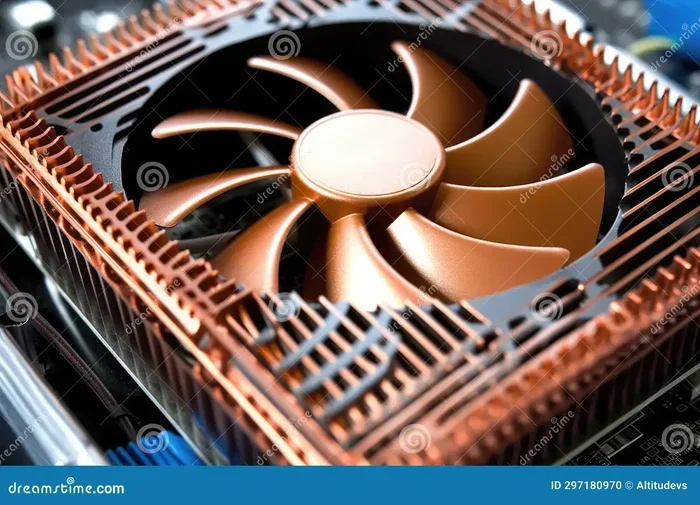
Normal computer temperature ranges from 30°C to 50°C when idle and 60°C to 85°C under full load. Keeping your computer temperature within safe limits prevents thermal throttling and extends hardware life. This guide covers CPU and GPU temperature ranges, common overheating causes, and easy ways to keep your system cool.
Your computer works hard every day. Whether you browse the web, edit videos, or play games, heat builds up inside the machine. Understanding normal computer temperature helps you protect your investment and keep everything running smoothly.
Many people ignore temperature readings until something goes wrong. By then, the damage might already be done. In this guide, we break down exactly what temperatures are safe, what causes overheating, and how you can fix it. Let us walk through everything you need to know about keeping your system cool.
Whether you use a desktop or a laptop, temperature management matters. A laptop tends to run warmer because of its compact design. Desktops have more room for airflow and bigger coolers. But both need attention to stay within a safe operating temperature range.
Key Takeaways
- Idle temperatures: A normal idle temperature for most computers sits between 30°C and 50°C.
- Load temperatures: Under heavy use, CPU and GPU temperatures between 60°C and 85°C are considered normal.
- Overheating risks: Sustained temperatures above 90°C can cause thermal throttling and permanent damage.
- Cooling solutions: Regular cleaning, thermal paste replacement, and cooling pads help maintain safe temperatures.
- Monitoring tools: Software like HWMonitor and Core Temp let you track your hardware temperature in real time.
- Laptop vs. desktop: Laptops run warmer than desktops due to compact designs and limited airflow.
📑 Table of Contents
What Is Normal Computer Temperature?
So, what does “normal” actually mean when we talk about computer temperature? The answer depends on whether your machine is sitting idle or working hard. Every component has its own range, and knowing those ranges is the first step toward better care.
A normal computer temperature for an idle system typically falls between 30°C and 50°C. When you are not running demanding tasks, your processor should stay in this comfortable zone. If your idle temperature is above 55°C, something might need attention.
Under full load, things change. A normal CPU temperature during heavy use ranges from 60°C to 85°C. For the GPU, temperatures between 65°C and 85°C are standard during gaming or rendering. These numbers represent healthy operation. Anything consistently above 90°C is a red flag.
Why Temperature Ranges Matter
Heat is the enemy of electronics. Components are designed to operate within specific thermal limits. When temperatures climb too high, performance drops and lifespan shortens. Staying within the optimal temperature range keeps your hardware running at its best for years.
Modern processors have built-in protection. They will slow down or shut off before permanent damage occurs. But you should never rely on these safety nets alone. Proactive cooling saves you from frustration and expensive repairs.
CPU Temperature: What Should You Expect?
The central processor is the brain of your computer. It generates a lot of heat, especially during intensive tasks. Understanding what a normal CPU temperature looks like helps you spot problems early.
When your computer is sitting on a desk doing nothing, the CPU should read between 30°C and 45°C. This is a healthy idle temperature. Light tasks like reading emails or watching videos might push it to 50°C. That is still perfectly fine.
During demanding work like video editing or compiling code, expect the processor temperature to rise to 70°C or 80°C. Modern CPUs can handle this without issue. They are engineered to run hot under load. The real concern comes when temperatures spike above 90°C consistently.
Signs Your CPU Is Running Too Hot
Your computer gives you warning signs when temperatures climb too high. Watch for these common symptoms:
- Slow performance: The system slows down to reduce heat, a process called thermal throttling.
- Frequent shutdowns: The computer shuts off randomly to protect itself from overheating.
- Loud fan noise: Fans spin at maximum speed trying to cool things down.
- Burning smell: This is a serious warning sign. Power off immediately if you smell something burning.
- Blue screen errors: Overheating can trigger system crashes and blue screens of death.
If you notice any of these signs, check your temperatures right away. Ignoring them can lead to permanent hardware failure.
GPU Temperature: Keeping Your Graphics Card Cool
The graphics processing unit handles everything visual on your screen. Whether you are gaming, watching 4K video, or using design software, the GPU works hard. It also generates significant heat.
A good idle GPU temperature ranges from 30°C to 50°C. Under load, most graphics cards run safely between 65°C and 85°C. Some high-end cards may reach 90°C during extreme gaming sessions, but this should not be the norm.
For comparison, a normal computer temperature for the GPU under light use like browsing should stay below 60°C. If your GPU regularly hits 90°C during gaming, your cooling solution might need an upgrade.
GPU Temperature and Gaming
Gamers often wonder about the impact of heat on performance. Is Fortnite a CPU or GPU game? The answer is both, but the GPU carries more of the load. This means gaming pushes GPU temperatures higher than many other tasks. Keeping your GPU cool during extended gaming sessions is essential.
Here are some practical tips for managing GPU heat:
- Keep your case well-ventilated with proper airflow.
- Clean dust from GPU fans and heatsinks every few months.
- Consider replacing thermal paste on older graphics cards.
- Use a laptop cooling pad if you game on a laptop.
- Adjust fan curves in your GPU software for better cooling.
What Causes Computer Overheating?
Overheating does not happen by accident. Several factors contribute to rising temperatures inside your computer. Identifying the cause is the first step toward a fix.
Dust buildup is the most common culprit. Over time, dust clogs fans and blocks airflow. This traps heat inside the case. Even a thin layer of dust on a heatsink can raise temperatures by several degrees.
Poor ventilation is another major factor. Computers need space around them to breathe. Placing a desktop in a closed cabinet or using a laptop on a soft surface like a bed restricts airflow. Both scenarios lead to higher temperatures.
Aging thermal paste also plays a role. The thermal paste between the CPU and its cooler degrades over time. After a few years, it loses its ability to transfer heat efficiently. Replacing it can drop temperatures significantly.
Other causes include ambient temperature, faulty fans, and running too many background processes. Even the room temperature around your computer matters. A hot room means a hotter computer.
Laptop Overheating: A Common Problem
Laptops are especially prone to overheating. Their compact design leaves little room for cooling solutions. Ventilation openings sit on the bottom, which means placing the laptop on a flat surface can block airflow.
If you use your laptop on your lap or a pillow, the fans struggle to pull in cool air. This raises internal temperatures quickly. A laptop cooling pad can make a big difference. It adds extra fans and lifts the laptop for better airflow.
How to Monitor Your Computer Temperature
You cannot manage what you cannot measure. Monitoring your hardware temperature is simple and free. Several tools give you real-time readings for both CPU and GPU.
HWMonitor is one of the most popular options. It displays temperatures, voltages, and fan speeds for all components. Core Temp focuses specifically on the CPU and gives very accurate readings. For GPU monitoring, MSI Afterburner works well and also lets you adjust fan speeds.
You can also check temperatures through your computer’s BIOS. This gives you readings before the operating system loads. However, software tools are more convenient for daily monitoring. They run in the background and can alert you when temperatures get too high.
What Temperatures Should You Watch?
Set these benchmarks as your personal guidelines:
- Below 50°C idle: Excellent. Your cooling system is working perfectly.
- 50°C to 60°C idle: Acceptable but worth monitoring.
- 60°C to 80°C under load: Normal for most tasks.
- 80°C to 90°C under load: Warm but not dangerous. Consider improving cooling.
- Above 90°C: Too hot. Take action immediately to prevent damage.
Tracking these numbers over time gives you a clear picture of your system’s health. Sudden spikes are especially worth investigating.
How to Lower Your Computer Temperature
Lowering your computer temperature does not require expensive upgrades. Many fixes are simple and free. Start with the basics and work your way up to more advanced solutions.
1. Clean Your Computer Regularly
Dust is the number one enemy of cooling. Open your desktop case and use compressed air to blow out dust from fans, heatsinks, and vents. For laptops, use a can of compressed air through the ventilation grilles. Do this every 3 to 6 months for best results.
2. Improve Airflow
Make sure your computer has enough space around it. Desktops should have several inches of clearance on all sides. Laptops benefit from being elevated at the back to allow air to flow underneath.
For desktops, check that all fans are working. A single broken fan can cause a cascade of overheating problems. Replace faulty fans promptly.
3. Replace Thermal Paste
Thermal paste degrades over time. After 2 to 3 years, it may no longer transfer heat effectively. Replacing it is straightforward. Remove the cooler, clean off the old paste, apply a small dot of new paste, and reattach the cooler.
4. Use a Cooling Pad for Laptops
A laptop cooling pad adds extra fans beneath your device. It improves airflow and can drop temperatures by 5°C to 10°C. Look for a pad with fans that match the size and position of your laptop’s vents.
5. Adjust Fan Curves
Many computers allow you to customize fan speeds based on temperature. In your BIOS or through software like Fan Control, you can set fans to spin faster at lower temperatures. This keeps things cooler but may add some noise.
6. Undervolt Your CPU or GPU
Undervolting reduces the voltage supplied to your processor or graphics card. This lowers heat output without sacrificing performance. It is an advanced technique but very effective for managing computer temperature.
When to Seek Professional Help
Most temperature issues can be fixed at home. But some situations call for professional assistance. If your computer shuts down frequently despite cleaning and cooling upgrades, there may be a deeper hardware problem.
A failing fan, a damaged heatsink, or a malfunctioning temperature sensor all require expert diagnosis. Do not hesitate to consult a technician if you are unsure. It is always better to spend a little on repairs than to lose a component to overheating.
Conclusion
Keeping your computer temperature within normal ranges is one of the simplest ways to extend your hardware’s life and maintain peak performance. A normal computer temperature of 30°C to 50°C at idle and 60°C to 85°C under load keeps everything running safely.
Regular cleaning, proper ventilation, and temperature monitoring go a long way. Do not wait until your system shows signs of trouble. Start paying attention to your hardware temperature today. Your computer will thank you with years of reliable service.
Take a few minutes right now to check your temperatures. Download a monitoring tool, clean your fans, and make sure your airflow is unobstructed. Small actions today prevent big problems tomorrow.
Frequently Asked Questions
What is a normal computer temperature for a laptop?
A normal computer temperature for a laptop ranges from 30°C to 50°C when idle and 60°C to 85°C under heavy use. Laptops tend to run a few degrees warmer than desktops because of their compact design and limited airflow.
Is 70 degrees Celsius normal for a CPU?
Yes, 70°C is a perfectly normal CPU temperature under load. Most processors operate safely between 60°C and 85°C during demanding tasks. Only temperatures consistently above 90°C should raise concern.
How can I check my computer temperature?
You can use free software like HWMonitor, Core Temp, or MSI Afterburner to check your temperatures in real time. You can also view readings in your computer’s BIOS before the operating system loads.
What happens if a computer gets too hot?
When a computer gets too hot, it may experience thermal throttling, which slows performance to reduce heat. Prolonged overheating can cause permanent damage to the CPU, GPU, or other components. In extreme cases, the system will shut down to protect itself.
Does a laptop cooling pad really work?
Yes, a laptop cooling pad can lower temperatures by 5°C to 10°C. It improves airflow beneath the laptop and adds extra fans. This is especially helpful for gaming laptops or users who run demanding applications for long periods.
How often should I replace thermal paste?
Thermal paste should be replaced every 2 to 3 years for best results. Over time, it dries out and loses its ability to transfer heat. Replacing it can significantly lower CPU and GPU temperatures.