What Is Powershell Script Trust
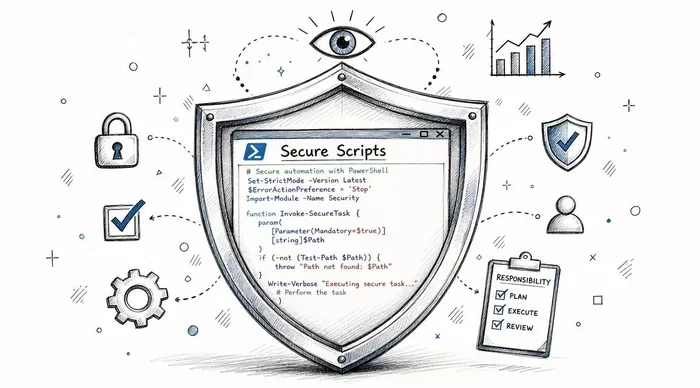
PowerShell script trust determines whether your laptop allows a script to run based on its source and digital signature. It uses execution policies and trusted publishers to keep your system safe from unauthorized code. Knowing how script trust works helps you stay secure while automating tasks efficiently.
When you run a PowerShell script on your laptop, something important happens behind the scenes. Windows checks whether that script is trustworthy before letting it execute. This process is called PowerShell script trust, and it plays a big role in keeping your computer safe. If you have ever seen a warning pop up when trying to run a script, that is PowerShell enforcing script trust rules. Understanding how this works helps you stay secure while still getting things done.
Many laptop users run PowerShell scripts every day without thinking about trust settings. Whether you are automating backups, managing files, or deploying software, script trust determines what runs and what gets blocked. In this guide, we will break down everything you need to know about PowerShell script trust. You will learn about execution policies, digital signatures, and how to manage trust levels on your system.
Key Takeaways
- Script trust controls: PowerShell uses execution policies to decide if a script can run on your laptop.
- Digital signatures matter: Scripts signed by a trusted publisher are treated differently than unsigned ones.
- Five trust levels exist: From Restricted to Bypass, each level offers a different balance of security and flexibility.
- Remote vs local scripts: Scripts downloaded from the internet face stricter trust rules than local files.
- Best practices keep you safe: Only run signed scripts from verified sources and review code before execution.
📑 Table of Contents
What Is PowerShell Script Trust?
PowerShell script trust is the system that decides whether a script is safe enough to run on your computer. It acts as a gatekeeper between you and potentially harmful code. When you try to execute a script, PowerShell checks several factors before allowing it to run. These factors include where the script came from, whether it has a digital signature, and what execution policy is currently set.
The concept of script trust is built into Windows PowerShell and PowerShell Core. It protects your laptop from malicious code that might come from email attachments, downloaded files, or untrusted websites. Think of it like a bouncer at a club checking IDs. The bouncer does not let everyone in, only those who meet the trust requirements. Similarly, PowerShell only runs scripts that pass its trust checks.
For most laptop users, the default trust settings work just fine. However, system administrators and power users often need to adjust these settings. Knowing how PowerShell script trust works gives you more control over your system. It also helps you troubleshoot when a script fails to run unexpectedly.
How Execution Policies Relate to Trust
The execution policy is the main tool PowerShell uses to enforce script trust. It sets the rules for what kinds of scripts can run on your machine. You can think of the execution policy as a set of instructions that PowerShell follows before launching any script. Without execution policies, any script on your laptop could run without your knowledge, which would be a serious security risk.
Execution policies work hand in hand with script signing to create a layered security approach. A signed script carries a digital signature that proves its origin. PowerShell checks this signature against trusted publishers before allowing execution. Together, these mechanisms form the backbone of PowerShell script trust and keep your system protected.
How PowerShell Determines Script Trust
PowerShell uses a combination of factors to decide if a script is trustworthy. The first factor is the script’s origin. Scripts that come from your local computer are treated differently than scripts downloaded from the internet. The second factor is the presence of a digital signature. A signed script proves it has not been tampered with and comes from a verified source.
The third factor is the current execution policy setting on your laptop. This policy acts as a filter that either allows or blocks scripts based on the rules we discussed above. PowerShell evaluates all three factors together to make a trust decision. If any one of these checks fails, the script may be blocked or require additional confirmation from you.
Digital Signatures and Trusted Publishers
A digital signature is like a wax seal on an important letter. It proves that the script has not been changed since it was signed. When a developer signs a script, they use a code signing certificate issued by a trusted certificate authority. PowerShell checks this certificate to verify the publisher’s identity.
A trusted publisher is a signer whose certificate PowerShell recognizes as safe. When a script comes from a trusted publisher, PowerShell allows it to run more easily. If the publisher is unknown or the signature is missing, PowerShell applies stricter rules. This is why you sometimes see warnings about unsigned scripts. Your laptop is simply doing its job to protect you.
Remote Scripts vs Local Scripts
Where a script comes from matters a lot in PowerShell script trust. Scripts stored directly on your laptop are considered local and face fewer restrictions. Scripts downloaded from the internet, email, or network shares are considered remote and face tighter controls.
Windows uses a feature called the Mark of the Web to track where scripts come from. When you download a script, Windows attaches a hidden marker that tells PowerShell it came from the internet. This marker triggers stricter trust checks. Even if the script looks harmless, PowerShell treats it differently than a script you created yourself. This extra layer of protection keeps your laptop safe from downloaded threats.
Execution Policy Levels Explained
PowerShell offers five main execution policy levels. Each level defines a different degree of trust and security. Understanding these levels helps you choose the right setting for your needs. Let us walk through each one in detail.
| Policy Level | What It Does | Trust Level |
|---|---|---|
| Restricted | No scripts can run. Only interactive commands are allowed. | Maximum security |
| AllSigned | Only scripts signed by a trusted publisher can run. | High security |
| RemoteSigned | Local scripts run freely; remote scripts must be signed. | Balanced |
| Unrestricted | All scripts run, but warnings appear for remote scripts. | Low security |
| Bypass | Nothing is blocked and no warnings appear. | No restrictions |
Restricted Mode
Restricted is the most secure setting. In this mode, PowerShell will not run any scripts at all. You can only type commands interactively in the console. This setting is ideal for laptops used by people who do not need to run scripts regularly. It provides the highest level of execution restriction and keeps your system very safe.
AllSigned Mode
AllSigned requires every script to have a valid digital signature from a trusted publisher. Even scripts you write yourself need to be signed before they can run. This setting is common in enterprise environments where system administrators control what runs on company laptops. It offers strong protection but requires more setup effort.
RemoteSigned Mode
RemoteSigned is the default execution policy for Windows clients. It allows local scripts to run without a signature but requires remote scripts to be signed. This balanced approach gives you flexibility while still protecting you from downloaded threats. Most laptop users will find this setting works well for their needs.
Unrestricted and Bypass Modes
Unrestricted allows all scripts to run but shows warnings when you execute remote scripts. It is less secure but more convenient for development environments. Bypass is the least restrictive option. It allows everything to run without any warnings or restrictions. You should only use Bypass in controlled environments where you fully trust every script being executed.
How to Check and Change Your Script Trust Settings
Checking your current execution policy is simple. Open PowerShell and type Get-ExecutionPolicy. This PowerShell cmdlet returns your current trust setting. You will see one of the five policy levels we discussed above. This quick check helps you understand what trust rules are currently active on your laptop.
Changing the execution policy is also straightforward but requires administrator privileges. Use the Set-ExecutionPolicy cmdlet followed by the policy name you want. For example, typing Set-ExecutionPolicy RemoteSigned switches your laptop to the RemoteSigned level. Always be careful when changing trust settings. Lowering security too much can expose your system to risks.
You can also set the execution policy for the current session only. Use the -Scope Process parameter to apply changes temporarily. This approach is useful when you need to run a specific script without changing your global settings. After you close the PowerShell window, the original policy returns automatically.
Quick Tips for Managing Script Trust
- Always use RemoteSigned as your default policy on personal laptops. It balances security and convenience.
- Never use Bypass on a laptop you use for everyday tasks or browsing.
- Review scripts before running them, especially if they come from the internet.
- Use signed scripts from verified publishers whenever possible.
- Keep your code signing certificates up to date and stored securely.
- Check your execution policy regularly to make sure it has not been changed by malware.
Best Practices for Managing Script Trust
Managing PowerShell script trust properly keeps your laptop secure while letting you automate tasks effectively. Following best practices reduces your risk of running malicious code. Here are the most important steps you should take.
First, always stick with the default execution policy unless you have a specific reason to change it. The default RemoteSigned policy works well for most users. Second, only download scripts from reputable sources. Websites like official GitHub repositories and trusted developer blogs are safer than random forums. Third, verify digital signatures before running any signed script. You can use the Get-AuthenticodeSignature cmdlet to check a script’s signature status.
Fourth, keep your Windows and PowerShell updated. Updates often include security patches that improve script security. Fifth, consider using script block logging to track what scripts run on your laptop. This helps you detect any unauthorized activity. Finally, if you work in a corporate environment, follow your organization’s IT policies. Your system administrator may have specific rules about execution policy settings that you must follow.
Common Mistakes to Avoid
- Disabling script trust entirely by setting the policy to Bypass without understanding the risks.
- Running scripts from unknown email attachments without checking their source.
- Ignoring security warnings that PowerShell displays before script execution.
- Sharing code signing certificates carelessly with others who should not have them.
- Assuming all downloaded scripts are safe just because they look legitimate.
Avoiding these mistakes keeps your laptop protected and your data safe. Script trust exists for a reason, so respect the security measures PowerShell provides.
Common Script Trust Errors and How to Fix Them
Sometimes you will encounter errors when trying to run a PowerShell script. These errors are almost always related to script trust settings. The most common error message says something like “running scripts is disabled on this system.” This means your execution policy is blocking the script from running.
To fix this, first check your current policy with Get-ExecutionPolicy. If it is set to Restricted or AllSigned and you need to run unsigned scripts, switch to RemoteSigned. Another common error occurs when a script is blocked because it was downloaded from the internet. In this case, right-click the script file and select Properties. Check the box that says “Unblock” at the bottom of the General tab. This removes the Mark of the Web and allows PowerShell to treat it as a local file.
If you continue to face trust issues, try running PowerShell as an administrator. Some policy changes require elevated permissions. You can also check the PowerShell execution policy scope to see if a more specific setting is overriding your user-level policy. Use Get-ExecutionPolicy -List to see all scopes and their current values. This helps you identify exactly where the restriction is coming from.
Final Thoughts on PowerShell Script Trust
PowerShell script trust is a vital security feature that protects your laptop from untrusted code. By understanding execution policies, digital signatures, and trust levels, you take control of your system’s safety. The default settings work well for most users, but knowing how to adjust them gives you flexibility when needed.
Always remember that script trust exists to keep you safe. It may sometimes feel like an inconvenience, but it prevents harmful code from running on your computer. Whether you are a casual user or a system administrator, respecting these trust mechanisms is essential. Keep your scripts signed, your policies appropriate, and your system updated for the best experience.
If you want to learn more about keeping your laptop optimized and secure, check out our guide on what is the best investment for lifespan of PC. Also, understanding your laptop’s hardware helps too, so you might find our article on what is good RAM for laptop helpful for overall system performance.
With the right trust settings and good habits, you can use PowerShell scripts confidently and safely. Your laptop will thank you for taking the extra steps to manage script trust properly.
Frequently Asked Questions
What does it mean when a PowerShell script is not trusted?
It means PowerShell has determined that the script does not meet the current execution policy requirements. This usually happens when a script is unsigned, downloaded from the internet, or comes from an untrusted publisher. The script is blocked from running to protect your laptop from potential threats.
How do I trust a PowerShell script on my laptop?
You can trust a script by changing the execution policy to a less restrictive level, signing the script with a code signing certificate, or unblocking the file through its properties. The safest approach is to use the RemoteSigned policy and sign your scripts properly.
Can I run PowerShell scripts on any laptop?
Most Windows laptops support PowerShell scripts, but the execution policy may block them by default. You need to check and potentially adjust the execution policy to allow scripts to run. Some corporate laptops may have policies enforced by IT administrators that prevent changes.
Is it safe to set the execution policy to Bypass?
Setting the policy to Bypass removes all script trust restrictions. This means any script can run without warnings or checks. It is only safe in controlled environments where you fully trust every script. For everyday laptop use, Bypass is not recommended.
What is the difference between RemoteSigned and AllSigned?
RemoteSigned allows local scripts to run without a signature but requires remote scripts to be signed. AllSigned requires every script, whether local or remote, to have a valid digital signature. RemoteSigned offers more flexibility while AllSigned provides stronger security.
How does script signing improve PowerShell trust?
Script signing adds a digital signature that proves the script’s origin and integrity. When PowerShell sees a valid signature from a trusted publisher, it trusts the script more. This reduces security warnings and helps prevent tampered or malicious scripts from running on your system.
=== CONCLUSION ===
PowerShell script trust is a fundamental security mechanism that every laptop user should understand. It controls which scripts can run and which ones get blocked based on their source, signature, and your execution policy settings. By following the best practices outlined in this guide, you can keep your system secure while still benefiting from the power of automation. Take a few minutes today to check your execution policy and review your script trust settings. Your laptop will be safer and more reliable because of it.