What Is a Port
A port on a laptop is a physical connection point that lets your computer talk to other devices. Whether you plug in a charger, transfer files, or connect a monitor, every port serves a specific job. Understanding the different port types helps you get the most out of your laptop every single day. This guide breaks down each port in simple terms so anyone can follow along.
Every laptop has small openings on its sides or back. These openings are called ports. They are the bridges between your laptop and the outside world. Without them, your laptop would be a closed box with no way to connect to anything else.
Think of ports like doors on a house. Each door leads to a different room and serves a different purpose. One door might lead to the kitchen. Another leads to the garage. In the same way, each laptop port connects to a different function. Some charge your battery. Others let you plug in a mouse or a keyboard. Some send video to a big screen.
Understanding what each port does is surprisingly important. It helps you set up your workspace properly. It saves you money on the wrong cables. And it prevents frustration when something just does not work. In this guide, we will walk through every common port type you will find on a modern laptop. We will explain what each one does, why it matters, and how to use it effectively.
Whether you are a student, a remote worker, or someone who just wants to understand their device better, this article has you covered. Let us dive right in.
Key Takeaways
- Ports are essential connection points that allow your laptop to communicate with external devices like monitors, chargers, and mice.
- USB ports are the most common and come in several versions, each offering different speeds and capabilities.
- HDMI and DisplayPort handle video output, letting you connect your laptop to external screens.
- USB-C and Thunderbolt ports are modern, versatile connectors that handle data, video, and power through a single cable.
- Knowing your port types helps you choose the right cables, adapters, and accessories for your setup.
- Port availability varies by laptop model, so checking your specs before buying accessories is always smart.
- Docking stations and port replicators can expand your laptop’s connectivity options significantly.
📑 Table of Contents
- What Exactly Is a Port on a Laptop?
- Common Types of Ports You Will Find on a Laptop
- USB-C and Thunderbolt: The Modern Laptop Ports
- How to Know Which Ports Your Laptop Has
- Common Mistakes People Make With Laptop Ports
- Expert Tips for Getting the Most From Your Laptop Ports
- How Ports Have Changed Over the Years
- Final Thoughts
What Exactly Is a Port on a Laptop?
A port is a physical slot or opening on your laptop where you plug in a cable or connector. It acts as a gateway for data, power, or audio signals to travel between your laptop and another device. Every laptop has multiple ports, and each one is designed for a specific purpose.
You can think of a port as a handshake point. When you plug a cable in, your laptop and the external device start communicating. The port defines what kind of communication can happen. Some ports move data really fast. Others carry video signals. And some simply deliver power to keep your laptop running.
The number and type of ports on a laptop depend on the model and brand. A gaming laptop might have six or more ports. A thin ultrabook might have only two or three. This is why it is so important to know what ports you have and what they can do.
Why Ports Matter More Than You Think
Many people ignore their laptop ports until something goes wrong. But ports are the backbone of your laptop’s connectivity. Here is why they matter:
- They enable expansion. Without ports, you cannot add external monitors, hard drives, or printers.
- They keep your laptop powered. The charging port is what keeps your battery alive throughout the day.
- They support peripherals. Your mouse, keyboard, webcam, and headphones all rely on ports to work.
- They affect performance. Newer port standards like USB 3.0 or USB-C offer much faster data transfer than older ones.
If your laptop has the right ports, you can do more without buying extra adapters. That alone makes understanding your ports worth the effort.
Common Types of Ports You Will Find on a Laptop
Not all ports are the same. Each type has its own shape, purpose, and capabilities. Let us look at the most common ones you will encounter on a laptop today.
USB Ports
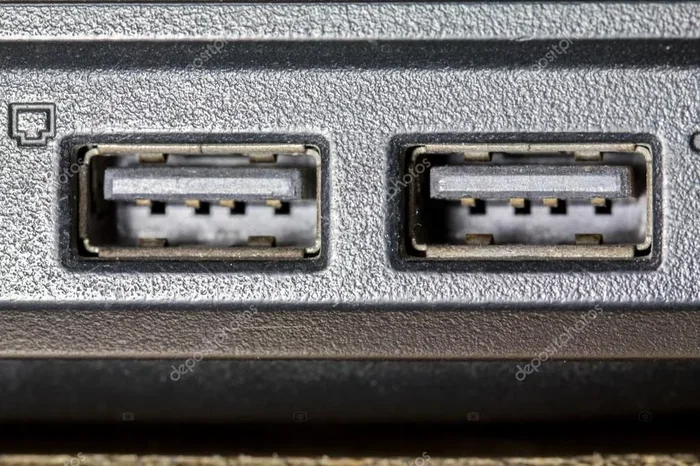
USB ports are the most recognizable ports on any laptop. They come in different shapes and sizes. The most common types are USB-A and USB-C. USB-A is the traditional rectangular shape you have seen for years. USB-C is the smaller, oval-shaped connector that is becoming the new standard.
USB ports connect all kinds of devices. You can plug in a flash drive to copy files. You can connect an external hard drive for extra storage. You can even charge your phone through a USB port. The speed of data transfer depends on the USB version your laptop supports.
Here is a quick look at the most common USB versions:
- USB 2.0 – Older and slower. Good for basic tasks like typing on a keyboard.
- USB 3.0 – Much faster. Great for moving large files quickly.
- USB 3.1 and USB 3.2 – Even faster speeds for demanding tasks.
- USB4 – The newest standard. Offers the fastest speeds and supports video output too.
A quick tip: always check the USB version on your laptop. If you have USB 2.0 ports, your data transfer speed will be much slower than if you have USB 3.0 or USB-C. This matters a lot when you are backing up large files or transferring videos.
HDMI Port
The HDMI port sends video and audio from your laptop to an external display. It is the most common way to connect your laptop to a TV or a projector. Almost every laptop has at least one HDMI port, though some newer thin models are dropping it.
HDMI cables carry both video and sound through a single cable. That makes them very convenient. You just plug one end into your laptop and the other into your TV or monitor. Your screen should mirror or extend automatically in most cases.
There are different versions of HDMI, but the differences mainly matter for very high-resolution displays. For most everyday uses, any HDMI port will work just fine. If you want to present slideshows or watch movies on a bigger screen, the HDMI port is your best friend.
DisplayPort and Mini DisplayPort
DisplayPort is another video output option. It is less common on laptops than HDMI but offers some advantages. DisplayPort can support higher refresh rates and resolutions, which makes it popular among gamers and creative professionals.
Mini DisplayPort is a smaller version of the same connector. Apple laptops used this port for many years. Some Windows laptops also include it. If your laptop has a Mini DisplayPort, you can use an adapter to connect to HDMI monitors or displays.
For most people, HDMI is simpler and more widely supported. But if you need the best video quality for a high-refresh-rate monitor, DisplayPort is worth looking into.
Audio Jack (3.5mm Headphone Port)
The 3.5mm audio jack is a small round port on your laptop. It is used for headphones, earbuds, and speakers. You have probably used this port thousands of times without even thinking about it.
This port handles both audio output and input. You can plug in headphones to listen to music. You can also use a microphone headset for calls or recordings. Some laptops have a combined jack that handles both input and output through one plug.
One thing to note: many modern laptops are removing the audio jack entirely. If your laptop does not have one, you can use USB-C headphones or a small adapter. But if you still have the classic jack, it remains one of the most useful and simple ports on your laptop.
Charging Port (Power Port)
The charging port is where you plug in your laptop’s power adapter. It is what keeps your laptop running when you are not on battery. On most modern laptops, this is a USB-C port that also handles data and video. On older or larger laptops, it is often a barrel-style circular connector.
The type of charging port varies by brand and model. Some laptops use USB-C for charging, which is convenient because you can also use the same port for everything else. Others use proprietary chargers that only work with that specific laptop.
Always use the charger that came with your laptop or one that matches its specifications. Using the wrong charger can damage your battery or even your laptop. If you are unsure about your charging port, check your laptop’s manual or the manufacturer’s website.
Ethernet Port (RJ45)
An Ethernet port looks like a wider phone jack. It connects your laptop directly to a router or modem using an Ethernet cable. This gives you a wired internet connection, which is usually faster and more stable than Wi-Fi.
Not all laptops have an Ethernet port anymore. Many thin and light laptops leave it out to save space. If your laptop does not have one, you can buy a USB-to-Ethernet adapter. This is a great option for anyone who needs a reliable wired connection for gaming, video calls, or work.
Wired connections are especially useful in offices or dorms where Wi-Fi might be crowded or slow. Even if your laptop does not have a built-in Ethernet port, you can always add one with an adapter.
USB-C and Thunderbolt: The Modern Laptop Ports
USB-C and Thunderbolt are the most exciting developments in laptop ports. They represent the future of laptop connectivity. Let us break down what makes them special.
What Makes USB-C So Popular?
USB-C is a small, reversible connector. You can plug it in either way, which is a small but huge improvement over older USB types. It can carry data, video, and power all through one cable. This means fewer cables cluttering your desk.
USB-C is fast and versatile. A single USB-C cable can charge your laptop, connect an external monitor, and transfer files to a hard drive. This is why many modern laptops now use USB-C as their main port. It simplifies everything.
Here are some quick benefits of USB-C:
- Reversible design – no more flipping the cable to get it right.
- Fast data transfer – speeds up to 10 Gbps or more with USB 3.2 and USB4.
- Video output – can drive external displays with the right protocol.
- Power delivery – can charge your laptop at up to 100 watts or more.
- Compact size – smaller than USB-A, which helps make laptops thinner.
Thunderbolt: The Powerhouse Port
Thunderbolt is a technology built on top of USB-C. It was developed by Intel and Apple together. Thunderbolt ports look exactly like USB-C ports, but they are much faster and more capable. Thunderbolt 3 and Thunderbolt 4 offer incredible performance.
The biggest advantage of Thunderbolt is its versatility. A single Thunderbolt cable can connect to external GPUs, high-speed storage drives, and multiple monitors at once. It is the go-to port for professionals who need serious connectivity.
If you have a Thunderbolt port on your laptop, you are getting the best of everything. Data speeds are extremely fast. Video quality is excellent. And you can daisy-chain multiple devices through a single cable. For creative workers and power users, Thunderbolt is a game changer.
How to Know Which Ports Your Laptop Has
Not sure what ports your laptop has? There are a few easy ways to find out. The simplest method is to just look at your laptop. Check both sides and the back. You will see the ports right there on the body of the device.
You can also check your laptop’s specifications online. Go to the manufacturer’s website and look up your exact model. The specs page will list every port type and how many of each you have. This is especially helpful if you are buying a laptop and want to compare models.
Another option is to check your laptop’s device settings. On Windows, go to Device Manager and look under “Universal Serial Bus controllers.” On Mac, click the Apple menu, choose About This Mac, then click System Report and look under USB or Thunderbolt.
Knowing your ports helps you plan your setup. You will know exactly what cables and adapters you need. You will avoid buying the wrong accessories. And you will make the most of every connection your laptop offers.
Common Mistakes People Make With Laptop Ports
Even careful users sometimes make mistakes when it comes to laptop ports. Here are a few to watch out for.
- Forcing a cable into the wrong port. If a cable does not fit easily, do not push harder. You might damage the port or the cable.
- Using cheap or uncertified adapters. Cheap adapters can cause slow speeds, charging problems, or even harm your laptop.
- Ignoring port versions. A USB 2.0 port is much slower than a USB 3.0 port. Using the wrong one can be frustrating.
- Blocking ventilation ports. Some laptops have small vents that look like ports. Blocking them can cause your laptop to overheat.
- Not cleaning your ports. Dust and lint can build up inside ports over time. This can cause loose connections or charging issues.
Taking care of your ports goes a long way. Keep them clean. Use quality cables and adapters. And always plug things in gently. Your laptop will thank you with reliable performance for years.
Expert Tips for Getting the Most From Your Laptop Ports
Want to level up your laptop setup? Here are some practical tips from experienced users and tech professionals.
First, invest in a good docking station. A docking station adds extra ports to your laptop through a single connection. It is perfect for people who work at a desk all day. You can connect multiple monitors, a full-size keyboard, and a mouse all at once.
Second, label your cables. It is easy to mix up USB-C cables, especially when they all look the same. A simple label or color-coded cable ties can save you a lot of confusion.
Third, keep an adapter kit handy. Even if your laptop has all the ports you need today, you might run into a situation where you need a different connection. A small adapter kit in your bag can save the day when you are presenting at work or connecting to a hotel TV.
Fourth, check your cable quality. Not all cables are created equal. A high-quality USB-C cable will charge faster and transfer data more reliably than a cheap one. Look for cables that are certified by the USB Implementers Forum.
Finally, keep your laptop’s software updated. Sometimes port performance issues are fixed through driver updates. A quick check for updates can solve mysterious connection problems.
These small habits add up over time. They protect your ports, improve your workflow, and make your laptop experience much smoother.
How Ports Have Changed Over the Years
Laptop ports have changed a lot over the years. Older laptops had a wide variety of ports. You might find VGA ports, serial ports, and parallel ports on machines from the early 2000s. These were bulky and slow by today’s standards.
As technology improved, ports became smaller and faster. USB replaced many older connection types. HDMI replaced VGA for video. USB-C started replacing multiple port types with a single, compact connector. The trend is clear: fewer, better, more versatile ports.
This evolution has been driven by the demand for thinner and lighter laptops. Every port takes up space inside the laptop. By consolidating multiple functions into one port type like USB-C, laptop makers can create thinner devices without sacrificing connectivity.
It is worth noting that some people miss the older, more varied port layouts. Having separate ports for everything meant you rarely needed an adapter. But the trade-off is a sleeker, more portable laptop that can do almost everything through one or two port types.
Final Thoughts
Laptop ports are more important than most people realize. They are the connection points that make your laptop useful in the real world. Every port has a job, and understanding those jobs helps you use your laptop better.
From the everyday USB port to the powerful Thunderbolt connection, each port type serves a purpose. The key is knowing what you have and how to use it. With this knowledge, you can set up your workspace with confidence, avoid buying the wrong accessories, and get the most out of your laptop.
Take a moment right now to look at the ports on your laptop. Identify each one. Think about what you connect to it every day. That small act of awareness can make a big difference in how you use your device. Your laptop is a powerful tool, and its ports are the doors that let you unlock its full potential.
If you are curious about other laptop components and how they work, check out what the RAM on a laptop does, or learn what the mouse on a laptop is called to better understand how your laptop connects to external devices. You can also explore how to know what RAM is compatible with your laptop to make sure your internal components and external connections work together perfectly.
Frequently Asked Questions
What is the difference between USB-A and USB-C?
USB-A is the traditional rectangular USB port that has been around for decades. USB-C is a smaller, oval-shaped connector that is reversible and much faster. USB-C also supports video output and higher power delivery, making it more versatile than USB-A.
Can I use any USB-C cable with my laptop?
Not all USB-C cables are the same. Some only carry power, while others support data transfer and video output. Always check the specifications of your cable and your laptop to make sure the cable supports what you need. Using the wrong cable can lead to slow speeds or no connection at all.
Why are some laptops removing HDMI and Ethernet ports?
Laptop makers are removing certain ports to make devices thinner and lighter. They also want to push users toward wireless connections and universal standards like USB-C. While this reduces the number of ports, it also simplifies the design and encourages the use of versatile modern connectors.
Do I need a docking station if my laptop has USB-C?
A docking station is not strictly necessary, but it is very helpful. If you work at a desk with multiple monitors, a keyboard, and a mouse, a docking station lets you connect everything with a single USB-C cable. It makes connecting and disconnecting much easier and keeps your desk tidy.
What is the fastest port available on laptops today?
Thunderbolt 4 is currently the fastest port available on laptops. It offers data transfer speeds of up to 40 Gbps, supports multiple displays, and can deliver up to 100 watts of power. USB4 is also very fast and offers similar capabilities at a more accessible price point.
How do I clean my laptop ports safely?
Use a soft, dry brush or compressed air to gently remove dust from your ports. Never use metal objects or liquids, as these can damage the internal contacts. For stubborn debris, a wooden toothpick can work carefully. Regular cleaning helps maintain solid connections and prevents charging issues.
=== CONCLUSION ===
Understanding what a port is on a laptop is one of the simplest yet most valuable skills you can develop. Ports are the gateways that connect your laptop to everything else. They power your device, transfer your data, and display your work on bigger screens.
Each port type has its own strengths. USB ports handle data and charging. HDMI and DisplayPort deliver video. Audio jacks connect your headphones. Ethernet ports provide stable internet. And USB-C and Thunderbolt bring it all together in one compact connector.
Take the time to learn your laptop’s ports. Check which ones you have. Understand what each one does. This small investment of time pays off every single day in a smoother, more efficient workflow. Your laptop’s ports are its lifelines to the outside world, and now you know exactly how to use them.