What Is My Lan Ip
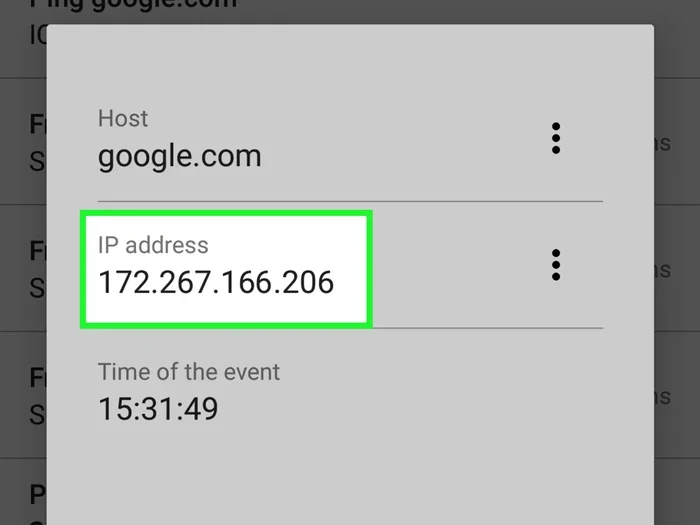
Your LAN IP address is your laptop’s unique identifier on a local network. It helps devices communicate with each other and your router. You can find it in seconds using simple built-in tools on Windows or Mac.
If you have ever wondered what is my Lan Ip, you are not alone. Many laptop users need to find their local IP address at some point. Maybe you are setting up a printer, sharing files, or fixing a network issue. Whatever the reason, knowing your LAN IP is a useful skill.
Your LAN IP address is like a mailing address for your laptop on your home network. Without it, your router would not know where to send data. In this guide, we will walk you through everything you need to know. You will learn what a LAN IP is, how to find it, and how to manage it on your laptop.
Key Takeaways
- Your LAN IP is your local address: It lets your laptop talk to other devices on the same network.
- Finding it is easy: You can check it through Settings, Command Prompt, or Terminal in just a few clicks.
- It starts with 192.168 or 10.0: These are the most common private IP ranges for home networks.
- LAN IP differs from public IP: Your public IP is what the internet sees, while your LAN IP stays local.
- You can set a static IP: This keeps your address the same every time you connect.
- IP conflicts cause problems: Two devices with the same LAN IP can disrupt your network.
📑 Table of Contents
- What Is a LAN IP Address?
- Why Your LAN IP Address Matters
- How to Find Your LAN IP on Windows
- How to Find Your LAN IP on Mac
- LAN IP vs Public IP: What Is the Difference?
- How to Set a Static LAN IP on Your Laptop
- Common LAN IP Problems and How to Fix Them
- Tips for Managing Your LAN IP on a Laptop
- Final Thoughts
What Is a LAN IP Address?
A LAN IP address is a number that identifies your device on a local network. LAN stands for Local Area Network. This is the network inside your home or office. Your laptop, phone, and smart TV all have their own LAN IP addresses.
Think of it like apartment numbers in a building. The building has one street address (your public IP). But each apartment has its own number (your LAN IP). This helps data reach the right device.
How LAN IPs Work
Your router assigns a LAN IP to each device that connects. This happens automatically most of the time. The process is called DHCP (Dynamic Host Configuration Protocol). Your router hands out IP addresses like a receptionist giving out room numbers.
Most home networks use private IP ranges. These start with:
- 192.168.x.x (most common)
- 10.0.x.x
- 172.16.x.x to 172.31.x.x
These private addresses are not visible on the internet. They stay within your local network. This is actually a good thing for security. It means outsiders cannot easily see your devices.
Why Your LAN IP Address Matters
You might be asking why you need to know what is my Lan Ip in the first place. There are several practical reasons. Understanding these can help you troubleshoot problems and set up your network better.
First, your LAN IP is essential for sharing files between devices. If you want to send a document from your laptop to a desktop on the same network, you need the correct IP address. Without it, the transfer will fail.
Second, many router settings require your LAN IP. If you want to set up port forwarding for gaming or a home server, you will need to enter your device’s IP address. Getting this wrong means your setup will not work.
Third, network troubleshooting often starts with your IP address. If your internet is acting up, checking your LAN IP can reveal the problem. Maybe your device has an IP conflict or an invalid address. Knowing your IP helps you spot these issues fast.
When You Need to Find Your LAN IP
Here are common situations where you will need your LAN IP:
- Setting up a shared printer on your network
- Configuring port forwarding on your router
- Troubleshooting connection problems
- Allowing file sharing between devices
- Setting up a home media server
- Connecting to a VPN
How to Find Your LAN IP on Windows
Finding your LAN IP on a Windows laptop is quick and easy. There are two main methods. You can use the Settings app or the Command Prompt. Both work well, so pick whichever you prefer.
Method 1: Using Settings
This is the simplest way for most users. Follow these steps:
- Open the Settings app on your laptop.
- Click on Network & Internet.
- Select Wi-Fi or Ethernet depending on your connection.
- Click on your connected network.
- Look for the IPv4 Address field.
Your LAN IP will be listed there. It will look something like 192.168.1.5. Write it down or take a screenshot for future reference.
Method 2: Using Command Prompt
This method gives you more detailed information. Here is how to do it:
- Press the Windows key and type cmd.
- Open the Command Prompt app.
- Type ipconfig and press Enter.
- Look for the IPv4 Address line.
The Command Prompt also shows your Default Gateway and Subnet Mask. These are helpful for advanced network setup. The Default Gateway is usually your router’s IP address.
How to Find Your LAN IP on Mac
If you use a Mac laptop, the process is slightly different but just as simple. Apple makes it easy to find your network details.
Using System Settings
Follow these steps on your Mac:
- Click the Apple menu in the top left corner.
- Select System Settings (or System Preferences on older Macs).
- Click on Wi-Fi or Network.
- Select your active connection.
- Your LAN IP will be displayed under IP Address.
Your Mac will show the IP address right on the screen. It is usually in the 192.168.x.x format for home networks.
Using Terminal
For a more detailed view, you can use the Terminal app:
- Open Terminal from Spotlight search.
- Type ifconfig and press Enter.
- Look for inet under your active connection (usually en0 for Wi-Fi).
The Terminal method gives you extra details like your subnet mask and broadcast address. These can be useful for advanced network configuration.
LAN IP vs Public IP: What Is the Difference?
It is easy to confuse your LAN IP with your public IP. They serve very different purposes. Understanding the difference is important for network management.
| Feature | LAN IP (Private) | Public IP (External) |
|---|---|---|
| Visibility | Only on your local network | Visible on the internet |
| Assigned by | Your router | Your internet provider |
| Format | 192.168.x.x or 10.0.x.x | Any valid public number |
| Changes | Can change with each session | Usually stays the same |
| Purpose | Device-to-device on LAN | Internet communication |
Your public IP is what websites see when you visit them. Your LAN IP is what your router uses to talk to your laptop. Both are important, but they serve different roles.
If you want to check your public IP, simply search “what is my IP” on Google. Your LAN IP is always found through your device settings or command tools.
How to Set a Static LAN IP on Your Laptop
By default, your router assigns a dynamic IP address. This means the IP can change each time you connect. In most cases, this is fine. But sometimes you want your IP to stay the same.
Setting a static IP is helpful when you run a server, use port forwarding, or share files regularly. You do not want your IP changing in the middle of a download or a video call.
Setting a Static IP on Windows
Here is how to set a static IP on Windows:
- Go to Settings > Network & Internet.
- Click on your active connection.
- Find IP assignment and click Edit.
- Change from Automatic (DHCP) to Manual.
- Enter your desired IP address, subnet mask, and gateway.
- Save your changes.
Make sure you pick an IP address that is outside your router’s DHCP range. Otherwise, two devices might end up with the same IP. This causes an IP conflict and network problems.
Setting a Static IP on Mac
On a Mac, the process is similar:
- Open System Settings > Wi-Fi.
- Click Details on your active connection.
- Go to the TCP/IP tab.
- Change Configure IPv4 to Manually.
- Enter your preferred IP address and other details.
- Click OK to save.
Setting a static IP takes a bit of planning. Make sure your chosen address does not overlap with other devices on your network. A good practice is to pick an address near the end of your router’s range.
Common LAN IP Problems and How to Fix Them
Sometimes things go wrong with your LAN IP. These issues can be frustrating, but they are usually easy to fix. Here are the most common problems and their solutions.
IP Address Conflict
An IP conflict happens when two devices have the same LAN IP. This causes both devices to lose network access. You might see a warning message on your screen.
To fix this, simply restart your router. The router will reassign IP addresses to all devices. You can also restart your laptop to request a new IP from the router.
Invalid IP Address
Sometimes your laptop shows an invalid IP like 169.254.x.x. This means your device could not get a valid IP from the router. It usually happens when the DHCP process fails.
Try these steps:
- Restart your laptop and router
- Check your Wi-Fi or Ethernet connection
- Run ipconfig /release and ipconfig /renew in Command Prompt
- Make sure your router’s DHCP is turned on
Cannot Connect to Network
If your laptop cannot connect to your network, your IP settings might be the problem. Check that your IP is in the correct range for your network. Also verify that your subnet mask and gateway are correct.
Sometimes simply turning Wi-Fi off and back on fixes the issue. This forces your laptop to request a fresh IP address from the router.
Tips for Managing Your LAN IP on a Laptop
Managing your LAN IP does not have to be complicated. A few simple habits can save you a lot of troubleshooting time down the road.
Write down your IP addresses. Keep a simple list of your devices and their LAN IPs. This is especially helpful in a home with multiple devices. You can use a small notebook or a spreadsheet.
Restart your router regularly. A quick restart clears up many IP-related issues. It also refreshes IP assignments for all connected devices. Try to restart your router once a month.
Check your router’s admin page. Your router’s settings page shows all connected devices and their IPs. You can access it by typing your gateway address into a browser. This is a great way to see your entire network at a glance.
Keep your laptop drivers updated. Outdated network drivers can cause IP issues. Make sure your network adapter drivers are current. You can check for updates through your laptop manufacturer’s website.
Consider reserving IPs for key devices. Many routers let you reserve an IP for specific devices. This combines the best of both worlds. Your device gets a consistent address, but the router still manages it. This is better than a fully static IP in many cases.
Final Thoughts
Knowing what is my Lan Ip is a basic but important skill for any laptop user. Your LAN IP is the key to your local network. It helps devices communicate, files share, and networks run smoothly.
Whether you use Windows or Mac, finding your IP is quick and easy. The methods in this guide work for almost any laptop. Bookmark this page for future reference when you need to look up your IP again.
If you are having persistent network issues, consider checking your overall laptop setup. Sometimes hardware compatibility can affect network performance. For instance, making sure your laptop components are properly configured can help avoid connectivity problems. You might also want to review your laptop’s RAM configuration, as system resources play a role in overall performance. Check how to know what RAM is compatible with your laptop if you are upgrading or troubleshooting hardware.
With the knowledge you have gained here, you are now equipped to handle most LAN IP situations. Your network will run more smoothly, and you will be ready when issues come up. Stay connected and enjoy a hassle-free experience on your local network.
Frequently Asked Questions
What does LAN IP stand for?
LAN IP stands for Local Area Network Internet Protocol address. It is the unique number assigned to your laptop or device on your home or office network. This address allows your device to communicate with other devices on the same local network.
Can two devices have the same LAN IP?
No, two devices should never have the same LAN IP on the same network. This creates an IP conflict, and both devices will lose network access. Your router uses DHCP to prevent this by assigning unique addresses to each device automatically.
Is my LAN IP the same as my public IP?
No, they are different. Your LAN IP is your local address on your home network, while your public IP is what the internet uses to identify your entire network. Your router translates between the two using a process called NAT (Network Address Translation).
How often does my LAN IP change?
It depends on your router’s DHCP lease time. Most home routers assign IPs that last 24 hours or more. If you restart your laptop or router, the IP might change. Setting a static IP prevents this from happening.
Why can’t I find my LAN IP on my laptop?
If you cannot find your LAN IP, make sure you are connected to a network first. Your laptop will not show an IP if it is not connected to Wi-Fi or Ethernet. Also try using the Command Prompt or Terminal method, as it works even when the Settings app does not display the IP.
Should I set my laptop to a static IP?
Setting a static IP is helpful if you run a server, use port forwarding, or share files regularly. For most casual users, a dynamic IP from DHCP is perfectly fine. Static IPs are best for devices that need a consistent address on the network.