What Is a Windows Id

A Windows Id is your unique identity on a Windows device, tied to your Microsoft account. It lets you sign in, sync settings, and access services across laptops and PCs. Understanding your Windows Id helps you manage security, recover your account, and get the most out of your device.
Your Windows Id is the account you use to sign into any Windows device. Think of it as your digital key. It unlocks your laptop, syncs your personal settings, and connects you to a whole ecosystem of Microsoft services. Whether you use a desktop at home or a laptop on the go, your Windows Id follows you everywhere.
Many people use their Windows Id every single day without really thinking about it. You type in your email and password, and boom — you’re in. But there is a lot more going on behind the scenes. Your Windows Id stores preferences, security settings, and even cloud backups. Knowing how it all works can save you time, stress, and even protect your data.
This guide breaks down everything you need to know about your Windows Id. We will walk you through what it is, how to set it up, how to manage it, and how to keep it secure. Whether you are a beginner or a seasoned laptop user, you will find practical tips here.
Key Takeaways
- Your Windows Id is your Microsoft account email used to sign into Windows devices.
- It syncs settings, files, and preferences across multiple Windows laptops and PCs.
- A Windows Id gives you access to OneDrive, the Microsoft Store, and other services.
- You can switch between a Microsoft account and a local account on any laptop.
- Strong security settings like two-factor authentication protect your Windows Id.
- Recovering a lost Windows Id is straightforward through Microsoft’s account recovery tools.
📑 Table of Contents
What Exactly Is a Windows Id?
A Windows Id is your personal account identity within the Windows operating system. It is usually linked to a Microsoft account, which means it uses an email address and password combination. When you turn on your laptop and enter your credentials, Windows uses that Windows Id to load your personalized environment.
Your Windows Id is not just a login. It is a whole profile system. It stores your desktop wallpaper, app settings, browser bookmarks, and more. When you sign into a new Windows device with the same Windows Id, many of these settings follow you automatically.
Microsoft Account vs. Local Account
There are two main types of Windows accounts. The first is a Microsoft account, which is what most people call a Windows Id. It requires an internet connection and syncs your data across devices. The second is a local account, which lives only on that one machine.
A local account does not sync settings or connect you to cloud services. A Microsoft account, on the other hand, gives you access to OneDrive storage, the Microsoft Store, and email services. For most laptop users, a Microsoft account (Windows Id) is the better choice because it offers more flexibility and features.
How Does a Windows Id Work?
When you create a Windows Id, Microsoft stores your profile on their servers. Your laptop communicates with these servers every time you sign in. This is why you need an internet connection the first time you log in with a Microsoft account. After that initial setup, Windows can work offline using cached credentials.
Your Windows Id also handles authentication across multiple services. For example, when you open Outlook or download an app from the Microsoft Store, Windows verifies your identity through your Windows Id. This seamless experience is one of the biggest benefits of using a Microsoft account.
Sign-In Options for Your Windows Id
Windows offers several ways to sign in with your Windows Id. You can use a password, a PIN, biometric fingerprint, or facial recognition. A PIN is especially popular on laptops because it is fast and convenient. You set it up through your account settings, and it works even when you are offline.
Some users also use a security key for extra protection. This is a physical device you plug into your laptop or tap against your phone. It adds a strong layer of security to your Windows Id login process.
Setting Up Your Windows Id on a New Laptop
Setting up a Windows Id on a new laptop is straightforward. When you first turn on the device, Windows will ask you to sign in or create an account. Here is a simple walkthrough of the process.
First, connect to Wi-Fi. You need internet access to set up a Microsoft account. Then, on the sign-in screen, click “Create account.” Follow the prompts to enter your email address, create a password, and set up security questions.
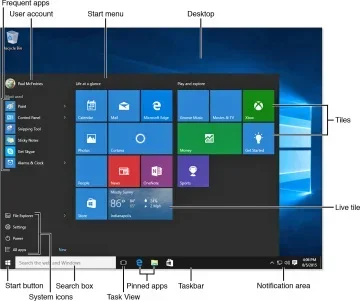
Once your account is created, Windows will configure your profile. Your desktop, start menu layout, and privacy settings will be customized based on your preferences. If you have used this Microsoft account on another device before, many of your settings will carry over automatically.
During setup, you may also be asked to configure your mouse and touchpad settings. If you are curious about what the pointing device on your laptop is officially called, check out our guide on what the mouse on a laptop is called. Understanding your laptop’s components helps you get more comfortable with your new setup.
Managing Your Windows Id Settings
Once your Windows Id is active, you can manage it through the Settings app. Go to Accounts and then select Your Info. From there, you can see your account type, linked email, and sync preferences.
You can also switch between a Microsoft account and a local account from this section. Some users prefer a local account for privacy reasons. However, keep in mind that switching away from a Microsoft account means you lose access to cloud sync and certain services.
Sync Settings and Preferences
One of the best features of a Windows Id is sync capability. When you sign into any Windows 10 or Windows 11 device, your preferences follow you. This includes theme colors, language settings, and accessibility options.
To manage sync settings, go to Accounts, then Sync your settings. You can toggle individual categories on or off. For example, you might want to sync your passwords but not your app settings. This level of control gives you flexibility over what follows you across devices.
Checking Your System Requirements
Your Windows Id works best when your laptop meets the right system requirements. Having enough RAM ensures smooth performance when syncing settings and running Microsoft services. For most users, 8GB of RAM is a solid baseline for a Windows laptop. If you are wondering how much RAM is ideal for your setup, check out our guide on what is a good ram for a laptop to find the right fit for your needs.
Security Best Practices for Your Windows Id
Your Windows Id is tied to a lot of personal data. That makes it a prime target for hackers. Taking basic security steps is essential to protect your account and your laptop.
Start with a strong password. Use a mix of uppercase letters, lowercase letters, numbers, and symbols. Avoid common words or personal information like birthdays. A long passphrase is even better than a short complex password.
Next, enable two-factor authentication (2FA). This adds a second layer of protection beyond your password. Even if someone steals your password, they cannot access your Windows Id without the second verification step. Microsoft supports authenticator apps, SMS codes, and email verification for 2FA.
Also, keep your recovery options up to date. Add a phone number and a backup email address to your account. This makes account recovery much easier if you ever get locked out. Regularly review your sign-in activity through your Microsoft account dashboard to spot any suspicious logins.
Common Windows Id Security Mistakes
Many users make avoidable mistakes that put their Windows Id at risk. Reusing passwords across multiple sites is one of the biggest ones. If one service gets breached, hackers will try that same password on your Microsoft account.
Another common mistake is ignoring software updates. Windows updates often include security patches that protect your account from known vulnerabilities. Keep your laptop updated at all times. Finally, avoid signing into your Windows Id on public or shared computers without using a private browsing session.
Troubleshooting Common Windows Id Issues
Even with the best setup, you might run into issues with your Windows Id from time to time. Here are the most common problems and how to fix them.
Forgot password: Click “I forgot my password” on the sign-in screen. Microsoft will guide you through account recovery using your backup email or phone number. Make sure your recovery options are current to avoid getting locked out.
Sync not working: If your settings are not syncing across devices, go to Accounts, then Sync your settings, and make sure sync is turned on. Signing out and back in can also help refresh the connection to Microsoft servers.
Account locked: If your Windows Id gets locked due to too many failed sign-in attempts, wait a few hours or use the account recovery form online. You can also contact Microsoft Support for help unlocking your account.
Slow sign-in: A slow login can happen if your laptop has insufficient RAM or an old processor. Upgrading your memory can significantly improve performance. For more on this topic, see our article on how much 8GB RAM for a laptop costs to understand if a memory upgrade makes sense for your device.
Why Your Windows Id Matters
Your Windows Id is more than just a login. It is the foundation of your personalized Windows experience. It connects you to your files, your preferences, and your digital life across every device you own.
Taking a few minutes to understand and secure your Windows Id pays off in the long run. You get a smoother experience, better data protection, and easier device management. Whether you use a budget laptop or a high-end machine, your Windows Id works the same way to keep you connected and productive.
As you explore more about your laptop and its features, remember that each component plays a role in your overall experience. Understanding how your Windows Id interacts with your hardware and software helps you get the most out of every session.
Conclusion
Your Windows Id is the gateway to your Windows experience. It handles sign-in, syncs your settings, and connects you to Microsoft services. Taking the time to set it up properly, manage it wisely, and secure it well makes a huge difference in your daily laptop use.
Follow the tips in this guide to get the most from your Windows Id. Use strong passwords, enable two-factor authentication, and keep your recovery options updated. With these habits, your Windows Id will serve you reliably for years to come.
Frequently Asked Questions
What is the difference between a Windows Id and a Microsoft account?
A Windows Id is essentially your Microsoft account used to sign into Windows devices. The terms are often used interchangeably. Your Microsoft account is the broader identity that connects you to services like Outlook, OneDrive, and the Microsoft Store.
Can I use a Windows Id on multiple laptops?
Yes, you can sign into as many Windows devices as you want with the same Windows Id. Your settings, preferences, and files stored in OneDrive will sync across all of them. This is one of the biggest advantages of using a Microsoft account.
Do I need internet to sign in with my Windows Id?
You need internet the first time you sign in on a new device. After that, Windows caches your credentials, so you can sign in offline. However, you will need to connect to the internet periodically to sync settings and verify your account.
What happens if I forget my Windows Id password?
Click “I forgot my password” on the sign-in screen. Microsoft will walk you through recovery using your backup email or phone number. Make sure your recovery options are always up to date to avoid getting locked out of your account.
Is a local account better than a Windows Id for privacy?
A local account stores all data on your device and does not sync to Microsoft servers. This offers more privacy. However, you lose access to cloud services, OneDrive storage, and cross-device sync. Most users find the benefits of a Windows Id outweigh the privacy trade-offs.
Can I change my Windows Id email address?
Yes, you can change the email associated with your Windows Id through your Microsoft account settings online. Go to the Microsoft account portal, select your profile, and update your sign-in email. Your Windows Id profile will remain intact after the change.