What Is Armoury Crate 2
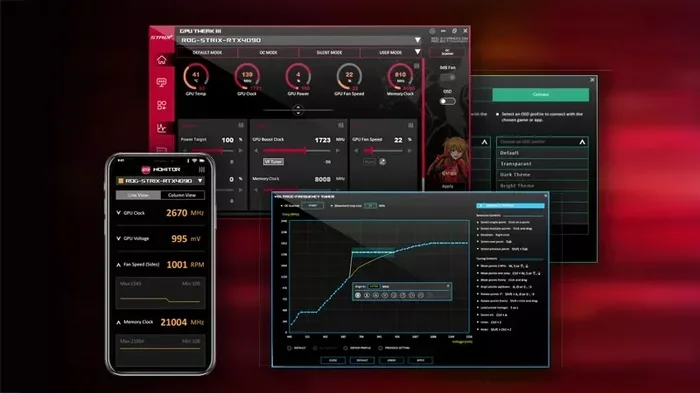
Armoury Crate 2 is ASUS’s latest system optimization and monitoring software designed for laptops and desktops. It lets you manage performance profiles, control RGB lighting, monitor temperatures, and fine-tune fan speeds from one simple dashboard. This guide covers everything you need to know to get the most out of it.
Key Takeaways
- Armoury Crate 2 is ASUS’s updated software hub for managing laptop performance, lighting, and monitoring.
- It offers a cleaner interface, better GPU integration, and improved profile switching compared to older versions.
- You can customize fan curves, track temperatures, and boost gaming performance without extra tools.
- The software is free and pre-installed on most modern ASUS laptops.
- Common issues like crashes or slow startup can be fixed with simple troubleshooting steps.
- It works best when paired with proper hardware care, like a quality CPU cooler for sustained performance.
📑 Table of Contents
What Is Armoury Crate 2?
Armoury Crate 2 is the second major version of ASUS’s flagship system management software. It was built to give users a single place to control how their laptop or desktop behaves. Whether you want to squeeze out more performance for gaming or keep things quiet during work, this tool handles it all.
The software replaced the older Armoury Crate interface with a redesigned layout that is easier to navigate. It brings together performance tuning, RGB lighting control, and real-time system monitoring into one clean dashboard. If you own an ASUS laptop or desktop, Armoury Crate 2 likely came pre-installed or is available as a free download.
Many users wonder why ASUS made this change. The answer is simple. The original Armoury Crate had its fans, but it also had complaints. People wanted a faster, more stable experience. Armoury Crate 2 delivers on that promise. It runs lighter, loads quicker, and offers deeper control over your system’s hardware.
At its core, Armoury Crate 2 is about giving you power without complexity. You do not need to be a tech expert to use it. The menus are straightforward, and the settings are clearly labeled. This makes it one of the best laptop optimization tools available for ASUS devices today.
Key Features of Armoury Crate 2
Performance Profiles
One of the standout features of Armoury Crate 2 is the performance profile system. You get several preset modes to choose from. These include Silent, Balanced, Performance, and Turbo. Each mode adjusts your CPU and GPU behavior to match what you are doing.
For example, Silent mode slows down your fans and limits power draw. This keeps noise levels low when you are browsing or watching videos. Turbo mode pushes your hardware to the max. It is ideal for gaming performance or heavy rendering tasks.
You can switch between profiles with a single click. The software also lets you create custom profiles. This means you can set your own clock speeds, power limits, and fan targets. It is a great way to tailor your laptop optimization to your exact needs.
RGB Lighting Control
Armoury Crate 2 gives you full control over your device’s RGB lighting. You can change colors, adjust brightness, and set up lighting effects across compatible zones. This works for the keyboard, the chassis lighting, and any other RGB-enabled components.
The lighting editor is intuitive. You pick a color, choose an effect like breathing or cycling, and apply it instantly. If you have an ASUS gaming laptop, the RGB sync feature extends to other ASUS accessories. This creates a cohesive look across your entire setup.
Real-Time System Monitoring
Keeping an eye on your system’s health is important. Armoury Crate 2 includes a built-in dashboard that shows real-time data. You can see your CPU temperature, GPU temperature, fan speeds, and power consumption at a glance.
This is especially useful during long gaming sessions or heavy workloads. If your temperatures spike, you can switch to a cooler profile or adjust fan curves on the spot. For users who want deeper insights, the software can export monitoring logs. This helps you track performance trends over time.
Fan Curve Customization
Armoury Crate 2 lets you design custom fan curves. A fan curve maps your fan speed to specific temperature thresholds. You decide when the fans should spin faster and when they should stay quiet.
For instance, you might set the fans to stay low until your CPU hits 70 degrees Celsius. After that, they ramp up gradually. This kind of fine-tuning helps balance noise and cooling. It is one of the best ways to improve your thermal management without opening your laptop.
If you want to learn more about keeping your system cool, check out our guide on what is the best CPU cooler for desktop setups.
GPU Integration
Armoury Crate 2 has improved integration with your GPU. It works with both NVIDIA and AMD graphics cards. You can monitor GPU usage, adjust clock speeds, and manage power settings directly from the dashboard.
This is a big upgrade from the original version. Before, users often needed separate software like NVIDIA GeForce Experience or AMD Radeon Software. Armoury Crate 2 consolidates many of these controls into one place. It saves screen space and reduces software clutter.
For users monitoring their GPU health, knowing your ideal idle temperature matters. You can learn more in our article on what is a good idle GPU temperature to understand what normal readings look like.
How to Download and Install Armoury Crate 2
Getting Armoury Crate 2 is straightforward. If you have a newer ASUS laptop, it may already be installed. You can find it in your Start menu or system tray. If it is not on your device, you can download it from the ASUS official website.
Here is a simple step-by-step process:
- Visit the ASUS support page for your specific laptop model.
- Navigate to the Drivers and Utilities section.
- Search for Armoury Crate 2 in the software list.
- Download the installer for your Windows version.
- Run the installer and follow the on-screen prompts.
- Restart your laptop when prompted.
After installation, open the software and let it scan your system. It will automatically detect your hardware and load the appropriate profiles. The first launch may take a few seconds. After that, it loads quickly every time you open it.
Make sure your laptop is plugged in during setup. Some features, like custom fan curves, may be limited on battery power. This is a normal safety measure to prevent unexpected shutdowns.
Armoury Crate 2 vs The Original Armoury Crate
ASUS made significant changes between the original Armoury Crate and version 2. Understanding these differences helps you appreciate why the update matters. Here is a quick comparison:
| Feature | Original Armoury Crate | Armoury Crate 2 |
|---|---|---|
| Interface Design | Cluttered, busy layout | Clean, modern, and intuitive |
| Performance Profiles | Basic preset modes | Custom profiles with fine-tuned controls |
| RGB Control | Limited zone support | Full multi-zone RGB syncing |
| System Monitoring | Basic temperature display | Real-time dashboard with export logs |
| GPU Integration | Minimal or none | Direct NVIDIA and AMD GPU controls |
| Startup Speed | Slow launch times | Faster and lighter startup |
| Stability | Reported crashes and bugs | Improved stability and fewer errors |
The upgrade from the original to version 2 is substantial. Users who struggled with the old software will notice the difference immediately. The new interface feels more polished and professional. It is clear that ASUS listened to user feedback and made meaningful improvements.
Investing in the right software tools can extend your PC’s lifespan. To learn more about smart upgrades that pay off, read our guide on what is the best investment for lifespan of PC.
Who Should Use Armoury Crate 2?
Armoury Crate 2 is designed for a wide range of users. Here are the groups who benefit the most:
- ASUS laptop owners who want to unlock hidden performance settings and customize their device.
- Gamers who need quick access to performance profiles and GPU controls.
- Content creators who monitor temperatures and fan speeds during long rendering or editing sessions.
- Casual users who want a cleaner interface and better RGB lighting customization.
- Tech enthusiasts who enjoy fine-tuning every aspect of their system.
If you own an ASUS device, Armoury Crate 2 is almost certainly worth installing. Even if you do not tweak settings often, the monitoring dashboard alone provides real value. It gives you visibility into your system that you would otherwise need third-party tools to access.
Common Issues and How to Fix Them
Like any software, Armoury Crate 2 is not perfect. Some users encounter issues after installation. Here are the most common problems and their solutions.
Slow Startup. Armoury Crate 2 is lighter than the original, but some users still notice slow boot times. To fix this, go to Settings and disable the auto-start option. You can always launch it manually when you need it.
Profile Switching Lags. Occasionally, switching between profiles takes a few seconds. This is usually caused by background processes. Restarting the software or your laptop typically resolves the issue.
RGB Not Syncing. If your lighting zones do not sync, make sure all ASUS accessories are connected and recognized. Updating the firmware through Armoury Crate 2 often fixes this.
High CPU Usage. In rare cases, the software may use more CPU resources than expected. Updating to the latest version usually addresses this. You can also check the Task Manager to see if a background process is stuck.
Installation Failures. If the installer fails, make sure you have administrator rights and enough disk space. Temporarily disabling antivirus software during installation can also help.
Final Thoughts
Armoury Crate 2 is a solid piece of software that every ASUS laptop owner should try. It brings together performance tuning, lighting control, and system monitoring into one easy-to-use package. The improvements over the original version are clear and meaningful.
Whether you are a gamer pushing your hardware to the limit or a casual user who just wants a quieter, cooler laptop, Armoury Crate 2 has something to offer. It is free, it is well-designed, and it puts real control in your hands.
Take some time to explore the features. Try different profiles. Adjust your fan curves. You might be surprised by what you can unlock. Armoury Crate 2 is a great example of how the right software can make a real difference in your daily computing experience.
For users who also care about the overall health of their system, pairing Armoury Crate 2 with good hardware habits goes a long way. Keeping your temperatures in check, updating your drivers, and investing in proper cooling all contribute to a better experience. With the right setup, your ASUS laptop can perform at its best for years to come.
Frequently Asked Questions
Is Armoury Crate 2 free to use?
Yes, Armoury Crate 2 is completely free. It comes pre-installed on most new ASUS laptops and is available for download on the ASUS website at no cost. There are no hidden fees or premium tiers.
Can I use Armoury Crate 2 on a desktop PC?
Yes, Armoury Crate 2 works on both laptops and desktops from ASUS. The features are largely the same, though some laptop-specific options like battery profiles may not apply to desktop setups.
Will Armoury Crate 2 slow down my laptop?
Armoury Crate 2 is designed to be lightweight and run efficiently in the background. Most users do not notice any performance impact. If you experience slowdowns, you can disable the auto-start feature to reduce its footprint.
Can I uninstall Armoury Crate 2 if I do not like it?
Yes, you can uninstall it through your system’s Add or Remove Programs settings. However, keep in mind that some ASUS utilities are tied to the software, so removing it may affect features like keyboard backlight control.
Does Armoury Crate 2 work with non-ASUS hardware?
Armoury Crate 2 is designed specifically for ASUS devices. It may not recognize or control non-ASUS components like third-party keyboards or cooling pads. For full functionality, ASUS hardware is recommended.
How often does ASUS update Armoury Crate 2?
ASUS releases updates regularly to fix bugs and add new features. You can check for updates within the software itself or download the latest version from the ASUS support page for your device model.