How Can I Charge Laptop with a Broken Charger Port
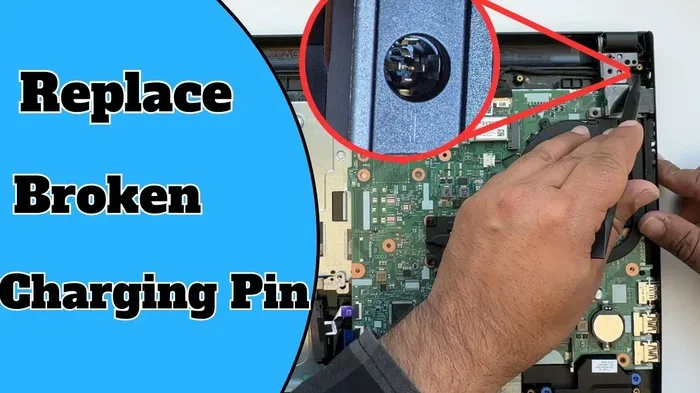
A broken charger port can leave your laptop powerless, but you still have options. You can charge your laptop using alternative methods like a USB-C cable, universal adapter, or external battery pack. This guide walks you through every practical solution so you can keep your laptop running without rushing to a repair shop.
Your laptop charger port just stopped working. Maybe it got bent, worn out, or broken from being yanked around. Whatever the reason, you are staring at a laptop that will not charge, and that is a scary feeling. You might be wondering if your laptop is now useless or if there is another way to keep it alive.
The good news is that you have options. You do not need to panic or rush out to buy a new laptop just yet. There are several practical ways to charge laptop with a broken charger port using tools you may already have at home. Some methods are quick fixes, while others are longer-term solutions. In this article, we will walk you through every option step by step.
We will also cover when it makes sense to seek professional help and how to prevent this problem from happening again. By the end, you will have a clear plan to get your laptop powered up and running again.
Key Takeaways
- USB-C Charging: Many modern laptops support USB-C power delivery, offering a simple alternative to a broken port.
- Universal Power Adapters: A universal adapter with interchangeable tips can work as a temporary charger.
- External Battery Packs: Portable power banks with high wattage can charge laptops on the go.
- Docking Stations: Some docking stations provide power delivery through alternative connections.
- Professional Repair: A damaged port often needs professional replacement to restore normal charging.
- Safety First: Avoid risky DIY fixes that could damage your laptop further or cause overheating.
📑 Table of Contents
- Why Does a Charger Port Stop Working?
- How to Charge Your Laptop With a Broken Charger Port
- When to Seek Professional Repair
- How to Prevent Charger Port Damage
- Quick Tips for Charging on the Go
- Understanding Laptop Power Requirements
- Common Mistakes to Avoid
- Expert Insights on Laptop Charging Issues
- Final Thoughts
Why Does a Charger Port Stop Working?
Understanding why your laptop charging port broke can help you pick the best fix. A broken port does not always mean the whole motherboard is fried. In most cases, the damage is isolated and fixable.
Common Causes of a Broken Charger Port
- Physical damage: Dropping the laptop or tugging the cord too hard can bend or snap the internal pins.
- Wear and tear: Over time, repeated plugging and unplugging wears out the connection.
- Dirt and debris: Dust and crumbs can build up inside the port and block proper contact.
- Power surges: A sudden spike in electricity can fry the charging circuit.
- Manufacturing defects: Some laptops simply have weak port designs that fail early.
Before trying any fix, check if the issue is the port itself or the power adapter. Sometimes the charger cable is the problem, not the laptop. Try a different cable or adapter if you have one available.
How to Charge Your Laptop With a Broken Charger Port
Now let us get to the good stuff. Here are the most reliable methods to keep your laptop powered when the charger port is broken.
Method 1: Use a USB-C Cable
Many modern laptops come with USB-C charging support. If your laptop has a USB-C port, you are in luck. A USB-C cable connected to a compatible power adapter can deliver enough wattage to charge your battery.
Here is what you need to do:
- Check your laptop specifications to confirm it supports USB-C power delivery.
- Find a USB-C power adapter that matches your laptop’s wattage requirements.
- Plug the USB-C cable into any available USB-C port on your laptop.
- Connect the adapter to a power outlet and wait for the charging light to turn on.
Quick Tip: Not all USB-C ports support charging. Some are data-only ports. Check your laptop manual or look for the lightning bolt symbol next to the port.
Method 2: Try a Universal Power Adapter
A universal power adapter comes with multiple interchangeable tips. You can find a tip that fits your broken port or even bypass the port entirely by connecting directly to the battery terminals (if you are experienced).
Follow these steps:
- Purchase a universal adapter that fits your laptop brand.
- Select the correct tip size for your charging port.
- Set the voltage and amperage to match your laptop’s requirements.
- Plug in the adapter and monitor the charging process closely.
Warning: Using the wrong voltage can damage your laptop. Always double-check the specifications before connecting.
Method 3: Use an External Battery Pack
Portable battery packs designed for laptops are a great backup option. These high-capacity power banks can charge your laptop through a USB-C or DC connection.
- Look for a battery pack with at least 65W output for standard laptops.
- For gaming laptops, you may need a pack with 100W or more.
- Make sure the battery pack supports the same connector type as your laptop.
This method works well when you are traveling or need a temporary solution at home.
Method 4: Charge Through a Docking Station
If you use a docking station, some models can deliver power to your laptop through a different port. For example, a docking station with USB-C or DisplayPort power delivery can charge your laptop even if the main port is broken.
Simply connect the docking station to a working port or USB-C connection, and plug the docking station into a power outlet. Your laptop should start charging normally.
Method 5: Direct Battery Charging (Advanced)
For experienced users, you can access the laptop battery directly and charge it using a compatible battery charger. This method requires opening the laptop and identifying the battery connectors.
Important: This method carries risks. If you are not comfortable working with internal laptop components, skip this option and go for professional repair instead.
When to Seek Professional Repair
Some situations call for a trained technician. If you have tried the methods above and none of them work, it is time to seek help.
Signs You Need Professional Help
- The laptop does not recognize any charging method at all.
- You notice a burning smell or visible damage near the port.
- The laptop only charges when held at a specific angle.
- Your battery drains very quickly even when plugged in.
A professional can replace the broken port or repair the charging circuit. The cost is usually much lower than buying a new laptop. If you are wondering how much it costs, check out this guide on how much power a laptop uses when plugged in to better understand your laptop’s power needs and what repair might involve.
Also, keep in mind that a damaged port can sometimes lead to overheating issues. If you are concerned about safety, read up on whether a laptop can explode from overheating to understand the risks of ignoring power-related problems.
How to Prevent Charger Port Damage
Prevention is always better than repair. Here are simple habits that can extend the life of your laptop charging port:
- Avoid yanking the cable: Pull gently when unplugging your charger.
- Keep the port clean: Use compressed air to remove dust and debris regularly.
- Use a charger with a strain relief: A cable with a flexible base reduces stress on the port.
- Do not use the laptop while charging: This generates extra heat that can weaken the port over time.
- Store your laptop safely: Avoid placing heavy objects on or near the charging port.
These small habits can save you from the hassle of a broken port in the future.
Quick Tips for Charging on the Go
Sometimes you need to charge your laptop away from home. Here are some quick tips:
- Carry a compact USB-C power bank in your bag at all times.
- Know the wattage requirements of your laptop before buying a replacement adapter.
- Keep a spare USB-C cable in your car or office drawer.
- Label your charger tips if you use a universal adapter.
- Consider investing in a portable charger that supports high-wattage delivery.
Being prepared can save you from a dead battery when you need your laptop the most.
Understanding Laptop Power Requirements
Not all laptops charge the same way. Your laptop’s power needs depend on its model, brand, and usage. A lightweight office laptop might need only 45W, while a powerful gaming laptop could require 100W or more.
When choosing an alternative charging method, always match the wattage and voltage to your laptop’s specifications. Using a charger with too low wattage will result in slow charging or no charging at all. Using one with too high wattage can damage the internal components.
If you are unsure about your laptop’s power needs, check the label on the bottom of your laptop or the original power adapter. The specifications are usually printed right there.
For a deeper look at laptop power consumption, you might want to explore how much power your laptop actually draws. Understanding this can help you choose the right alternative charging solution and avoid overloading your system.
Common Mistakes to Avoid
When dealing with a broken charger port, people often make mistakes that make things worse. Here is what you should avoid:
- Using the wrong charger tip: This can cause sparks or short circuits.
- Ignoring warning signs: If your laptop gets hot while charging, stop immediately.
- Opening the laptop without proper tools: You could damage other components.
- Using a damaged cable: A frayed cable is a fire hazard.
- Delaying repair: A small problem can turn into a big one if left unchecked.
Avoiding these mistakes will keep your laptop safe and extend its lifespan.
Expert Insights on Laptop Charging Issues
According to laptop repair professionals, the most common reason for a broken charger port is physical stress. People constantly bend the cable or pull it at an angle, which loosens the internal connections over time. The best defense is gentle handling and regular maintenance.
Experts also recommend keeping your laptop’s battery health in check. A healthy battery charges faster and holds power longer, which matters even more when your charging port is compromised. If you are curious about how much RAM your laptop needs to perform optimally while you troubleshoot charging issues, this guide on how much RAM you need in a laptop can help you understand your system better.
One more thing professionals stress is to never use a charger with mismatched specifications. Even if it seems to work temporarily, it can cause long-term damage to your battery and motherboard.
Final Thoughts
A broken charger port is frustrating, but it is not the end of the world. You have plenty of ways to keep your laptop charged and functional while you arrange for a proper fix. Whether you use a USB-C cable, a universal adapter, or an external battery pack, each method has its own advantages.
The key is to act quickly and avoid risky workarounds that could cause more harm. If none of the DIY methods work, take your laptop to a qualified technician. A simple port replacement can restore normal charging in most cases.
Remember to take care of your laptop going forward. A little prevention goes a long way in avoiding this headache again. Keep your ports clean, handle your cables gently, and always use the right charger for your device.
With the right approach, you can power through your work, studies, or entertainment without missing a beat, even with a broken charger port.
Frequently Asked Questions
Can I charge my laptop with a broken charger port using a USB-C cable?
Yes, if your laptop supports USB-C charging. Check your laptop’s specifications to confirm USB-C power delivery is available. Connect a USB-C cable to a compatible power adapter and plug it into any USB-C port on your laptop.
How much does it cost to replace a broken laptop charger port?
The cost varies depending on your laptop brand and model. On average, port replacement ranges from $50 to $150. Some high-end laptops may cost more due to specialized parts and labor.
Is it safe to charge a laptop through a docking station?
Yes, it is generally safe as long as the docking station matches your laptop’s power requirements. Docking stations with proper power delivery can charge your laptop reliably through alternative ports.
Can a broken charger port damage my laptop battery?
A broken port itself usually does not damage the battery. However, if you try unsafe charging methods or use mismatched chargers, you risk overheating or reducing battery life over time.
How do I know if my charger port is broken or just dirty?
Try cleaning the port first with compressed air or a soft brush. If the laptop still does not charge after cleaning, the port is likely physically damaged and needs repair or replacement.
What should I do if my laptop will not charge at all?
Start by testing a different charger and cable. If that does not work, try alternative charging methods like USB-C or a universal adapter. If none of these work, seek professional help to diagnose the issue.
=== CONCLUSION ===
Charging your laptop with a broken charger port is entirely possible if you know the right methods. From USB-C cables to universal adapters and external battery packs, you have multiple paths to keep your device powered. The most important thing is to stay safe and avoid risky shortcuts. If the problem persists, do not hesitate to consult a professional. With the right approach, a broken port is a temporary setback, not a permanent problem.