What Is an Mp4a File
An MP4A file is an audio-only file saved in the MPEG-4 format. It uses advanced audio coding (AAC) to deliver high-quality sound at small file sizes. You can play, convert, and edit MP4A files with many common media tools.
If you have ever downloaded a song from iTunes or received an audio file with the .mp4a ending, you might have wondered what exactly this file type is. The MP4A file is one of those formats that quietly does its job in the background. You use it every day, but you rarely think about it. So let us break it all down.
MP4A stands for MPEG-4 Audio. It is an audio-only file that uses the MPEG-4 container format. Unlike MP3, which has been around since the 1990s, MP4A uses a more modern audio codec called AAC (Advanced Audio Coding). This means it can deliver better sound quality at the same file size. Think of it as the smarter, newer cousin of older audio formats.
You do not need to be a tech expert to understand MP4A files. Whether you are a casual listener, a music creator, or someone who just wants to know why a file will not play, this guide has you covered. We will walk through everything step by step.
Key Takeaways
- MP4A stands for MPEG-4 Audio: It is an audio-only version of the MP4 container format.
- It uses AAC encoding: This gives you great sound quality even at low bitrates.
- Widely compatible: Most media players and devices can open MP4A files without extra software.
- Easy to convert: You can turn MP4A files into MP3, WAV, or other formats using free tools.
- Common in Apple ecosystems: iPhones and iTunes often use the MP4A format for downloaded music.
- Smaller than WAV: MP4A files take up much less space while keeping near-CD quality audio.
- Supports metadata: You can store album art, song titles, and artist info inside an MP4A file.
📑 Table of Contents
What Exactly Is an MP4A File?
An MP4A file is a digital audio file that stores sound using the MPEG-4 standard. The “4A” at the end stands for the fourth version of the MPEG standard, specifically the audio part. It is not a video file, even though it shares the same container as MP4 video files. This is a key distinction that many people miss.
The file extension .mp4a tells your computer that this file contains audio data only. You might also see files with the .m4a extension, which is very similar. Both use AAC encoding and are part of the same MPEG-4 family. The difference is mostly in how the file is labeled and where it comes from.
How MP4A Differs from Other Audio Formats
MP4A stands out because of its balance between quality and file size. Here is how it compares to some other popular formats:
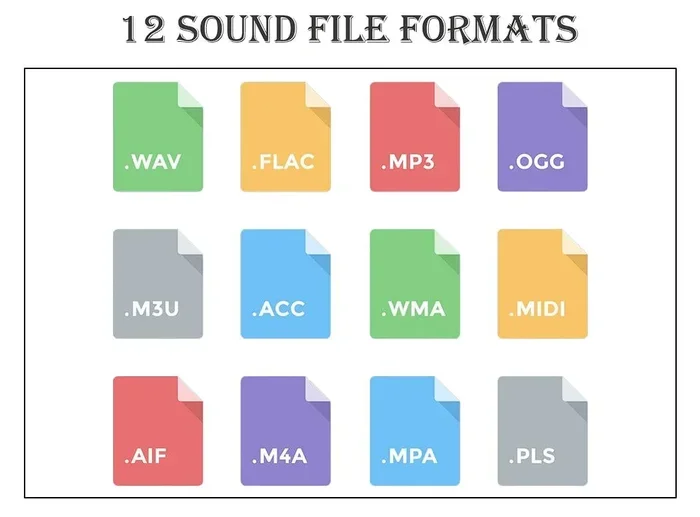
- MP3: Older and less efficient. MP3 uses lossy compression but at a lower quality ceiling than AAC.
- WAV: Uncompressed and large. WAV files sound great but take up much more storage space.
- FLAC: Lossless compression. FLAC keeps every bit of the original audio but still creates larger files than MP4A.
- OGG: Open-source and free. OGG is popular in gaming and open-source software but less common in everyday devices.
The MP4A format wins in most everyday situations because it gives you near-transparent audio quality in a compact package. For most listeners, the difference between MP4A and FLAC is impossible to hear on standard headphones or speakers. However, audiophiles who demand the absolute best may still prefer lossless formats.
How Does MP4A Audio Work?
At its core, MP4A uses AAC (Advanced Audio Coding) to compress audio. This is a perceptual codec, which means it removes sounds that human ears are unlikely to notice. The result is a much smaller file without a obvious drop in quality. This process is called lossy compression, and it works remarkably well.
Understanding Bitrate and Sample Rate
Two technical terms matter when talking about MP4A audio quality: bitrate and sample rate. Bitrate measures how much data is used per second of audio. A higher bitrate means better quality but a larger file. Most MP4A files use a bitrate between 128 kbps and 256 kbps. Anything above 192 kbps is considered very good for most listeners.
Sample rate refers to how many times per second the audio signal is measured. CD-quality audio uses a sample rate of 44.1 kHz. MP4A files can support this and even higher rates, depending on the encoding settings.
The beauty of AAC encoding is that it achieves transparency at much lower bitrates than older formats. An MP4A file at 128 kbps can sound as good as an MP3 at 192 kbps or higher. This efficiency is why Apple and many streaming services adopted it as their default audio format.
What Is the MP4A File Used For?
MP4A files show up in more places than you might think. Here are the most common uses:
- Music downloads: When you buy a song from iTunes, it often downloads as an MP4A or M4A file.
- Podcasts: Many podcasters use MP4A because of its small size and good quality.
- Audiobooks: Apple Books and other platforms use MP4A for spoken-word content.
- Ringtone creation: You can extract audio from MP4A files to make custom phone ringtones.
- Video game audio: Some games use MP4A for background music and sound effects.
The format is also popular in professional settings. Music producers sometimes use MP4A as a delivery format because it sounds great and is easy to share. Even if the final master is in a lossless format, the MP4A version is often what gets sent to streaming platforms and distribution partners.
How to Open and Play an MP4A File
Opening an MP4A file is simple on almost any device. You do not need special software in most cases. Here is what works on different platforms:
- Windows: Windows Media Player, VLC, and Groove Music all handle MP4A files natively.
- Mac: Apple Music and QuickTime play MP4A files without any extra setup.
- iPhone and iPad: The built-in Music app and Files app support MP4A out of the box.
- Android: Google Play Music, VLC, and most default music apps work with MP4A.
If your media player does not recognize the file, try renaming the extension from .mp4a to .m4a. Both formats are essentially the same, and this simple trick solves the problem for many users. You can also use a free tool like VLC Media Player, which supports virtually every audio and video format.
Why Some Players Struggle with MP4A
Occasionally, you might run into a player that does not support MP4A files. This usually happens with older or very basic media software. The fix is straightforward. Install a modern player like VLC, or convert the file to a more universally recognized format like MP3. If you are dealing with audio frequency response issues or wondering about speaker compatibility, remember that MP4A files contain standard audio signals. They work with any speaker or headphone setup that supports the frequency range of the recording.
For those curious about how audio quality translates to real-world listening, the frequency response of your playback device matters more than the file format itself. Check out our guide on what is good frequency response for speakers to learn more about matching your audio setup.
How to Convert MP4A Files
There are many reasons you might want to convert an MP4A file. Maybe your device does not support it, or you need a different format for editing. Converting MP4A files is easy and free with the right tools.
Best Free Tools for Conversion
Here are some reliable options for converting MP4A files:
- VLC Media Player: A free, open-source tool that converts between almost any audio and video format. Go to Media > Convert/Save, select your file, and choose the output format.
- Audacity: A free audio editor that lets you import MP4A files and export them as MP3, WAV, or other formats.
- Online converters: Websites like CloudConvert and Zamzar let you convert MP4A files right in your browser. No software installation needed.
- Apple iTunes: If you use iTunes, you can change the import settings to convert MP4A files to other formats easily.
Converting MP4A to MP3
MP3 remains the most universally supported audio format. If you need your MP4A file to work on an older device or software, converting to MP3 is the best approach. The trade-off is a slight loss in audio quality, but for most listening situations, the difference is negligible. Aim for a bitrate of 256 kbps or higher when converting to MP3 for the best results.
Converting MP4A to WAV
If you need an uncompressed version of your audio, convert MP4A to WAV. This creates a much larger file but preserves all the audio data. WAV files are ideal for editing and professional audio work. Keep in mind that converting a lossy MP4A file to WAV does not restore lost audio data. It simply unpacks what is already there.
Common MP4A File Problems and How to Fix Them
Even though MP4A is a widely supported format, you may occasionally run into issues. Here are the most common problems and their solutions:
- File will not play: Update your media player or try VLC. The issue is almost always a missing codec.
- Audio sounds distorted: Check the bitrate and sample rate. Very low bitrates can cause audible distortion.
- File is corrupted: Try re-downloading the file or using a repair tool. Partial downloads often cause this issue.
- No sound on one channel: This can happen with improperly encoded files. Converting the file usually fixes it.
- Metadata is missing: Use a tag editor like Mp3tag to add or fix song information, album art, and artist details.
Most MP4A issues are easy to solve. The format is mature and well-supported across the tech industry. If you are still having trouble, converting the file to a different format almost always resolves the problem.
Is MP4A the Same as M4A?
This is one of the most common questions about the MP4A format. The short answer is: they are essentially the same thing. Both use AAC encoding and the MPEG-4 container. The difference is mainly in the file extension and the context in which each is used.
Apple tends to use the .m4a extension for music files purchased from iTunes. The .mp4a extension is more generic and is used by many other platforms and applications. Some software uses .mp4a to clearly indicate that the file is audio-only, while .mp4 might contain both audio and video. In practice, you can usually rename an .mp4a file to .m4a or vice versa without any issues.
If you are ever unsure which extension your file should have, simply check which device or software created it. Apple devices and software typically default to .m4a, while many other platforms use .mp4a. Both are valid and both work the same way.
The Future of MP4A and Audio Formats
Audio technology keeps evolving. New codecs like Opus and AAC-ELD are pushing the boundaries of what compressed audio can do. So where does MP4A fit in? The good news is that AAC, the codec behind MP4A, remains one of the most efficient and widely adopted audio formats in the world.
Streaming services like Apple Music, Spotify, and YouTube all use AAC in their streams. This means MP4A and its close relative M4A are not going anywhere anytime soon. The format is deeply embedded in the digital audio ecosystem, and it will likely remain a standard for years to come.
As devices get better at handling high-efficiency codecs, we may see newer formats gain ground. But for now, MP4A offers the best balance of quality, compatibility, and file size. It is a format that works quietly in the background and does its job extremely well.
If you are curious about the broader world of audio technology and how different formats affect your listening experience, understanding speaker specifications can be very helpful. Learning about what treble means on speakers and what ohm means in speakers can help you get the most out of any audio file format.
Final Thoughts
The MP4A file is a modern, efficient, and versatile audio format that powers much of the digital music we enjoy every day. It offers excellent sound quality in a compact file size, works across virtually all devices and platforms, and is easy to convert when needed. Whether you are downloading music, listening to podcasts, or creating audio content, MP4A is a format worth understanding.
Next time you see a .mp4a file on your computer, you will know exactly what it is and how to work with it. The days of confusion and frustration are over. You are now equipped with the knowledge to handle MP4A files like a pro.
Keep exploring, keep listening, and never let a file extension intimidate you again. The world of digital audio is wide open, and MP4A is one of its most reliable building blocks.
Frequently Asked Questions
Can I play an MP4A file on my phone?
Yes, absolutely. Both iPhones and Android phones can play MP4A files natively. On iPhone, simply open the file in the Files app or import it into Apple Music. On Android, most default music players handle MP4A without any extra apps.
Is MP4A better than MP3?
In most cases, yes. MP4A uses AAC encoding, which delivers better sound quality at the same file size compared to MP3. An MP4A file at 128 kbps often sounds as good as an MP3 at 192 kbps or higher. This makes MP4A the more efficient choice for most listeners.
How do I know if my file is actually an MP4A file?
Check the file extension at the end of the filename. If it ends in .mp4a, it is an MP4A file. You can also right-click the file, select Properties (on Windows) or Get Info (on Mac), and look at the file type. It should list MPEG-4 Audio or AAC Audio.
Can I convert MP4A to MP3 without losing quality?
Converting from MP4A to MP3 involves re-encoding the audio, which always introduces some loss. However, if you use a high bitrate (256 kbps or above) during conversion, the quality loss will be nearly impossible to hear for most listeners. The best approach is to keep your original MP4A file and only convert a copy.
Why is my MP4A file so much smaller than a WAV file?
This is because MP4A uses lossy compression while WAV is uncompressed. MP4A removes audio data that human ears are unlikely to notice, resulting in a much smaller file. A typical MP4A song might be 5 to 10 MB, while the same song as a WAV file could be 40 to 60 MB or more.
Are MP4A files safe to download?
Yes, MP4A files are safe. They are standard audio files and cannot contain executable code or viruses. However, always download files from trusted sources. As with any file download, make sure your antivirus software is up to date, just as a general safety practice.