What Is Wordpad
Wordpad is a free, built-in text editor that comes with every Windows laptop and desktop. It lets you create, edit, and format simple documents without needing heavy software like Microsoft Word. Wordpad supports rich text formatting, making it more powerful than Notepad but lighter than full word processors.
If you have used a Windows laptop for any length of time, you have probably seen Wordpad hiding in your Start menu. It is one of those simple tools that many people overlook. But once you understand what it can do, you might find yourself reaching for it more often than you think.
Wordpad is a basic word processing program built right into Windows. It sits between Notepad and Microsoft Word in terms of features. Think of it as the perfect middle ground. You get enough formatting power to make documents look nice, without the complexity of a full office suite. Whether you are writing a quick note or drafting a letter, Wordpad handles the job with ease.
In this guide, we will walk you through everything you need to know about Wordpad. We will cover what it is, how it works, and why it still matters in 2025. You will also learn tips and tricks to get the most out of this underrated laptop software. By the end, you will see why Wordpad remains a handy tool for everyday document editing.
Key Takeaways
- Wordpad is a free Windows text editor: It comes pre-installed on all Windows laptops and PCs, ready to use immediately.
- It supports rich text formatting: You can bold, italicize, and change fonts without installing any extra software.
- Wordpad is lighter than Microsoft Word: It uses minimal system resources and opens instantly every time.
- It saves files in multiple formats: Including RTF, TXT, and HTML for maximum compatibility.
- Great for quick editing tasks: Perfect for notes, letters, and simple documents on any laptop.
- No downloads needed: It is already on your computer, so you can start writing right away.
📑 Table of Contents
What Exactly Is Wordpad?
Wordpad is a free text editing application that comes pre-installed on every Windows operating system. It has been part of Windows since the early days, evolving alongside the OS itself. Unlike Notepad, which only handles plain text, Wordpad supports rich text formatting. This means you can change fonts, add bold and italic styles, and even insert images into your documents.
The app has gone through several name changes over the years. In older versions of Windows, it was called “Write.” But since Windows 95, Microsoft has kept the name Wordpad. It is a simple word processing tool designed for everyday tasks. You do not need an internet connection to use it. It works entirely offline on your local machine.
One of the best things about Wordpad is its simplicity. There are no subscriptions, no account sign-ups, and no hidden costs. You open it and start writing. It is the most accessible text editor for Windows users who need something faster than a full office suite but more capable than a plain text notepad.
How Wordpad Differs from Other Text Editors
Understanding where Wordpad fits in the lineup helps you choose the right tool for the job. Here is a simple comparison of the three main options:
- Notepad: The most basic editor included with Windows. It only saves plain text files. No formatting options at all. Great for quick notes and code editing.
- Wordpad: A step up from Notepad. It supports rich text formatting, different fonts, and basic paragraph settings. Perfect for letters and simple reports.
- Microsoft Word: A full-featured word processor. It includes advanced tools like spell check, templates, track changes, and cloud storage. Best for long documents and professional work.
Wordpad gives you more than Notepad but less than Microsoft Word. For many users, that is exactly what they need. It is especially useful on laptops that may not have Microsoft Office installed. You can handle most everyday writing tasks without any extra cost. It is the ideal Notepad alternative for anyone who needs a bit more formatting power.
Key Features of Wordpad
Wordpad packs a surprising number of features for a free, built-in app. Let us look at what makes it useful for basic text editing on your laptop.
Rich Text Formatting
The biggest advantage of Wordpad over Notepad is its formatting power. You can change font styles, sizes, and colors with a few clicks. You can make text bold, italic, or underlined. Paragraph alignment options let you left-align, center, or justify your text. These features make your documents look polished without needing a full word processor.
You can also adjust line spacing and indentation. This gives you control over how your document looks on the page. For a free built-in app, the formatting options in Wordpad are quite impressive. Most users will find everything they need for everyday writing tasks right here.
Multiple File Formats
Wordpad can open and save files in several formats. The most common one is RTF, which stands for Rich Text Format. This format preserves your fonts, styles, and colors when you share files with others. You can also save as plain TXT files or even HTML.
This flexibility makes it easy to share documents with people using different computers and software. Your file format choice depends on what you need the document for. RTF is the safest choice for preserving formatting. TXT is best for simple text that needs to be universally compatible. HTML is useful if you are learning basic web development.
Clipboard and Insert Tools
Like most Windows apps, Wordpad supports standard clipboard functions. You can copy, paste, and cut text with ease. It also lets you insert dates, times, and even images directly into your document. The clipboard integration works smoothly, making it simple to move content from other apps into your Wordpad document.
The insert options include symbols and special characters. You can add currency signs, copyright symbols, and other characters that are not on your keyboard. These small features add up and make Wordpad more capable than it first appears.
Print and Page Setup Options
Need to print a document directly from Wordpad? No problem. It includes basic print options and page setup controls. You can adjust margins, choose portrait or landscape orientation, and set header and footer options. While it lacks advanced print features, it covers everything most users need for simple printing tasks.
The print preview lets you see exactly how your document will look on paper before you hit print. This saves paper and ink by helping you catch formatting issues early. For quick print jobs, Wordpad gets the job done without any hassle.
System Requirements for Running Wordpad
One of the best things about Wordpad is how little it demands from your computer. Because it is a lightweight application, it runs well even on older laptops. However, having decent specs helps ensure a smooth experience. Let us look at what your laptop needs to run Wordpad without any issues.
Most modern laptops meet the requirements easily. Even budget machines with basic specs can run Wordpad without any problems. The app uses very little memory and processor power. This makes it ideal for quick editing tasks when you do not want to open a heavier program.
If your laptop has at least 4GB of RAM, you will have no trouble with Wordpad. In fact, what is a good amount of ram for a laptop for general use is around 8GB, which gives you plenty of headroom for running multiple apps alongside Wordpad. The app itself barely uses any of that memory, leaving resources free for other tasks.
You do not need a powerful processor or a dedicated graphics card to run Wordpad. Even the most basic laptops can handle it with ease. This is one reason why Wordpad has remained a staple of the Windows operating system for so many years. It works on virtually every Windows machine ever made.
How to Open and Use Wordpad
Getting started with Wordpad is straightforward. You can find it on any Windows laptop in just a few clicks. Here is how to open it and start using it for your basic text editing needs.
Opening Wordpad on Windows
To launch Wordpad, click the Start button and type “Wordpad” in the search bar. Click the app from the results, and it will open immediately. You can also find it in the Windows Accessories folder under All Apps. On older versions of Windows, you might find it under the “Windows Accessories” or “Start Menu” folder.
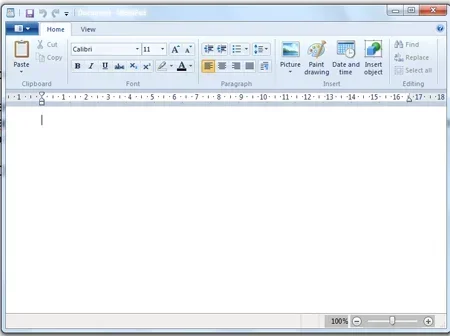
Once open, you will see a clean, simple interface with a blank page ready for your text. The toolbar at the top gives you quick access to all the essential tools. There is no learning curve. If you have ever used a basic text editor before, you will feel right at home in Wordpad.
Basic Navigation and Controls
The Wordpad toolbar sits at the top of the window. It includes buttons for font selection, size adjustment, bold, italic, underline, and alignment. Below the toolbar is the main writing area where your text appears. The ribbon-style menu gives you quick access to all the essential formatting tools.
You can also use keyboard shortcuts to speed up your workflow. Press Ctrl+B to bold text, Ctrl+I to italicize, and Ctrl+U to underline. Use Ctrl+S to save your document quickly. These shortcuts work just like they do in other Windows apps, so they are easy to remember and use every day.
Creating Your First Document
Start typing in the blank page to create your first document. Use the toolbar to format your text as needed. You can highlight a section and change its font, size, or style. Try experimenting with different fonts and sizes to see what looks best for your document.
When you are done, go to File and choose Save or Save As. Pick your preferred file format and choose a location on your laptop. Your document is ready to share or print. The save process in Wordpad is simple and intuitive, even for first-time users.
Pros and Cons of Using Wordpad
Every tool has its strengths and weaknesses. Let us look at what makes Wordpad shine and where it falls short. This honest assessment will help you decide if it is the right tool for your needs.
The Pros
- Completely free: No downloads, no subscriptions, no hidden costs whatsoever.
- Already installed: It comes with Windows, so there is nothing to set up or configure.
- Lightweight: It opens fast and uses minimal system resources on your laptop.
- Simple to use: The interface is clean and intuitive for users of all skill levels.
- Supports rich text: You get formatting options beyond what a plain text editor offers.
- Multiple file formats: Save in RTF, TXT, or HTML for maximum compatibility with other devices.
The Cons
- No spell check: Unlike Microsoft Word, Wordpad does not include automatic spell checking or grammar tools.
- Limited features: You cannot create tables, use templates, or access advanced formatting tools.
- No cloud integration: There is no built-in way to save documents to the cloud or share them online.
- Not ideal for long documents: For lengthy reports, books, or complex projects, a full word processor is a better choice.
Overall, the pros of Wordpad outweigh the cons for most casual users. It is a reliable tool for everyday writing tasks on any laptop. If you only need to write simple documents, you will not miss the advanced features that come with heavier software.
Who Should Use Wordpad?
Wordpad is not for everyone, but it is perfect for a specific group of users. Let us look at who benefits most from this simple text editor and why it remains relevant in 2025.
Students and Quick Note-Takers
Students who need to jot down notes or write short essays will find Wordpad very useful. It opens quickly and runs smoothly even on older laptops. You do not need to worry about heavy software slowing down your system or taking up valuable storage space. Just open it and start typing. It is the perfect companion for lecture notes and quick study sessions.
Casual Writers and Professionals
Professionals who need to draft quick letters, memos, or internal documents can rely on Wordpad. It provides enough formatting to make documents look professional without the overhead of a full office suite. For those who do not use Microsoft Office regularly, Wordpad is a practical and efficient alternative for everyday writing tasks.
People with Older Laptops
If you are using an older laptop with limited specs, Wordpad is your best friend. It runs on virtually any Windows machine, no matter how old or basic. You do not need to install anything or worry about compatibility issues. It is the most accessible laptop software for simple writing tasks. Older laptops that struggle with modern applications can still run Wordpad without any problems at all.
Tips and Tricks for Getting More from Wordpad
Once you know the basics, a few tips can help you get even more out of Wordpad. These small tricks can save you time and make your document editing experience smoother and more efficient.
Use Keyboard Shortcuts
Learning a few keyboard shortcuts can speed up your work in Wordpad significantly. Press Ctrl+B to bold text, Ctrl+I to italicize, and Ctrl+U to underline. Use Ctrl+S to save your document quickly. Ctrl+A selects all text, which is handy when you want to change the formatting of your entire document at once.
These shortcuts work just like they do in other Windows apps, so they are easy to remember. After a few days of use, they will become second nature. You will wonder how you ever managed without them.
Save in RTF for Best Results
When you need to preserve formatting, always save your document as an RTF file. This Rich Text Format keeps your fonts, styles, and colors intact. If you save as a plain TXT file, all formatting will be lost. Choosing the right file format at the start saves you from frustration later when you open the file again.
RTF files are also widely compatible. You can open them on most computers and devices without any special software. This makes RTF the best choice when sharing documents with others who may be using different operating systems.
Use Wordpad for HTML Editing
Did you know you can use Wordpad to edit HTML files? Simply open an HTML file in Wordpad and you can see and modify the code. This is a handy trick for anyone learning basic web development or needing to tweak a webpage quickly. It is not a full code editor, but it works well for simple tasks and quick fixes.
Just remember to save HTML files with the .html extension. This ensures your web browser recognizes the file correctly. It is a simple trick that unlocks an extra use for your trusty Wordpad app.
Conclusion
Wordpad may not be the flashiest tool in your Windows laptop, but it is one of the most practical. It gives you just enough formatting power for everyday writing without the bloat of heavier applications. Whether you are a student taking notes, a professional drafting a quick memo, or someone using an older laptop, Wordpad delivers exactly what you need.
Next time you need to create a simple document, skip the heavy software and open Wordpad instead. It is fast, free, and already on your computer. Once you make it a part of your workflow, you will wonder how you ever managed without it. Keep this guide handy for quick reference, and happy writing.
Frequently Asked Questions
Is Wordpad the same as Notepad?
No, they are different. Notepad only handles plain text with no formatting options. Wordpad supports rich text formatting, which means you can change fonts, add bold and italic styles, and insert images into your documents. Think of Wordpad as the more capable sibling of Notepad.
Can I use Wordpad instead of Microsoft Word?
For basic writing tasks, yes. Wordpad is perfect for simple documents, notes, and letters. However, if you need advanced features like spell check, templates, or table creation, Microsoft Word is a better choice. Wordpad fills the gap between Notepad and Microsoft Word nicely.
Is Wordpad free to use?
Absolutely. Wordpad comes pre-installed on every Windows laptop and PC. There are no subscriptions, no hidden fees, and no downloads required. It is completely free to use and always will be as part of the Windows operating system.
What file formats does Wordpad support?
Wordpad can open and save files in several formats. The most common are RTF (Rich Text Format), TXT (plain text), and HTML. RTF is the best choice if you want to preserve your formatting when sharing documents with others on different computers.
Can I insert images into Wordpad?
Yes, you can. Wordpad allows you to insert images directly into your documents using the Insert menu. You can also adjust the image placement and size within your text for a cleaner look. Just keep in mind that Wordpad is not an image editor, so basic image adjustments only.
Why is Wordpad not available on Mac?
Wordpad is a Windows-specific application built into the Windows operating system. Mac computers use a different text editor called TextEdit, which offers similar features for basic document editing on Apple laptops. Both serve the same purpose on their respective platforms.