What Is Cpu Overhead
CPU overhead is the extra processing power your computer uses to run background tasks, software, and system operations beyond the actual workload. High CPU overhead can slow down your PC, cause overheating, and reduce overall performance. Understanding what drives CPU overhead and how to manage it helps you keep your system running fast and cool.
Your computer feels slow. Apps take forever to open. The fan is roaring even when you are just browsing the web. You might think your CPU is old or weak. But the real problem could be something called CPU overhead. This hidden drain on your processor is something most people never think about — until it starts causing real problems.
CPU overhead refers to the extra processing power your system uses to keep everything running. It is not the work you are actively doing. It is all the behind-the-scenes stuff your computer handles just to stay alive. Think of it like the weight of your car’s trunk — you are not always thinking about it, but it affects how fast and efficiently you drive.
Understanding CPU overhead is important because it directly impacts your daily experience. Whether you are gaming, working from home, or just streaming videos, overhead determines how much breathing room your processor has. In this guide, we will break down exactly what CPU overhead is, what causes it, and — most importantly — how you can reduce it.
Key Takeaways
- CPU overhead is the hidden cost: Every process on your computer uses extra CPU cycles beyond the main task, and this adds up fast.
- Background processes are the biggest culprit: Apps running in the background consume system resources without you even noticing.
- High CPU overhead causes slowdowns and heat: When your processor works too hard on overhead tasks, it can lead to lag, throttling, and high temperatures.
- You can reduce CPU overhead easily: Closing unused programs, updating drivers, and managing startup apps are simple steps that make a big difference.
- Monitoring tools help you track overhead: Using Task Manager and other tools lets you see exactly what is eating up your CPU.
- Good cooling supports lower overhead: A quality CPU cooler helps your processor handle overhead loads more efficiently.
📑 Table of Contents
What Does CPU Overhead Mean?
At its core, CPU overhead is the processing power used by system-level tasks that are not part of your main workload. Your processor handles two types of work. The first is your actual workload — the app you are using, the game you are playing, or the file you are editing. The second is overhead — the invisible tasks that keep your operating system and software running smoothly.
Every program you open creates overhead. Your operating system uses CPU cycles to manage memory, handle input from your keyboard and mouse, and coordinate between apps. Even when you are doing nothing, your computer is busy. Background services, system updates, and security scans all contribute to CPU utilization that goes beyond what you are actively asking for.
How Overhead Differs from Actual Workload
Here is a simple way to think about it. Imagine you are cooking dinner. The actual workload is the time you spend chopping vegetables and stirring the pot. The overhead is everything else — walking to the pantry for ingredients, washing dishes, setting the timer, and checking the oven. You are cooking, but not all of your time goes into the main task.
In the same way, your processor divides its attention between your actual work and system overhead. A well-optimized system keeps overhead low so more power goes toward your tasks. A bloated or poorly managed system lets overhead eat up a huge share of your CPU capacity.
Why Overhead Matters for Performance
When CPU overhead is high, less processing power is available for your actual work. This means apps run slower, games drop frames, and your system feels sluggish. Over time, excessive overhead can also cause your processor to heat up, leading to thermal throttling — a protective mechanism that slows your CPU to prevent damage. This creates a vicious cycle where your computer gets slower and hotter.
What Causes High CPU Overhead?
There are many reasons your CPU overhead might spike. Some causes are simple and easy to fix. Others are more complex and require deeper troubleshooting. Let us look at the most common ones.
Background Processes and Services
Every operating system runs dozens of background processes. These are small programs that handle things like network connections, file indexing, and system notifications. On Windows, you might see processes like “System,” “Service Host,” or “Windows Search” using CPU resources even when you are not actively doing anything.
Some apps are worse than others. For example, browsers like Opera GX are known for using a lot of background CPU even when idle. Other common culprits include cloud sync services, antivirus software, and messaging apps that constantly check for updates.
Startup Programs and Bloatware
When you buy a new computer, it often comes preloaded with software you do not need. This is called bloatware. These programs run in the background from the moment you turn on your PC, adding to your system overhead from the start.
Startup programs are another major factor. Every app you set to open when your computer boots adds to the load. Over time, the list grows and your processor has to manage more and more background tasks before you even open your first app.
Outdated Drivers and Software
Old drivers can cause your CPU to work harder than it needs to. When drivers are not optimized for your current operating system, they may use inefficient code paths that create extra processing overhead. This is especially true for graphics drivers and chipset drivers.
Similarly, outdated software may have memory leaks or inefficient code that causes CPU spikes. Keeping everything updated is one of the simplest ways to reduce unnecessary overhead.
Malware and Unwanted Software
Malware is one of the sneakiest causes of high CPU overhead. Viruses, spyware, and even adware can run hidden processes that consume your processor without your knowledge. These programs often run at startup and are designed to stay hidden, making them hard to detect.
If your computer suddenly becomes slow and your CPU usage is high for no obvious reason, a malware scan should be one of your first steps. A good antivirus program can identify and remove these hidden resource hogs.
Hardware Limitations and Aging Components
Older hardware naturally has higher overhead relative to its processing power. A processor from five years ago has to work harder to run modern software that is more demanding. The overhead percentage might stay the same, but because the total processing power is lower, the impact feels much worse.
Thermal paste degradation is another factor. Over time, the paste between your CPU and cooler dries out, causing heat buildup. When your chip gets too hot, it throttles, and overhead tasks compete even more aggressively for the limited processing power available.
How to Measure CPU Overhead
You cannot fix what you cannot measure. Fortunately, Windows and other operating systems provide built-in tools to help you see exactly how much CPU overhead your system is using.
Using Task Manager
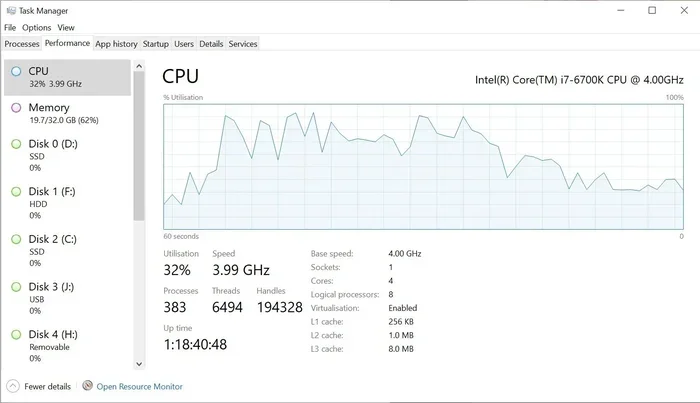
Task Manager is the most accessible tool for checking CPU usage. Press Ctrl + Shift + Esc to open it, and click the “Processes” tab. You will see a list of every running process and how much CPU each one is using. The processes at the top of the list are the biggest resource hogs.
Look at the “Background processes” section. These are the tasks that contribute to your CPU overhead. If you see background processes using more than 10-15% of your CPU, that is a sign you should investigate further.
Using Resource Monitor
For a deeper look, Resource Monitor gives you more detailed information about CPU utilization. It shows you which processes are using the processor, how many threads they are running, and what kind of work they are doing. This tool is especially helpful for identifying hidden processes that are driving up your overhead.
Third-Party Monitoring Tools
Tools like HWiNFO, CPU-Z, and Core Temp provide real-time CPU temperature and usage data. These are especially useful for spotting thermal throttling. If your processor is running hot while doing simple tasks, high overhead combined with poor cooling is likely the cause.
How to Reduce CPU Overhead
The good news is that reducing CPU overhead does not require advanced technical skills. Most of the fixes are simple and can make a noticeable difference right away.
Disable Unnecessary Startup Programs
Open Task Manager and go to the “Startup” tab. You will see a list of programs that launch when your computer boots. Right-click on anything you do not need and select “Disable.” This single step can dramatically reduce your system overhead at boot time.
Close Background Apps
Many apps continue running in the background even after you close their windows. Check your system tray (the area near the clock in the bottom-right corner) and close programs you are not actively using. Every app you shut down reduces your CPU load and frees up resources for your actual work.
Keep Drivers and Software Updated
Regular updates improve efficiency and fix bugs that cause CPU spikes. Set your system to update automatically, and check for driver updates for your graphics card, motherboard, and other key components every few months.
Scan for Malware Regularly
Run a full system scan at least once a month. Even if you use real-time protection, periodic deep scans can catch threats that slip through. Removing malware instantly reduces the hidden overhead those programs create.
Upgrade Your Cooling System
Good cooling does not reduce overhead directly, but it prevents thermal throttling, which forces your processor to slow down and makes overhead tasks feel worse. Investing in a quality CPU cooler can help your processor maintain higher performance even when overhead is running high. A well-cooled system also runs quieter and lasts longer.
Consider Upgrading Your Hardware
If your processor is several generations old, upgrading to a newer model can significantly reduce the impact of CPU overhead. Modern chips are more efficient and handle background tasks with less impact on overall performance. Pairing a new CPU with sufficient RAM ensures your system has the resources it needs to manage overhead without slowing down.
Common Symptoms of High CPU Overhead
How do you know if CPU overhead is hurting your system? Watch for these telltale signs.
- Slow boot times: Your computer takes a long time to start up because too many background processes are competing for resources.
- App lag and freezing: The app you are using becomes unresponsive because the processor is busy handling overhead tasks.
- High fan noise at idle: If your fans are loud even when you are not doing anything demanding, high CPU usage from background processes is likely the cause.
- Unexpected heat: Your laptop or PC feels hot to the touch even during light use, which points to excessive overhead and possibly poor cooling.
- Battery drain on laptops: High CPU overhead forces your processor to work harder, which drains your battery faster.
- Stuttering in games and videos: Even light entertainment can stutter if background tasks are consuming too much processing power.
If you notice several of these symptoms, it is worth opening Task Manager and checking your CPU utilization. You might be surprised at how much of your processor is going to overhead instead of your actual work.
CPU Overhead in Different Scenarios
CPU overhead is not the same for everyone. It varies based on what you are doing and what your system is running. Here is how it looks in common scenarios.
Gaming
When you are gaming, your CPU is already under heavy load. Any additional overhead from background apps can cause frame drops and stuttering. This is why gamers are often advised to close everything else while playing. Even a browser with a few open tabs adds to your CPU load and can make the difference between smooth gameplay and a frustrating experience.
Work and Productivity
If you are working with spreadsheets, documents, or video calls, CPU overhead might not be as noticeable. But if you are running multiple apps at once — say, a browser with many tabs, a video call, and a document editor — overhead starts to add up. Your processor has to juggle all of these tasks, and the overhead from each one compounds.
Idle and Light Use
Even when you are doing nothing, your CPU is not truly idle. Background services, system maintenance tasks, and scheduled scans all run during idle time. A healthy system should use less than 5-10% of its CPU capacity at idle. If you see higher numbers, something is contributing to excess overhead that needs attention.
Expert Tips to Keep CPU Overhead Low
Here are some quick tips from tech professionals to keep your CPU overhead in check.
- Restart your computer regularly: This clears out accumulated background processes and resets CPU usage to a clean baseline.
- Use lightweight apps: Choose lighter alternatives for everyday tasks. A lightweight browser uses less overhead than a heavy one.
- Limit browser tabs: Each open tab uses memory and CPU cycles. Keep only the tabs you need.
- Disable visual effects: On Windows, you can turn off unnecessary animations and visual effects to reduce the processing load on your CPU.
- Check for Windows updates: Microsoft regularly releases updates that improve system efficiency and reduce unnecessary overhead.
- Use a cooling pad for laptops: Better cooling prevents throttling and helps your processor handle overhead more effectively.
Conclusion
CPU overhead is a hidden but powerful factor that affects how your computer performs every single day. It is the invisible tax your processor pays to keep everything running. When overhead gets too high, your system slows down, heats up, and becomes frustrating to use.
The good news is that understanding and managing CPU overhead is within anyone’s reach. By monitoring your CPU usage, disabling unnecessary startup programs, keeping your software updated, and maintaining good cooling, you can significantly reduce the impact of overhead on your daily workflow. Start with the simple fixes in this guide and you will likely see an immediate improvement in how your computer feels.
Your processor works hard for you every day. Give it the support it needs by keeping CPU overhead under control, and it will reward you with a faster, cooler, and more responsive experience.
Frequently Asked Questions
What is CPU overhead exactly?
CPU overhead is the extra processing power your computer uses for background tasks, system services, and software operations beyond your actual workload. It includes everything from managing keyboard input to running system updates in the background.
Is some CPU overhead normal?
Yes, a small amount of CPU overhead is completely normal and expected. Your operating system always runs background processes to keep things functioning. Typically, 5-15% CPU usage at idle is healthy and indicates normal overhead levels.
How can I check my CPU overhead?
Open Task Manager by pressing Ctrl + Shift + Esc and look at the “Processes” tab. The “Background processes” section shows you how much CPU is being used by overhead tasks rather than your active apps.
Can high CPU overhead damage my processor?
High CPU overhead itself does not directly damage your processor. However, it can cause your chip to run hotter for longer periods, which over time may reduce its lifespan if cooling is inadequate. Good thermal management is key.
Does CPU overhead affect gaming performance?
Absolutely. High CPU overhead leaves less processing power available for your game, which can cause frame drops, stuttering, and longer load times. Closing background apps before gaming is one of the easiest ways to reduce this impact.
What is the difference between CPU overhead and CPU usage?
CPU usage is the total processing power currently in use, including both your active workload and background overhead. CPU overhead specifically refers to the portion of that usage dedicated to system-level tasks and background processes rather than your direct workload.