What Is M2 SSD The Ultimate Beginner Guide for 2024

An M2 SSD is a compact, ultra-fast solid state drive that plugs directly into your motherboard. It uses the NVMe protocol to deliver blazing speeds far beyond traditional hard drives. Whether you are upgrading a laptop or building a new PC, understanding M2 SSD basics helps you make smarter storage choices. This guide covers everything from form factors to real-world performance in simple terms.
If you have been shopping for PC parts lately, you have probably seen the term M2 SSD everywhere. It sounds technical, but the concept is actually quite simple. An M2 SSD is a small, flat storage drive that connects straight to your motherboard. No cables. No extra power connectors. Just plug it in and go.
These drives have become the standard for modern PCs. They are fast, reliable, and take up almost no space inside your case. Whether you are a gamer, a content creator, or just someone who wants a faster computer, an M2 SSD can make a huge difference. In this guide, we will break down everything you need to know in plain language.
You will learn what M2 SSDs are, how they work, why they outperform older drives, and how to pick the right one for your needs. By the end, you will feel confident shopping for and installing one yourself. Let us dive in.
Key Takeaways
- M2 SSDs are small, fast storage devices that connect directly to the motherboard without cables.
- NVMe M2 SSDs are much faster than SATA SSDs, offering speeds up to 7,000 MB/s or more.
- The 2280 form factor is the most common M2 size for desktops and laptops.
- Installing an M2 SSD is straightforward and can dramatically improve boot times and app loading.
- Not all motherboards support M2 slots, so always check compatibility before buying.
- PCIe 4.0 and PCIe 5.0 M2 SSDs offer the latest speed improvements for demanding tasks.
📑 Table of Contents
What Is an M2 SSD?
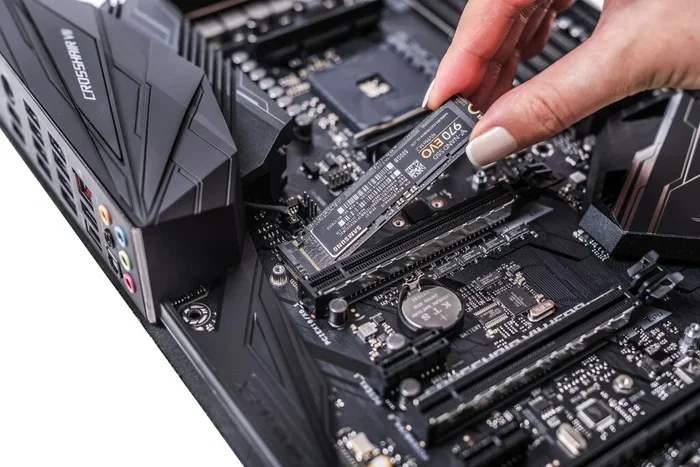
The term M2 refers to the form factor of the drive. It is a specification developed by the SATA-IO organization. An M2 SSD looks like a small stick of gum. It is narrow and compact, designed to fit into a dedicated slot on your motherboard.
Unlike traditional 2.5-inch SSDs that need SATA cables and power cords, M2 SSDs slot directly into the board. This makes them ideal for slim laptops and small form factor desktops. The official name is often M.2, but most people simply call it M2.
M2 SSDs use NAND flash memory to store data. This is the same type of memory found in USB drives and phones, but much faster and more durable. There is no moving part inside, which means less heat and fewer chances of mechanical failure.
Most M2 SSDs today use the NVMe protocol. NVMe stands for Non-Volatile Memory Express. It is a communication standard designed specifically for flash storage. This is why NVMe M2 drives are so much quicker than older SATA-based drives.
Common M2 SSD Sizes
M2 SSDs come in different lengths, but the most common size is 2280. The first two digits (22) mean 22 millimeters wide. The last two digits (80) mean 80 millimeters long. Other sizes exist, like 2260 or 2242, but 2280 fits most desktop and laptop slots.
How Does an M2 SSD Work?
An M2 SSD connects to your motherboard through a dedicated M.2 slot. This slot communicates directly with the CPU or chipset via the PCIe bus. PCIe stands for Peripheral Component Interconnect Express. It is the same high-speed connection used by graphics cards.
The drive uses NAND flash chips to read and write data. When your computer needs a file, the SSD retrieves it almost instantly. There is no spinning disk or read head to wait for, like in a traditional hard drive.
Modern M2 SSDs support the NVMe protocol, which allows them to send and receive data through multiple PCIe lanes simultaneously. This parallel processing is what gives M2 NVMe drives their incredible speed. A single PCIe 3.0 lane can move about 1 GB per second. Most M2 SSDs use four lanes, which adds up to much faster transfers.
Understanding NAND Flash Types
M2 SSDs use different types of NAND flash. The three main types are TLC, QLC, and MLC.
- TLC (Triple-Level Cell): Stores three bits per cell. Offers a great balance of speed, endurance, and price. This is the most common type in consumer M2 SSDs today.
- QLC (Quad-Level Cell): Stores four bits per cell. Cheaper but slightly slower and less durable over time.
- MLC (Multi-Level Cell): Stores two bits per cell. Faster and more durable but more expensive.
For most users, TLC is the sweet spot. It gives you excellent performance without breaking the bank.
M2 SSD vs SATA SSD: What Is the Difference?
This is one of the most common questions people ask. Both M2 SSDs and SATA SSDs are solid state drives, but they differ in how they connect and how fast they are.
A SATA SSD uses the older SATA III interface. It maxes out at about 550 MB/s in real-world use. An M2 NVMe SSD can reach speeds of 3,500 MB/s to 7,000 MB/s or even higher, depending on the PCIe generation.
The difference is massive. Boot times shrink from 30 seconds to around 8 seconds. Game load times drop significantly. Large file transfers that took minutes now take seconds.
However, not every M2 SSD is NVMe. Some M2 drives use the SATA protocol. These are slower than NVMe models but still faster than a traditional hard drive. Always check whether an M2 SSD uses NVMe or SATA before purchasing.
| Feature | M2 NVMe SSD | M2 SATA SSD | 2.5″ SATA SSD |
|---|---|---|---|
| Max Speed | Up to 7,000 MB/s | Up to 550 MB/s | Up to 550 MB/s |
| Connection | PCIe via M.2 slot | SATA via M.2 slot | SATA cable |
| Form Factor | 2280 (most common) | 2280 | 2.5-inch |
| Cables Needed | None | None | Yes |
| Best For | Gaming, editing, fast boot | Budget upgrades | Older systems |
Benefits of Using an M2 SSD
Switching to an M2 SSD brings several real-world benefits that you will notice every day.
Blazing Fast Speeds
The most obvious advantage is speed. Your operating system boots in seconds. Applications open almost instantly. Large files copy in a fraction of the time. For gamers, this means less waiting and more playing.
Compact Size
M2 SSDs are tiny. They take up less space than a postage stamp. This frees up room inside your case for better airflow and cooling. It also makes them perfect for ultrabooks and mini PCs.
No Cables Required
Traditional SSDs need SATA data cables and power cables from your PSU. M2 SSDs eliminate all of that. You simply insert the drive into the slot and secure it with a small screw. Setup takes minutes.
Lower Power Consumption
M2 SSDs use less power than traditional hard drives or even SATA SSDs. This can slightly improve laptop battery life. It also means less heat generated, which helps keep your system cool and quiet.
Improved Gaming and Creative Workloads
Games installed on an M2 NVMe SSD load faster than those on a SATA drive. Video editors and 3D artists benefit from quicker file access and smoother timeline scrubbing. If you use the SSD M2 NVMe 1 TB Kingston model, you will notice a dramatic improvement in daily workflow.
How to Choose the Right M2 SSD
Shopping for an M2 SSD can feel overwhelming with so many options. Here is a simple guide to help you decide.
Check Your Motherboard Compatibility
Not all motherboards have M2 slots. Before buying, open your PC case or check your motherboard manual. Look for an M.2 slot that supports NVMe. Some older boards only support SATA M2 drives, while newer ones support both.
Consider the PCIe Generation
PCIe 3.0, 4.0, and 5.0 are the current generations. PCIe 4.0 M2 SSDs offer the best balance of speed and price right now. If you want the absolute fastest speeds, look for a PCIe 4.0 M2 NVMe SSD. Keep in mind that PCIe 5.0 drives are still expensive and offer diminishing returns for most users.
Pick the Right Capacity
M2 SSDs come in sizes from 250 GB to 4 TB and beyond. For most users, 1 TB is the sweet spot. It gives you enough room for your operating system, favorite apps, and several games without costing too much.
If you need maximum storage on a budget, consider pairing a smaller M2 SSD for your boot drive with a larger traditional hard drive for mass storage. This setup gives you the best of both worlds.
Brand Reputation and Warranty
Stick with reputable brands like Samsung, Kingston, WD, and Crucial. These companies offer solid warranties, usually 3 to 5 years. A good warranty tells you the manufacturer trusts its own product.
Watch for Thermal Throttling
Fast M2 SSDs can run hot. Some models come with heatsinks to manage temperature. If your motherboard has a built-in M2 heatsink, that is great. Otherwise, you can buy an aftermarket M2 thermal pad or fan. Keeping your drive cool ensures consistent speeds over time.
Quick Tips for Choosing an M2 SSD
- Always verify your motherboard supports NVMe before buying.
- 1 TB is the best value for most users in 2024.
- PCIe 4.0 offers the best price-to-performance ratio today.
- Look for drives with DRAM cache for better sustained performance.
- Check if the drive includes a heatsink or buy one separately.
How to Install an M2 SSD
Installing an M2 SSD is one of the easiest PC upgrades you can do. You do not need to be a tech expert. Here is a quick walkthrough.
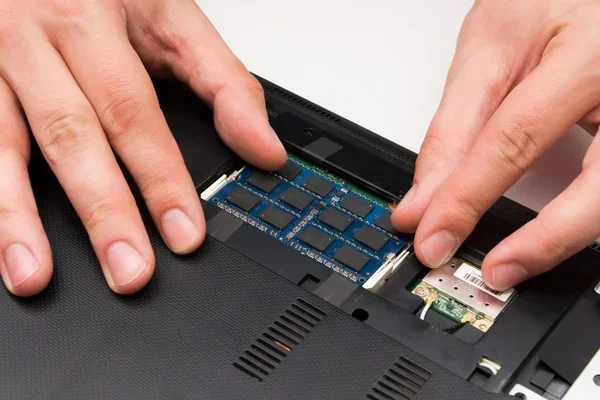
- Find the M.2 slot on your motherboard. It looks like a small slot with a tiny screw already in place.
- Insert the drive at a 30-degree angle into the slot. The gold contacts should face down.
- Press the drive down gently and secure it with the small screw. Do not overtighten.
- Boot into your BIOS or UEFI and confirm the drive is detected.
- Initialize and format the drive through Windows Disk Management if it is a new installation.
If you are using an external setup or want to connect an M2 drive to a laptop without an internal slot, you can use an enclosure. These adapters let you plug an M2 SSD into a USB port. This is a great way to add portable high-speed storage. Learn more about this option with our guide on M2 NVMe SSD in USB enclosures.
Common Mistakes to Avoid
Even with a simple upgrade, people sometimes make mistakes. Here are a few to watch out for.
- Buying the wrong form factor: Make sure you get a 2280 M2 drive if your slot supports it. A 2242 drive will not fit properly in a 2280 slot.
- Ignoring NVMe vs SATA: Just because a drive says M2 does not mean it is NVMe. Always double-check the protocol.
- Skipping the BIOS update: Older motherboards sometimes need a BIOS update to support newer NVMe drives. Check the manufacturer’s website first.
- Forgetting to enable the M2 slot: Some motherboards disable certain SATA ports when an M2 slot is in use. Read your manual to avoid surprises.
- Not enabling TRIM: TRIM helps your SSD maintain peak performance over time. Make sure it is enabled in your operating system settings.
Expert Insight
According to storage industry experts, the shift from SATA to NVMe M2 SSDs represents one of the most impactful upgrades a PC user can make in 2024. The speed difference is not just a number on paper. You will feel it every time you open a program, boot your machine, or transfer a large file. For the best real-world experience, pair your M2 SSD with sufficient RAM and a modern CPU to avoid bottlenecks.
Is an M2 SSD Worth It in 2024?
The short answer is absolutely yes. M2 SSD prices have dropped significantly over the past few years. A 1 TB NVMe M2 SSD now costs around $60 to $80 for reliable models. That is a small price for a massive upgrade in speed and responsiveness.
If you are still using a traditional hard drive or an older SATA SSD, the difference will feel like night and day. Your entire computing experience becomes smoother, faster, and more enjoyable. For gamers, the benefit is especially clear. Games load faster, stuttering decreases, and open-world exploration feels seamless.
Even if you already have a SATA SSD, upgrading to an NVMe M2 drive can shave seconds off load times and improve multitasking. It is one of those upgrades that makes you wonder how you ever lived without it.
Final Thoughts
The M2 SSD has revolutionized how we think about PC storage. It is compact, incredibly fast, and easy to install. Whether you are building a new PC or upgrading an existing one, an M2 SSD should be at the top of your list.
Start by checking your motherboard for an M.2 slot. Pick a capacity that fits your needs, ideally 1 TB or more. Choose a reputable brand with a solid warranty. And do not forget to enable TRIM and monitor temperatures for long-term reliability.
With the right M2 SSD, your computer will feel like new again. The days of waiting for programs to load and files to copy are behind you. Embrace the speed and enjoy a faster, more efficient computing experience in 2024 and beyond.
Frequently Asked Questions
What does M2 stand for in M2 SSD?
M2 refers to the form factor specification created by the SATA-IO organization. It describes the physical size and shape of the drive. The M2 format is a small, rectangular stick that plugs directly into a motherboard slot without any cables.
Is an M2 SSD the same as NVMe?
Not exactly. M2 is the form factor, while NVMe is the protocol. An M2 SSD can use either NVMe or SATA. However, most M2 SSDs sold today use the NVMe protocol because it is significantly faster. When people say M2 SSD, they usually mean an NVMe M2 drive.
Can I use an M2 SSD as my main boot drive?
Yes, absolutely. In fact, using an M2 SSD as your boot drive is the best way to get fast startup times and quick application launches. Simply install your operating system on the M2 drive and you will notice the difference immediately.
Do I need a heatsink for my M2 SSD?
It depends on your usage. Most everyday tasks will not cause thermal issues. However, if you do heavy data transfers, video editing, or gaming for long sessions, a heatsink can help maintain consistent speeds. Many modern motherboards include M2 heatsinks built right into the board.
How much faster is NVMe than SATA for everyday use?
In everyday tasks like booting Windows, opening apps, and browsing, the difference may not be dramatic. But for large file transfers, game loading, and video editing, NVMe M2 SSDs are significantly faster. To understand the full speed gap, check out our detailed breakdown of how much faster NVMe is than SSD in real-world scenarios.
What size M2 SSD should I buy in 2024?
1 TB is the recommended size for most users in 2024. It gives you enough space for your operating system, applications, and several games. If you are on a tight budget, 500 GB works for basic use, but you will fill it up quickly with modern games and media files.
=== CONCLUSION ===
An M2 SSD is one of the simplest and most effective upgrades you can make to any PC in 2024. It delivers incredible speeds in a tiny package that fits right onto your motherboard. From faster boot times to smoother gaming and quicker file transfers, the benefits are clear and immediate.
Remember to check your motherboard compatibility, choose the right capacity, and pick a trusted brand. Whether you go with a Kingston M2 NVMe 1 TB SSD or another model, the upgrade will transform your computing experience. Start your M2 SSD journey today and feel the difference for yourself.